Why check a command before running it?
AI assistants write commands quickly and confidently, and most of them are fine. The ones that aren’t look exactly as confident. A command doesn’t know what you meant; it does what the words say, on the computer you’re on, in the folder you’re in. A tool that has never seen your files can’t know that repairs/* also matches your customer list.
Checking takes less than a minute and follows the same steps every time: read the whole command, look up any option you don’t know, find out what each wildcard or search matches, and ask whether it’s meant for your system. The commands that do the most damage, deleting, changing permissions or running downloaded code, are also the easiest to spot once you know them.
How do you read a command you didn’t write?
Split it into parts. The first word is the program. Words starting with - are options. The rest are arguments, usually names of files or folders. Symbols such as |, >, && and ; join several commands into one line, so a single line can do several things.
In this course the Explain view does the splitting for you. Type a command and Explain lists the program, each option with its meaning, every argument and whether it exists, and what each wildcard matched. On a real computer, do the same by hand: rm --help or man rm lists the options, and type rm tells you whether rm is a program, an alias or something else.
Read the whole line before running any of it. In cd site && rm -rf * the danger is the second half, and it only runs if the first half worked, which depends on a folder called site being where you are.
rm --help
rm: Deletes files. There is no bin to restore them from.

Options:
  -r        recursive: delete a folder and everything in it
  -f        force: no questions and no errors for missing files
  -i        ask before each deletion
  -v        say what was deleted
How do you preview a wildcard or a find?
Swap the dangerous command for a harmless one with the same arguments. If the suggestion is rm -rf repairs/*, run ls repairs/* first. The shell expands the wildcard the same way for ls as for rm, so what ls prints is exactly what rm would have deleted. For a folder that matches, ls also lists what’s inside it, and all of that would go too.
find has the same habit built in. Run the search on its own, read the list, then run the identical line with -delete or -exec rm {} \; added at the end. Never put -delete anywhere except the end: find reads its words in order, and -delete placed before -name deletes everything it walks past.
Another trick you’ll see is putting echo in front: echo rm -rf repairs/* prints the command with the wildcard filled in, without running it. That works in the practice terminal as well as on a real one, though ls also shows what’s inside a matching folder.
ls repairs/*
repairs/2026-03-job-sheets.txt
repairs/customers.csv

repairs/old:
2025-11.log  2025-12.log  2026-01.log  warranty-claims.txt
find repairs/old -name "*.log"
repairs/old/2025-11.log
repairs/old/2025-12.log
repairs/old/2026-01.log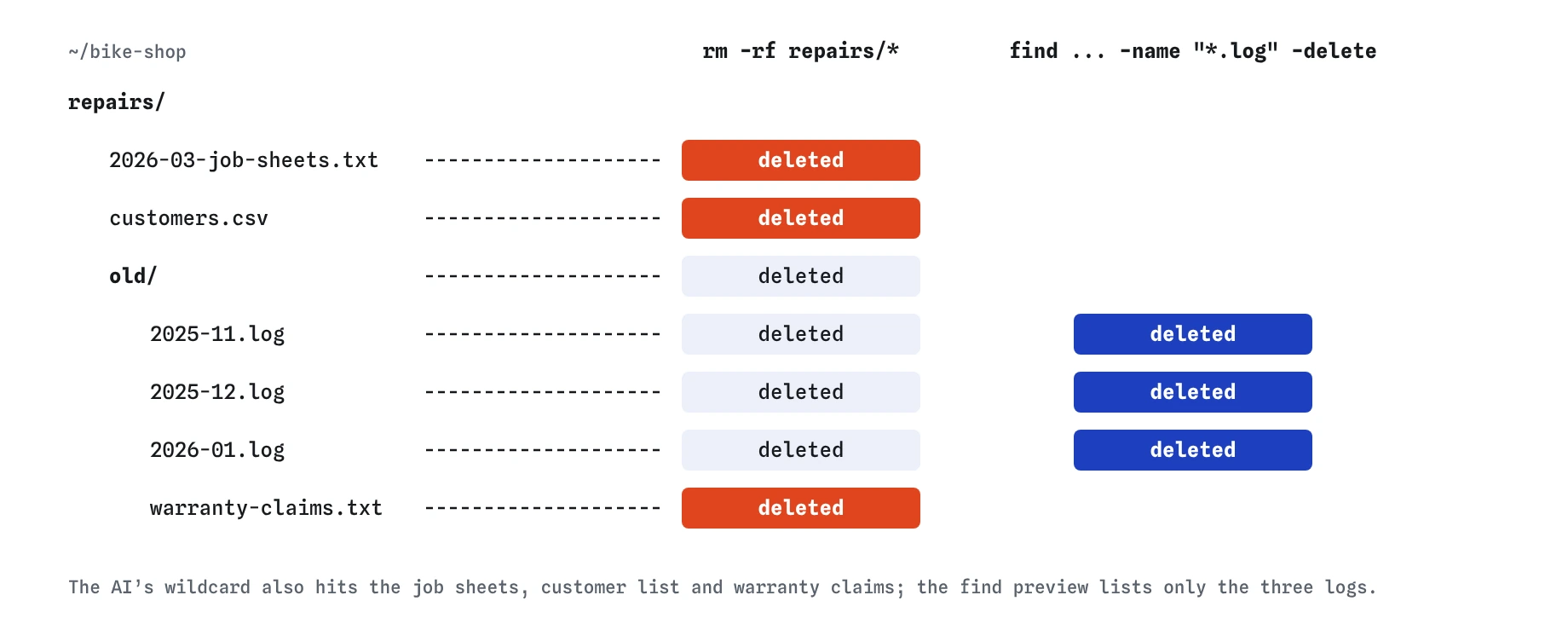
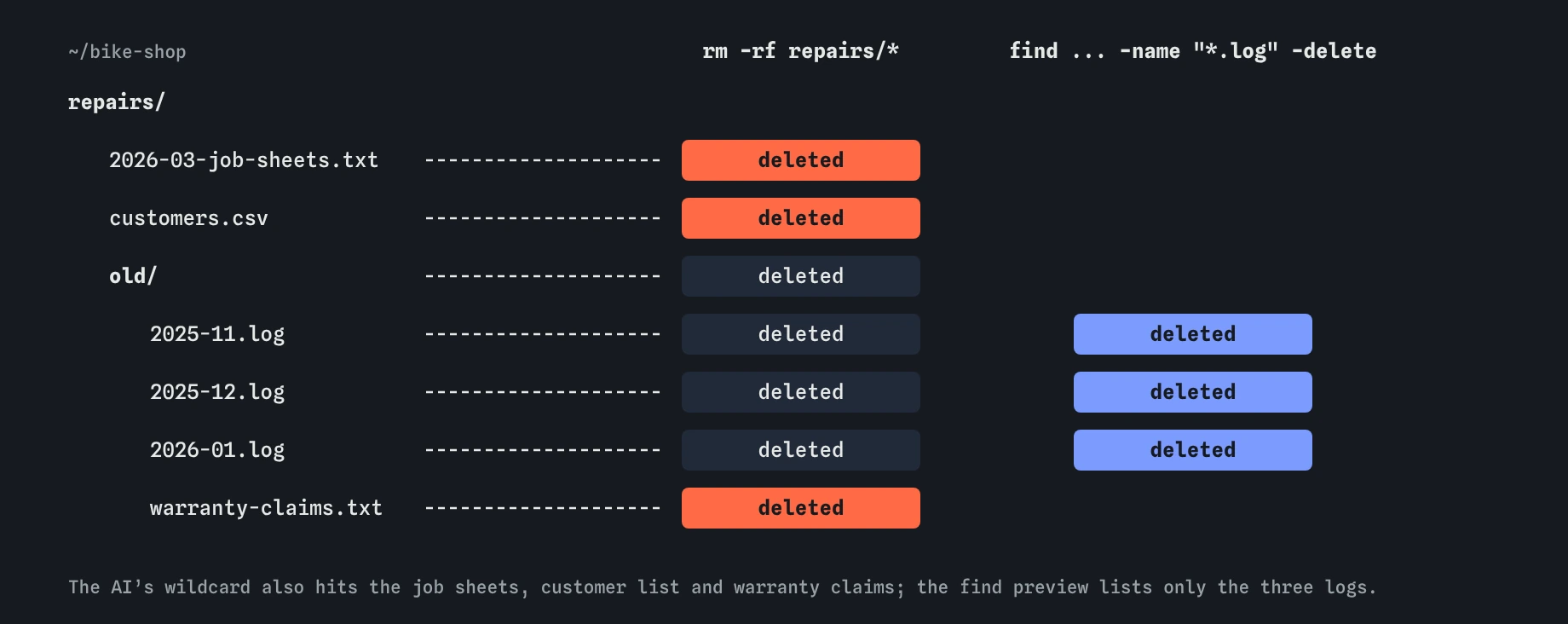
ls repairs/* and the find without -delete first, and this table is what you see. Only the right column is safe to delete.Which commands deserve a second look every time?
A handful of patterns cause most of the real damage. When you see one, stop and check each word.
None of these is always wrong. Each one is a moment to slow down, preview, and know exactly what will change.
rm -rfdeletes folders and their contents with no questions and no bin. Check the path character by character, especially spaces:rm -rf site/ *andrm -rf site/*are very different.sudoruns the rest of the line as the administrator, so normal safety limits stop applying. On shared web hosting you won’t have it and won’t need it.curl ... | bashorwget -O- ... | shdownloads a script and runs it straight away, unseen. Download it to a file, read it, then decide.chmod -R 777gives everyone permission to change everything. It hides a permissions problem by opening the door to all users.>onto an existing file empties it before writing.sort data.csv > data.csvleaves you with an empty file.dd,mkfsand anything naming a disk such as/dev/sdacan wipe whole drives. These have no place in looking after a website.findwith-deleteor-exec rmdeletes everything it matched. Run it once without them first.
How do you spot a command for the wrong system?
AI tools often don’t know what you’re typing into, and answer for whatever is most common. Commands like dir, del, copy and Get-ChildItem are Windows. brew is the Mac package manager and apt is for Debian and Ubuntu; neither belongs on shared web hosting, where you can’t install system software anyway.
Smaller differences hide inside familiar commands. GNU sed -i 's/old/new/' file edits in place on Linux, while the Mac version needs sed -i '' 's/old/new/' file. Mac ls and find lack some GNU options. When a suggested command fails with “illegal option” or “invalid option”, you’re probably on the other system.
The fix is to tell the AI what you’re using at the start, such as “bash on a Linux web host with cPanel” or “zsh on a Mac”, and to check the prompt to see which computer you’re on before pasting. A command meant for the laptop typed into an ssh session runs on the server.
What should you do before running something risky?
Check where you are with pwd and which computer with hostname. Make a copy of anything you’d hate to lose, even a quick cp -r site site-before or a tar -czf backup. Run the preview, then the real command, and look at the result with ls straight after.
If you don’t understand a line, ask the AI to explain it word by word, or ask a person. A good answer explains every option. Saying “I don’t know what this does yet” and not running it is always allowed.
What about scripts an AI writes for you?
A script is many commands that run one after another with no chance to stop between them. Read it all the way through in an editor before making it executable or running it. Look for the same patterns as above, plus any line that uses a variable in a path, such as rm -rf $DIR/*: if DIR is empty, that becomes rm -rf /*.
Number the lines with cat -n script.sh so you can talk about them precisely, and delete any line you can’t explain. A three-line script you understand beats a thirty-line one you don’t.
cat -n tidy-site.sh
     1	#!/bin/bash
     2	# From an AI chat: "tidy the site folder and fix permissions"
     3	curl -fsSL https://get.example.dev/install.sh | bash
     4	rm -rf ~/bike-shop/site/ *
     5	chmod -R 777 ~/bike-shop/site
How does the practice terminal differ here?
Here, curl, wget and sudo are refused with a message, and the Reset button brings every file back. A real terminal has neither safety net. That makes the practice terminal a good place to see what a command would do, as long as you remember that the same line on your laptop or server runs for real.
Use the Files view the same way you’d use ls on a real system: after each command, look at what changed. Red deleted badges in the wrong place are the lesson.
Field notes
- Commands do their job without knowing whether you meant it.
- Split a command into program, options and arguments, and look up each option.
- Preview a risky command with
lsorfindusing the same arguments. - Patterns like
rm -rf,sudoand>on settings files deserve a second look.
Easy to get wrong
The wildcard matched everything in repairs, including the customer list. Preview first and delete only what the preview showed.
Piping into bash runs code you’ve never seen. Save it, read it, then decide whether to run it.
777 lets anyone change your files. Remove write access for others instead, and fix the real cause of the permissions error.
find works left to right. With -delete first it deletes every file it reaches before -name is checked.
Questions people ask
Should I stop using AI for commands?
No. It’s a fast way to find the right command. Treat each answer as a draft: read it, check the options, preview what it touches, then run it.
What if I already ran something harmful?
Stop and don’t run anything else that writes files. Check what changed with ls. Restore from your backup or your host’s backups; many hosts keep daily copies you can restore from the control panel.
Is sudo ever fine?
On your own Linux machine, yes, for installing software and changing system settings, when you understand the command. On shared hosting you won’t have it. If an answer adds sudo to fix “Permission denied” in your own folders, something else is wrong.
How do I ask an AI for safer commands?
Say which system and shell you use, ask for a preview step before anything that deletes, and ask it to explain each option. Mention that you want to keep certain files, by name.