What is a process?
A program is a file on disk. A process is that program while it's running. Start the same program twice and you get two processes, each with its own memory and its own number, called a process ID or PID.
Every command you type starts a process. Most, like ls, finish in a fraction of a second. Others, like a web server or a site preview that rebuilds on every change, keep running until something stops them. Those long-running ones are what this lesson is about.
Your shell is a process too. In the practice terminal it always has PID 900, and it's the first line ps aux prints.
How do you see what's running?
ps on its own lists processes started from your terminal. ps aux lists every process on the machine, from every user. The letters are old BSD-style options: a for all users, u for a user-friendly layout with owner and resource use, and x to include processes with no terminal.
Read it column by column. USER is who owns the process. PID is its number. %CPU and %MEM show how much processor time and memory it's using. COMMAND is what was run, with its arguments.
On a real system ps aux has a few more columns (VSZ, RSS, TTY, STAT, START) and often hundreds of lines, so pipe it through grep to find one program: ps aux | grep preview. On a real system that also shows the grep itself as a line; ignore it. For a live view that refreshes every few seconds, use top, or htop if it's installed. The practice terminal has neither.
ps aux
USER       PID %CPU %MEM TIME  COMMAND
you         900  0.0  0.1  0:00 -bash
you        1000  0.3  0.8  0:01 python3 -m http.server 8000
you        1037 99.1  4.2  0:01 node preview.js
root       1074  0.1  0.1  0:01 /usr/sbin/cron
How do you stop a program running in your terminal?
If the program is running in the terminal in front of you, holding the prompt, press Ctrl+C. That sends it an interrupt signal, and almost every program stops cleanly. It's the first thing to try when a command seems stuck or prints far more than you wanted.
kill is for everything else: a program in the background, one started from another terminal window, or one left over from earlier. You need its PID, which is why ps aux comes first.
In the practice terminal there are no long-running foreground programs, so Ctrl+C has nothing to interrupt. The processes on this page are all running in the background, and kill is the way to reach them.
What does kill actually do?
Despite the name, kill sends a signal. By default it sends SIGTERM, number 15, which means "please finish". A well-behaved program saves its work, closes files and exits. Most stop within a second.
Some don't. A program caught in an endless loop, or written to ignore SIGTERM, keeps going. Plain kill prints nothing either way, so always run ps aux again to check.
kill -9 PID sends SIGKILL. The program never sees it; the system removes the process at once. That almost always works on your own processes, and it's also the bluntest option: nothing gets saved, temporary files stay behind, and a program halfway through writing a file can leave it damaged. Try plain kill, wait a few seconds, check, and only then use -9.
kill 1037
ps aux | grep preview
you        1037 99.1  4.2  0:01 node preview.js

kill -9 1037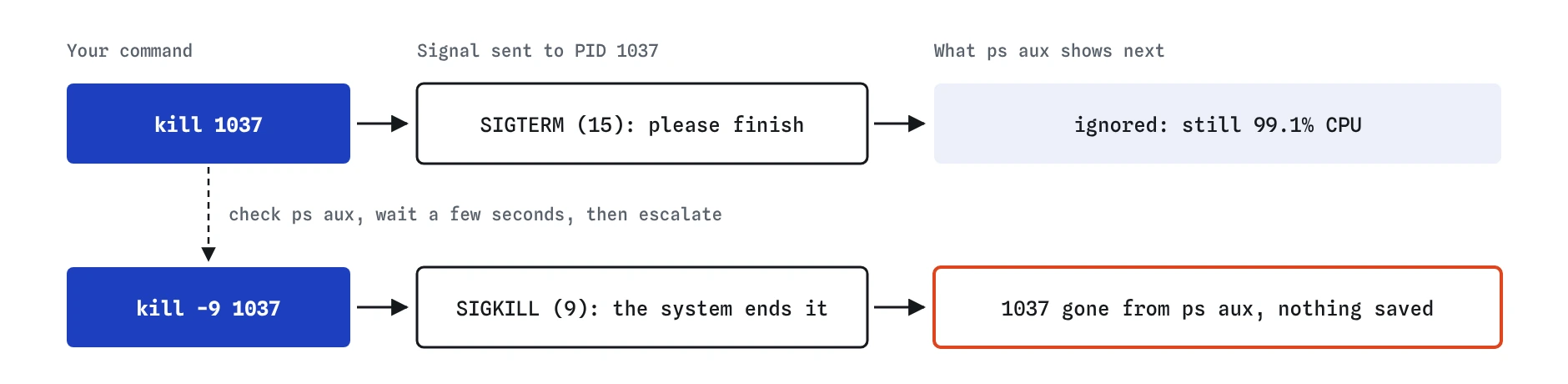

kill asks; kill -9 tells. Check ps aux between the two, because a program that listens to the polite signal gets to save its work.Can you stop a program by name?
pkill name sends the signal to processes whose name matches, so pkill sleep stops a sleep without looking up its PID. It's convenient and less precise. On a real system pkill node stops every Node program you own, including ones you wanted to keep, and pkill -f matches anywhere in the full command line, which can catch even more.
The practice terminal's pkill also stops every match, so pkill node would end both copies of the preview in one go. Exact PIDs are still the safer habit. When there are two copies of the same program, as in the Break It task, list them with ps aux, note both PIDs and give kill both numbers: kill 1037 1111.
Why can't you kill some processes?
Regular users can only send signals to processes they own. Try kill 1074 on root's cron and you get bash: kill: (1074) - Operation not permitted. That rule stops one user, or a mistyped PID, from taking down the whole system.
On a real machine, sudo kill would get past that. Don't reach for it. Processes owned by root or by system users such as www-data and mysql are usually the services that keep the computer or the website working. Stopping the database process on a shop server takes the whole site down until someone restarts it properly.
On shared hosting, other customers' processes are invisible or untouchable, and support staff will expect you to stop only your own. If a system service misbehaves, restart it with the tool meant for it, such as systemctl restart on a server you manage, or ask your host.
What does & do at the end of a command?
A command ending in & runs in the background. The shell starts it, prints a job number and its PID, and gives you the prompt back straight away instead of waiting:
That's handy for a local web server while you keep working in the same terminal. The process keeps running until it finishes, you kill it, or the terminal closes. Background processes still print to your terminal, which can mix their messages in with your typing.
jobs lists background jobs from this terminal, and fg brings one back to the front so Ctrl+C can reach it. The practice terminal doesn't have jobs or fg, so use ps and kill here.
python3 -m http.server 8000 &
[1] 4200

ps
  PID TTY          TIME CMD
  900 pts/0    00:00:00 bash
 1000 pts/0    00:00:01 python3
 1037 pts/0    00:00:01 node
 4200 pts/0    00:00:00 python3
What do AI tools get wrong about processes?
AI answers jump to kill -9 as the first step. It works, and it skips the chance for the program to save and clean up. Ask for, or use, plain kill first.
They also suggest broad commands such as pkill node, killall python3 or sudo kill -9 $(pgrep -f server). Each can stop far more than the one program you meant, and with sudo that includes system services. Run ps aux first, read which lines would match, and kill those PIDs by number.
Finally, PIDs from an AI reply are invented. The number 12345 in an example is not your process. Always take the PID from your own ps aux output, and check the line again before you press Enter, because a program that restarted has a new number.
Field notes
- A process is a program while it is running, with its own number, the PID.
ps auxlists every process along with its CPU and memory use.- Ctrl+C stops a program running in the terminal in front of you.
kill PIDasks a process to finish;kill -9forces it.
Easy to get wrong
Plain kill lets the program save and exit cleanly. Keep -9 for programs that ignore it.
kill takes PIDs. To stop by name use pkill, and check first what else matches that name.
Processes owned by root are usually system services. Operation not permitted is a warning to step back.
Questions people ask
Why did `kill` print nothing?
Like many commands, kill is silent when it succeeds in sending the signal. Sending the signal doesn't mean the program stopped. Check with ps aux.
Is the same PID always the same program?
No. PIDs are handed out as programs start and reused later. Restarting a program gives it a new number, so look it up fresh each time.
What's the difference between Ctrl+C and Ctrl+Z?
Ctrl+C interrupts the program, which normally stops it. Ctrl+Z pauses it as a stopped job, still holding memory. If you pressed Ctrl+Z by mistake, fg brings it back.
How do I find what's using a port, like 8000?
On a real Linux machine, ss -ltnp or lsof -i :8000 lists the process listening on that port with its PID. The practice terminal doesn't have them; look for the port in ps aux instead.