What does accessibility mean for a website?
A website is accessible when people can use it whatever way they browse. Some people listen to pages through a screen reader because they are blind. Some never touch a mouse and move through pages with a keyboard or a switch. Some zoom to 200 percent, or turn on high contrast, or read slowly because of dyslexia. Some are holding a baby in one arm, squinting at a phone in bright sun, or recovering from a broken wrist.
All of them meet the same HTML. When that HTML says clearly what each part is, a button, a heading, a photo of a red bike, every one of those visitors gets what they came for. When it doesn’t, someone hits a wall. Accessibility is the work of finding those walls and taking them down, usually with a few characters of code.
This course treats accessibility as part of building a page well. Most fixes are small, cheap and quick once you know what to look for, and the views on the right show you what to look for.
Who is affected, and how many people is that?
Around one in six people worldwide live with a significant disability, according to the World Health Organization’s 2023 estimate. That is well over a billion people. Many more have a temporary or situational limit: a sprained hand, a migraine, a slow connection, an old phone, or age, since eyesight, hearing and fine motor control change for nearly everyone over time.
It helps to think in four broad groups. People with visual disabilities rely on screen readers, magnification or strong contrast. People with motor disabilities rely on keyboards, switches or voice control. Deaf and hard of hearing people need captions and text. People with cognitive and learning disabilities need clear structure, plain language and pages that don’t rush them.
One person can belong to several groups at once, and the same fix often helps many people. A clear heading helps a screen reader user jump to it, helps someone with ADHD scan the page, and helps a search engine understand it.
- Seeing: screen readers, zoom, high contrast
- Moving: keyboard, switch, voice control
- Hearing: captions and transcripts
- Thinking and reading: clear structure, plain words, time to finish
What is a screen reader, and what does it hear?
A screen reader is a program that turns what is on screen into speech or braille. It ships with every major operating system, so a blind visitor can browse with nothing extra installed. It doesn’t look at your page’s pixels. It asks the browser for the accessibility tree: a simplified copy of the page where each part has a role, such as button or heading, a name, such as “Open menu”, and sometimes a state, such as expanded or checked.
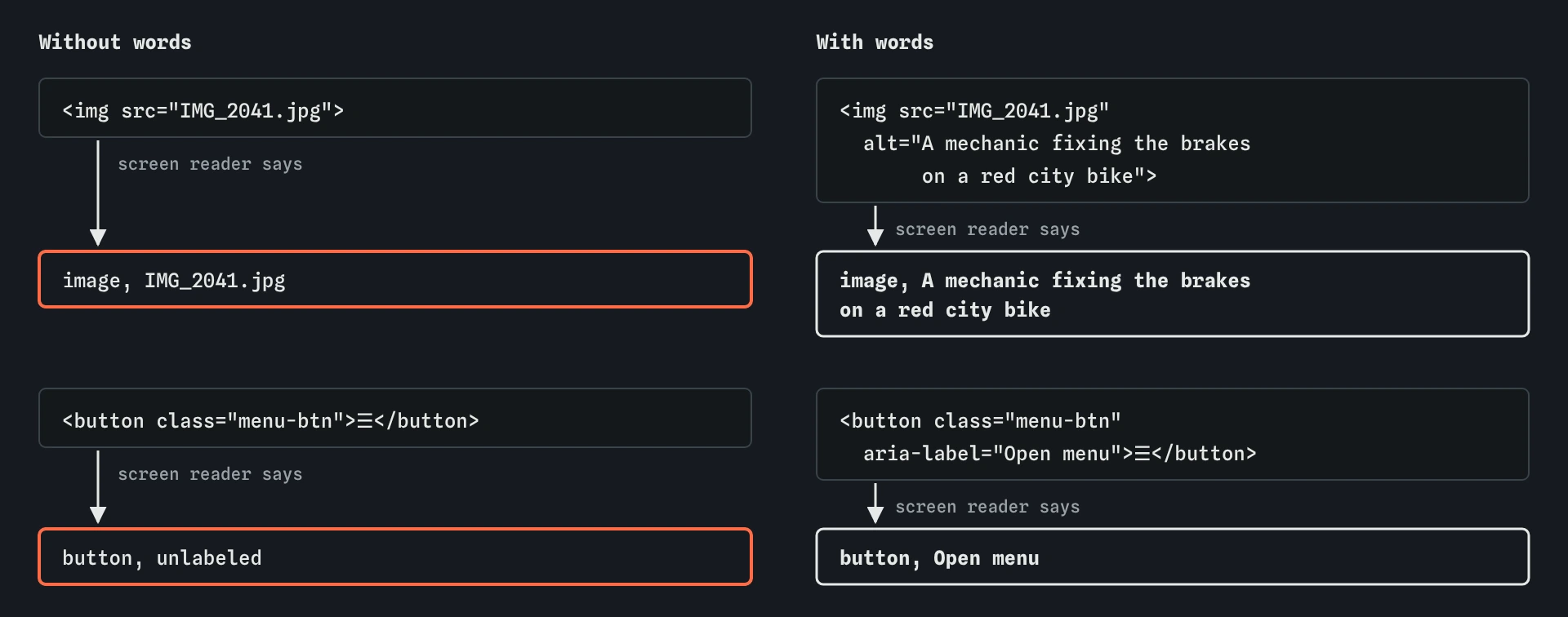
The browser builds that tree from your HTML. A <button> becomes a button. An <h1> becomes a heading at level 1. An <img> becomes an image whose name comes from its alt text. When a part has no name, the screen reader falls back on whatever it can find, which is how a photo ends up announced as “IMG_2041.jpg”.
The **Screen reader** view on the right shows that tree as a list of lines, in reading order. It is a teaching model of what screen readers say, close to the real thing and simpler in the details. Real screen readers vary in wording and add their own shortcuts, but they all depend on the same roles and names.
Why did the photo and the button read so badly?
Look at the starting page in the Screen reader view. Most lines are fine: the heading, the paragraph, the shop name. Two are not. The photo is announced by its file name, because the <img> has no alt attribute. The ☰ button is announced as “button, unlabeled”, because the only thing inside it is a symbol, and a symbol is not a name.
A sighted visitor never notices either problem. The photo shows a mechanic at work, and three stacked lines are a well-known menu icon. That gap between what the page looks like and what it says is the most common kind of accessibility bug. The fix is to give each part words: alt text for the image and an aria-label for the button.
Press Check my work after you add them, then read the Screen reader view again. The file name is gone, and the button says what it does.
<img src="IMG_2041.jpg" alt="A mechanic fixing the brakes on a red city bike">
<button class="menu-btn" aria-label="Open menu">☰</button>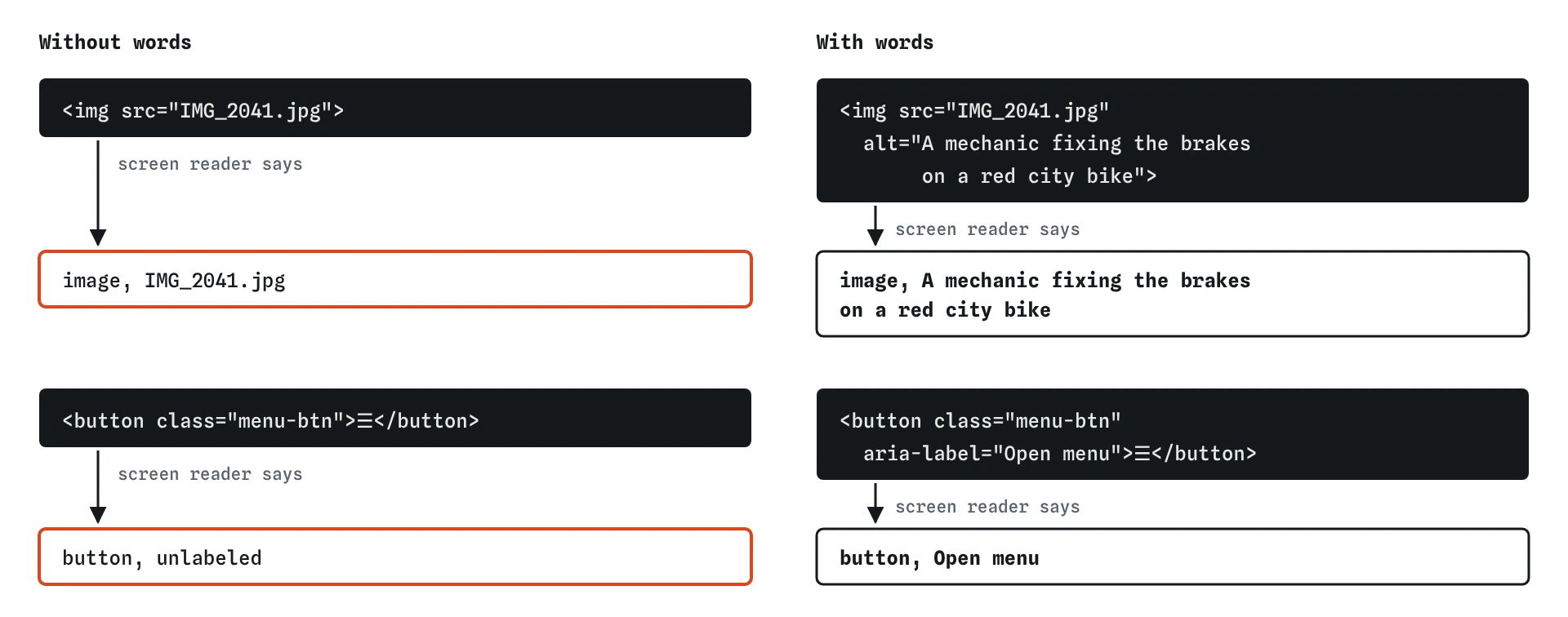
What are the four views on the right for?
Each view shows the page the way a different visitor meets it. **Page** is what a sighted mouse user sees, and you can click and type in it as usual. **Screen reader** is what a blind visitor hears, top to bottom. **Keyboard** lists every place the Tab key stops, in order, and lets you press Tab, Enter and Escape to try the page without a mouse.
**Checks** runs a set of automatic tests and lists problems in plain words, each with the lesson that shows the fix. Automatic tests are useful and fast, and they still miss a lot. A checker can tell that a photo has alt text. It cannot tell whether the text is accurate. That is why every lesson asks you to read the Screen reader view and try the keyboard yourself.
What are WCAG and the laws people mention?
The Web Content Accessibility Guidelines, WCAG, are the international standard for web accessibility, published by the W3C. The current version is WCAG 2.2, from 2023. It lists testable rules called success criteria at three levels, A, AA and AAA. Level AA is the usual target: it is what most laws and contracts point to.
Many countries now require it. In the European Union, the European Accessibility Act has applied since June 2025 to many online shops, banking and travel services. In the United States, the Americans with Disabilities Act is applied to websites through court cases and, for state and local governments, through a 2024 rule that points to WCAG 2.1 AA. Small sites are often covered too. The details vary by country and change over time, so check the rules where you work.
The lessons don’t ask you to memorise success criteria. They teach the habits that meet them, and mention the numbers where they help you look something up.
Isn’t this extra work for a few visitors?
Less than people expect, and for more visitors than people expect. Most accessibility comes from using the right HTML element, giving things names, keeping enough contrast and making sure everything works with a keyboard. Doing that from the start costs almost nothing. Fixing it after launch costs more, because every page has to be found, checked and changed.
The benefits spread. Clear headings help search engines and skimmers. Labels on form fields help everyone who taps the label to focus the field. Good contrast helps people reading outdoors. Captions help people watching on a quiet train. Accessible sites tend to be faster, cleaner and easier to maintain, because they use HTML the way it was designed.
How should you test a page for accessibility?
Use three layers, cheapest first. Run an automatic checker, like the Checks view here, to catch the obvious problems: missing alt text, missing labels, low contrast. Then put your mouse aside and use the page with only the keyboard: Tab, Shift+Tab, Enter, Space and Escape. Then listen to it with a screen reader, or at least read the Screen reader view line by line.
Nothing replaces feedback from disabled people who use your site. If you can, ask real users, and make it easy for anyone to report a barrier. The lessons ahead build the skills to understand what they tell you and to fix it quickly.
Field notes
- A page is accessible when people can use it however they browse.
- A screen reader turns the page into speech or braille for its user.
- A photo needs
alttext that says what it shows. - An icon button needs a name in words, such as Open menu.
Easy to get wrong
An image with no alt attribute leaves a screen reader to guess, and many read the file name aloud. Every image needs alt: a short description when the picture carries meaning, or an empty alt="" when it is decoration.
A symbol is not a name. Icon-only buttons need words a screen reader can say, from aria-label or from text that is hidden visually but still in the HTML.
Automatic tests find only part of the problems. They can’t judge whether alt text is accurate, whether the Tab order makes sense, or whether a heading describes its section.
Questions people ask
Do I need to install a screen reader to take this course?
No. The Screen reader view shows what one would say, and every task can be done here. Trying a real one later is worth it: every major operating system includes one, and the course’s last lessons suggest a short routine to practise with it.
Is accessibility only about blind people?
No. Screen readers get a lot of attention because the problems are easy to hear, but keyboard users, people who zoom, people with colour blindness, Deaf people and people with cognitive disabilities all meet barriers too. This course covers each of them.
What does a11y mean?
It is a short way to write accessibility: an a, then 11 letters, then a y. You will see it in tool names and discussions. The course address, /a11y/, uses it too.
Can an AI tool make my site accessible for me?
It can help, and it can also add problems. AI-written HTML often uses <div> elements for buttons, invents ARIA attributes, or writes alt text like “image of image”. Treat its code the way the Checks and Screen reader views do: read what the page actually says.