What does find do?
find walks through a folder and every folder inside it, and prints the path of each file that passes the tests you give it. Where ls shows one folder and a wildcard matches names in one folder, find goes all the way down. It is the tool for questions such as “where did I save the allergens list?” or “which files here are huge?”.
The shape is always the same: find, then where to start, then the tests. find bakery -name allergens.txt starts in bakery and looks for that exact name. The output is a path from the starting point, which you can paste into the next command:
find bakery -name allergens.txt
bakery/2025/autumn/allergens.txt

cat bakery/2025/autumn/allergens.txt
Where should the search start?
The first argument is the starting folder. . means the folder you are in, bakery means that folder below you, and ~ means your whole home folder. Starting high is thorough and slow on a real computer; starting low is fast and keeps the results small.
The start point is also your main safety line once you add -delete. find . -name "*.bak" -delete run from your home folder removes the bird club’s backups as well as the bakery’s. Before an action, check pwd, and prefer naming the folder you mean, such as find bakery, over ..
You can give more than one starting folder: find 2025 2026 -name "*.jpg" searches both and nothing else. If you leave the start out, GNU find uses .. The Mac version insists on it, so writing it every time keeps your commands working in both places.
How do -name and -iname match?
-name takes a wildcard pattern, the same *, ? and [ ] from the previous lesson, and compares it with each file’s name, without the folder part. -name "*.bak" matches prices.bak in any folder at any depth. -name allergens.txt with no wildcard needs the exact name.
-iname does the same but ignores case, which is what you want for photos: -iname "*.jpg" matches loaves.jpg, Shop-Front.JPG and IMG_0001.Jpg alike. On Linux, -name "*.jpg" would miss the capitalised ones without any warning.
Always quote the pattern. Unquoted, the shell expands *.bak in your current folder before find runs. If one file matches, find searches for that exact name only. If several match, find stops with paths must precede expression, here and on a real machine. Quotes hand the pattern to find intact so it can do its own matching in every folder.
find bakery -iname "*.jpg"
bakery/photos/Shop-Front.JPG
bakery/photos/loaves.jpg
How do you search by type and size?
-type f keeps only files and -type d keeps only folders. find bakery -type d prints the whole folder tree, which is a quick way to see how a project is laid out. Tests placed one after another must all pass, so find bakery -type f -name "*.txt" means files whose names end in .txt.
-size compares a file’s size. A + means larger than, - means smaller than, and the letter gives the unit: k for kilobytes, M for megabytes and G for gigabytes. find bakery -size +100M lists files over 100 MB, which is the first thing to run when a hosting account says it is out of space. Add -exec ls -lh {} \; to see each size:
-empty finds empty files and folders, which pile up after old tidies. find . -type d -empty lists folders with nothing in them.
find bakery -size +100M -exec ls -lh {} \;
-rw-r--r-- 1 you you  300M Mar 22 09:27 bakery/videos/oven-tour.mov
How do you stop find going too deep?
-maxdepth limits how many levels down find goes. -maxdepth 1 checks only the starting folder itself, much like a wildcard with ls, and -maxdepth 2 adds one level of subfolders. Put it straight after the starting point; GNU find warns if it comes after other tests.
Depth limits are useful for cleanups that should touch only the top of a project. find bakery -maxdepth 1 -name "*.bak" lists the backups beside menu.csv and leaves the year folders alone. On a big server it also makes searches finish in a moment instead of crawling every folder.
find bakery -maxdepth 1 -name "*.bak"
bakery/menu.csv.bak
How does -delete work, and how do you stay safe with it?
-delete removes every file that passes the tests before it. There is no confirmation and no bin. The safe routine is the same as with wildcards: run the search without -delete, read the whole list, press the Up arrow, add -delete at the end, and run it.
Order matters. find reads tests left to right, so -delete must come last. find bakery -delete -name "*.bak" deletes everything under bakery and then checks the names, which is far too late. When you edit a find line, put -delete on the very end and nowhere else.
On folders, -delete only removes empty ones, much like rmdir. That makes find . -type d -empty -delete a safe way to clear out folders left behind by a tidy. It works from the deepest folder up, so a parent that becomes empty once its children go is removed in the same run.
find bakery -name "*.bak"
find bakery -name "*.bak" -delete
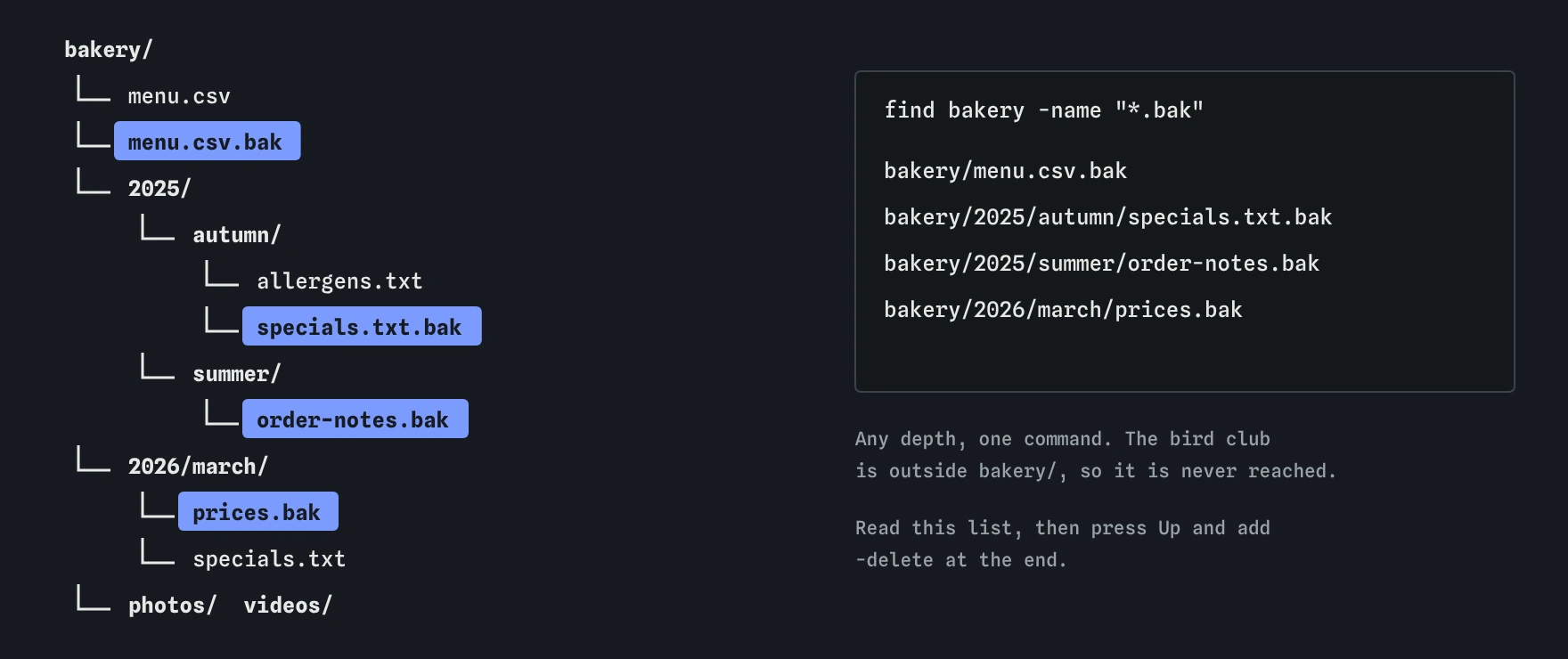
find starts at bakery and checks every name at every level, so backups three folders down are caught. Starting at bakery rather than ~ keeps the bird club’s backup out of reach.What does -exec do?
-exec runs another command on each file found. Write the command, use {} where the file’s path should go, and end with \;. The backslash stops the shell from treating the semicolon as the end of your line, so find receives it.
find 2025 2026 -iname "*.jpg" -exec mv {} photos/ \; runs mv once for each photo, moving it into photos/. Swap mv for ls -l, cp or chmod and the same pattern does other jobs. Preview first by running it with ls -l {} or with no -exec at all.
Be careful when the destination is inside the search. If you search . and move photos into ./photos/, find also finds the photos already there and tries to move them onto themselves. Start the search somewhere that excludes the destination, or add -not -path "./photos/*". GNU find also accepts {} +, which passes many files to one command at once; it is faster on big folders.
What do AI tools get wrong with find?
Suggested commands often use find / -name ... or find ~ ... -delete when your problem is in one project. Searching from / is slow and full of permission errors; deleting from ~ reaches far beyond the folder you meant. Narrow the start point before running anything with -delete or -exec rm.
Watch for unquoted patterns and for -delete placed before the tests. Both are easy to miss in a long line and both change what gets deleted. Also check whether the reply mixes GNU and Mac options: -maxdepth and -iname work on both, while some GNU tests such as -printf don’t exist in the Mac version. Run the search part alone and read the list, every time.
Field notes
findlooks through a folder and all its subfolders and prints matching paths.- The first argument is where the search starts, such as
.orbakery. -nametakes a pattern in quotes;-inameignores capital letters.- Run the search without
-deletefirst and read the list it prints.
Easy to get wrong
The shell expands an unquoted pattern in the current folder before find runs. Quote it so find matches in every folder.
Tests run left to right. With -delete first, every file is deleted before the name is checked. -delete goes last.
Cameras often save .JPG. -name is case-sensitive on Linux, so those files are silently skipped. -iname ignores case.
Without the backslash the shell takes ; as the end of the line, and find complains that -exec has no end.
Questions people ask
Why is the order of results different on my computer?
Real find lists files in the order the disk stores them, which looks random. This practice terminal sorts them alphabetically. Pipe the output into sort, covered in a later lesson, if you need a fixed order.
What is the difference between find and locate?
locate searches a database of file names built once a day, so it is instant but can be out of date and isn’t always installed. find looks at the disk as it is now. On a web host, find is the one you can count on.
How do I hide the “Permission denied” lines?
When you search folders you can’t read, find prints an error for each one. Add 2>/dev/null to the end to throw those errors away; the Saving output lesson explains how that works.
Can find search inside files?
No. find checks names, types, sizes and dates. To search the text inside files, use grep, which the Searching text lesson covers. grep -rl word bakery lists files that contain a word.
Is find different on a Mac?
The Mac uses the BSD version. Every test shown here works there, but you must always give a starting folder, and a few GNU extras such as -printf are missing.