How do you copy a file?
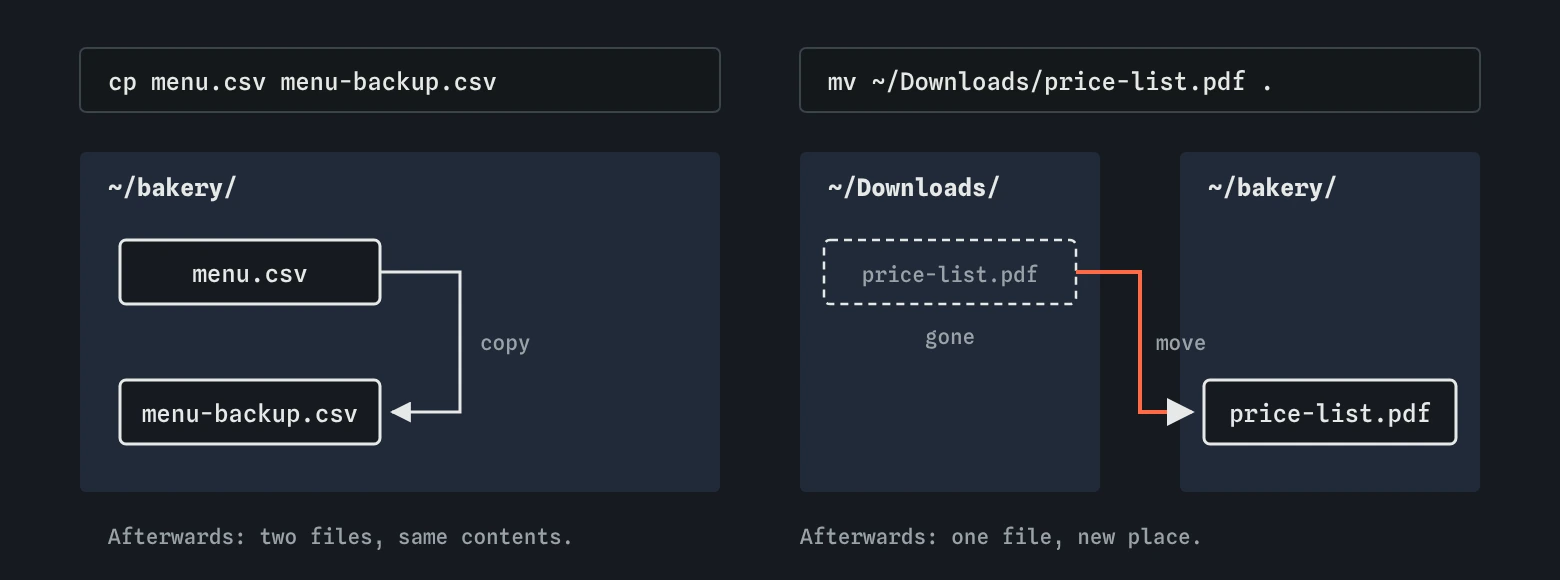
Type cp, then the file you have, then the name for the copy. cp menu.csv menu-backup.csv makes a second file with the same contents. The original stays where it was, and from then on the two are separate: edit one and the other doesn’t change. Like most commands that work, cp prints nothing when it succeeds.
The order is always source first, destination last. A helpful way to read it is “copy this to that”. Getting the order backwards is the classic mistake, and it can hurt: cp menu-backup.csv menu.csv copies an old backup over your current menu.
If the last name is a folder that already exists, the copy goes inside it with the same name. cp menu.csv archive/ puts a copy at archive/menu.csv. You can copy several files into a folder at once by listing them first and the folder last: cp menu.csv specials.txt archive/. With more than one file, the last name has to be a folder, or cp stops with “is not a directory”.
cp menu.csv menu-backup.csv
cp menu.csv specials.txt archive/
Why does cp skip a folder?
Plain cp copies files only. Ask it to copy a folder and it refuses: cp: -r not specified; omitting directory 'photos'. The -r option means recursive, which is the word commands use for “this folder, everything inside it, and everything inside those”. cp -r photos photos-backup copies the whole tree.
Watch the destination with folders. If photos-backup doesn’t exist, cp -r photos photos-backup creates it as a copy of photos. If it already exists, the copy goes inside it, giving you photos-backup/photos. Running the same backup command twice therefore gives a different result the second time, which surprises people. Check with ls photos-backup after the first run.
On a Mac, cp -R is the usual spelling and -r also works. A trailing slash on the source, as in cp -R photos/ backup, copies the folder’s contents on a Mac but the folder itself on Linux. Leave the slash off the source and the two behave the same.
cp -r photos photos-backup
ls photos-backup
How do you move and rename?
mv moves a file or folder, and it reads the same way as cp: what you have, then where it goes. mv ~/Downloads/price-list.pdf . moves the PDF from Downloads into the current folder; the . means here. The file is gone from Downloads afterwards. Nothing is left behind.
There’s no rename command in bash. Renaming is moving a file to a new name in the same folder: mv photos/IMG_2041.jpg photos/cinnamon-buns.jpg. The same command renames folders too, and unlike cp, mv doesn’t need -r for a folder, because it moves the whole thing in one step.
Moving within one disk is instant even for a huge folder, since only the name and location change. Moving between disks, such as onto a USB stick, really copies the data and then deletes the original. If that’s interrupted, check both places before trying again.
mv ~/Downloads/price-list.pdf .
mv photos/IMG_2041.jpg photos/cinnamon-buns.jpg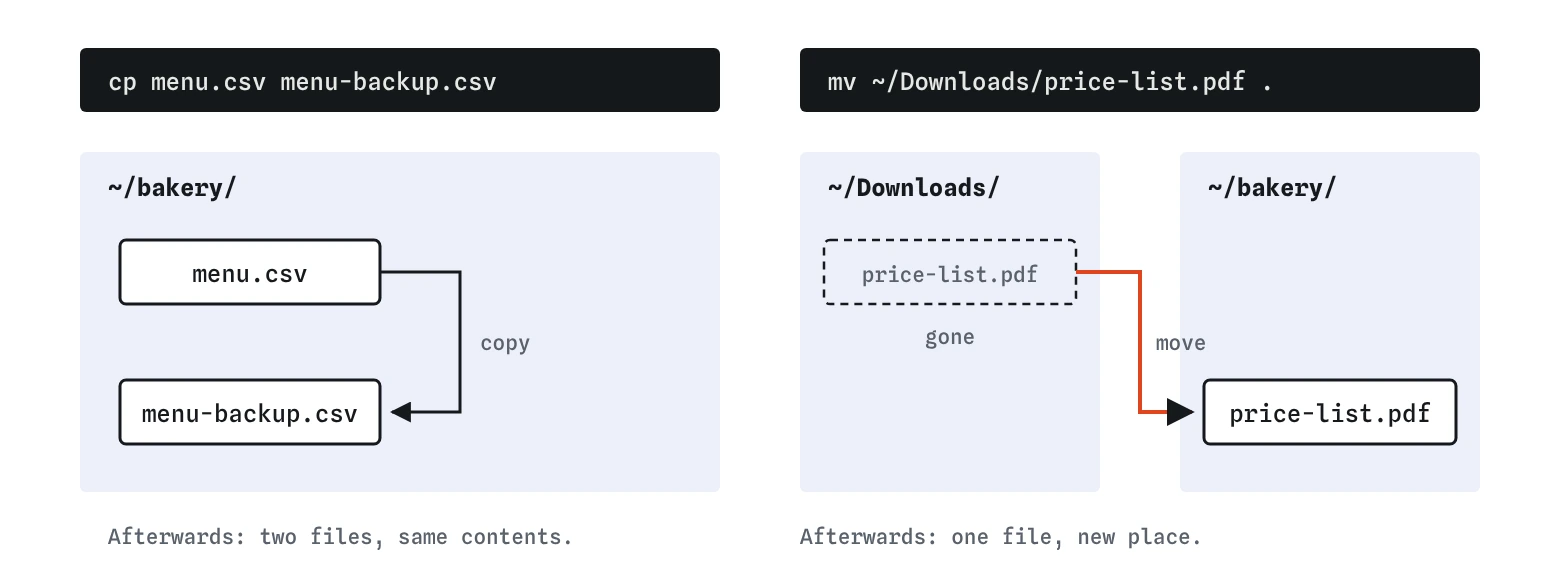
Do cp and mv ask before replacing a file?
No. If the destination name is already taken, cp and mv replace that file without a word. There is no warning and no undo. Run cp menu.csv specials.txt and today’s specials are gone, replaced by the menu. This practice terminal adds a note when it happens, specials.txt already existed and was replaced without asking, but a real one prints nothing.
Two options protect you. -i, for interactive, asks before each replacement: type y to go ahead or anything else to keep the old file. -n, for no-clobber, never replaces anything and skips the file without asking. Use -i when you’re working by hand and want to decide, and -n in a script where nobody is there to answer.
In this practice terminal, -i always answers no, so the existing file is kept and a note explains what a real terminal would have asked. On some systems, cp and mv are set up as aliases for cp -i and mv -i, which is why one computer asks and another doesn’t. The aliases lesson shows how to check.
cp -i menu.csv specials.txt
mv -n draft.txt specials.txt
How do you check a copy or move worked?
Look at both ends. After a copy, ls should show the old name and the new one. After a move, the old name should be gone. ls -l shows sizes too, so you can see that menu-backup.csv is the same size as menu.csv. For a folder, ls -R photos-backup lists everything that came across.
Add -v, for verbose, when you want each step printed. cp -v menu.csv menu-backup.csv prints one line with an arrow from the old name to the new one. Here and on a real system, it shows each name the way you typed it: 'menu.csv' -> 'menu-backup.csv'. Either way, one line per file is a good record when you’re moving many.
When should you copy instead of move?
Copy before you change something you can’t easily get back: a menu before a price rise, a config file before editing it, a website folder before an update. A dated copy such as menu-2026-03-14.csv is a tiny safety net that costs nothing.
Move when you’re tidying: photos out of Downloads, files into the folder where they belong, a bad name into a good one. Keeping two copies of everything leads to the question nobody can answer later, which is which one is current. Version control with Git handles history far better than piles of copies, and is a good next step once you edit a site regularly.
What about names with spaces?
Files from phones, cameras and email often arrive with spaces: Price List (1).pdf. Wrap the whole name in quotes so the shell treats it as one argument: mv "Price List (1).pdf" price-list.pdf. Tab completion does this for you by adding backslashes before each space, which works just as well.
Without quotes, mv Price List (1).pdf price-list.pdf fails in a confusing way, because the shell sees several names and the brackets mean something to bash. Renaming those files to lowercase-and-hyphens as soon as they arrive saves trouble with every later command.
What do AI tools get wrong here?
AI-suggested commands often get the destination subtly wrong. A common one is cp -r site/ backup/ run twice, which nests a second copy inside the first, or a mv into a folder name with a typo, which renames your folder to the typo instead of moving it. Read the last argument of every cp and mv and ask what is there now.
They also rarely add -i or -n, so a suggested mv *.jpg photos/ will replace any photo with the same name without asking. Before running a copy or move that touches many files, run ls on the destination. Finally, watch for Windows commands such as copy, move and ren, which don’t exist in bash.
Field notes
cpcopies a file: the file you have first, then the name for the copy.- Copying a folder needs
-rso the contents come along too. mvboth moves and renames, reading in the same order ascp.- Both commands replace an existing file with the same name without asking.
Easy to get wrong
Plain cp refuses folders. -r copies the folder and everything inside it.
Source comes first, destination last. Swapping them copies the old backup over your current file, without asking.
If specials.txt exists, plain mv replaces it with no warning. -i asks first, and -n never replaces.
The space splits the name into two arguments. Quotes keep it as one.
Questions people ask
Is there an undo for cp or mv?
No. A file replaced by cp or mv is gone, and the terminal has no recycle bin. Use -i or -n when a name might be taken, and back up before big changes.
Does cp keep the file’s date and permissions?
Plain cp gives the copy a new modified time. cp -p keeps the original times and permissions, and cp -a keeps everything it can, which is the usual choice for backups on Linux.
How do I rename lots of files at once?
mv renames one file at a time. For many, a for loop in a script runs mv for each file, which the scripts lesson covers. Some systems also have a rename command, though it differs between Linux versions.
Why did mv rename my folder instead of moving it?
When the destination doesn’t exist, mv treats it as a new name. mv website webiste renames the folder to the typo. Check that the target folder exists with ls first.