What should a form test cover?
A form has a small number of things that matter to the person filling it in, and each one becomes a test. Can they find and fill each field? Does the form stop them when something is wrong and tell them what? Does a correct form go through and confirm it? Do controls that should be unavailable stay unavailable until it makes sense to use them?
For Spoke and Chain's hire form that gives four or five tests: the Book hire button starts disabled, ticking the terms enables it, a complete form shows the confirmation, and a bad email or a missing name shows an error and books nothing. Each test does what a customer does, in the order they would do it.
- The starting state: what is filled in, what is disabled
- A complete, correct form and its confirmation
- Each validation rule, one wrong field at a time
- Controls that change state, such as a button enabled by a checkbox
Why find fields by their label?
screen.getByLabelText('Email') finds the input whose <label> says Email. That is how a sighted person finds the field, by reading the text next to it, and it is how a screen reader announces it. If the label is missing or attached to the wrong field, the query fails, and the test has caught an accessibility bug as well as making itself easy to read.
Both ways of linking a label work. The text boxes here use for and id, and the terms checkbox sits inside its <label>. getByLabelText('I agree to the hire terms') finds it either way. Placeholder text is a poor substitute: it disappears as soon as someone types and many screen readers treat it inconsistently, so getByPlaceholderText() is a last resort.
await user.type(screen.getByLabelText('Your name'), 'Sam');
await user.type(screen.getByLabelText('Email'), '[email protected]');
await user.selectOptions(screen.getByLabelText('Number of bikes'), '2');
await user.click(screen.getByLabelText('I agree to the hire terms'));
How do you fill in each kind of field?
Text boxes take await user.type(field, 'Sam'), which types one character at a time and adds to whatever is there. Use await user.clear(field) first to replace existing text. Drop-down lists take await user.selectOptions(select, '2'), with either the option's value or its visible text.
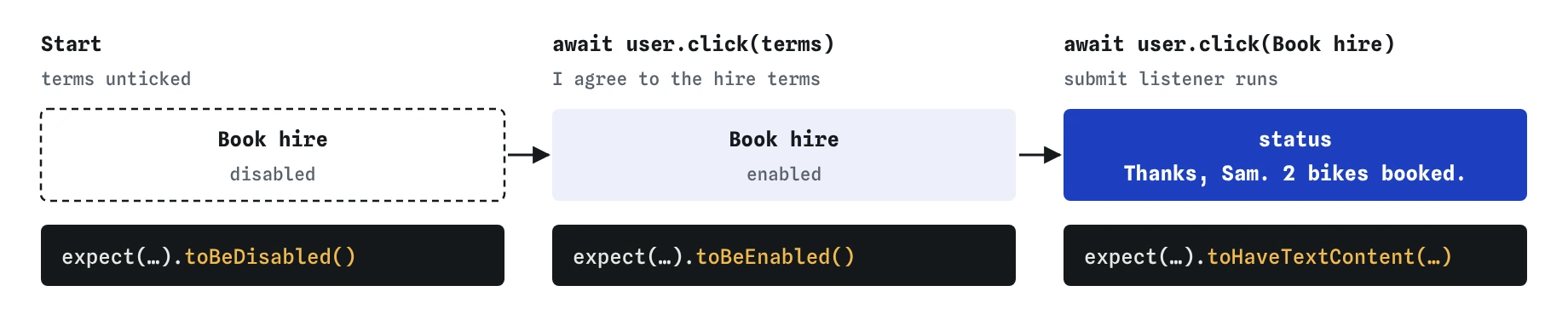
Checkboxes and radio buttons take a click: await user.click(checkbox). A click on a checkbox ticks it and fires change, which is what the hire form listens for, so the test exercises the real listener. Afterwards toBeChecked() confirms the tick, and toBeEnabled() on the button confirms the form reacted.
Fill fields in the order a person meets them. It rarely changes the result, and when it does, the order a person uses is the one to test.
How do you test a button that starts disabled?
Check both states. expect(screen.getByRole('button', { name: 'Book hire' })).toBeDisabled() covers the start. Then tick the terms and check toBeEnabled(). Testing only the start would miss a listener that never re-enables the button, and testing only the end would miss a button that was never disabled.
Remember the side effect in every other test: while the terms box is unticked, a click on Book hire does nothing. user-event behaves like a browser here, and so does the practice runner. Any test that submits the form has to tick the box first. Forgetting is the most common reason a form test silently checks an empty page, as the Break It challenge shows.
How do you submit the form and check the result?
Click the submit button with await user.click(screen.getByRole('button', { name: 'Book hire' })), or press Enter in a text box with await user.type(field, '{Enter}'). Both submit the form for real, so the test runs the same submit listener a customer's click would.
Then read the result where the customer reads it. The confirmation lives in an element with role="status", which screen readers announce politely when its text changes, and errors live in one with role="alert", announced straight away. screen.getByRole('status') and screen.getByRole('alert') find them, and toHaveTextContent() checks the words.
Check the whole message when its details matter. toHaveTextContent('Thanks') passes for a message that forgot the name or got the number of bikes wrong. toHaveTextContent('Thanks, Sam. 2 bikes booked.') doesn't.
await user.click(screen.getByRole('button', { name: 'Book hire' }));
expect(screen.getByRole('status')).toHaveTextContent('Thanks, Sam. 2 bikes booked.');
expect(screen.getByRole('alert')).toBeEmptyDOMElement();
How do you test validation messages?
One rule per test, with everything else correct. The bad email test fills in a good name, ticks the terms and types sam.example.com. If it also left the name empty, it couldn't tell you which rule produced the error, and a bug in one rule could hide behind the other.
Check two things. The error message appears, in words a customer can act on. And the booking did not go through: expect(screen.getByRole('status')).toBeEmptyDOMElement(). Code that shows an error and books anyway is a real and expensive bug, a hire nobody meant to make.
Choose wrong values that are realistic. People mistype emails as sam.example.com or leave a trailing space after their name. Values like xxx exercise the rule without telling you whether it handles the mistakes customers really make.
What about the browser's own validation?
Attributes such as required and type="email" make the browser check fields and show its own bubbles. This form uses novalidate and does its own checks, so the messages match the shop's wording and appear in the page where tests and screen readers can read them.
If your form relies on the browser's checks, test environments behave unevenly. jsdom knows the validity rules, so field.validity.valid and toBeInvalid() from jest-dom work, but it doesn't draw bubbles, and a submit can behave differently from a real browser. Your own code's messages are easier to test than the browser's, which is one more reason to keep them in the page.
Does submitting work the same in the practice runner?
The same way Vitest with jsdom does. A click on Book hire, or Enter in a text box, fires the form's submit event, and the submit listener in hire-form.js runs and calls preventDefault(). The page never navigates anywhere, so the Page view shows the form with its message underneath.
The same setup also calls setupHireForm() before each test, after the page is reset. In your own project you would put the markup and that call in a beforeEach, or render the form with your framework's render().
What do AI-written form tests often get wrong?
Skipping the step that makes submitting possible, such as ticking the terms box, is the classic. The click does nothing, nothing changes, and an assertion such as not.toHaveTextContent('Thanks') is true for an untouched page. Every negative assertion deserves suspicion: ask whether it would also be true if the form had never been touched.
Others to look for: setting input.value = 'Sam' directly instead of typing, which skips the events your listeners rely on; finding fields with container.querySelector('#email'), which ignores the labels; and checking a fragment of the message, which lets wrong details through. AI tools also tend to test only the happy path. Ask for one test per validation rule and read each one.
Field notes
- Find form fields by their label, the same way people and screen readers do.
- Check a disabled button in both states: disabled at the start, enabled after ticking.
- Any test that submits the form must tick the terms box first.
- Test one validation rule at a time, and check that nothing was booked.
Easy to get wrong
With the terms unticked, the button is disabled and the click does nothing. A negative check passes on a form nobody submitted. Check for the error you expect to see.
A string in toHaveTextContent() matches part of the text. Check the details a customer relies on, such as their name and the number of bikes.
Placeholders vanish while typing and aren't a reliable label. Finding by label checks the form is usable and survives changes to the hint text.
Questions people ask
Should I press Enter or click the button to submit?
Both are real ways people submit, and both should work. Test the click in most tests and add one test that presses Enter in a text box if your users submit with the keyboard, which they usually do.
How do I check a checkbox is ticked?
expect(screen.getByLabelText('I agree to the hire terms')).toBeChecked(). Use .not.toBeChecked() for the starting state.
Why put errors in role alert?
Screen readers read an alert out as soon as its text changes, so a customer who can't see the page still hears what went wrong. For tests it gives one clear place to look with getByRole('alert').
How do I test the form clears after booking?
After the confirmation appears, check each field with toHaveValue(''), or toHaveValue('1') for the select if it resets to its first option. This form doesn't clear itself, so that would be a new rule and a new test.
Can I test a number field?
Yes. Type into it and check toHaveValue(2): jest-dom gives back a number for type="number" inputs, and an empty one gives null.