Why simulate a user instead of calling the handler?
You could find the search box's input handler and call it yourself, or set search.value and fire an input event by hand. Both test less than they seem to. The person using the page doesn't call handlers. They click, type and press keys, and a lot happens between their finger and your code: focus moves, several events fire in order, the value changes one character at a time.
user-event, part of the Testing Library family, does that whole sequence for you. user.click(button) sends pointer and mouse events, moves focus and then fires click. user.type(box, 'rye') focuses the box and types three characters, each with its own key and input events. If your code listens for the wrong event, the test fails the same way the page would fail for a customer.
How do you set up user-event?
Import it with import userEvent from '@testing-library/user-event' and call userEvent.setup() at the start of each test. It returns a user object that remembers things between actions in the same test, such as which keys are held down. A fresh one per test keeps tests independent.
Every action returns a promise, so every action needs await. The test function must be async for that. In the practice runner, most actions finish straight away and a missing await is often forgiven. In real user-event it isn't: the action runs a little later, the assertion runs first, and the test fails or, worse, passes for the wrong reason. Write the await every time and you won't have to think about which actions need it.
test('adding twice counts two items', async () => {
  const user = userEvent.setup();
  await user.click(screen.getByRole('button', { name: 'Add Rye loaf' }));
  await user.click(screen.getByRole('button', { name: 'Add Cinnamon bun' }));
  expect(screen.getByRole('status')).toHaveTextContent('Basket: 2 items');
});
How do you find the button for one item?
Every row has a button that says Add, so getByRole('button', { name: 'Add' }) would find three and throw. The page gives each button an aria-label such as "Add Rye loaf", which is the name a screen reader announces, and the name option matches it. The test and a blind customer find the button the same way, so the test also checks the page is usable without seeing it.
When the markup has no such label, within() is the other option: find the row first, then the button inside it, within(row).getByRole('button'). A label is the better fix, because it helps real users as well as tests. The accessible queries lesson goes further into choosing between queries.
How do you test typing?
await user.type(screen.getByLabelText('Search the menu'), 'rye') finds the box by its visible label and types into it. Finding fields by label is worth the habit: if someone removes the <label>, the test fails, and so would the page for anyone using a screen reader.
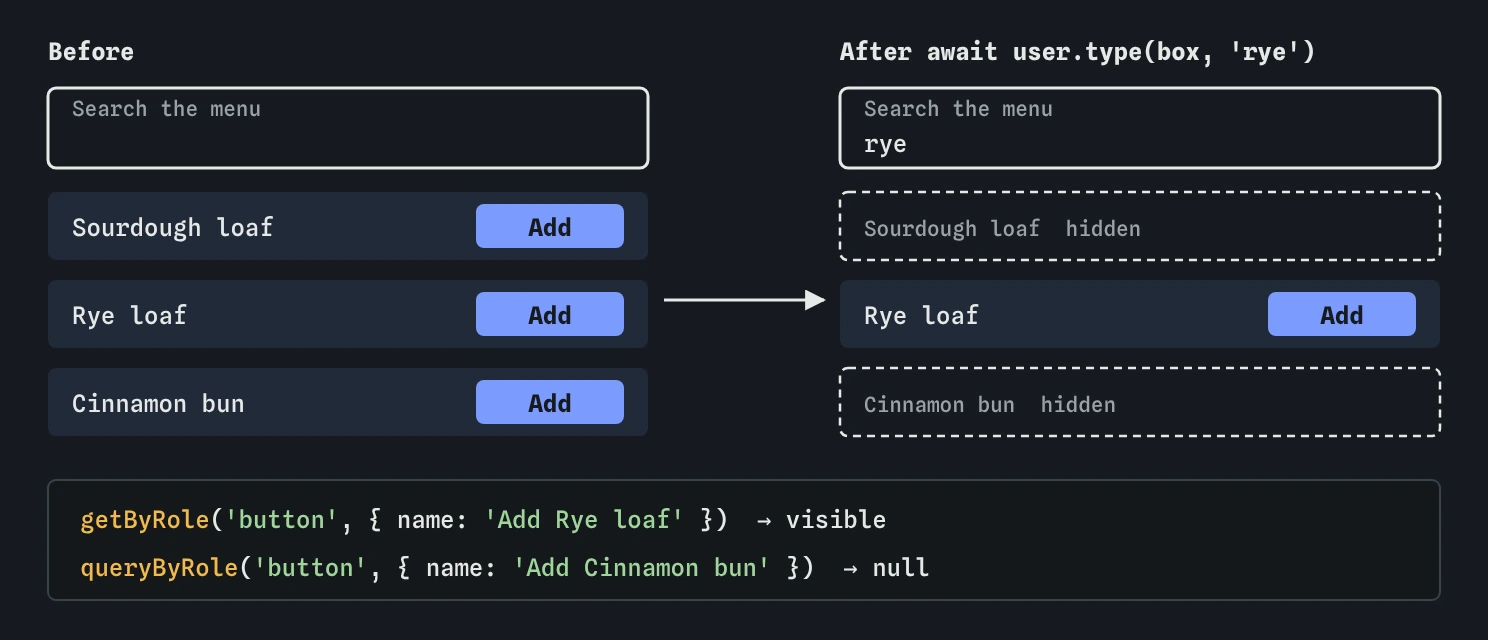
Then check what a customer sees. Matching items should still be there and the others should be gone. The second half is the part people forget. A search test that only checks the rye loaf is visible after typing rye passes even when search does nothing, because the rye loaf was visible to begin with.
Choose search words that would expose bugs. Typing in lower case catches code that forgets to ignore capital letters, since every name on the menu starts with one. Typing a word several items share, such as loaf, checks that more than one result can show.
How do you check something has disappeared?
Use a queryBy query and expect null. The menu hides items by setting the hidden attribute, and role queries ignore hidden elements, so screen.queryByRole('button', { name: 'Add Cinnamon bun' }) returns null once the bun is filtered out, and toBeNull() passes. getByRole would throw instead, which fails the test with a less helpful message. With Testing Library you will often see .not.toBeInTheDocument() for the same check. It reads well and works in Vitest and in the practice runner. These lessons use toBeNull(), which needs no extra matchers, and either form is fine.
Hidden and removed look the same to this check, which is what you want. If a later change deletes the rows instead of hiding them, the test still passes, because the customer's experience is the same. Tests that check item.hidden directly would break over a change nobody using the page could notice.
await user.type(screen.getByLabelText('Search the menu'), 'rye');
expect(screen.getByRole('button', { name: 'Add Rye loaf' })).toBeVisible();
expect(screen.queryByRole('button', { name: 'Add Cinnamon bun' })).toBeNull();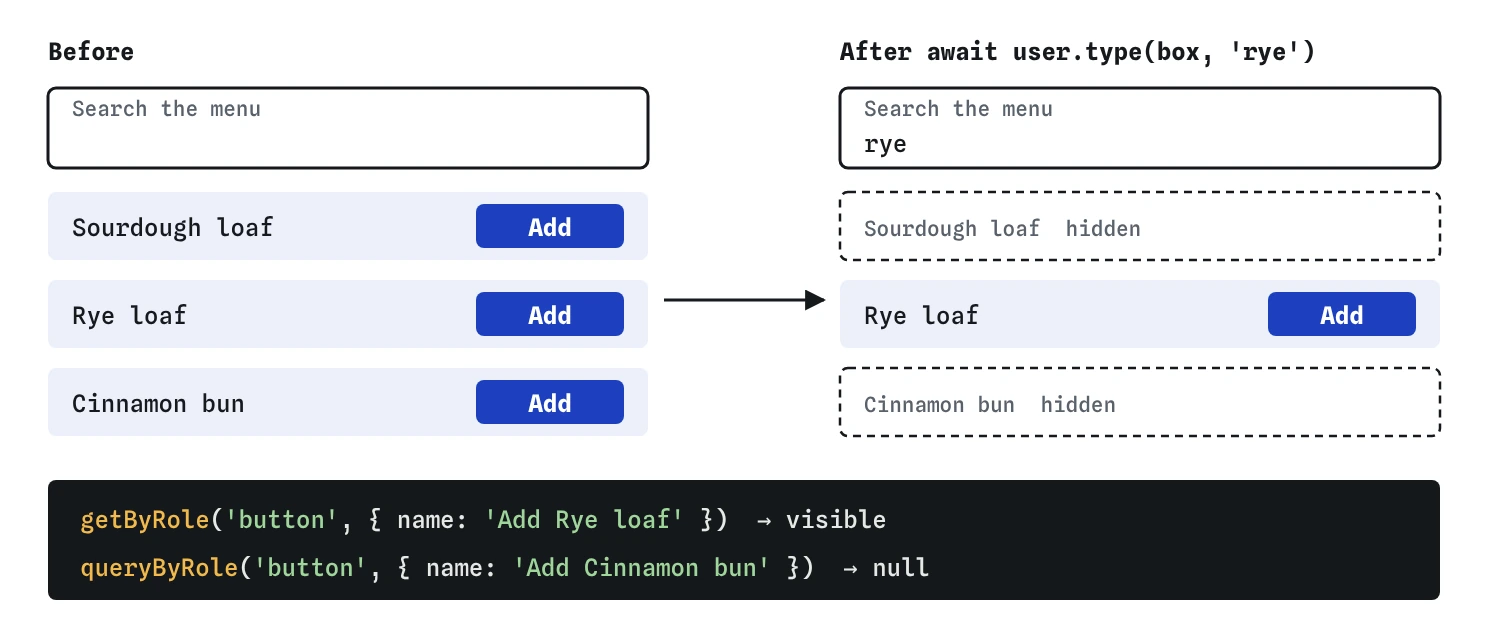
How do you press a key like Escape or Enter?
user.keyboard() takes a string. Ordinary characters are typed as they are, and special keys go in braces: '{Escape}', '{Enter}', '{Tab}', '{ArrowDown}'. The key goes to whatever has focus, so focus the right element first. Typing into the box with user.type() leaves focus there, which is why the Escape test types before it presses the key.
user.type() understands braces too, so user.type(box, 'rye{Enter}') types and then presses Enter. user.tab() moves focus to the next control, the same as pressing Tab, and is the way to test that a page works from the keyboard alone.
After the key, check the effects a person notices: the box is empty and all three items are back. Checking only one of them leaves room for exactly the bug in the Break It challenge.
Why test what users see instead of internals?
The basket count lives in a variable called count inside setupMenu(). A test can't reach it, and that is a good thing. The only count a customer sees is the one on the page, Basket: 2 items, so that is what the test checks. If someone rewrites the code to store the basket in an array, the test still passes, because nothing a customer sees has changed.
Tests that reach inside, by spying on private functions or reading values the page never shows, break every time the code is tidied, even when it still works. People then learn to update tests without thinking, which defeats the point. Aim for tests that fail only when a customer would notice something wrong.
What do AI-written interaction tests often get wrong?
Missing await is the first thing to look for. AI tools often write user.click(button) with no await, or use the older fireEvent.click() and then wonder why focus and keyboard behaviour don't match a real browser. fireEvent dispatches one event. user-event behaves like a person.
The second is a test that checks the expected thing was already true. "Escape shows everything again" that only looks at the item you searched for passes when Escape does nothing. Ask of each assertion: would this be false if the feature were broken? If not, find an assertion that would be.
The third is creating userEvent.setup() once at the top of the file and sharing it. It works most of the time and occasionally leaks state between tests. One per test costs nothing.
Field notes
user-eventacts like a person, firing the full set of events a click or key press makes.- Create
userEvent.setup()in each test andawaitevery action. - After a search, check the items that should disappear as well as the ones that stay.
- Press special keys with braces, such as
'{Escape}', after focusing the right box.
Easy to get wrong
user-event actions are asynchronous. Without await, the assertion can run before the click has happened. The practice runner often forgives it and real user-event doesn't.
The rye loaf was visible before you typed. Only checking what disappears proves the search works.
Setting the value by hand skips focus, key events and the character-by-character typing a real visitor does. A handler that listens for keydown never runs in the hand-made version, so the test fails for code that works for people, or never tests that handler at all.
Questions people ask
What is the difference between fireEvent and userEvent?
fireEvent dispatches the one event you name. userEvent performs the whole interaction, with every event a browser would fire in the right order and focus moving as it should. Prefer userEvent, and use fireEvent only for events a person can't trigger directly.
Can I type into a disabled field?
In real user-event, no: clicks and typing on disabled elements do nothing, just as in a browser. The practice runner ignores clicks on disabled buttons too, and the forms lesson uses that to test a button that stays disabled until a box is ticked.
Does user.type clear the box first?
No, it adds to whatever is already there. Call await user.clear(box) first when you want to replace the text.
How do I test a drop-down list?
Use await user.selectOptions(select, 'Rye loaf'), passing the option's value or its visible text. Then check the page reacted, for example a price that changed.