What does a contrast ratio measure?
Contrast ratio compares how light two colours are, as the eye perceives lightness. The formula in WCAG turns each colour into a relative luminance, from 0 for black to 1 for white, then divides the lighter by the darker after adding a small constant. The result runs from 1:1, the same colour twice, to 21:1, black on white.
Hue does not count. A bright red and a bright green of equal lightness have a ratio close to 1:1, even though they look very different to many people. That is the point: the ratio describes what is left for someone with low vision, cataracts, a dim screen or colour blindness, who sees differences in lightness far better than differences in hue.
About one in twelve men and one in two hundred women have some form of colour vision deficiency, and contrast sensitivity drops for almost everyone with age. Good contrast also helps people reading a phone in sunlight or on a cheap laptop screen.
What ratios does WCAG ask for?
WCAG 2.2 at level AA sets these minimums. Learn the three numbers and you can judge most pages.
- 4.5:1 for normal text (1.4.3 Contrast (Minimum)).
- 3:1 for large text: at least 24 CSS pixels, or 18.66 pixels and bold. That is about 18 point, or 14 point bold.
- 3:1 for the parts of controls and graphics people need to see, such as a text field’s border, a checkbox, a focus outline or a line in a chart (1.4.11 Non-text Contrast).
- Level AAA asks for 7:1 for normal text and 4.5:1 for large text (1.4.6), a good target for long reading.
Why does the orange button fail?
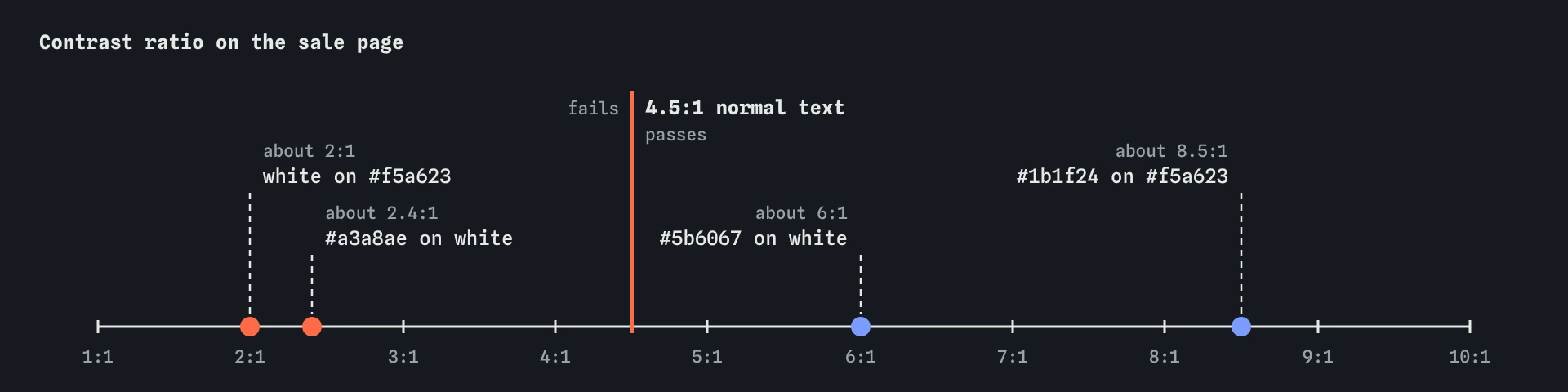
White text on #f5a623 has a ratio near 2:1. Bright orange, yellow and light green are all light colours, close to white in luminance, so white text on them can never pass, whatever the font. This surprises people because the button looks bold and clear to them. It does not to someone with low contrast sensitivity.
There are two ways out. Keep the orange and put dark text on it: #1b1f24 on the same orange is about 8:1. Or keep white text and darken the background to a deep burnt orange. Both are fine. Choose whichever fits the brand, then measure it.
The small print fails for a different reason. Light grey on white is a common style for “less important” text, and #a3a8ae gives about 2.4:1. Sale conditions are exactly what people need to read. A mid grey around #5b6067 keeps the quieter look and passes.
.note { color: #5b6067; }          /* about 6:1 on white */
.sale-btn { color: #1b1f24; background: #f5a623; }  /* about 8:1 */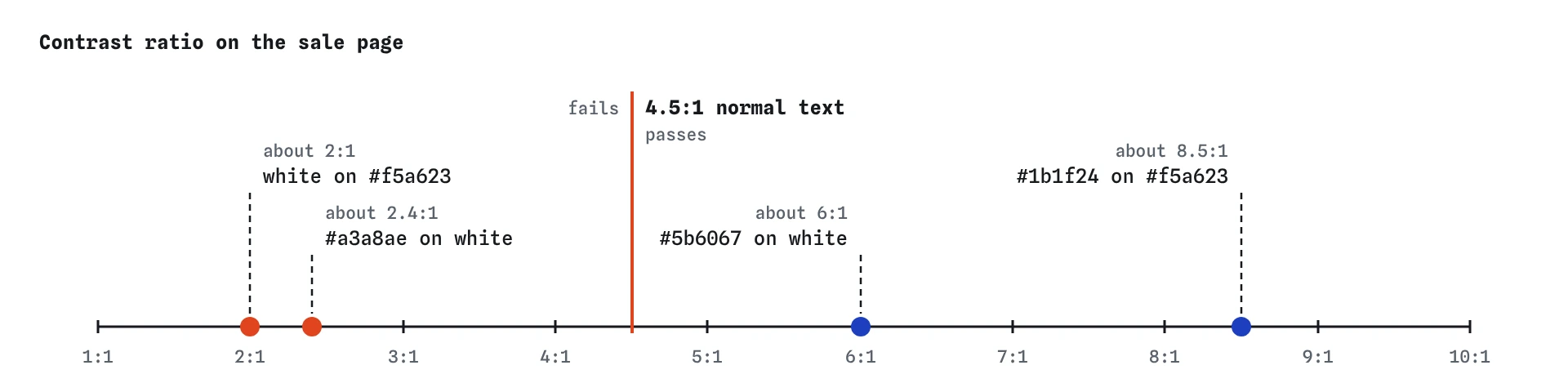
When is colour alone not enough?
WCAG 1.4.1 Use of Color says colour must not be the only way you show information, ask for an action, or mark something out. Blue links in black text are the classic case. To many people with colour blindness, #1d3fbf and #1b1f24 look almost the same, and with the underline removed the links vanish into the paragraph.
An underline is the clearest fix for links inside text. Links in a navigation bar or a clearly marked list of links do not need one, because their position shows what they are. If you really want no underline, WCAG accepts links whose colour has at least 3:1 contrast with the surrounding text and that gain an underline or other non-colour change on hover and on focus. That is hard to get right, and an underline is easier.
The same rule applies to form errors shown only by a red border, required fields marked only in red, chart lines told apart only by colour, and “available” and “sold out” shown only as green and red dots. Add a word, an icon with a text name, a pattern or a label.
p a { color: #1d3fbf; text-decoration: underline; }

<!-- Error with text, not only a red border -->
<p id="email-error" class="error">Error: enter an email address with an @.</p>
What about placeholder text and disabled controls?
Placeholder text is styled pale grey by default in most browsers, and many designs make it paler. If the placeholder holds an example people need to read, it needs 4.5:1 too. A better fix is to put the hint in real text under the label, where it stays visible while people type.
Disabled controls are exempt from the contrast rules. That exemption is a reason to avoid disabled buttons where you can, because people still need to read what the button is and why they cannot use it yet. Logos and pure decoration are exempt too, along with text that is part of a photo, such as a shop sign in the background.
How do you check contrast on text over images and gradients?
Text on a photo has a different contrast at every pixel. The words “Fresh today” in white over a bright loaf may pass on the crust and fail on the flour. Automatic checkers, including the Checks view here, usually skip text with a background image, so you have to judge it yourself.
Give the text a solid or semi-transparent panel behind it, or a dark overlay across the photo, and measure against the lightest part of the image under the text. Check gradients at both ends. Check again at narrow widths, where text often wraps onto a lighter part of the picture.
How do you test contrast with the views and DevTools?
The **Checks** view measures every piece of visible text against the background behind it, works out whether it counts as large, and lists any that fall short with the ratio it found. Fix the colours, then watch the issue disappear.
In browser DevTools, inspect an element and click the colour swatch next to color in the Styles pane. The colour picker shows the contrast ratio and marks the AA and AAA lines, so you can drag the colour until it passes. DevTools can also emulate colour vision deficiencies, under Rendering, which is a quick way to see whether your links and status colours still make sense.
Test a few things the tools miss: focus outlines against both the control and the page, hover states, error messages, and the dark mode version of the page if you have one. A design that passes in light mode can fail badly in dark mode.
What do AI tools get wrong about colour?
Generated designs reach for fashionable soft palettes: light grey body text, white on pastel buttons, placeholder text as the only label. They often remove link underlines in the reset styles and never put them back. Read the colour values in the CSS and run the Checks before you trust the look.
AI tools also tend to claim a palette is accessible without measuring it. Treat any statement like “this colour scheme meets WCAG AA” as a guess until a checker confirms the ratio for each pair of colours you actually use.
Field notes
- Contrast ratio compares how light the text and its background are.
- Normal text needs a ratio of at least 4.5:1.
- Light colours like orange and yellow fail with white text.
- Underline links so they do not depend on colour alone.
Easy to get wrong
Pale grey on white looks tidy and is unreadable for many people with low vision. Normal text needs at least 4.5:1.
Light backgrounds such as orange, yellow and pale green need dark text. White text on them stays near 2:1.
Links shown only by colour disappear for people who cannot tell the two colours apart (1.4.1 Use of Color).
Questions people ask
Does bold text need less contrast?
Only when it is large enough. Bold text of at least 18.66 CSS pixels counts as large and needs 3:1. Bold text at body size still needs 4.5:1.
Is pure black on white the best choice?
It has the highest ratio, and some people with dyslexia or migraines find it glaring. A very dark grey on white or an off-white background still passes AAA with room to spare and can be easier to read.
Will WCAG 3 change the contrast formula?
Drafts of WCAG 3 have explored a different method, but WCAG 2.2 is the standard that laws and contracts point to in 2026. Measure with the WCAG 2 ratio, and expect a future version to change the details.
Do icons need contrast too?
Icons people need to understand, such as a search magnifier or a warning symbol, need 3:1 against their background under 1.4.11. Decorative icons do not.