What is an accessible name?
Every interactive thing on a page, every link, button and form field, needs a short piece of text that says what it is. That text is its accessible name. A screen reader says it when focus arrives (“button, Save changes”), lists it in the links and form fields menus, and uses it when someone searches the page. Voice control software uses it too: when someone says “click Save changes”, it looks for a control with that name.
The name is computed by the browser, following a set of rules in the W3C’s Accessible Name and Description Computation. You rarely need the rules in full. You need to know the main sources in the order the browser tries them, and which one wins when there are several. The **Screen reader** view shows the result for every element, and the Checks view flags the ones that end up with no name.
Where does the browser get a name from?
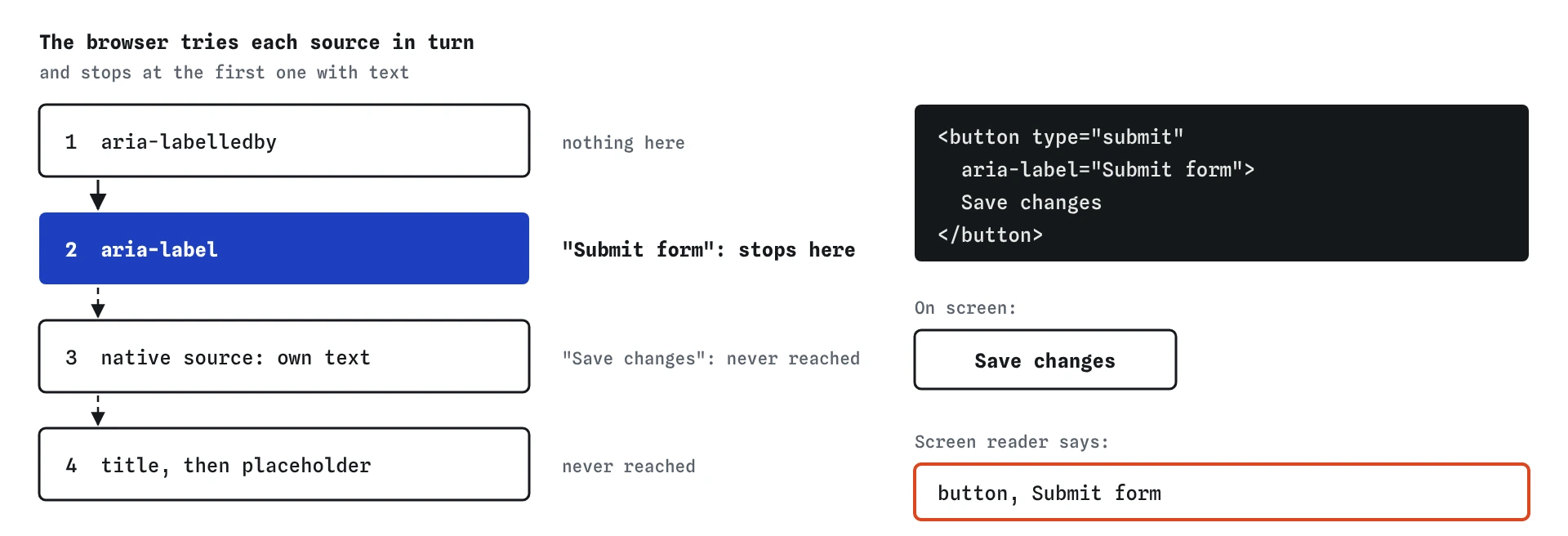
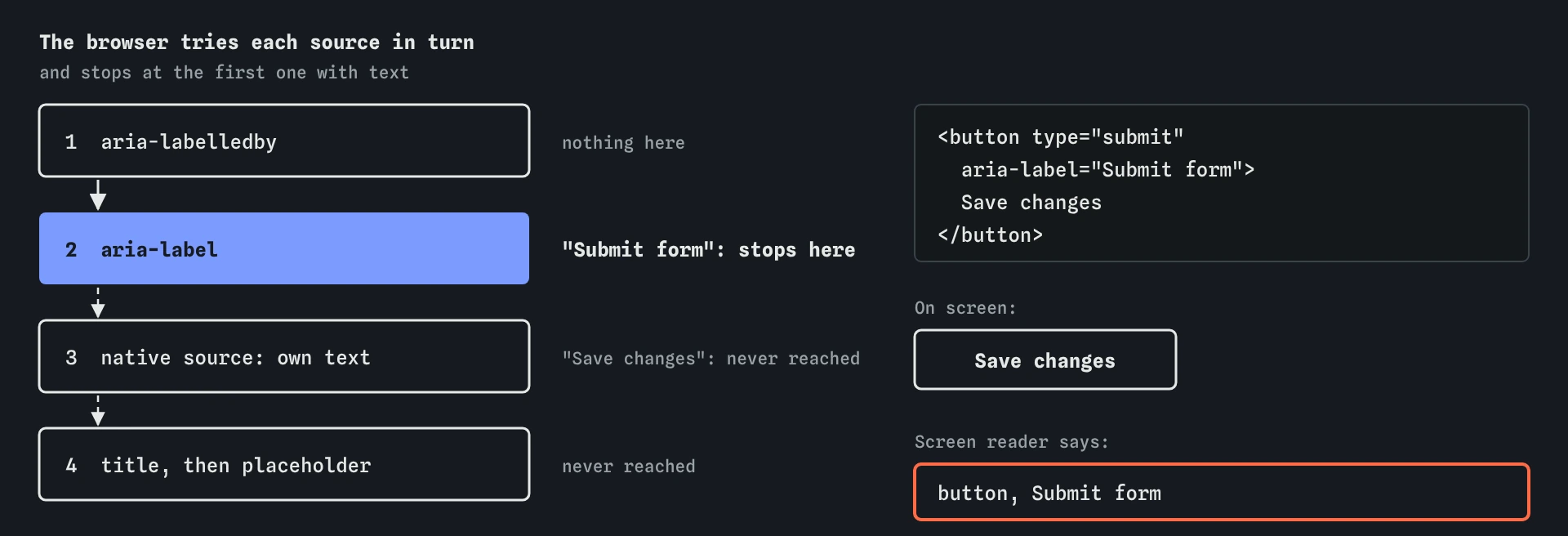
The browser tries each source in turn and stops at the first one that gives it text. First comes aria-labelledby, which points at other elements by id and joins their text. Then aria-label, a string written right on the element. Then the native source for that element: a <label> for a form field, alt for an image, a <caption> for a table, a <legend> for a fieldset. For links, buttons and headings, the native source is their own text content, including the alt text of any image inside.
Last of all comes the title attribute, and for text fields, the placeholder. Both are weak. A title shows only as a mouse tooltip, so keyboard and touch users never see it, and a placeholder vanishes the moment someone types. The engine here flags a field named only by its placeholder for that reason.
Because the ARIA sources come first, they override everything else. That is useful when the visible content can’t be a name, and harmful when it can. On the starting page, the Save button says Save changes on screen, while aria-label="Submit form" makes a screen reader say something else entirely.
aria-labelledby: text of the elements it points ataria-label: a string on the element- Native source:
<label>,alt,<caption>,<legend>, or the element’s own text title, thenplaceholder: last resort
How do you name a button that is only an icon?
An icon has no text, so a button containing only an SVG ends up with no name and is announced as “button”. There are three good fixes. Add aria-label to the button. Put visually hidden text inside the button, using the class from the previous lesson. Or, best of all when the design allows, show a word next to the icon, which helps everyone, including people who don’t recognise the icon.
Whichever you choose, hide the SVG itself with aria-hidden="true" so its contents aren’t read, and describe the action, not the picture. The pencil on the profile page is a pencil, but the button changes the profile photo, and “Change profile photo” is what someone needs to hear. A button labelled “Pencil” or “Edit icon” is named and still unhelpful.
<button type="button" class="icon-btn" aria-label="Change profile photo">
  <svg aria-hidden="true" width="20" height="20" viewBox="0 0 20 20">...</svg>
</button>
When should you use aria-label or aria-labelledby?
Use aria-label when there is no visible text that could serve as the name: icon buttons, a search box whose purpose is shown by a magnifying glass, a close button marked ×. Keep it short, and write it in the page’s language, since some translation tools skip attributes.
Use aria-labelledby when the right words are already on screen somewhere else. A dialog can point at its heading. A section can point at its <h2> so that it becomes a named region. A “Remove” button in a basket row can point at both its own text and the product name, giving “Remove Seeded rye loaf”. Because the name comes from visible text, it stays correct when someone edits the copy.
Don’t use either on elements that already have a good visible name, and don’t put aria-label on a plain <div> or <span>. ARIA 1.2 forbids naming generic elements, and many screen readers ignore the label there. No ARIA is better than bad ARIA: a native <label> or plain button text is always the first choice.
<h2 id="basket-title">Your basket</h2>
<section aria-labelledby="basket-title">...</section>

<span id="rye">Seeded rye loaf</span>
<button id="rm-rye" aria-labelledby="rm-rye rye">Remove</button>
Why must the name contain the visible label?
Voice control lets people use a computer by speaking. They look at the screen, see a button that says Save changes, and say “click Save changes”. The software then searches for a control with that name. If the accessible name is “Submit form”, nothing matches, and the person has to fall back on slower commands like numbering every control on screen.
WCAG 2.2 covers this in 2.5.3 Label in Name: when a control has visible text, its accessible name must contain that text, ideally at the start. “Save changes to your profile” passes. “Submit form” fails. The simplest way to pass is to let the visible text be the name, which means removing aria-label from buttons and links that already have words.
Screen reader users benefit too. Many people who use a screen reader can see some of the screen, and hearing a different name from the one in front of them is confusing.
What is the difference between a name and a description?
The name says what something is, in a few words. A description adds detail that helps someone use it: a format hint, a rule, a consequence. Screen readers read the description after the name and state, often after a short pause, and some users turn descriptions off to save time, so never put anything in a description that the name needs.
You connect a description with aria-describedby, pointing at the id of the element that holds the text. The hint stays visible for everyone, and the screen reader reads it when focus reaches the field. On the profile page, the hint says the display name appears on certificates and in the forum, which is useful to know before someone changes it. After the fix, the Screen reader view reads “Display name, edit text, Sam Okafor, Shown on your certificates and in the forum.”
<label for="display-name">Display name</label>
<input id="display-name" aria-describedby="name-hint">
<p id="name-hint" class="hint">Shown on your certificates and in the forum.</p>
How do you check names quickly?
Press Tab through the page with the **Keyboard** view open. It lists every stop with its role and name, so an empty or odd name stands out. Then read the Screen reader view and compare each control’s name with what you see on screen. The two should agree, word for word where there is visible text.
In your browser’s developer tools, the accessibility pane shows the computed name for the selected element and, in most browsers, which source it came from. That is the quickest way to find out why a name is wrong, for example when an aria-labelledby points at an id that doesn’t exist, which leaves the browser to fall back to the next source without telling you.
What naming mistakes do AI tools make?
AI-written components often add aria-label to everything, including buttons that already have text. Sometimes the label repeats the text, which is harmless clutter. Sometimes it says something different, like “Submit” on a button that reads Send message, which breaks voice control. Remove any aria-label that duplicates or contradicts visible text.
Watch also for labels that describe the element instead of its purpose: “button”, “icon”, “search input”, “image link”. A screen reader already says the role, so “button, Button” helps nobody. Check aria-labelledby and aria-describedby values against real ids on the page, because generated code often renames one and forgets the other.
Field notes
- Every button, link and field needs a short name a screen reader can say.
- A button with only an icon has no name until you add one.
- The name should contain the words people can see on the control.
- Use
aria-describedbyto link extra hint text to a field.
Easy to get wrong
The aria-label overrides the visible text. Voice control users who say “click Save changes” find nothing, which fails 2.5.3 Label in Name.
A placeholder is a weak last resort for a name. It disappears when typing starts and is often too pale to read, so give the field a <label> or aria-label.
Name the action, not the picture. People need to know what will happen when they press the button.
Text next to a field is not connected to it. A <label> gives the field its name and makes the text clickable.
Questions people ask
Should I use aria-label or visually hidden text for an icon button?
Both work in current screen readers. aria-label is shorter to write. Visually hidden text survives automatic page translation more reliably, because some translation tools skip attributes. If your site is often translated, prefer the hidden text.
Does the title attribute give an element a name?
Yes, as a last resort, and it also adds a tooltip for mouse users. Keyboard and touch users never see the tooltip, and some screen readers read title as a description instead. Treat it as extra, never as the only name.
Can two buttons on a page have the same name?
Yes, when they do the same thing. When they do different things, such as three Remove buttons for three products, the names should differ, for example by using aria-labelledby to add the product name to each.
Does every image need an accessible name?
Every informative image does, through its alt text. Decorative images get alt="", which removes them from the tree instead. The alt text lesson goes through how to decide.