What does a screen reader actually read?
A screen reader never sees your layout. It reads a structure the browser builds alongside the page, called the accessibility tree. The browser walks your HTML, works out what each element is for, and hands the screen reader a list of objects. Each object has a role, such as heading, link or button, a name, such as “Join the club”, and sometimes a state, such as checked, expanded or required.
Elements that carry no meaning, like most <div> and <span> elements, become generic containers. Their text still reaches the tree, but nothing announces where they start or end. Elements that the page hides from everyone, such as anything with display: none, are left out completely.
When you look at the **Screen reader** view, each line is one stop in that tree, written the way a screen reader might say it. “heading level 2, Next walk” is a role, a level and a name. “link, Join the club” is a role and a name. The view is a model. Real screen readers word things differently, add pauses and sounds, and some say the name before the role, but every one of them depends on the same three pieces of information.
In what order does a screen reader read the page?
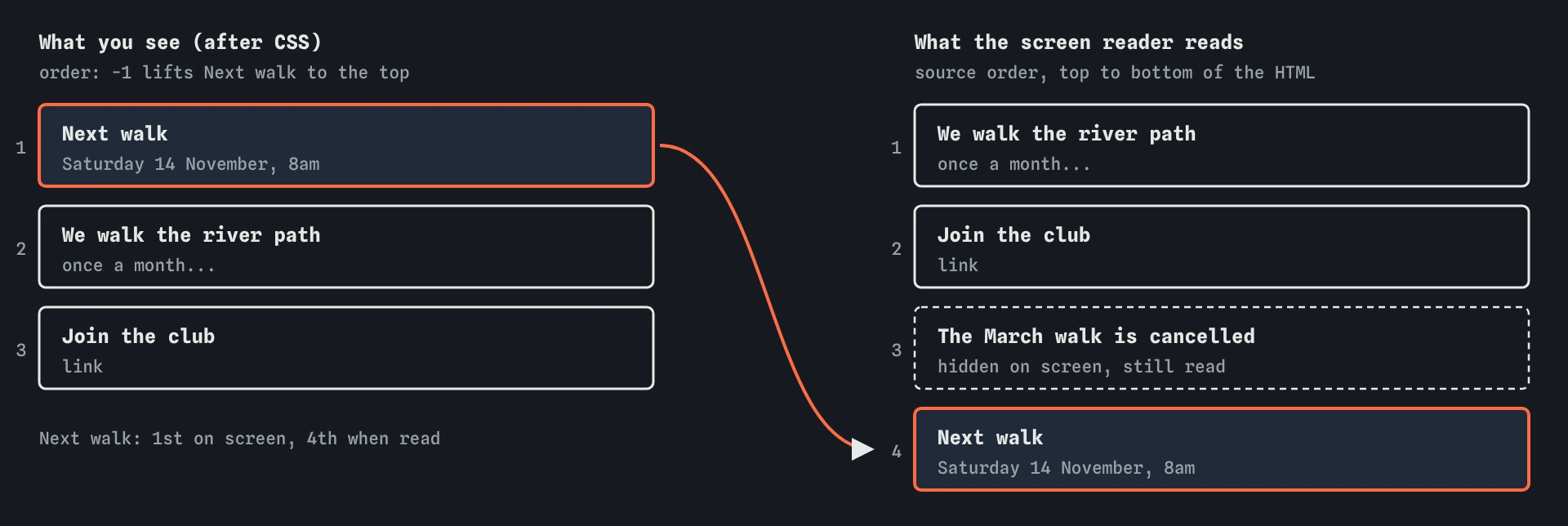
It reads in source order: the order of the elements in your HTML, top to bottom. A sighted visitor sees where boxes land after CSS has moved them around. A screen reader user meets them in the order you wrote them. Most of the time those two orders match and nobody thinks about it.
They stop matching when CSS moves things. Flexbox order, flex-direction: row-reverse, grid placement with grid-row and grid-area, and absolute positioning all change where something appears without changing where it sits in the HTML. On the starting page, order: -1 lifts the Next walk box to the top of the screen, while the Screen reader view still reads it last, after the Join link and after a notice nobody can see.
The keyboard follows source order too, so the same mismatch makes Tab jump around the screen. WCAG 2.2 covers this in 1.3.2 Meaningful Sequence and 2.4.3 Focus Order. The fix is nearly always to put the HTML in the order you want people to meet it, and use CSS for spacing and alignment rather than for reordering content.
<div class="stack">
  <section class="next-walk">
    <h2>Next walk</h2>
    <p>Saturday 14 November, 8am, at the boathouse.</p>
  </section>
  <p>We walk the river path once a month.</p>
</div>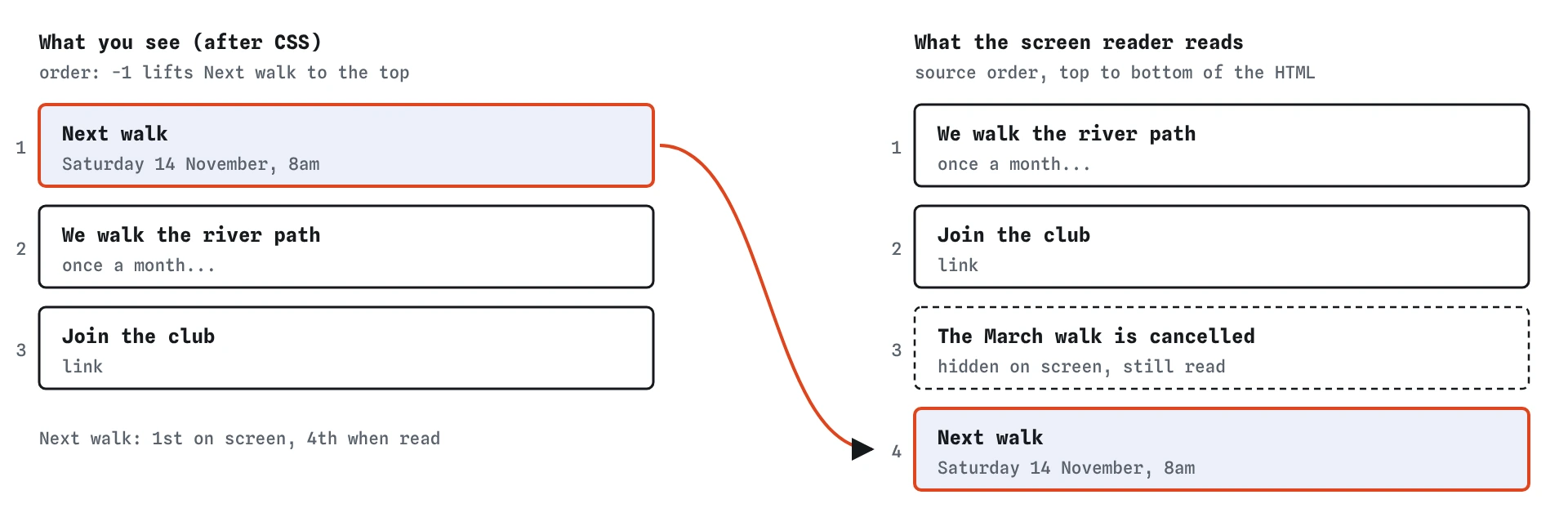
How do screen reader users move around a page?
Few people listen to a page from top to bottom. Screen readers have a reading mode, often called browse mode or virtual cursor, where the arrow keys move line by line and single letter keys jump between kinds of element. On desktop screen readers, H usually moves to the next heading, K or Tab to the next link, D or R to the next landmark, and F to the next form field. On a phone, people swipe right and left to move between items, and use a rotor or a menu to pick headings, links or landmarks.
Screen readers can also pop up a list of every heading or every link on the page. A sighted visitor skims by looking at bold text. A screen reader user skims by opening the headings list, hearing the outline, and jumping to the part they want. That is why later lessons care so much about headings that describe their sections and links that make sense on their own.
When focus lands in a text field, most desktop screen readers switch to focus mode, sometimes called forms mode, so that typed letters go into the field instead of acting as shortcuts. Leaving the field switches back. You don’t have to write code for either mode. Native form controls trigger them correctly. Custom widgets built from <div> elements often confuse them.
- Headings: jump between sections and hear the outline
- Landmarks: jump to the navigation, the main content or the footer
- Links and form fields: list them all, then pick one
- Arrow keys or swipes: read the next line or item
Which kinds of hiding hide content from a screen reader?
There are three different jobs here, and each has its own tool. Hidden from everyone: use the hidden attribute or display: none. The content disappears from the screen and from the accessibility tree, and Tab skips anything inside it. This is right for a closed panel, an old notice, or a message that hasn’t happened yet.
Hidden from screen readers only: use aria-hidden="true". The content stays on screen and leaves the tree. This is right for decoration that would sound silly read aloud, like an emoji next to a heading, a row of ornamental characters, or an icon next to text that already says the same thing. It is wrong for anything useful, because people who can see the screen and hear the page at the same time, which many partially sighted users do, will notice the gap.
Hidden from eyes only: use a visually hidden class, described below. Opacity, tiny font sizes and moving things off screen are common accidents. The starting page hides the March notice with opacity: 0 and height: 0. It looks gone, and a screen reader still reads it, so blind visitors hear about a flood that ended months ago. visibility: hidden does hide content from screen readers, but it still takes up space, so hidden is usually the clearer choice.
<p hidden>Shown later by a script</p>
<span aria-hidden="true">🐦</span>
<span class="visually-hidden">Basket</span>
How do you hide text on screen but keep it for screen readers?
Sometimes a screen reader needs words that the design leaves out. An icon-only basket link needs the word Basket. A table of walk dates whose Date column header shows only a calendar icon needs the word Date in that header. For this, use a class that shrinks the text to a single pixel and clips it, so it takes no space on screen and stays in the tree.
The class name doesn’t matter. visually-hidden and sr-only are common. Judge it by what it does. It must not use display: none or visibility: hidden, since those remove the text from screen readers as well. The broken page in Break it has exactly that mistake: a class called sr-only that hides the label from the very people it was written for.
Use visually hidden text sparingly. Voice control users say what they see, and they can’t see this text. If a name could be visible, make it visible. Later lessons cover aria-label, which does a similar job for one element, and when to choose each.
.visually-hidden {
  position: absolute;
  width: 1px;
  height: 1px;
  margin: -1px;
  padding: 0;
  overflow: hidden;
  clip: rect(0 0 0 0);
  white-space: nowrap;
  border: 0;
}
Why does an emoji in a heading cause trouble?
Screen readers read emoji by their official names. The bird on this page becomes “bird”, so the heading is announced as “heading level 2, bird Next walk”. Some emoji have long names, like “face with tears of joy”, and a row of them in a heading or a button can take several seconds to hear. In a headings list, a name that starts with an emoji is also harder to find by its first letter.
When the emoji adds nothing the words don’t already say, wrap it in a <span aria-hidden="true">. When it carries meaning, such as a warning sign next to “Path closed”, keep it readable or write the meaning out in words. The same applies to symbols used as decoration, like ★, ✓ or the tildes on the broken page: decide whether they mean something, then either name them or hide them.
How can you test reading order and hidden content?
Start with the Screen reader view on the right. Read it from top to bottom and ask three questions. Is everything I can see here, in the order I see it? Is there anything here that I can’t see on the page? Does any line sound strange when read aloud? The starting page fails all three, which is why it makes a good first exercise.
Then try the keyboard. Press Tab through the page and watch where the focus goes. If it jumps backwards or across the screen, the source order and the visual order have parted ways. In your own browser, the developer tools have an accessibility panel that shows the tree for any element, with its role, name and whether it is ignored. Turning off CSS, or using reader view, is a quick way to see the raw source order.
Finally, listen with a real screen reader for a few minutes. The one built into your computer or phone is enough. You will hear things the model leaves out, like the pause after a heading and the way punctuation changes the voice.
What do AI tools get wrong about reading order and hiding?
AI-generated layouts often rely on CSS to fix order. Ask for “the image on the left on desktop and on top on mobile” and you may get HTML in one order with order or grid-area rearranging it, which is fine only if the HTML order also makes sense on its own. Check by reading the Screen reader view against the Page view.
Generated code also scatters aria-hidden="true" widely, sometimes on whole cards or on wrappers that contain links. Content inside an aria-hidden area is silent, yet any link or button inside can still receive focus, so a keyboard user lands on something the screen reader can’t describe. The Checks view flags that as a serious problem. Look out too for hand-written .sr-only classes that use display: none, and for “hidden” helper text that is only faded out with opacity.
Field notes
- A screen reader reads the page in HTML source order, top to bottom.
- Moving a box with CSS changes where it looks, and the reading order stays the same.
- Use the
hiddenattribute to hide old content from everyone. - Emoji are read by name, so wrap a decorative one in
aria-hidden="true".
Easy to get wrong
CSS order changes what people see and leaves the reading and Tab order behind. Screen reader and keyboard users then meet the content in a different order from everyone else.
Text hidden with display: none is removed from the accessibility tree too, so the label you wrote for screen reader users never reaches them.
aria-hidden="true" is for decoration. Putting it on real content means people who rely on a screen reader never hear it, while everyone else reads it on screen.
Opacity hides content from eyes only. A screen reader still reads it, so stale or not-yet-relevant messages get announced as if they were current.
Questions people ask
Does the Screen reader view sound exactly like a real screen reader?
No. It is a model that follows the same rules browsers use to build the accessibility tree, and writes each item in a short, consistent form. Real screen readers differ in wording, in what they say first and in how much detail they give, and they change between versions. The roles, names, states and order are what you are testing, and those carry over.
Do screen readers run my JavaScript?
Yes. Screen readers read the page the browser has built, after scripts have run. If a script adds a button, the screen reader can reach it. Changes that happen while someone is reading are a different matter: they are usually silent unless you announce them, which the lesson on live regions covers.
Is it ever fine to use CSS to change the visual order?
Small changes that don’t change meaning are usually fine, like swapping an image and its caption side by side. The test is whether the HTML order still makes sense when read alone, and whether Tab moves in a sensible direction. If either gets confusing, change the HTML instead.
Should I hide icons from screen readers?
Hide an icon when the text next to it already says the same thing, such as a pencil next to the word Edit. When the icon is the only thing inside a link or button, it needs a name instead, which the next lesson on accessible names explains.