How do you choose between a button and a link?
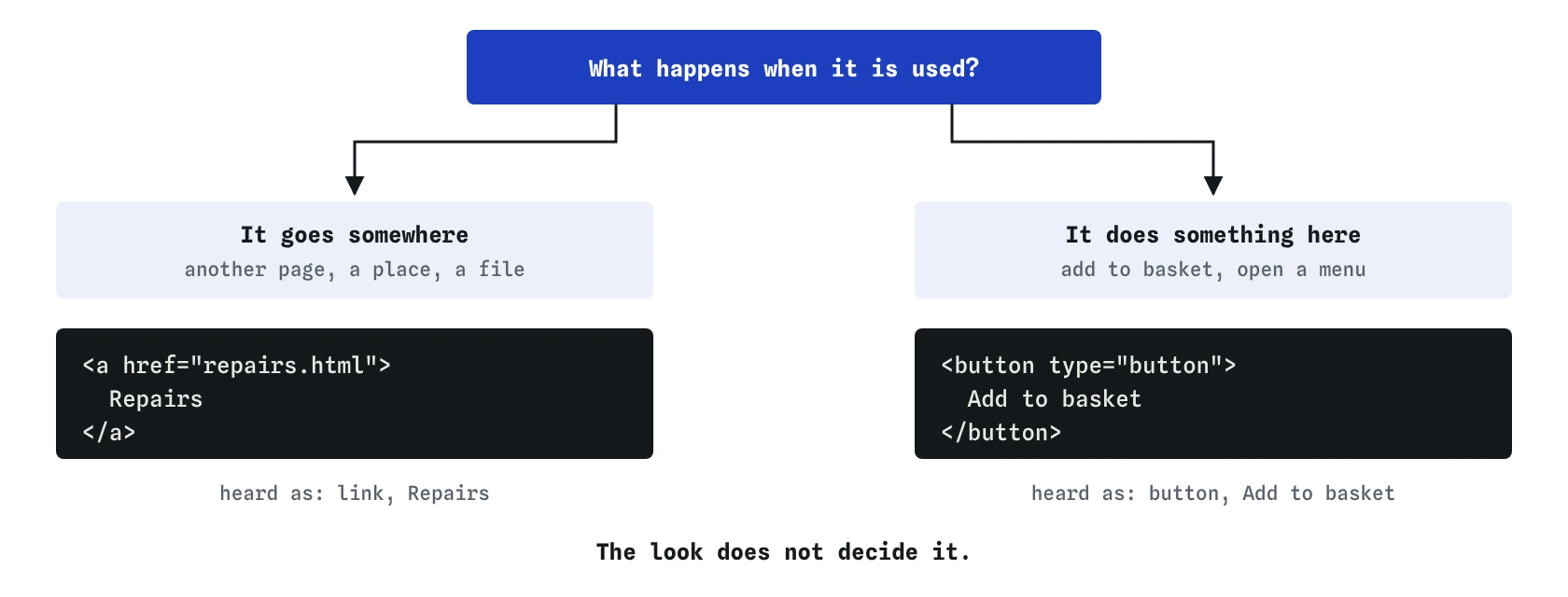
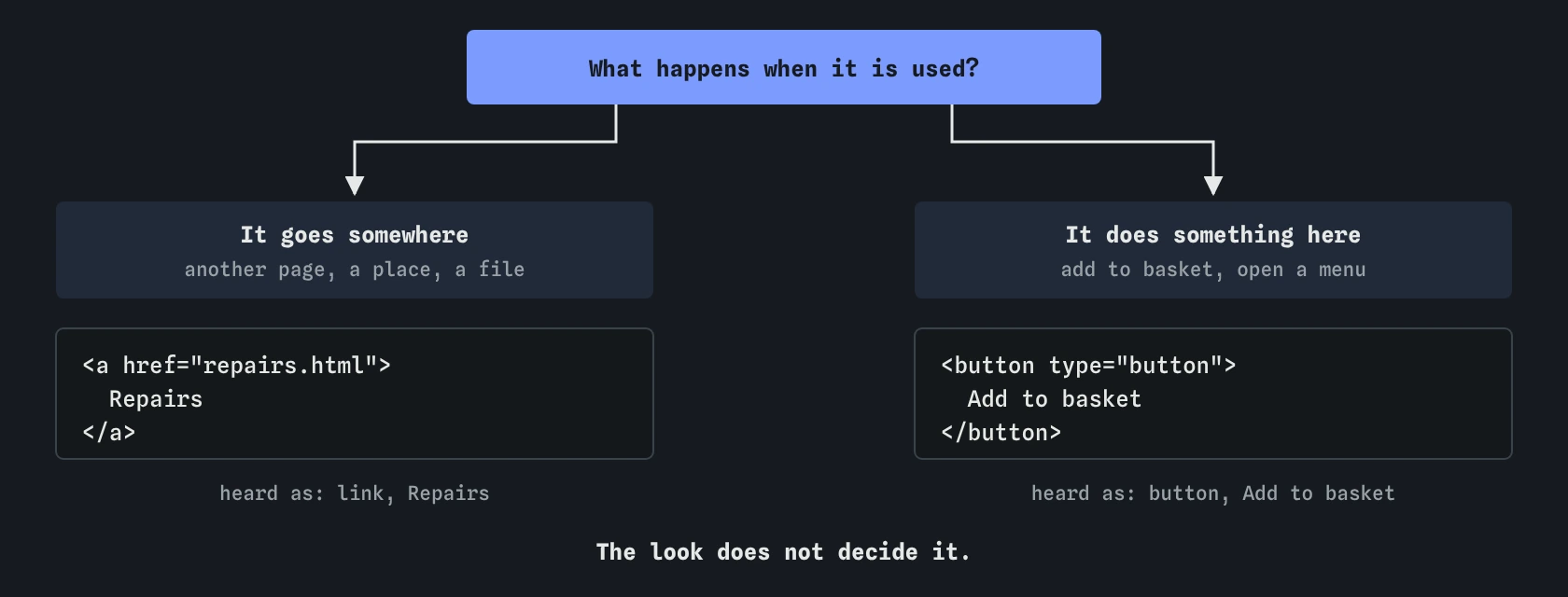
Ask what happens when it is used. If it takes the person to another page, another place on the same page, or a file, it is a link: <a href="…">. If it does something here, such as adding a helmet to the basket, opening a menu, submitting a form or playing a video, it is a button: <button>. The look does not decide it. A link can be styled as a big blue box and a button can look like underlined text.
People treat them differently. Screen reader users hear “link” and expect to move somewhere, and hear “button” and expect an action. They can open a list of every link on the page and jump straight to one. Keyboard users press Enter on links and Enter or Space on buttons. Mouse users can open a link in a new tab, copy its address or bookmark it, none of which works on a button pretending to be a link.
WCAG 4.1.2 Name, Role, Value asks that every control exposes the right role. Using the right element is the simplest way to meet it.
What goes wrong with a clickable div?
A <div> with onclick responds to a mouse and nothing else. It is not in the Tab order, so keyboard users cannot reach it. It has no role, so a screen reader reads it as plain text, “Add to basket”, with no hint that it can be pressed. Voice control users who say “click Add to basket” may find nothing to click. Switch users, whose devices move between focusable controls, skip it entirely.
Patching it takes a lot of code: role="button", tabindex="0", a keydown handler for both Enter and Space, a visible focus style, and handling for disabled states. That is the work a <button> does for free. On the helmet page, look at the **Keyboard** view before and after the fix: the <div> is missing from the list, and the <button> is there as stop 2, with Space and Enter adding to the basket.
The **Checks** view flags elements with an onclick attribute that are plain <div> or <span> elements. Scripts that attach clicks with addEventListener are harder to spot automatically, so check the Keyboard view as well.
<!-- mouse only -->
<div class="buy" onclick="addToBasket()">Add to basket</div>

<!-- works for everyone -->
<button type="button" class="buy" onclick="addToBasket()">Add to basket</button>
Why is a button that changes the page address a problem?
The starting header uses <button onclick="location.href='repairs.html'">. It works with a mouse and a keyboard, so it looks harmless. It still breaks expectations. A screen reader announces “button”, so people expect an action on this page, and it is missing from the links list. Nobody can open it in a new tab, copy the address to send to a friend, or see where it goes in the status bar before pressing it. Search engines do not follow it.
A link does all of that with one attribute. Replace it with <a class="nav-btn" href="repairs.html">Book a repair</a> and keep the same class for the look. The **Screen reader** view now reads “link, Book a repair”.
The reverse mistake is as common: a link with href="#" or href="javascript:void(0)" that runs a script. It is announced as a link, adds a fake address to history or the copy menu, and does not respond to Space. If it acts, make it a button.
What do keyboards and screen readers get for free?
A native <button> is focusable, shows a focus outline, is announced with its role and name, fires its click on Enter and Space, and stops working when it has the disabled attribute. A native link with href is focusable, fires on Enter, appears in the links list, shows its address on hover, and supports opening in a new tab or window. Browsers and assistive technology have built and tested these behaviours for decades.
Give every button that is not meant to submit a form type="button". A <button> inside a <form> defaults to type="submit", so a forgotten type turns a Show password button into one that sends the form. Outside a form the default does no harm, and the explicit type still makes the purpose clear to the next person reading the code.
- Link: Enter follows it, appears in the links list, can open in a new tab
- Button: Enter and Space press it, can be disabled
- Both: Tab stop, focus outline, role and name read aloud
Why must controls never be nested?
A link wrapped around a whole card, with a Save button inside, is invalid HTML and confusing to use. The browser gives both elements a Tab stop in some cases and not in others. Screen readers read the whole card as one long link name and may never announce the button inside, or announce it as part of the link. A click on Save may also follow the link. The **Checks** view flags any link or button that contains another control.
The fix is to keep controls side by side. Put the link on the card’s heading, where its text names the destination, and place the button after it. If the whole card should be clickable with a mouse, CSS can stretch the heading link over the card with a positioned ::after pseudo-element, while the HTML keeps one link and one button.
<div class="card">
  <h2><a href="sightings/kingfisher.html">Kingfisher at Mill Pond</a></h2>
  <p>Seen by Priya on Tuesday morning.</p>
  <button type="button">Save</button>
</div>
Should a button be disabled or aria-disabled?
The disabled attribute removes a button from the Tab order and stops clicks. Screen readers that reach it by reading still say it is unavailable, often “dimmed” or “unavailable”, and the **Screen reader** view shows “dimmed”. Because it cannot be focused, keyboard users moving by Tab never learn it exists, or why they cannot go on.
The aria-disabled="true" attribute says the same thing to a screen reader and leaves the button focusable. Your script must then ignore clicks itself. It suits a submit button that stays off until a form is complete, because people can Tab to it, hear that it is unavailable, and find a nearby message explaining why.
Often the better choice is no disabled state at all: let people press the button and show a clear error that says what is missing. Disabled buttons in low-contrast grey are also hard to see, and WCAG exempts inactive controls from contrast rules, which does not make them any easier to read.
How do you test buttons and links here?
Start in the **Keyboard** view. Every control you can click should be in the list, with a role of button or link that matches what it does. Press Tab to reach each one, then Enter, and for buttons Space. Anything clickable that is missing from the list is a clickable <div> or <span>.
In the **Screen reader** view, read each control and ask whether the role matches the result. “Link” should go somewhere, “button” should act. With a real screen reader, open its list of links and check that it holds only real destinations, with no Show more or Add to basket among them.
What do AI tools get wrong about buttons and links?
Generated components often use <div onClick> for buttons, especially in React code, and add cursor: pointer to make them feel clickable. Others wrap whole cards in <a> and then put buttons inside, or use <a href="#"> for every action because links are easy to style. Some add role="button" to a link and stop there, leaving Space unhandled.
When you review the code, search for onclick and onClick on anything that is not a <button>, for href="#", and for controls inside controls. Ask for “a <button type="button"> for actions and <a href> for navigation”, then Tab through the result.
Field notes
- Use a link when it takes people somewhere, and a button when it does something.
- A clickable
<div>works with a mouse but not with a keyboard. - A native
<button>gets focus, a role and Enter and Space support for free. - Never put a button inside a link or a link inside a button.
Easy to get wrong
A <div> is not focusable and has no role, so keyboard, screen reader, voice and switch users cannot use it. A <button> brings all of that with it.
It acts on this page and goes nowhere, so it is a button. As a link it is announced wrongly, ignores Space, and has a useless address.
Moving to another page is what links do. A link is listed with the other links, shows its address, and can be opened in a new tab.
A control inside another control is invalid, and assistive technology cannot reach both. Keep links and buttons side by side.
Questions people ask
Can I style a link to look like a button?
Yes. The look is up to you. The element should match the action: a link for going somewhere, a button for doing something, whatever its colours and shape.
Is role="button" on a div ever acceptable?
Only when a real <button> is impossible, which is rare. You must then add tabindex="0", handle Enter and Space, and style focus yourself. A <button> is less code and fewer bugs.
What about a link that downloads a file?
It is still a link: <a href="menu.pdf" download>. Say the file type and size in the link text, like “Download the menu (PDF, 200 KB)”.
Does a button need type="button" outside a form?
It works without it, since there is no form to submit. Adding it costs nothing and prevents surprises if the button is later moved into a form.