What does alt text do for a screen reader user?
The alt attribute gives an image a text version. The browser puts that text into the accessibility tree as the image’s name, and a screen reader reads it where the picture sits: “image, A kingfisher perched on a willow branch over the river”. The same text appears if the image fails to load, and search engines use it to understand the picture.
WCAG 2.2 covers this in 1.1.1 Non-text Content: every image that carries meaning needs a text alternative that serves the same purpose. The key word is purpose. Alt text replaces the image for someone who cannot see it, so it should give them what a sighted visitor gets from it, no more and no less.
When alt is missing completely, the browser has nothing to offer. Many screen readers then read the src file name, which is how the bird club’s best photo becomes “kf-0412.jpg”. Others say only “image” or skip it. None of those help.
How do you decide what the alt text should say?
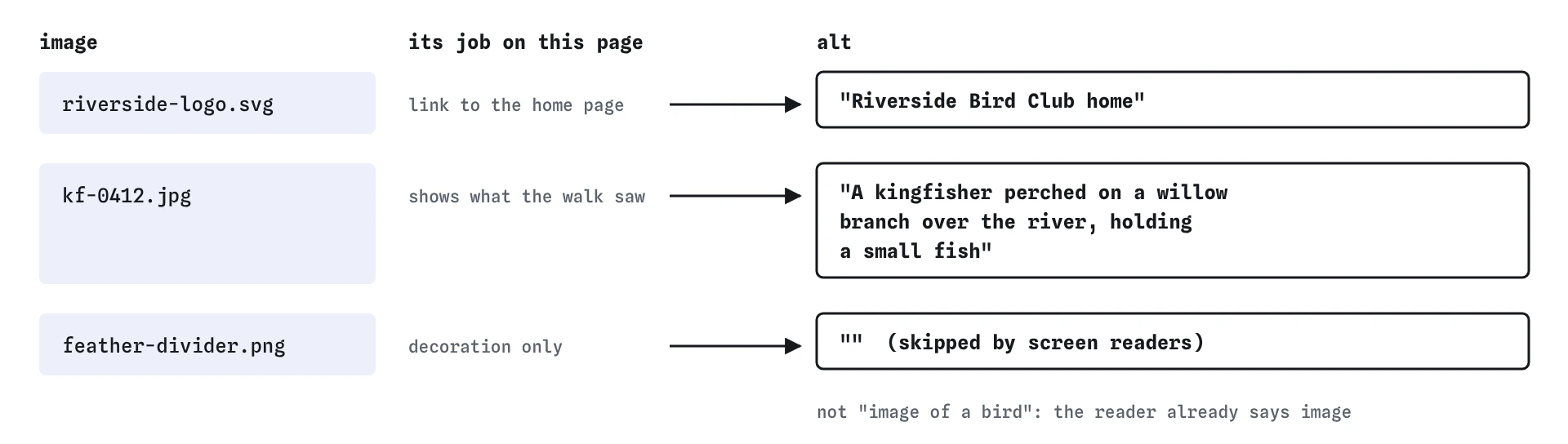
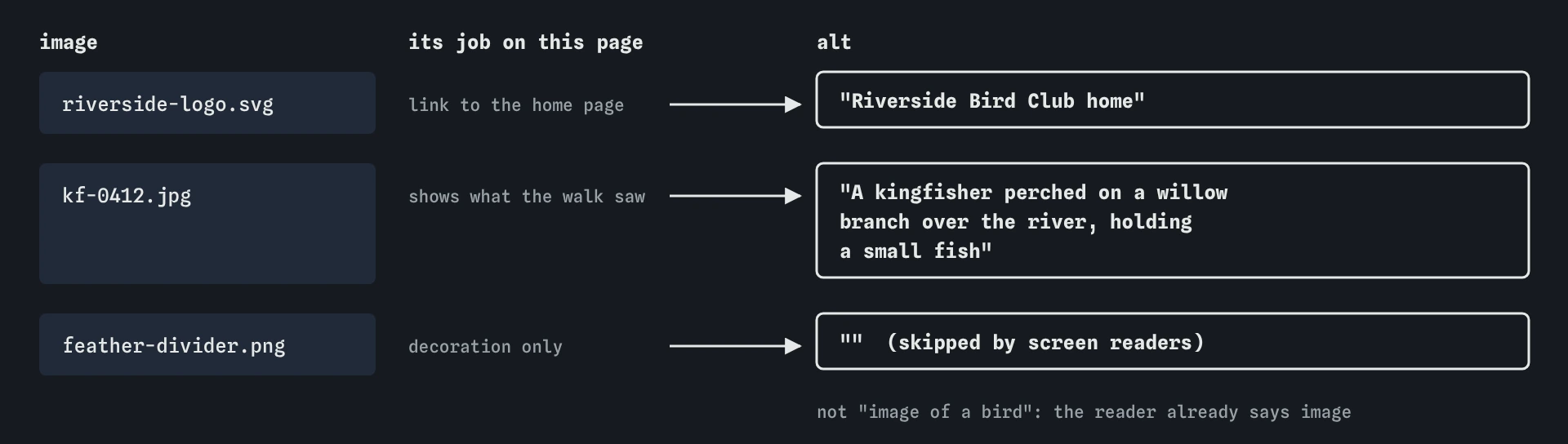
Ask what the image is doing on this page. The same photo can need different words in different places. On the walk report, the kingfisher photo shows what the group saw, so the alt names the bird and what it was doing: perched on a willow branch, holding a fish. On a bird identification page, the useful detail might be the orange chest and the short tail. On a page about camera lenses, the photo might illustrate background blur.
Keep it short and specific. One sentence is usually plenty. Start with the important thing, because people listening can skip ahead once they have what they need. Skip details that a sighted person would not notice or care about.
Leave out “image of”, “photo of” and “picture of”. The screen reader already says “image” before the name, so “image, image of a bird” wastes words. If the kind of image is relevant, such as a painting or a screenshot, say so: “Watercolour of a heron at dusk”.
- Informative photo: say what it shows that is relevant here.
- Image inside a link or button: say what the link or button does.
- Decoration: use
alt="". - Chart or diagram: give the key fact in
alt, and the full detail in nearby text. - Image of text: repeat the text exactly.
When should alt be empty?
Some images add nothing that the words around them do not already say. A feather line between sections, a background flourish, a stock photo of a happy cyclist next to a heading that says the same thing. For these, write alt="": an empty value, with nothing between the quotes.
An empty alt tells the browser the image is decoration. The browser gives it the role presentation and leaves it out of the accessibility tree, so screen readers say nothing at all. Look at the Screen reader view after you fix the divider: its line disappears.
Empty and missing are very different. alt="" means “skip this”. No alt means “nobody told me”, and the screen reader guesses. A space between the quotes is also a mistake, because some screen readers then say “image” with no name. If an image is decoration and you control the CSS, a CSS background-image keeps it out of the HTML entirely.
<img class="divider" src="art/feather-divider.png" alt="">What should a logo or icon inside a link say?
When an image is the only thing inside a link or button, its alt becomes the name of that link or button. That makes it a functional image, and the right text describes the action, not the picture. The bird club logo links to the home page, so its alt should be “Riverside Bird Club home”, not “green circle with a robin in it”.
Check the Screen reader view. Before the fix it shows link, unlabeled, because the link has no text and the image has no alt. After, it says link, Riverside Bird Club home. A keyboard user hears the same name when they Tab to it, and the Keyboard view lists it as a stop with that name.
Inline SVG icons work differently, because <svg> has no alt attribute. Put the name on the link or button with aria-label, or with visually hidden text, and add aria-hidden="true" to the SVG so the drawing itself is ignored. If a link has visible words next to an icon, the icon is decoration and needs no name of its own.
<a href="/"><img src="logos/riverside-logo.svg" alt="Riverside Bird Club home"></a>

<a href="tel:+441632960123" aria-label="Call Spoke and Chain on 01632 960123">
  <svg aria-hidden="true" viewBox="0 0 20 20">...</svg>
</a>
How do you give a chart or diagram a text alternative?
A chart can carry more information than a short alt should hold. Give the image a brief name that says what it is and its main point, then put the detail in text people can read at their own pace: a sentence below the chart, a <figcaption>, or a small data table.
For the bike shop’s bar chart of winter bookings, the name can be “Bar chart: winter services booked rose from 12 in October to 30 in December”. If the exact monthly figures matter, add a short table under it. A table helps everyone, including sighted visitors who want the numbers without squinting at bar heights.
An inline <svg> chart needs role="img" and a name from aria-label, or from a <title> element as its first child, which browsers also use as the name. Without a role, browsers expose an SVG in inconsistent ways, and some screen readers wander into its shapes or skip it.
<figure>
  <svg role="img" aria-label="Bar chart: winter services rose from 12 in October to 30 in December" viewBox="0 0 300 120">...</svg>
  <figcaption>Services booked: October 12, November 24, December 30.</figcaption>
</figure>
What about images that contain text?
A banner that says “Half price tubes this week” as pixels in a JPEG needs that exact sentence in its alt. Anything less, and screen reader users miss the offer. Text in images also blurs when people zoom and cannot be restyled by people who need larger letters or different colours, so WCAG 1.4.5 Images of Text asks you to use real text where you can.
Logos are the accepted exception. A logo is text styled as a brand, and its alt gives the name: “Spoke and Chain”. For everything else, put the words in HTML and style them with CSS. They will be sharper, translatable and searchable too.
How do you check alt text in the four views?
Start with **Checks**. It flags images with no alt at all, alt that looks like a file name, and alt that starts with “image of”. It also flags SVG pictures with no name and links that end up with no name because of a missing alt.
Then read the **Screen reader** view from top to bottom. Every image, line should make sense in its place, and decoration should not appear at all. Read the line aloud as if you could not see the page. If it would leave you wondering, rewrite it.
No checker can judge whether alt text is accurate. A photo of a heron with alt="A kingfisher" passes every automatic test. That judgement is yours, so ask a second person to read your alt text against the pictures before a big launch.
What goes wrong when an AI tool writes alt text?
AI tools tend to fill every alt with something, which sounds helpful and often is not. Watch for decoration described in detail (“Decorative wavy line in pale green”), which should be alt="". Watch for logos inside links described by their look instead of where they go.
Watch for invented details. A tool that cannot see your photo may write “A happy customer collecting their bike”, which is a guess dressed up as a fact. Watch also for alt that repeats the caption or heading next to it word for word, so a screen reader says the same sentence twice. When an image sits beside a caption that already describes it, a short alt or an empty one is fine.
Finally, check SVG icons. Generated code often leaves inline SVGs with no role and no name inside icon-only buttons and links, which produces “link, unlabeled”. Add the name on the link and hide the SVG.
Field notes
- The
alttext is what a screen reader says in place of an image. - Write what the image means on this page, in plain words.
- Decoration gets an empty
alt=""so it is skipped. - A logo alone in a link should say where the link goes.
Easy to get wrong
“Image of” repeats what the screen reader already says, and “a bird” tells a birdwatcher nothing. Name the bird and what it is doing.
A missing alt makes screen readers guess, often by reading the file name. An empty alt tells them the image is decoration and can be skipped.
When an image is the whole content of a link, its alt is the link’s name. Describe where the link goes.
An image of text needs the text itself in its alt, or screen reader users miss the message.
Questions people ask
How long can alt text be?
There is no hard limit, but most good alt text is one short sentence. Screen readers read it in one go, and some users cannot pause in the middle. If you need more, put the detail in visible text near the image.
Should alt text end with a full stop?
It can. A full stop makes many screen readers pause briefly before the next thing, which can help. Either way works, so pick one habit for your site.
Is the title attribute a good place for a description?
No. title shows a tooltip only on mouse hover, never on touch screens or keyboard focus, and screen readers treat it inconsistently. Put the text in alt or in visible text.
What if I do not know whether an image is decorative?
Cover it with your hand and read the page. If nothing is lost, it is decoration and gets alt="". If someone would miss something, write that something as the alt.