What is an accessibility audit?
An audit is a structured look at a page to find everything that stops someone using it, then a plan to fix it. Professional audits test against WCAG 2.2 level AA, success criterion by success criterion, and list each failure with where it is, who it affects and how to fix it. You can do a smaller version of the same thing on any page you build, in under an hour, with the views on the right and a keyboard.
This project puts everything from the course on one page. The Abingdon commuter product page looks tidy and loads fast, and it has problems from almost every lesson: language, images, headings, contrast, labels, Tab order, focus, buttons, state and announcements. Some show up in the Checks. Some only show up when you press things.
Fix them one at a time and press Check my work as you go. Each check message points at what is still missing.
What order should you audit in?
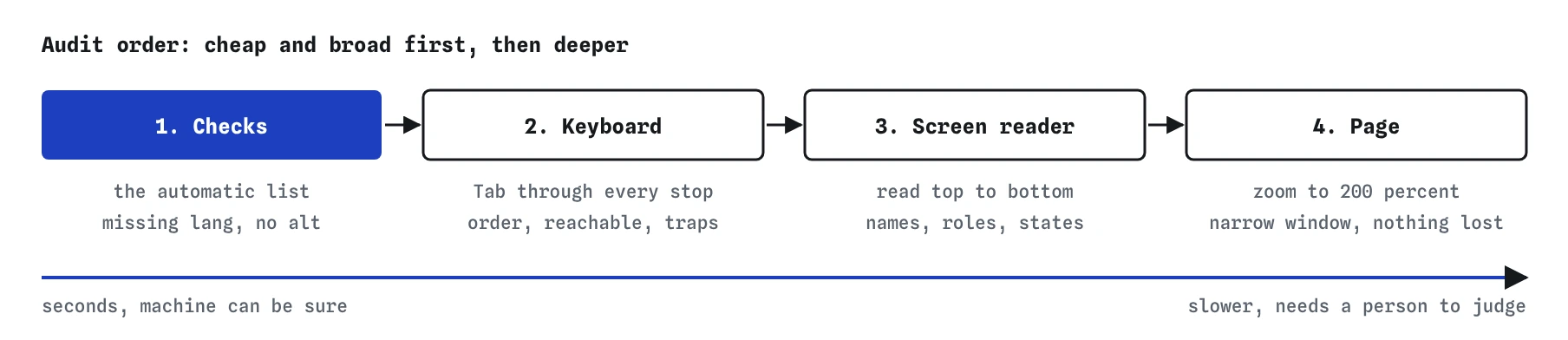
Start cheap and broad, then go deeper. The Checks view takes a second and catches the problems a machine can be sure of. It cannot judge whether alt text is accurate, whether the Tab order makes sense, or whether a button does what it says. After the Checks, put the mouse aside.
Use the Keyboard view next. Turn on the numbers on the page, then press Tab through every stop. Watch for stops in the wrong order, stops you cannot see, controls you cannot reach, and anything that traps you. Then press Enter or Space on each control and see what happens.
Finally read the Screen reader view from top to bottom, as a blind visitor would hear it. Does every line make sense out of context? Does each button say what it does and whether it is open? When something changes, is it announced?
- Checks: the automatic list
- Keyboard: order, visibility, reachability, traps
- Screen reader: names, roles, states, reading order, announcements
- Page: zoom to 200 percent and narrow the window
Which problems do the Checks find on this page?
Open the Checks on the starting page and you get a long list. The <html> element has no lang. The bike photo has no alt, so a screen reader reads DSC_0193.jpg. The page jumps from <h1> to <h3>. The note about the free first service is light grey, around 2.5 to 1 against white, well under 4.5 to 1.
The postcode field is named only by its placeholder, which vanishes as soon as someone types. It also has tabindex="1", which pulls it to the front of the Tab order, ahead of the menu button. The basket control is a <div> with an onclick, which no keyboard can reach. The ☰ button has no name. And the CSS removes the focus outline from links, buttons and inputs.
Each of these is one or two lines to fix, and each has its own earlier lesson. Fix them first, because they are quick and they clear the way for testing behaviour.
<html lang="en">
<img src="DSC_0193.jpg" alt="A dark green city bike with mudguards and a rear rack">
<h2>Steel frame, hub gears, mudguards fitted</h2>
<label for="postcode">Postcode</label>
<input type="text" id="postcode" autocomplete="postal-code">
What do the Checks miss that you find by pressing things?
Once the Checks are quiet, the page can still fail people. Press ☰ in the Page view. The links appear, and the Screen reader view still says only “button, Menu”, with no state. A screen reader user has no idea anything opened. That needs aria-expanded, kept in step by the click handler, from the show and hide lesson.
Press Add to basket. The message appears below it, and nothing is announced, because the paragraph is not a live region. Add role="status" to the paragraph that is already in the HTML, as in the announcing changes lesson. Then try it from the keyboard: Tab to Add to basket and press Enter. If it is still a div, it never gets focus at all.
These are the bugs that automatic tools miss most often, because the HTML is valid at rest. They only appear when someone interacts. That is why the checks for this project press the buttons before they look.
<button type="button" class="add" onclick="addToBasket()">Add to basket</button>
<p id="basket-msg" role="status"></p>
How do you fix focus without making it ugly?
Designers sometimes remove the focus outline because the browser default looks out of place when someone clicks a button with a mouse. The :focus-visible pseudo-class solves that. Browsers apply it when focus should be shown, mainly after keyboard use, and usually not after a mouse click on a button. Style it with a clear outline in a brand colour.
The outline needs a contrast of at least 3 to 1 against the background next to it, under 1.4.11 Non-text Contrast. The solution uses a dark orange, #b3410e, three pixels wide with a small offset, so it stands clear of the blue buttons and white page. Check it on every background the focus can land on, including the light blue header.
WCAG 2.2 also added 2.4.11 Focus Not Obscured: a sticky header or cookie banner must not hide the focused element completely. This page has no sticky parts, but most real shop pages do.
:focus-visible { outline: 3px solid #b3410e; outline-offset: 2px; }How do you decide what to fix first on a real site?
Real audits find dozens of problems, and teams cannot fix them all in one day. Rank them by how badly they block someone and how many pages they appear on. A basket button that cannot be pressed with a keyboard stops every keyboard user buying anything. Low contrast on a small note is a problem too, and a smaller one.
Shared parts come first, because one fix covers every page: the header, the menu button, the footer, the form styles, the focus outline. Then fix the key journeys, such as search, product, basket and checkout, end to end. Content problems like missing alt text follow, along with a habit of writing it as images are added.
Write each problem down in plain words with the page, the element, who it affects and the fix. That list is your audit report, and it is how a team tracks whether things are getting better.
- Blockers: cannot reach, cannot press, cannot hear, traps
- Shared parts: header, menu, footer, focus styles
- Key journeys: search, product, basket, checkout
- Content: alt text, link text, headings, plain language
How do you test with a real screen reader after the views?
The Screen reader view is a model. Real screen readers word things differently, read some states in another order and add their own shortcuts. Once the page passes here, spend ten minutes with the one built into your computer or phone. Turn it on, reload the page and listen from the top without looking.
Then try the tasks a shopper would do. Jump between headings. Open the menu and listen for its state. Add the bike to the basket and wait for the announcement. Find the postcode field and type into it. If any step makes you reach for the mouse or the screen, write it down.
Better still, ask people who use assistive technology every day to try it, and pay them for their time. They will find problems no checker or model can.
What should you check in AI-written code before you ship it?
The starting page is typical of what AI tools and quick templates produce: a neat layout, sensible content, and the accessibility details left out. Look for the same patterns in anything a tool writes for you. A div with a click handler. An icon button with no name. outline: none in a reset. A placeholder used as a label. A tabindex above zero. An image with a file name for alt text. A script that changes text with no live region, and a toggle with no aria-expanded.
Run the same audit on every generated page: Checks, keyboard, Screen reader view, then a real screen reader for anything important. Ask the tool to fix what you find, and check again, because a fix for one problem often adds another. Over time you will spot these patterns as you read the code, before you run anything at all.
Field notes
- An audit finds what stops people using a page, then plans the fixes.
- Start with the quick Checks, then test by pressing things yourself.
- A page can pass the Checks and still fail keyboard and screen reader users.
- Fix the problems that block people most before the minor ones.
Easy to get wrong
A menu that never reports its state and a message that is never announced both pass automatic checks. Only pressing things finds them.
Removing the outline leaves keyboard users unable to see where they are. :focus-visible shows it for the keyboard without bothering mouse users.
A placeholder disappears when people type and is often low contrast. A positive tabindex breaks the Tab order for the whole page.
One fix to a shared component helps every page at once. Page by page fixes take longer and miss the same bug elsewhere.
Questions people ask
How long does an audit like this take on a real page?
Twenty to sixty minutes for one page, once you are used to it. The first few take longer. Templates that many pages share are worth more time, because every fix spreads.
Do I need to test every WCAG success criterion?
A full audit does, and there are 55 at levels A and AA in WCAG 2.2. For your own pages, the routine here catches most real problems. Use the full list for a formal report or a legal requirement.
Should I add an accessibility statement to the site?
Yes, especially in places where the law expects one, such as the public sector in the EU and UK. Say which standard you aim for, what you know is not yet accessible, and how people can report a barrier.
What is a VPAT?
A Voluntary Product Accessibility Template is a document, used mainly in the United States, that reports how a product meets accessibility standards. Buyers in government and large companies often ask for one. It is built from an audit like this one.
What should I do after this course?
Use what you learned on one real page this week. Turn on a screen reader for ten minutes, unplug your mouse for an afternoon, and listen to the people who report barriers to you.