Why do screen reader users hear links out of context?
Sighted visitors scan a page and pick out links by their colour and underline. Screen reader users have a faster route: a shortcut that lists every link on the page, alphabetically or in order, and lets them type to filter it. Many people use it on every new page, the way you might glance down a page before reading it.
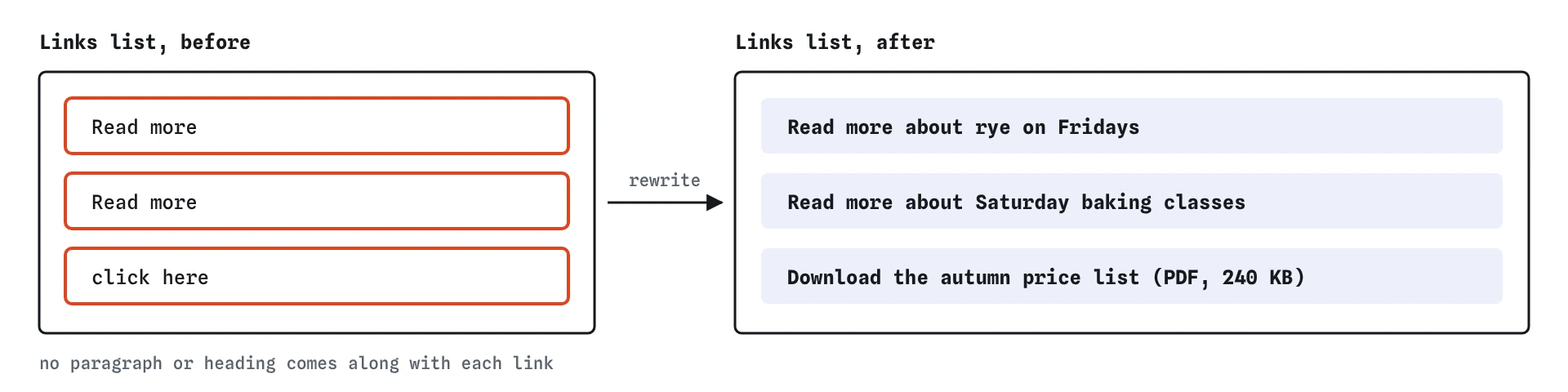
That list shows only the link text. The paragraph, the heading and the picture beside the link are gone. On the starting bakery page the list reads “Read more, Read more, click here”, which tells nobody anything. The same happens when someone presses Tab from link to link: each link is announced by its name, often without the sentence around it.
WCAG 2.2 asks for this in 2.4.4 Link Purpose (In Context) at level A: people must be able to tell what a link does from its text, or from its text together with the sentence or list item it sits in. Level AAA, 2.4.9 Link Purpose (Link Only), asks for the link text alone to be enough. Writing for the stricter one is rarely harder, and it is what makes the links list useful.
How do you write link text that works on its own?
Put the destination or the action in the link. Good link text answers “where does this go?” or “what will this do?” in a few words. “Rye is back on Fridays” or “Read more about rye on Fridays” both work. “Read more” alone does not.
Start with the words that differ. People filtering the links list, or listening to links one by one, decide fast. If every link starts “Read more about our”, they have to wait for the end each time. “Rye on Fridays: read more” or the story title on its own often reads better.
Keep it short and avoid the word “link”, because the screen reader already says it. Make the visible text match what the link does, so voice control users can say “click Add a sighting” and hit it. This is 2.5.3 Label in Name: the accessible name should contain the words people see.
<!-- Before -->
<p>Our full price list is ready. To download it, <a href="/files/price-list-autumn.pdf">click here</a>.</p>

<!-- After -->
<p><a href="/files/price-list-autumn.pdf">Download the autumn price list (PDF, 240 KB)</a>.</p>
What if the design needs short “Read more” links?
Sometimes a card layout calls for a small “Read more” under each story. You have three honest options. The simplest is to make the heading itself the link and drop the extra link, which also removes a duplicate Tab stop. A whole-card link around the heading works well too.
The second is to keep “Read more” visible and add the topic in visually hidden text inside the link. Sighted people see the short label, and screen readers hear the full one. The visible words stay at the start, so voice control still works.
The third is aria-label on the link with the full text. It works, but it replaces the visible text entirely, so make sure the label starts with the visible words. Prefer real text when you can: it gets translated by browser translation tools, and aria-label often does not.
<a href="/news/rye-fridays">Read more<span class="visually-hidden"> about rye on Fridays</span></a>Should links with the same text go to the same place?
Yes. If two links on a page say the same thing, people expect them to go to the same place. Two “Read more” links that lead to different stories break that expectation. In the links list they look like duplicates, and someone who already visited one may skip the other.
The reverse is fine. Two links to the same page can have different text, such as a heading link and a “See the menu” link. Still, think about whether you need both. Every extra link is another Tab stop for keyboard users. WCAG 3.2.4 Consistent Identification asks that things with the same job are named the same way across a site, so “Basket” stays “Basket” on every page.
How should a link warn that it opens a new tab or a file?
A link with target="_blank" opens a new tab. Sighted people usually notice the new tab. Screen reader users and people using magnification may not, and then the Back button does nothing, which feels broken. If you open a new tab, say so in the link text: “Feeding garden birds in winter (opens in a new tab)”. An icon alone is not enough unless it has a text name.
Better still, ask whether the new tab is needed at all. Most people know how to open a link in a new tab themselves. Keep target="_blank" for cases where leaving the page would lose work, such as a help page linked from the middle of a form.
Links to files deserve the same care. A PDF, a spreadsheet or a big download behaves differently from a web page: it may open another app, use mobile data or be hard to read with assistive technology. Put the file type and size in the link text: “(PDF, 240 KB)”. That helps everyone decide whether to press it now.
What about links that are only an icon or an image?
A link must have words, even if the design shows only a picture. An arrow, a symbol or an icon font gives a screen reader nothing useful to say. Some read the character’s Unicode name, so “→” becomes “rightwards arrow”, and others say nothing. The Checks view flags these as link-name problems.
For an image inside a link, the image’s alt is the link’s name, as the alt text lesson showed. For an SVG or icon font, add visible text, visually hidden text, or an aria-label on the link, and hide the icon with aria-hidden="true". Visible text is best: it helps people who do not know what the icon means.
How do you test link text in the four views?
Open the **Screen reader** view and read only the lines that start with link,. That is a fair stand-in for a screen reader’s links list. Ask of each line: if this were all I heard, would I know where it goes? Would two links sound the same but go to different places?
Then open the **Keyboard** view. It lists every Tab stop with its name, so vague links stand out quickly, and you can count how many stops a visitor has to pass through. Finally check the **Checks** view for link-vague and link-name. The checker knows the usual vague phrases, but it cannot tell whether “Opening hours” really goes to the opening hours, so read the destinations yourself.
What do AI tools get wrong with links?
Generated pages love “Learn more”, “Read more” and “Click here”, often three or four on one screen. They also tend to add target="_blank" to every external link with no warning, and to wrap icons in links with no text at all. When you review AI-written HTML, list the links and read their text aloud in order.
Watch for the opposite mistake too: an aria-label stuffed with extra words that do not match the visible text, such as a link that shows “Menu” but is labelled “Navigate to our delicious seasonal menu page”. It breaks voice control and adds noise. Keep labels short and keep the visible words first.
Also check that links are links. Generated code sometimes uses a <button> or a clickable <div> to go to another page, or an <a> with no href that runs a script. A real <a href> is announced as a link, works with the links list, and opens in a new tab when people ask it to.
Field notes
- Screen reader users often hear a list of links with nothing around them.
- Good link text says where the link goes or what it will do.
- Read more and click here mean nothing when heard alone.
- Tell people when a link opens a file, such as a PDF.
Easy to get wrong
In a list of links, “Read more” repeated three times is useless. Put the topic in the link text.
“Click here” assumes a mouse and says nothing about the destination. Name the file and say it is a PDF.
A silent new tab leaves screen reader users with a Back button that does nothing. Warn them in the link text, or do not open a new tab.
Questions people ask
Is “Read more” always wrong?
No. It is fine when the topic is part of the link too, either as visible text or as visually hidden text. The problem is a link whose whole name is “Read more”.
Should link text include the URL?
Usually not. A screen reader spells long addresses out character by character. Use words that describe the page, and show a URL only when people need to copy it, such as a short club web address on a printed poster.
Do links need to be underlined?
Links inside paragraphs need something besides colour to stand out, and an underline is the clearest choice. The colour and contrast lesson covers this rule, 1.4.1 Use of Color.
Can I use the title attribute to explain a link?
It is a weak choice. Most screen readers ignore title when the link already has text, and touch and keyboard users never see the tooltip. Put the words in the link.