Why ask for an explanation at all?
Code you don’t understand is code you can’t check, fix or change. If an AI assistant hands you a script and you paste it in without knowing what it does, the first bug leaves you stuck. You go back to the chat, paste the error, get another script you don’t understand, and the loop repeats.
Asking for an explanation breaks that loop. You learn what each part does while you build, and you start to notice when the code and the explanation don’t match. That is one of the most useful habits you can build with any AI tool: treat it as a patient tutor, and keep yourself in charge of the code.
What is wrong with the robin counter?
Open the **Preview** and click “I saw a robin” three times. You expect 1, 2, 3. You get 01, 011, 0111. The script is four lines long and looks reasonable, which is exactly why it is a good thing to ask about.
If you ask the assistant to “fix my counter” with no request to explain, you may get a fix you can’t follow. Try it in the practice area: the rewrite reply swaps your four lines for a Proxy, a render() function and a module script. It might even work, and you would have no idea why, or how to change it later.
How do you ask for a useful explanation?
Paste the code, say what it does that you didn’t expect, and ask what each line does and why. Any wording works: “explain each line”, “why does it show 01”, “walk me through this”. The **Prompt check** view ticks Explain and Context when both are there.
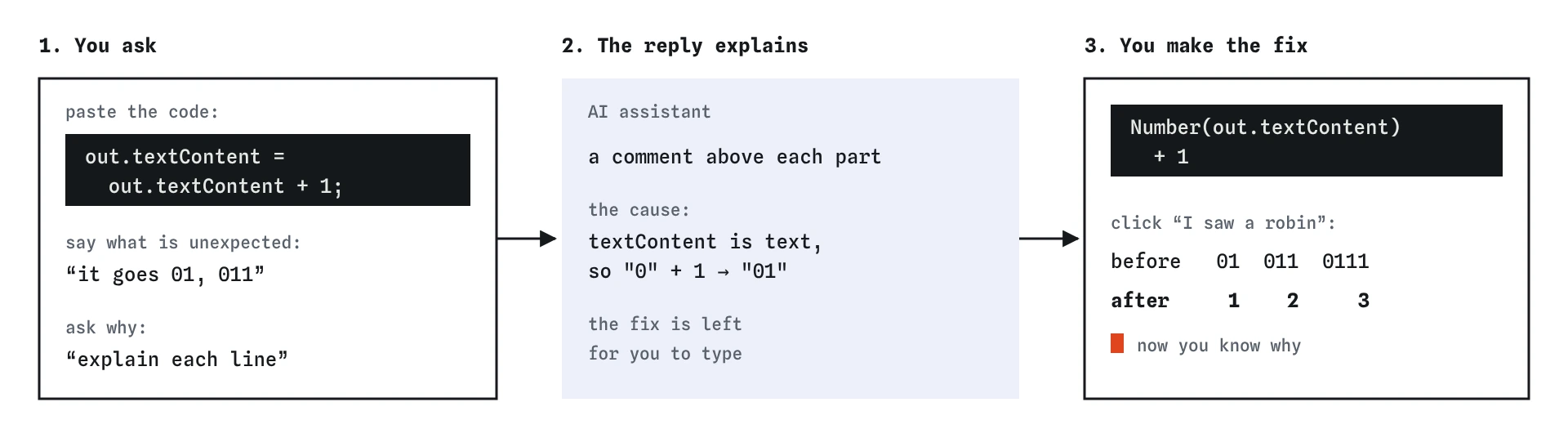
Send this request in the practice area. The reply walks through the script in order and returns your own code with a comment above each part. It also names the cause of the bug and leaves the fix for you.
Can you explain what each line of my script does? The count goes 0, 01, 011 instead of 0, 1, 2 and I want to understand why. Here is my code:
button.addEventListener('click', function () {
  out.textContent = out.textContent + 1;
});
Number(out.textContent) + 1 yourself is what makes it stick.Why does “0” plus 1 give “01”?
Everything you read from the page with textContent is text, even when it looks like a number. In JavaScript, + adds two numbers, and joins two pieces of text. When one side is text, the other side is turned into text too, so "0" + 1 becomes "01". The next click gives "01" + 1, which is "011".
The fix is to turn the text into a number before adding. Number(out.textContent) gives the number 0, then + 1 gives 1. Make that change in the Code tab and click the button again. The same trap shows up with form inputs, because input.value is always text too.
out.textContent = Number(out.textContent) + 1;Should you ask for comments in the code?
Comments are a good way to keep an explanation next to the code it explains. Ask for short comments above each block, in plain words. When you come back next month, the comments tell you what you were thinking.
Read them as carefully as the code. AI tools write comments with the same confidence as everything else, and a comment can describe what the code was meant to do instead of what it does. The Break It task below has two comments like that. A wrong comment is worse than none, because it makes you stop looking.
What follow-up questions help most?
One explanation rarely answers everything. Ask about the single line you still don’t follow, and keep the question narrow. Good follow-ups name the exact piece of code.
If an explanation uses a word you don’t know, ask what it means before going further. There is no prize for pretending to understand, and the assistant won’t mind being asked the same thing twice.
- What does
addEventListenerdo, and what is the second part inside the brackets? - What would happen if I removed
Number()? - Is there a simpler way to write this line for a beginner?
- What would break if the
idon the button changed?
How do you check that an explanation is right?
Test the claims you can test. If the explanation says a line finds the button by its id, change the id in the HTML and see the button stop working. If it says textContent is always text, add a line like console.log(typeof out.textContent) and look in the browser console. Each small test either confirms the explanation or catches a mistake.
Then look at the **Review** view after you fix the bug. It shows the assistant’s code beside yours with your change highlighted. If you can say in one sentence why that change works, the explanation did its job.
What do you do once you understand the code?
Make the change yourself. When the assistant has explained the cause, typing the fix with your own hands is how it sticks. Change out.textContent + 1 to Number(out.textContent) + 1, click the button a few times, and watch the count go 1, 2, 3.
Then try a small variation without asking: a second button that counts blackbirds, or a reset button that sets the text back to 0. If you can build the variation, you understood the explanation. If you get stuck, you know exactly which question to ask next, and it will be a much better question than “fix my code”.
Keep a short note of what you learned, such as “textContent and input.value are always text”. The same lesson comes up again in forms, prices and dates, and you will spot it in AI answers before you run them.
How is this pretend assistant different from a real one?
The pretend assistant gives the same explanation every time for the same kind of question. A real AI tool words it differently each time and may go into more or less detail. It can also be wrong about why something happens while sounding sure. That is why the tests above matter more than the tone of the reply.
Real tools are often good at explaining, and they don’t get tired of questions. Ask them to explain at your level, for example “I know HTML and a little JavaScript”, and they usually adjust. Keep the code and your questions small, and you will learn far more than by pasting fixes.
Field notes
- Code you do not understand is code you cannot check, fix or change.
- Paste the code, say what surprised you, and ask what each line does.
- Text read with
textContentstays text, so+joins it instead of adding. - Typing the fix yourself after the explanation helps it stick.
Easy to get wrong
A bare fix request often gets a rewrite you can’t follow. Asking why gets you an answer you can check and a skill you keep.
AI tools write comments about what code should do, and sometimes the code doesn’t do it. A false comment hides the bug from you.
Long explanations of long files are hard to follow and easy to skim. A focused question gets a focused answer.
Questions people ask
Will asking for explanations slow me down?
A little at first. You quickly need fewer explanations, because you learn the patterns, and you spend much less time stuck on code you don’t understand.
What if the explanation is too advanced?
Say so and tell it what you know: “I’m a beginner, I know HTML and a little JavaScript, explain it in plainer words.” Most assistants adjust well.
Can the assistant explain code someone else wrote?
Yes, as long as nothing private is in it. Remove keys, passwords and personal data before you paste any code.
Should I ask it to explain code it just wrote?
Yes. Asking the assistant to walk through its own answer often surfaces mistakes, and it shows you which parts you need to read most carefully.