Why does AI code so often miss accessibility?
AI assistants learn from huge amounts of existing web code, and a lot of that code is inaccessible: images without alt text, clickable <div> elements, pale grey text, inputs with no labels. When you ask for a gallery or a form, the assistant reproduces what is common, and what is common often leaves people out.
Asking for accessibility helps a lot. The reply gets better structure and remembers most of the details. Most is the key word. Even an answer that describes itself as accessible usually has one or two gaps, and the assistant states its claims with the same confidence whether or not they are true.
How do you ask for accessible code?
Say who needs to use it and how. “Make it accessible” is a start. “It must work for screen reader users and keyboard users, with alt text and readable contrast” is better, because it names the checks you care about. The **Prompt check** view ticks Accessibility for any of these.
Send the request below in the practice area and compare the reply with the one you get from a plain “add a gallery”. The plain one gives clickable images with no alt text and no captions linked to them. The accessible one uses <figure> and <figcaption> and adds alt text, almost everywhere.
Please add a gallery of three birds we saw this month to my bird club page, with a caption under each photo. Here is my page:
<h1>Hollow Lane Bird Club</h1>
<h2>Seen this month</h2>
Make it accessible: it must work for screen reader and keyboard users.
How do you check images and alt text?
Read every <img> tag. Each one needs an alt attribute. If the image carries information, like a photo of a heron in a sightings gallery, the alt text describes what is relevant in it. If the image is pure decoration, alt="" tells screen readers to skip it. A missing alt is the worst case: many screen readers read out the file name, such as “heron dot jpg”.
The good reply in the practice area says every image has alt text. The robin and the goldfinch do. The heron doesn’t. That is a typical AI gap: the pattern is right, and one item in the list is skipped. Counting is faster than reading, so check that the number of alt attributes matches the number of images.
<img src="heron.jpg" alt="A grey heron standing in shallow water at Mill Pond" width="200" height="150">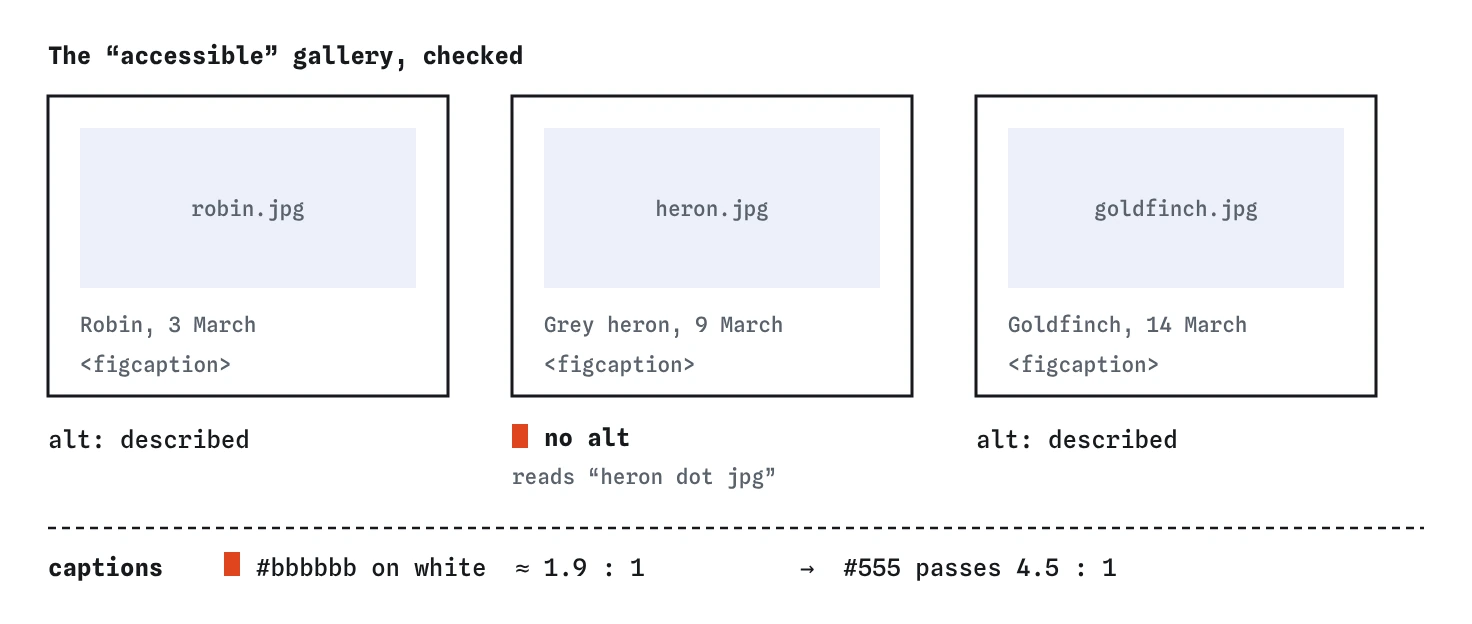
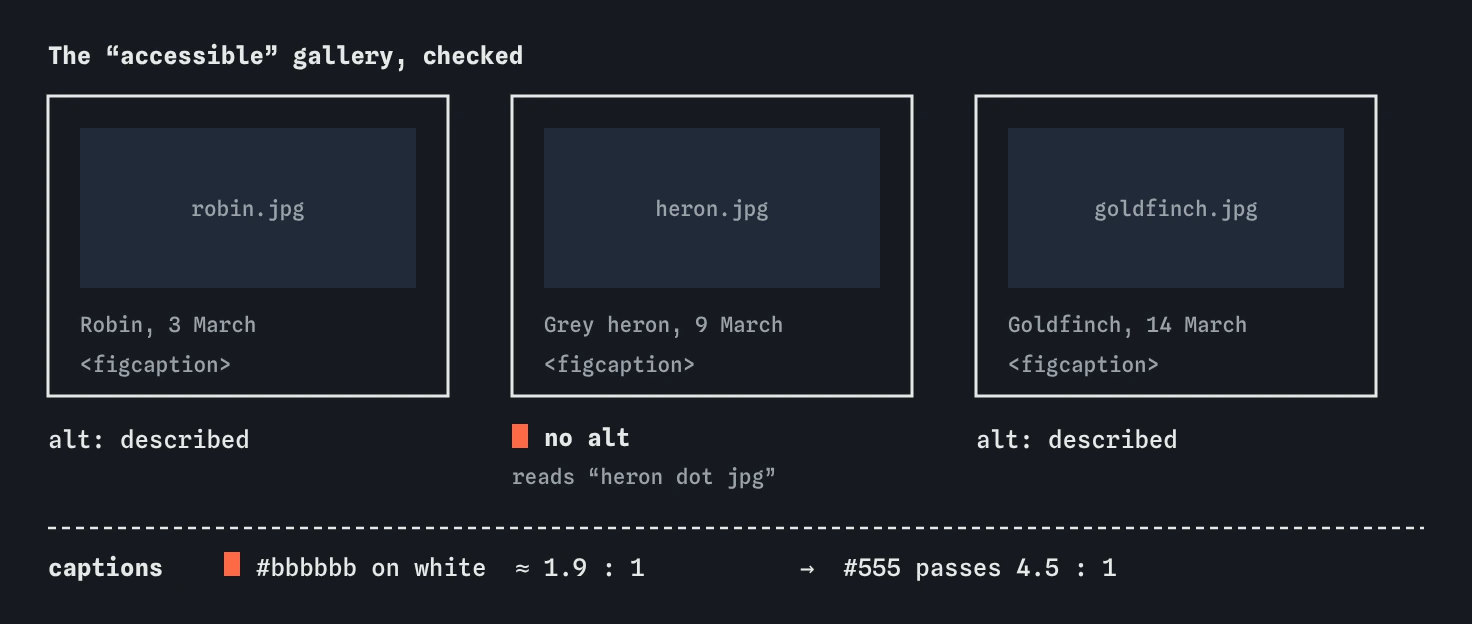
alt attributes for three photos. The pale caption grey also fails contrast, and a darker grey such as #555 fixes it.How do you check colour contrast?
Text needs enough contrast with its background to be readable by people with low vision, on a cheap screen, or in sunlight. The common target is a contrast ratio of at least 4.5 to 1 for normal text. Pale grey #bbbbbb on white is about 1.9 to 1, far below it. AI tools pick pale greys often because they look “clean” in design examples.
Most browser developer tools show the contrast ratio when you inspect a text element, often with a tick or a warning. If you don’t have that handy, a darker grey such as #555 on white comfortably passes. Change the caption colour in the Code tab and compare the Preview before and after. Then check any other text the reply styled, such as links, button text and footer notes, because a pale colour choice rarely appears only once.
How do you test with the keyboard?
Put the mouse aside. Press Tab to move through the page and Enter or Space to press things. Every link, button and field should be reachable, in a sensible order, with a visible outline showing where you are. If you can’t reach something or can’t see where focus is, keyboard users can’t either.
This test catches two common AI habits at once. Clickable <div> and <img> elements with onclick can’t be reached with Tab, and CSS like outline: none removes the focus outline because it “looks untidy”. The Break It form has both.
What gaps should you look for every time?
Keep a short checklist and run through it on every AI reply that touches the page. Each item takes seconds, and together they catch most of what assistants miss.
None of these needs special software. Your eyes, the keyboard, the Code tab and your browser’s developer tools are enough for a first pass. For bigger sites, automated checkers find more, and a quick listen with a screen reader finds things no checker can.
- Every
<img>has a fittingalt, oralt=""if it is decoration. - Every form field has a
<label>connected withforandid. - Anything clickable is a
<button>or a link, not a<div>or<span>. - Text colours have enough contrast with their background.
- Nothing removes the focus outline without a visible replacement.
- Headings go in order and describe the sections below them.
- The page has a
langattribute on<html>.
Should you ask the assistant to check its own work?
It can help as a second pass. Paste the code and ask: “Check this for accessibility gaps: alt text, labels, contrast and keyboard use. List each problem with the line.” A focused question like that often finds real issues, including ones in its own earlier answer.
Treat its list as suggestions to verify, the same as any other reply. It may miss a gap, or report one that isn’t there. Your own keyboard test and a look at the contrast in developer tools are what decide.
How is this pretend assistant different from a real one?
The pretend assistant always leaves the same two gaps, so the lesson can check your fixes. A real AI tool may leave different gaps each time: alt text on every image one day, a missing label or a removed outline the next. Asking for accessibility usually improves its answers, sometimes a lot.
Accessibility is about real people using your page: someone using a screen reader to find the next bird walk, someone with a tremor using the keyboard, someone reading captions on a phone outside. An AI tool can’t test with those people for you. You can run the quick checks above every time.
Field notes
- Assistants copy common web code, and much of it skips accessibility.
- Say who needs to use the page and which checks you care about.
- Each image needs
alttext, oralt=""if it is pure decoration. - Normal text needs a contrast ratio of at least 4.5 to 1 with its background.
Easy to get wrong
AI tools describe their code as accessible with the same confidence whether it is or not. One skipped image or a pale colour is easy to miss and hard for users to get past.
Placeholders disappear when you type, are often low contrast, and many screen readers don’t announce them.
Without a visible focus, keyboard users can’t see where they are on the page.
Questions people ask
What makes good alt text?
Describe what the image shows that is relevant to this page, in one short sentence. Skip “image of”. For a decorative image, use an empty alt="".
Does asking for accessibility every time really help?
Yes. Replies are noticeably better when you ask. They are still not perfect, so ask and check.
Do I need a screen reader to test?
Not for a first check. The keyboard test, contrast check and reading alt text and labels catch most beginner issues. Trying a screen reader later teaches you a lot.
Is accessibility only for disabled people?
Many people benefit: people on phones in bright light, people with a broken mouse, older visitors and anyone in a hurry. Accessible pages are easier for everyone.