What is a limit in a request?
A limit tells the assistant what to leave out or stay within. “Plain HTML and CSS only.” “No JavaScript.” “No library or framework.” “Under 20 lines.” “Keep the walks closed at first.” Each one closes off a direction the assistant might otherwise take.
Without limits, an assistant aims for an impressive, complete answer, the kind it has seen praised. For a show and hide list, that often means a library, a slide animation, a script that builds the HTML and maybe tracking. Each piece might be fine in someone else’s project. In a small bird club page it is extra weight you would have to understand, check and keep working.
What happens when you leave limits out?
Try it in the practice area: “Can you make the walks on the bird club site collapsible please?” The reply loads an accordion library and its stylesheet from another server, rebuilds the walks from a JavaScript array with innerHTML, turns on analytics and drops the third walk without mentioning it. It sounds proud of all of it.
Look at the costs. If that server is slow or goes away, the walks vanish. innerHTML with joined strings is a habit that becomes unsafe when the text comes from visitors. Analytics may need a privacy notice. And you still have to learn the library to change anything. None of this was in your request, and none of it was ruled out either.
The reply is also longer than the page it replaces. Long answers take longer to read, and the longer you spend reading, the easier it is to miss an important line. A limit is partly a gift to your future self, who has to check every line of whatever comes back.
Which limits are worth setting?
Start with the ones that match your skills and your project. In this course the default is:
Add limits that come from the job as well. If the club wants every walk closed at first, say so. If the colours must stay green, say so. A limit you forget is a limit the assistant cannot keep.
- Tools: “plain HTML and CSS only”, “no JavaScript” or “vanilla JavaScript only, no library”.
- Size: “under 20 lines of CSS”, “one file”, “no more than three fields”.
- Scope: “only change the walks list”, “keep everything else on my page as it is”.
- Style: “use my green #2f6b4f”, “no animations”.
What does a request with limits look like?
Put the limits at the end, after the goal and the context, as a short list or one sentence. Plain words work. There is no special syntax, and the assistant here accepts any normal phrasing such as “don’t use”, “avoid” or “without”.
Send it and open **Prompt check**. The Limits row is ticked. The reply now uses <details> and <summary>, HTML elements that open and close on their own. It is about a dozen lines, works with the keyboard and needs no script at all.
Please make each walk on my bird club page open and close when you click its title, so the list is shorter on phones. Here is my page: <h3>Saturday 8am: Boathouse loop</h3> <p>Two flat miles along the river...</p>. Use plain HTML and CSS only, no JavaScript and no library, keep all three walks closed at first, and keep it under 20 lines of CSS.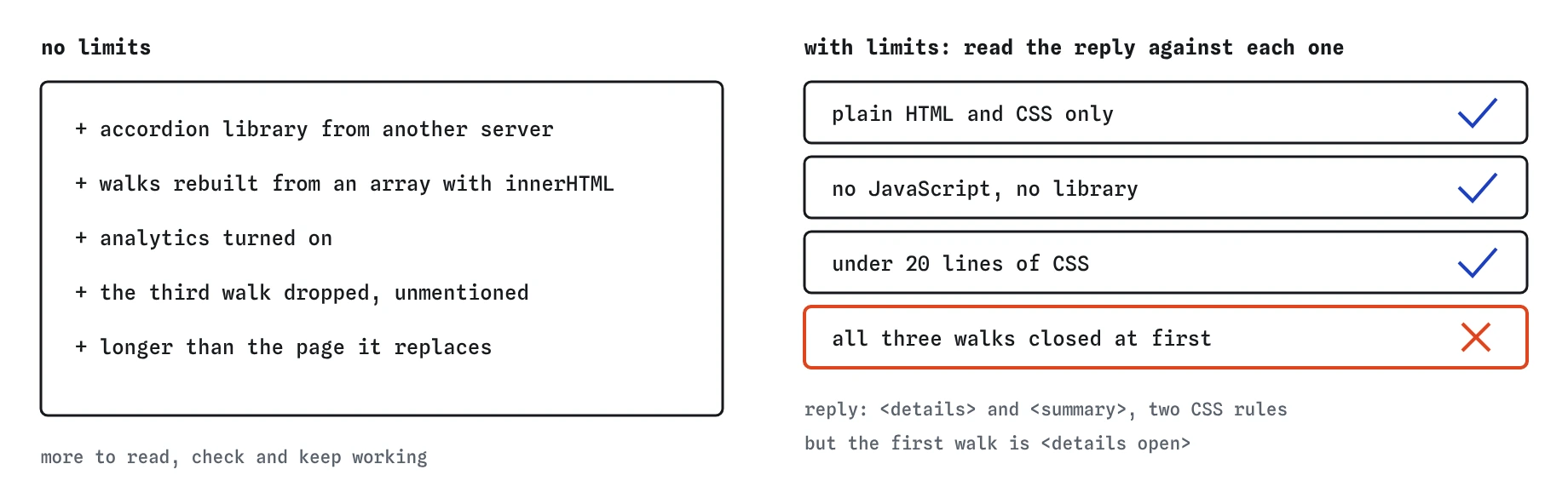
<details open> breaks the one about starting closed.Did the reply keep every limit?
Read it against your list, one limit at a time. Plain HTML and CSS: yes. No JavaScript: yes. Under 20 lines of CSS: yes, two rules. All walks closed at first: no. The first <details> has the open attribute, and the reply even explains it left it open “so visitors can see how it works”. A friendly reason does not change the fact that you asked for something else.
Press **Use this code**, then change <details open> to <details>. Check the Preview: all three walks start closed. The **Review** view shows the one attribute you removed. Assistants drop limits more often when there are several, so checking them one by one after each reply is a habit worth keeping.
Why are details and summary such a good answer?
The <details> element is a box that can be open or closed, and its <summary> is the clickable title. The browser handles the clicking, the keyboard support and the little arrow. Screen readers announce it as a control that can expand. The open attribute decides whether it starts open.
That is a lot of behaviour for zero JavaScript, which is why a limit of “no JavaScript” leads the assistant straight to it. Limits often steer it toward simpler built-in features it would otherwise skip in favour of something showier.
You can style both parts. The summary element accepts normal CSS such as font-weight and cursor, and details[open] lets you style a walk differently while it is open. Searching a page with the browser’s find tool can even open a closed <details> in current browsers when the match is inside it, which a hand-made script usually breaks.
Can a limit go too far?
Yes. If you rule out everything that could solve the problem, the assistant either ignores a limit or writes something awkward to obey it. “No JavaScript” would be a bad limit for a page that has to fetch data. If a reply looks strained, ask whether a limit is getting in the way, and let the assistant suggest the smallest exception.
Limits should also be honest. If you do use a library already, say which one and that you want to keep it. A limit that hides your real setup leads to code that does not fit.
How is the pretend assistant different from a real one?
The assistant here notices whether your request contains limit-like wording and picks a reply written for this lesson. It does not read your limits one by one. Real tools do read them, and still forget some, especially in long requests or long chats. Keeping your limits short and putting each one in its own sentence makes them easier for both of you to check.
Real tools also vary their answers, can refuse and may keep what you paste. Whatever tool you use, write your limits plainly, then read the reply against each one before you use it.
Field notes
- A limit tells the assistant what to leave out or stay within.
- Without limits, replies can pull in outside libraries and big scripts you did not ask for.
- Put limits at the end of the request in plain words, as a short list or one sentence.
- Check the reply against your list one limit at a time.
Easy to get wrong
Without limits the assistant chooses the tools, and it tends to choose big ones you then have to maintain.
A reply can describe itself as “plain HTML and CSS” and still contain an onclick or a script tag.
Over-tight limits push the assistant to break one or to write strange workarounds.
Questions people ask
Where should limits go in my request?
After the goal and context works well. Some people put them in a short list so they are easy to check off later.
Do limits make the answer worse?
Usually they make it smaller and easier to read. If a limit really blocks the job, a good assistant will say so.
What if I don’t know whether I need JavaScript?
Say what you want it to do and ask for the simplest approach, preferring HTML and CSS. Ask it to explain why if it still needs a script.
Is `innerHTML` always unsafe?
No, but building HTML from joined strings becomes unsafe as soon as any part comes from users. Built-in elements avoid the question.