What is broken on the bakery menu?
The menu page should list three items with prices: a sourdough loaf, a cinnamon bun and a lemon tart. Open the Preview and the list is empty. The error box under it, which stands in for the browser console, shows Uncaught ReferenceError: menuItems is not defined.
This milestone is a full debugging session with an AI assistant. You share the first error properly, apply the fix, look again, find a second error, share that one, and then review the final code for a fix that went too far. It uses everything from the Fixing with AI lessons: exact errors, expected versus actual, small fixes and careful review.
How do you start the first request?
Collect the evidence before you write. You need the exact error line from the error box, one sentence about what you expected and what you see, and the script that builds the menu. The Prompt check view ticks code, error and expected versus actual when all three are present.
Keep it to the first error. You don't know yet whether there are more, and guessing at them only muddles the request.
My bakery menu page shows an empty list. I expected the three menu items to appear. The error box says:
Uncaught ReferenceError: menuItems is not defined
Here is my script:
const menu = [
  { name: 'Sourdough loaf', price: 4.2 },
  { name: 'Cinnamon bun', price: '2.80' },
  { name: 'Lemon tart', price: 3.5 }
];
const list = document.getElementById('menu');
menuItems.forEach(function (item) {
  const li = document.createElement('li');
  li.textContent = item.name + ', £' + item.price.toFixed(2);
  list.appendChild(li);
});
Why fix one error at a time?
JavaScript stops running a script at the first uncaught error. Anything after that line never runs, so its bugs stay hidden. Fix the first error and the code runs further, which is often how the second one appears.
That is what happens here. The assistant renames menuItems to menu, you use the code, and the Preview shows one item, the sourdough loaf, then a new error: Uncaught TypeError: item.price.toFixed is not a function. The first fix worked. The loop got as far as the second item and hit a different problem.
Beginners often read a new error as “the fix didn't work” and undo it. Compare the before and after instead. One item showing where none showed before is progress, and the new message tells you exactly where the code stopped.
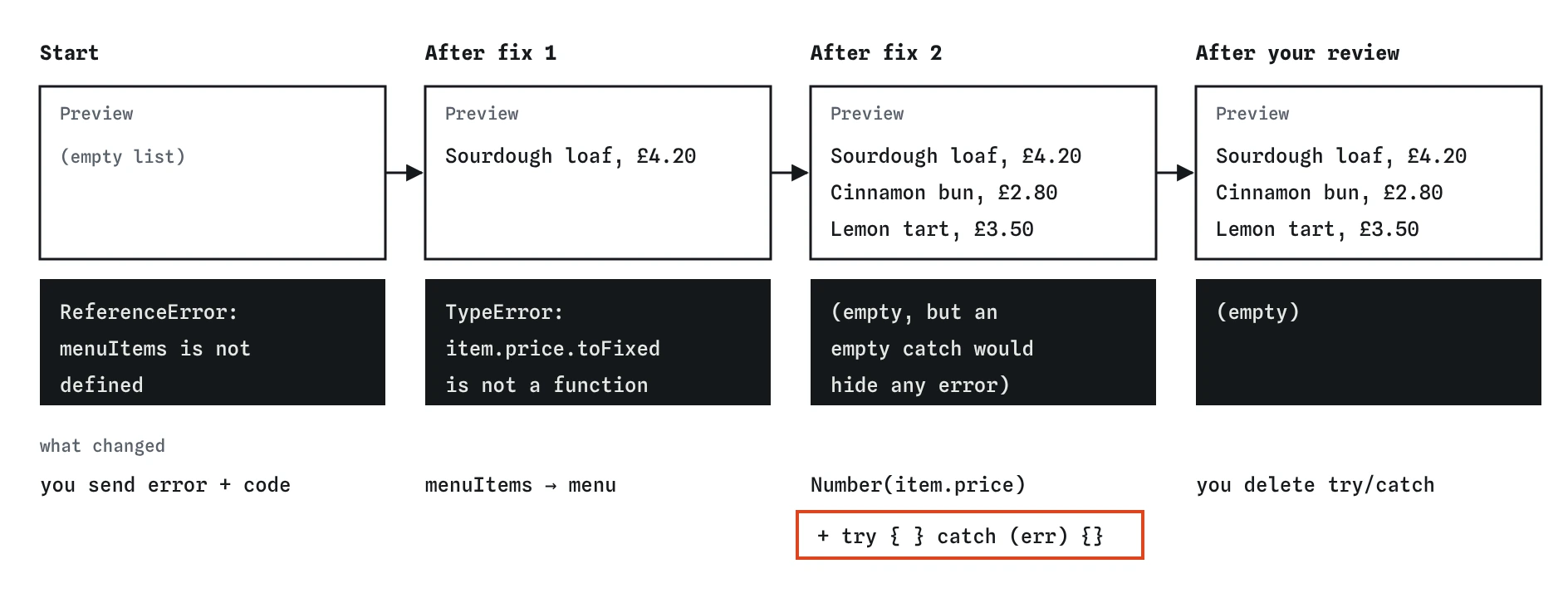
catch would hide the next error, so you remove it before calling the menu done.What goes in the second request?
The newest error, what you see now, what you expected, and the current code. Say that the first fix worked; it tells the assistant not to undo it. Paste the loop as it is now, after the first fix, so the assistant isn't working from an old version.
Read the new error closely before you send it. toFixed is not a function means item.price is something that has no toFixed method. Numbers have it. Text doesn't. Look at the data: the cinnamon bun's price is '2.80', in quotes. You may well spot the cause yourself, and that is a good outcome too.
Thanks, that fixed the first error. Now only the sourdough loaf shows, but I expected all three items. The error box now says:
Uncaught TypeError: item.price.toFixed is not a function
Here is my loop now:
menu.forEach(function (item) {
  const li = document.createElement('li');
  li.textContent = item.name + ', £' + item.price.toFixed(2);
  list.appendChild(li);
});
What is wrong with the second fix?
The core fix is right: Number(item.price).toFixed(2) turns each price into a number before formatting it, so all three items appear with two decimal places. Then the assistant added something extra. It wrapped the whole loop in try { … } catch (err) {} “so one bad item can't break the page again”.
An empty catch block catches any error and does nothing with it. The next time something goes wrong in the loop, such as a typo in a new menu item, the list will be short or empty and the error box will say nothing. You would be back to debugging with no evidence. Remove the try { line and the } catch (err) {} line, keep the loop, and check in the Preview that all three items still show.
There are good uses of try...catch: handling an error you expect and showing the visitor a helpful message. An empty catch that hides every error is never one of them.
How do you check the finished menu?
Look at the Preview: three items, each with a price like £4.20, and an empty error box. Then read the final script from top to bottom. The loop uses menu, the price goes through Number(), and nothing catches errors silently. Open the **Review** view to see your removal highlighted against the assistant's version.
Check the data too. The cinnamon bun's price is still '2.80' in quotes. The page works because Number() handles it, and you might choose to remove the quotes anyway, so all prices are stored the same way. That is your call. The assistant can't know whether those prices come from a file where they are always text.
What debugging code do AI tools leave behind?
While helping you debug, an assistant often suggests console.log lines to show values, a debugger; statement to pause the script, or an alert() to prove a line runs. Those are useful for a few minutes and harmful if they stay. The Break It practice is a menu that works and still contains all three.
Before you commit any debugged code, search it for console.log, debugger and alert. Remove the ones you added for debugging. Keep a log line only if you meant it to stay and know what it prints.
console.log(...)prints to every visitor's console.debugger;pauses the page whenever DevTools is open.alert(...)blocks the page with a pop-up until someone clicks OK.
How is this like debugging with a real AI tool?
The shape is the same: error, fix, look again, next error, fix, review. A real tool might fix both errors in one go if it notices the quoted price, or it might miss the second error and blame something else. It might add the empty catch, or a different extra. The pretend assistant here always answers the same way, which keeps the practice fair.
What stays true everywhere is that you are the one who runs the page and reads the results. The assistant only sees what you send it, so every round starts with you looking at the real page and copying the real error.
Field notes
- Collect the exact error, what you expected, and the code before you ask.
- JavaScript stops at the first uncaught error, so later bugs show up only after you fix it.
- In the second request, say the first fix worked and paste the current code.
- An empty
catchhides errors, so remove it and keep the working code inside.
Easy to get wrong
Scripts stop at the first error, so the next one only shows up once the first is fixed. A new error is often progress.
The assistant can only reason about the code you show it. Old code leads to fixes for problems you have already solved.
An empty catch hides every future error in that code, so the next bug fails silently.
Debugging lines slow pages, annoy visitors and can print data you never meant to show.
Questions people ask
Why does the error box show only one error?
It shows the latest error. In a real console you would see each error on its own line. Here, as in real browsers, the script stops at the first uncaught error, so only one appears at a time.
Could I send both errors in one request?
You can only send the errors you have seen. The second error doesn't exist until the first is fixed. If a page shows several unrelated errors at once, send them together and ask which to fix first.
Is `Number()` the only way to fix the price?
No. You could store the price as a number without quotes, or use parseFloat(). Number() is a safe choice when data might arrive as text.
What if the assistant's fix creates a worse error?
Undo it, which is easy if you committed before applying it, and send the new error with what you tried. Ask for a smaller change.