What is a merge conflict, exactly?
When you merge one branch into another, Git compares three versions of each file: the version where the two branches split apart, the version on your branch, and the version on the other branch. If only one side changed a line, Git takes that change. If both sides changed different lines, Git takes both. A conflict happens in the one case Git refuses to guess: both branches changed the same lines in different ways.
In the practice repository, main changed the bakery's hours to Open 8am to 5pm while summer-hours changed the very same line to Open 7am to 3pm. Both edits are reasonable. Only a person who knows the bakery's plans can say which one is right, or whether the answer is a mix of both. Git stops and asks you.
A conflict is not damage. Nothing is lost, both versions are still in their commits, and you can always cancel. It is Git handing you a decision it is not qualified to make.
git log --oneline --all
git diff main summer-hours
What does Git print when a merge stops?
Run the merge and Git prints CONFLICT (content): Merge conflict in index.html followed by Automatic merge failed; fix conflicts and then commit the result. That last sentence is the whole recipe: fix the files, then commit.
Now run git status. It says You have unmerged paths and lists index.html under both modified. Any file Git merged without trouble is already staged for you. The Areas view marks the troubled file as a conflict, and the summary line under the views shows that a merge is in progress. Keep an eye on that line: it tells you whether you are still inside the merge.
The practice terminal marks the merge command as an error, because real Git exits with a failure code here. That is expected and is the reason the code example below carries a comment.
git merge summer-hours  # fails on purpose
git status
How do you read the conflict markers?
Open index.html and you will find a block like this in place of the hours line: a line <<<<<<< HEAD, then <p>Open 8am to 5pm</p>, then =======, then <p>Open 7am to 3pm</p>, then >>>>>>> summer-hours. Everything outside the block merged cleanly and needs no attention.
HEAD means the branch you are on, here main, so the top half is your side. The bottom half, ending with the other branch's name, is the incoming side. The ======= line is only a divider. None of these three marker lines belongs in your finished file.
Your job is to replace the whole block, markers included, with the text you actually want. That can be the top half, the bottom half, both halves in some order, or a fresh line that combines them, such as Open 7am to 5pm. Git does not care which; it only cares that you decide.
git merge summer-hours  # fails on purpose
cat index.html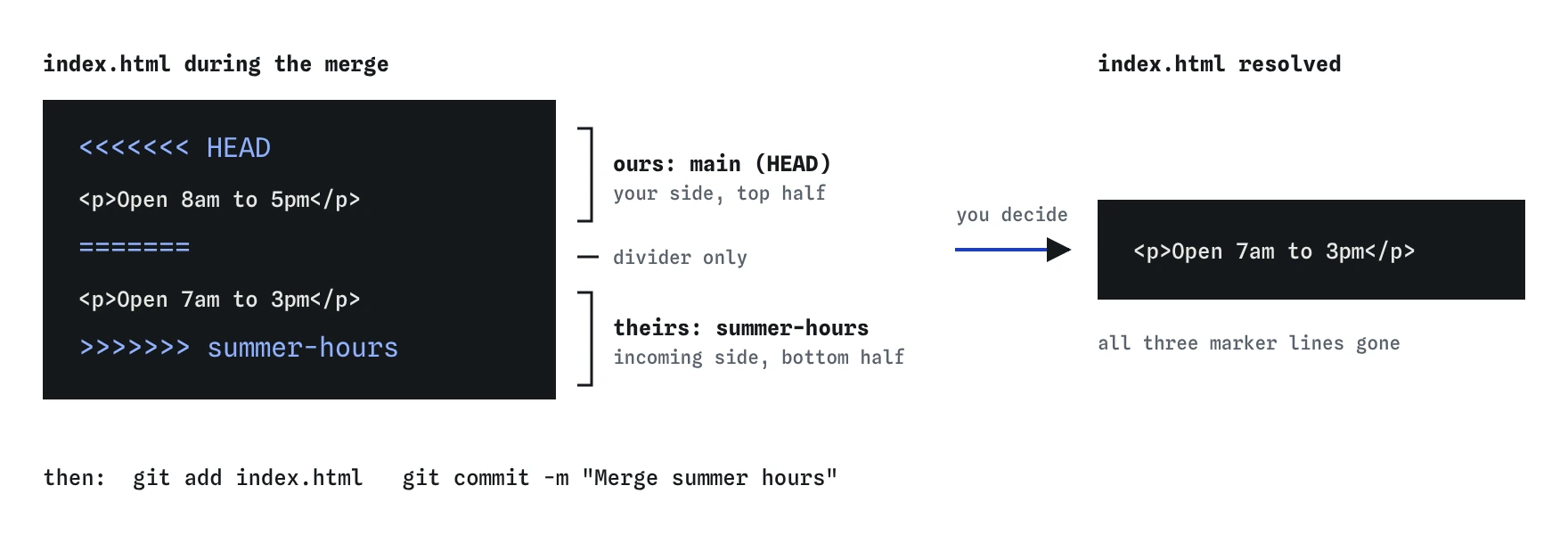
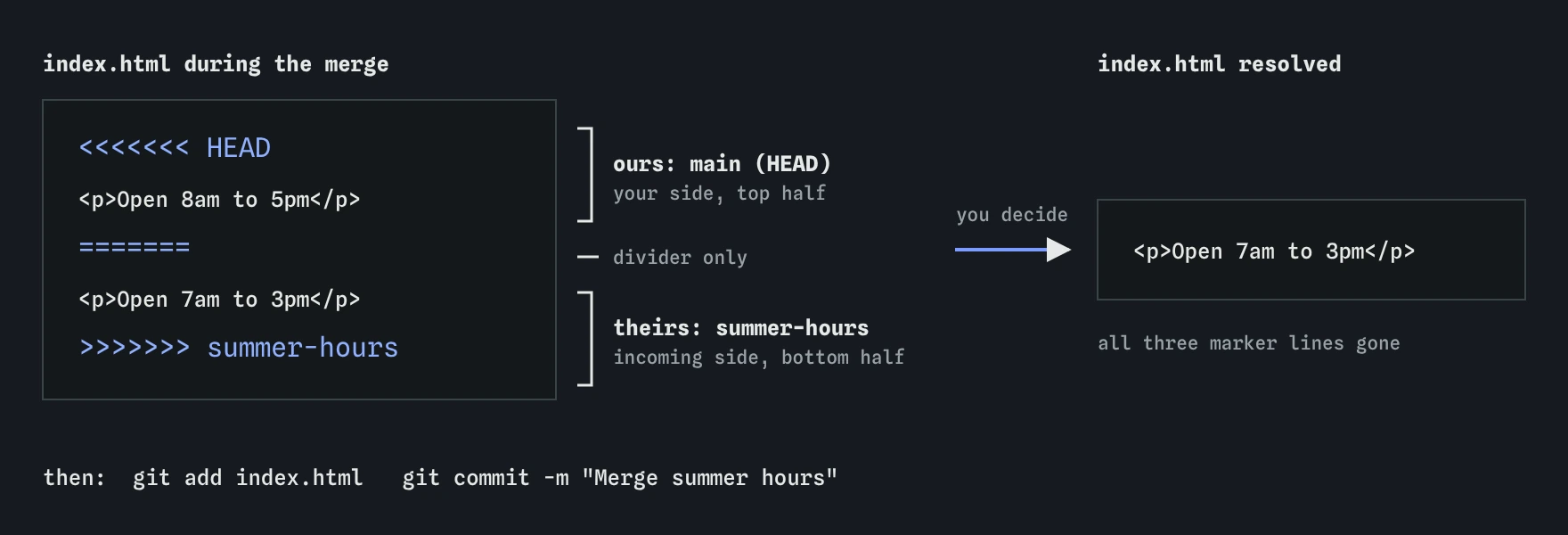
summer-hours, and the marker lines belong to neither. Replace the whole block with the line you want, then git add and commit.How do you finish the merge?
Edit the file in the editor tab so it reads the way the bakery wants. Save it. Then run git add index.html. During a merge, git add has a second meaning: it tells Git this file is resolved. Run git status again and the file has moved from Unmerged paths to Changes to be committed.
When every conflicted file is added, run git commit -m "Merge summer hours". Git creates a merge commit with two parents, one from each branch, and the merge is over. Watch the Graph view: the two lines join at the new dot.
In real Git, plain git commit opens an editor with a prepared message such as Merge branch 'summer-hours'. The practice terminal has no editor, so give the message with -m. If you use real Git and an editor you do not know appears, save and close it to accept the message.
- Run the merge and read the files Git names.
- Open each file and replace every marker block with the content you want.
- Search the file for
<<<<<<<to be sure none are left. - Run
git addon each resolved file. - Run
git committo create the merge commit.
How do you back out of a merge you are not ready for?
Sometimes the conflict is bigger than expected, or you need to ask a colleague which hours are right. Run git merge --abort. Git puts your files back exactly as they were before the merge started, and the summary line no longer shows a merge in progress.
Aborting is safe because the merge had not been committed yet. Your branch and the other branch are untouched. You can try again later with the same git merge command and you will meet the same conflict, ready to resolve with better information.
One caution: start merges with a clean working folder. If you had uncommitted edits when you began, they get tangled with the merge result, and aborting may not give them back cleanly. Git refuses to start a merge that would overwrite your edits, which is why the practice terminal asks you to commit or stash first.
git merge summer-hours  # fails on purpose
git merge --abort
git status
What changes cause conflicts, and which do not?
Conflicts come from overlapping edits. Two people changing the same sentence will conflict. One person editing the opening hours while another edits the address three lines lower usually will not, because Git can apply both changes. Adding a new file on one branch never conflicts with edits on another.
Real Git looks at blocks of nearby lines, so two edits on lines that touch each other can still conflict. The practice terminal uses a simpler line-by-line merge that follows the same idea. A few situations always need a person: one branch deletes a file the other edited, or both branches create a file with the same name and different contents.
You can lower the odds with short-lived branches, small commits, and merging main into your branch every so often so the gap never grows large. When a whole team keeps reformatting the same file, agree on one formatter so whitespace changes stop fighting each other.
What should you check before committing the resolution?
Git only checks one thing before letting you commit: that the marker lines are gone. It has no idea whether the page still makes sense. A common slip is deleting the markers but leaving both versions in place, so the page now shows two sets of opening hours.
Read the resolved file from top to bottom with cat or in the editor. Run git diff --staged to see exactly what the merge commit will contain compared with your branch. For a website, open the page in a browser and look at it. For code, run the tests if there are any.
If you realise after committing that you kept the wrong half, nothing is ruined. Edit the file, commit again with a message such as Fix hours after merge, and move on. A follow-up commit is easier to understand than trying to rewrite the merge.
git merge summer-hours  # fails on purpose
git diff
What do AI tools get wrong about conflicts?
Assistants often suggest git merge -X theirs or git checkout --theirs . to make a conflict disappear. Those commands pick one side for every conflicting line in every file without showing you what you lose. They have their place, but only after you know what is on each side.
Another common suggestion is to delete the folder and clone again. That throws away any local work you had not pushed, and it does not remove the conflict, which comes back the next time you merge. The calm route is the one above: read the markers, decide, add, commit. When an assistant pastes a resolved file for you, compare it with both halves of the marker block before you save it, because it may drop a line from one side without saying so.
Field notes
- A conflict happens when both branches changed the same lines since they split.
- Text between
<<<<<<<and=======is yours; the part after=======comes from the other branch. - Remove every marker line, keep the text you want, then
git addthe file and commit. git merge --abortputs things back as they were before the merge started.
Easy to get wrong
Git accepts the file once the markers are gone, so a page with two sets of hours gets committed without complaint.
During a merge, git add is how you tell Git a file is resolved. Without it Git still sees unmerged paths and refuses to commit.
A clean start means git merge --abort can return you exactly to where you were.
Questions people ask
Can I lose work in a merge conflict?
Committed work is safe: both versions live in their commits and git merge --abort returns you to the start. The risk is uncommitted edits made before the merge began, which is why you start from a clean folder.
Which side is HEAD?
HEAD is the branch you are on when you run git merge. If you are on main and merge summer-hours, the top half of each block is main and the bottom half is summer-hours.
Do I have to resolve every file at once?
You can resolve them one by one and git add each as you go. Git will not let you commit the merge until all of them are resolved, and git status keeps the list of what is left.
Why did my merge conflict when we edited different lines?
Real Git treats changes on neighbouring lines as overlapping. If two edits touch or sit right next to each other, Git asks you instead of guessing the order.