What will you build here?
This milestone takes the Crumb & Co bakery site from loose files to a published repository, then ships one update the way you would on a real site. Every step uses commands from earlier lessons; the new part is putting them in a safe order and checking the result at each stage.
The folder holds index.html, style.css, and orders-private.txt, a list of customer orders with phone numbers. The site files should be public. The orders file must never reach a commit, because anything committed and pushed to a public repository is visible to anyone, including in old history.
The practice terminal plays both your computer and GitHub. It cannot press the Pages or hosting buttons, so the task ends at the push. Those buttons are covered in the previous three lessons, and after this milestone you will have done everything they depend on.
How do you start without leaking the private file?
Create the .gitignore before the first git add .. Do it in this order: once a file is committed, adding it to .gitignore later does not remove it from history. Starting with the ignore file means the private orders are skipped from the very first commit.
Run git init, then echo "orders-private.txt" > .gitignore, then git status. The orders file should be missing from the untracked list, and .gitignore should be present. Only then run git add . and check the Areas view: index.html, style.css and .gitignore staged, nothing else.
If you do commit the private file by accident before pushing, the safest move here is to start again: delete the .git folder on your computer and redo the steps. Once it is pushed, treat the data as exposed, tell whoever needs to know, and follow the secrets lesson.
git init
echo "orders-private.txt" > .gitignore
git status
git add .
git status -s
How do you make the first push?
Commit with a message that describes the site, such as Publish the bakery site. Then connect GitHub as origin and push with -u so main remembers its upstream. After the push, git status should say Your branch is up to date with 'origin/main'.
On the real GitHub, this is the moment to turn on Pages (for the static bakery site) or press "Update from Remote" and deploy on a cPanel-style host. Check the Remote view: your main and GitHub's main show the same commit.
Check git log --oneline origin/main as well. It lists exactly what GitHub has, which is exactly what can be published. If a file you expected is missing there, it was never committed.
git init
git add .
git commit -m "Publish the bakery site"
git remote add origin https://github.com/crumbco/site.git
git push -u origin main
git log --oneline origin/main
How do you ship the menu update safely?
Create a branch for the change: git switch -c summer-menu. Edit index.html to add <li>Lemon tart</li> under the sourdough loaf, and commit with git commit -am "Add lemon tart". Watch the Graph view: summer-menu moves forward and main stays where the live site is.
Before merging, look at what would go live. git diff main from the branch shows the exact lines. It should be one added list item and nothing else. If you see changes you did not intend, fix them on the branch first.
Then switch back with git switch main, run git merge summer-menu (a fast-forward, since main has no new commits of its own), and git push. GitHub now has the lemon tart, and the live site follows within a minute or two.
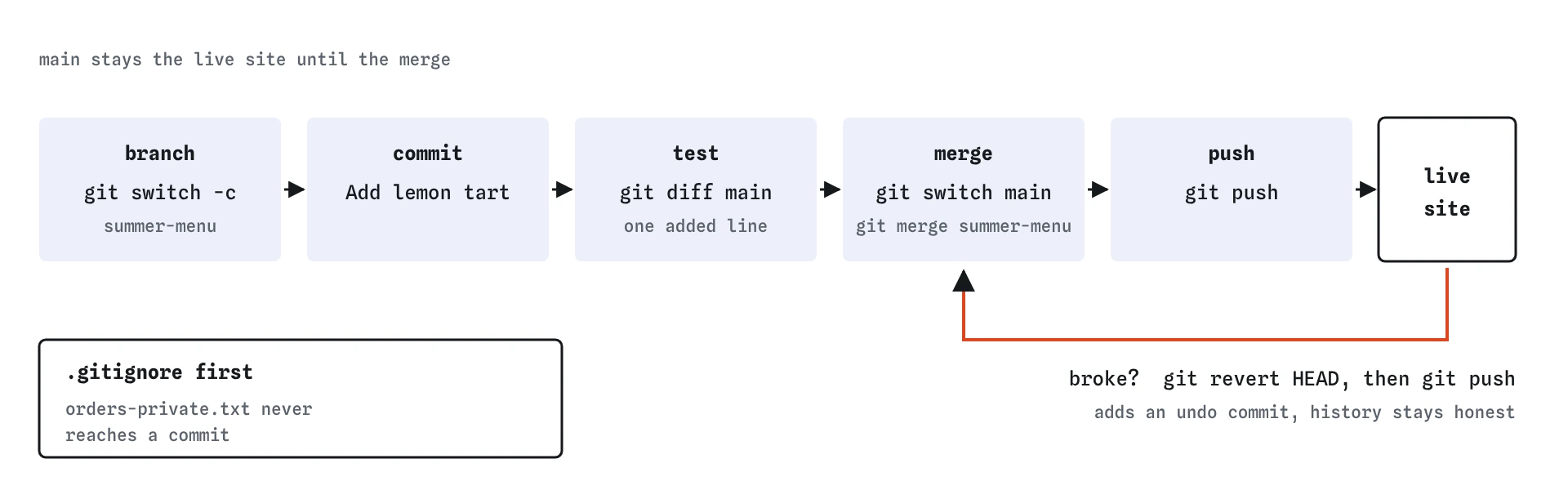
main only changes at the merge. If the lemon tart breaks the live site, git revert HEAD and git push add an undo commit instead of rewriting history.What should you check before every publish?
A short checklist catches nearly every publishing mistake. Run through it each time, until it becomes automatic.
git init
echo "orders-private.txt" > .gitignore
git add .
git commit -m "Publish the bakery site"
git status
git branch
git statusis clean and you are onmain.- No private files are tracked:
.gitignorecovers notes, keys and exports. - The home page is
index.htmland every link matches its file name exactly, capitals included. git diff origin/mainshows only the changes you meant to ship.- After
git push,git statusreports up to date, and the live site shows the change after a refresh.
What if the update breaks the live site?
Run git revert HEAD and git push. If the merge was a fast-forward, the last commit is the lemon tart commit itself, and the revert removes it cleanly. If the merge made a merge commit, real Git needs git revert -m 1 HEAD to say which side to keep; the practice terminal keeps to simple reverts, so prefer fast-forward merges here.
Then fix the problem on the branch, merge again and push. The history shows the original update, the revert and the fix, which is exactly the record you want when someone asks what happened to the website on Saturday. The reflog adds a private, local diary of every move your branches made, useful when you need to find the commit that was live before the trouble started.
Resist the urge to tidy history with reset --hard and --force after a public mistake. The previous lessons explain why: other copies of the repository, including the host's, rely on the history they already have.
git init
echo "orders-private.txt" > .gitignore
git add .
git commit -m "Publish the bakery site"
git log --oneline
git reflog
Where do you go from here?
You can now take a folder of files, put it under version control without leaking private data, publish it through GitHub, and ship changes through a branch with a way back. That covers the day-to-day work of running a small site, whether it is a bakery, a bike shop or your own profile page.
The next habits to build are about working with other people: opening a pull request for each update so someone reads it first, keeping branches short-lived, and writing commit messages a teammate can understand six months later. The pull requests lesson is a good place to revisit with this project in mind.
When an AI assistant offers to do any of this for you, you now know what the commands should look like. Read them, compare them with the routine here, and run them only when each step makes sense.
Field notes
- Create
.gitignorebefore the firstgit add .so private files never get committed. - Push
mainwith-uthe first time so later pushes know their target. - Ship each change on its own branch, then merge it into
main. git revert HEADfollowed by a push undoes a bad update.
Easy to get wrong
The first add stages everything in the folder, including private files. Ignoring them later does not remove them from commits already made.
Main is the live site. A branch lets you finish and check the change before anyone sees it.
Without an upstream, later plain pushes and pulls do not know where to go, and git status cannot tell you if you are behind.
Questions people ask
Should I delete the summer-menu branch after merging?
Yes, once it is merged: git branch -d summer-menu. Git refuses if anything on it is unmerged, so it is a safe tidy-up.
Can I publish to GitHub Pages and my host at the same time?
You can, though most sites pick one. If you use both, keep GitHub as the main copy and deploy the same commit to both so they never disagree.
What if a teammate pushed while I was on my branch?
Switch to main, run git pull, then merge your branch and push. The rejected-push routine from the earlier lesson applies here as well.
How do I know the private file was never committed?
Run git log --all --oneline and check each commit with git show, or in this course look for the file in the Graph view. If it was never staged, it is in no commit.