What does GitHub Pages actually do?
GitHub Pages is free static hosting attached to a GitHub repository. You choose a branch and a folder, and every time that branch changes on GitHub, Pages copies the files to a web server and serves them at an address such as robinhale.github.io. There is no upload button: pushing is publishing.
Static means Pages serves files exactly as they are: HTML, CSS, JavaScript, images, fonts. It does not run PHP, Python or a database. That suits a profile page, a bakery's opening hours or a bird club's sightings list perfectly, and it rules out a shop checkout or a login system.
Because the site comes from Git, every version of it is a commit. If an update breaks something, the previous working version is one revert away, and the history shows exactly what changed and when. That is a big step up from dragging files into an FTP window.
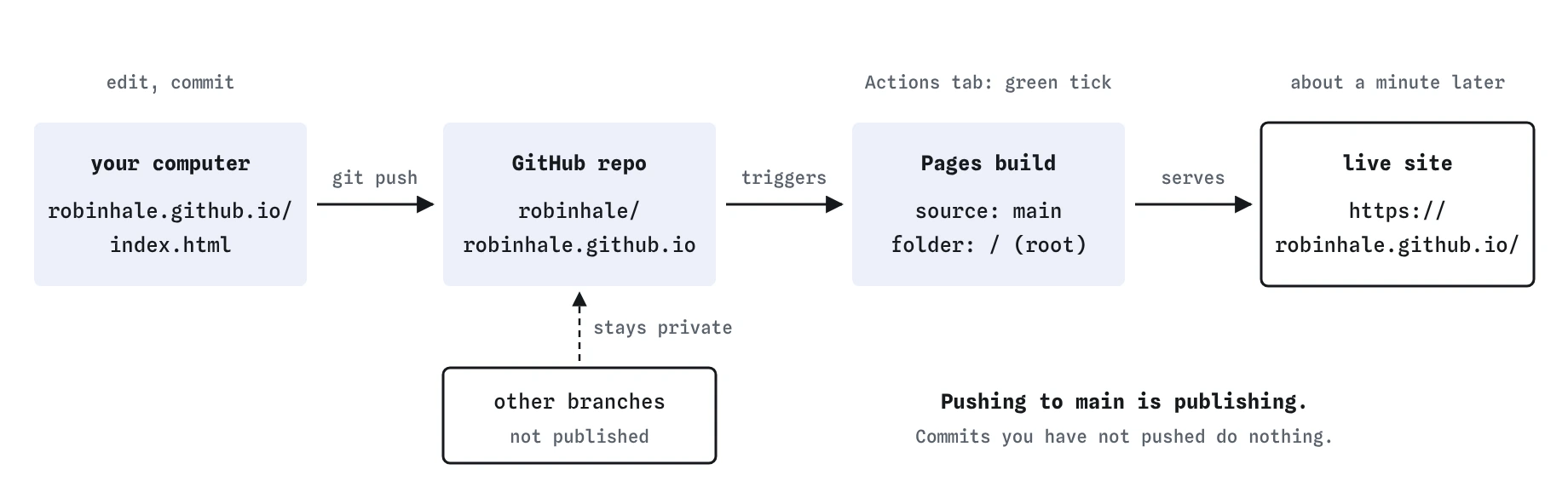
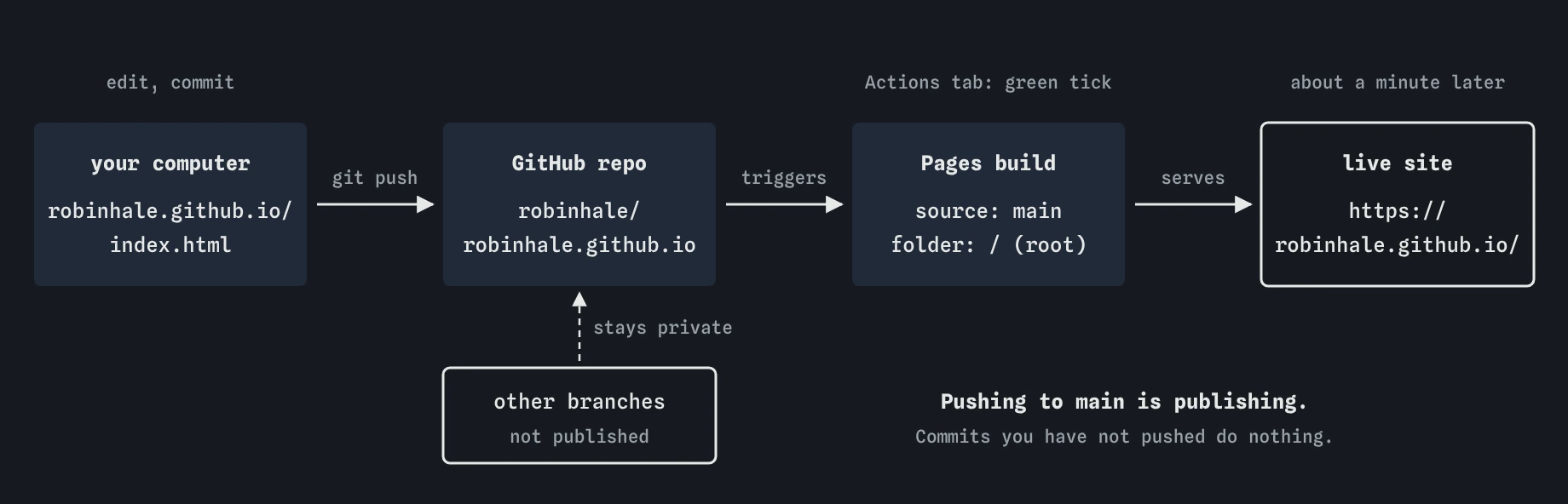
main starts a Pages build, and the live site at robinhale.github.io follows once the Actions tab shows a green tick. Other branches stay private.What kinds of Pages site can you have?
A user site lives in a repository named exactly yourname.github.io, and it is served at https://yourname.github.io/. Each account gets one. A profile page is the classic use.
A project site can live in any other repository, such as bakery, and is served under a path: https://yourname.github.io/bakery/. You can have as many as you like. The path changes how links work: a link to /style.css on a project site points at the user site's root, while style.css (no leading slash) stays inside the project. Relative links avoid that trap.
Organisations, such as a bird club account, get the same pair: one clubname.github.io site plus any number of project sites. Free accounts need the repository to be public for Pages; paid plans can publish from private repositories.
How do you turn Pages on?
Pages is switched on in the repository's settings on GitHub, under Pages. You pick a source. The simplest is "Deploy from a branch": choose main and the folder / (root) or /docs. Pages then publishes whatever that branch holds in that folder.
The other source is GitHub Actions, where a workflow builds the site (for example with a static site generator) and hands the result to Pages. You do not need it for hand-written HTML. Older guides often mention a branch called gh-pages; it still works if you choose it as the source, and you will meet it in older projects.
The settings page shows the live address once the first build finishes. The repository's Actions tab lists every Pages build, green for success and red for failure, which is the first place to look when a push does not seem to change the site.
What does Pages need from your files?
Pages serves the file called index.html when someone visits a folder's address. If your home page is home.html, visitors to the root get a 404. Rename it with git mv home.html index.html so Git records it as a rename.
File names are case-sensitive on the server. On many laptops Style.css and style.css open the same file, so a mismatched link looks fine locally and breaks once published. Keep every file name lowercase, with hyphens instead of spaces, and the problem disappears.
Only committed and pushed files exist on GitHub. A file you created but never added, or one listed in .gitignore, will not be published. Check with git status before you assume a missing image is a Pages bug.
ls
git status
git log --oneline
How do you push the site for the first time?
Create an empty repository on GitHub with the right name, copy its URL, and connect your local repository to it. Then push main with -u so the branch remembers its partner on GitHub. The practice terminal fakes GitHub, but the commands are identical to the real ones.
Watch the Remote view while you do it. Before the push, GitHub's side is empty; after it, origin/main appears in the Graph view next to main, both pointing at the same commit. On the real site, that moment is when Pages starts its first build.
Real pushes ask you to prove who you are. GitHub no longer accepts your account password on the command line; use the GitHub CLI, a credential manager, or an SSH key. The practice terminal skips that step.
git remote add origin https://github.com/robinhale/robinhale.github.io.git
git push -u origin main
git status
How do updates reach the live site?
Edit, commit, push. Each push to the published branch triggers a new build, and the live site usually updates within a minute or two. Commits that are not pushed do nothing to the site, which is handy: you can commit several small steps locally and push when the whole change is ready.
Browsers and GitHub's servers cache pages, so after a push you may still see the old version. Wait a minute, check the Actions tab for a green tick, then do a hard refresh. If it is still old, compare git log --oneline origin/main with what you expect to be live.
For anything bigger than a one-line fix, work on a branch and merge into main only when it is ready. Pages publishes only the source branch, so other branches are a private workshop. The final lessons in this course turn that into a routine.
git status
git log --oneline -3
What goes wrong most often?
Each of these has a Git-side check you can run in seconds. git status shows unpushed or uncommitted work, git branch -a shows which branch you are on and what exists on GitHub, and git ls-files style checks are covered by git log and the Files view here. The Break It exercise below packs three of these problems into one repository.
- A 404 at the root: no
index.htmlin the published folder, or Pages is pointed at the wrong branch or folder. - No styles or images: a case mismatch in a file name, or a leading-slash link on a project site.
- Old content after pushing: the build is still running, or failed. Look at the Actions tab.
- Changes never appear: they are on a branch Pages does not publish, or they were committed and never pushed.
- Secrets exposed: everything in a public repository is public, including old commits. Keep keys out from the first commit.
Field notes
- GitHub Pages serves the files from one chosen branch and folder as a website.
- Your home page must be named
index.htmlto appear at the main address. - Push
mainwith-uthe first time, then a plaingit pushafter that. - Only pushed commits reach the live site; local commits do not.
Easy to get wrong
Pages serves index.html at a folder's address, and the server treats capitals as different letters.
Pages builds from GitHub's copy of the branch. Local commits are invisible to it.
Pages publishes one source branch only. Other branches never reach the live site.
Questions people ask
Does Pages cost anything?
No, for public repositories. Sites have soft limits on size and bandwidth that a personal or club site will not reach.
Can I use PHP or a database on Pages?
No. Pages serves static files only. Forms can post to a separate service, and anything that needs a server belongs on a host like the one in the next lesson.
How long does an update take?
Usually under two minutes from the push. The Actions tab shows the build and its result.
Can I hide the repository and keep the site public?
On paid plans you can publish from a private repository. On free accounts the repository must be public, so treat everything in it as public.