Which undo do I need?
Before typing anything, run git status and decide where the unwanted change lives. That decides the command. Undoing is about moving a file between Git's places, and each direction has its own command.
This lesson covers changes that are not committed yet: edits in the working folder and files in the staging area. Committed mistakes need git commit --amend, git revert or git reset, which have their own lessons.
git status- You edited a file and want the edit gone:
git restore <file>. - You staged a file too early and want it out of the next commit, keeping the edit:
git restore --staged <file>. - You deleted a tracked file by accident:
git restore <file>brings it back. - You want a file as it was a few commits ago:
git restore --source=HEAD~2 <file>.
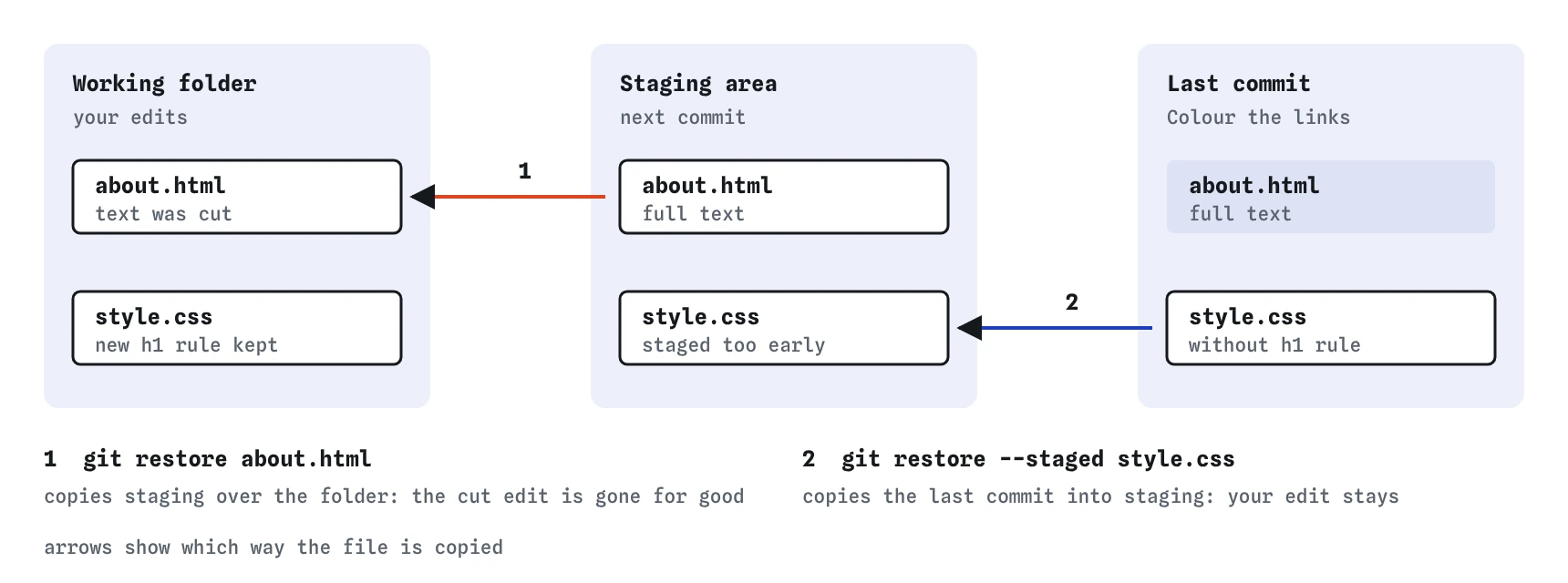
git restore overwrites the working folder and loses the edit, while --staged only resets the staging area and keeps your work.How do I throw away an edit?
git restore about.html replaces the file in your working folder with the version in the staging area, which is the last committed version unless you staged something newer. On the profile page that puts back the paragraphs that were accidentally cut.
This is one of the few Git commands that destroys work. The discarded edit was never committed, so Git has no copy of it, and no command will bring it back. Read git diff about.html first if there is any chance you want part of it.
git restore . does the same for every changed file in the current folder. Use it only when you are sure every uncommitted edit should go. It leaves untracked files alone; removing those is the job of git clean, covered later.
git diff about.html
git restore about.html
git status
How do I unstage a file?
git restore --staged style.css moves the file out of the staging area and leaves your edit in place. Nothing is lost. The file goes back to Changes not staged, and the Areas view shows it move from the middle column to the working folder.
Use it when you ran git add . and caught something you did not mean to include, or when you want to split staged changes into separate commits. Stage again later with git add when you are ready.
A useful pairing: git restore --staged <file> followed by git restore <file> first unstages and then discards. That two-step version is how you completely undo an edit you had already staged.
git restore --staged style.css
git status -s
Can I get back a file I deleted?
Yes, if the file was in a commit. Deleting index.html in the file manager shows up in git status as deleted: index.html. Running git restore index.html copies it back from Git's records, exactly as last committed.
A file that was never committed cannot be restored this way. Git never stored it. That is the strongest argument for committing early on a new page: a twenty-line page committed once is safe; a two-hundred-line page never committed is not.
The same applies if an AI agent or a script deletes files. Anything tracked comes back with git restore; check git status straight away to see what went.
rm index.html
git status
git restore index.html
cat index.html
How do I bring back an older version of one file?
git restore --source=HEAD~1 style.css sets the file in your working folder to how it was one commit ago. Other files are untouched, and so is history: you have edited the file to match an old version, and it shows as modified.
That makes it a safe way to undo part of a past change. If the new link colour on the profile page turns out to be a mistake, restore the stylesheet from before that commit, check the result in the browser, then commit it with a message such as Return links to the default colour.
Any commit reference works as the source: HEAD~3, a short id from git log --oneline, or a branch name.
git restore --source=HEAD~1 style.css
git diff style.css
What is git checkout -- file?
Before Git 2.23, released in 2019, the commands for this were git checkout -- <file> to discard edits and git reset <file> (or git reset HEAD <file>) to unstage. They still work, and you will meet them in older tutorials, Stack Overflow answers and AI suggestions.
git restore was added because checkout did too many unrelated jobs: switching branches, discarding edits, detaching HEAD. A typo could turn one into another. Prefer git restore for files and git switch for branches; recognise the older forms when you see them.
git checkout -- about.html
git reset style.css
git status -s
How do I avoid losing work with restore?
Three habits cover nearly every accident. First, look before you discard: run git diff <file> and read what will disappear. Second, name files instead of using . unless you really mean everything. Third, commit useful work-in-progress often; commits can be tidied later, discarded edits cannot.
If you are unsure whether you want an edit, copy the file somewhere else first, or commit it and undo the commit later. Both keep a way back open.
In the simulator, the Areas view is a good preview: whatever is marked changed in the working folder is what git restore . would wipe. On a real machine, git status and git diff give you the same preview in text, and an editor such as VS Code lists the same files in its Source Control panel, where a discard button runs the same restore for you.
One more safety net exists on your own computer: many editors keep a local history of saved files, separate from Git. In VS Code it is the Timeline view under the file explorer. It has rescued plenty of people who discarded an edit too quickly, though you should never plan around it.
What should I check when an AI tool suggests restore or checkout?
When a tool suggests undoing something, check which place it acts on.
git restore .orgit checkout -- .: discards every uncommitted edit in the folder. Make sure you have nothing you want first.git restore --stagedversus plaingit restore: the first is safe, the second deletes edits. Assistants sometimes give the wrong one.git checkout <commit> <file>: works, but is the old form ofgit restore --source. Note that it also stages the file.- Restore suggested to fix a committed mistake: it will not touch history. You need amend, revert or reset.
Field notes
- Run
git statusfirst to see where the unwanted change lives. git restore <file>discards your edits and cannot be undone.git restore --staged <file>unstages a file and keeps your edit.- Read
git diff <file>before discarding, so you know what will disappear.
Easy to get wrong
Without --staged, restore discards your edits. With it, the edit stays and only the staging is undone.
Restoring the whole folder throws away every uncommitted edit, and Git has no copy of them.
Restore changes files, never history. The commit stays exactly where it is.
Questions people ask
Is there an undo for git restore?
No. Discarded working-folder edits were never stored by Git. Your editor's own undo history may still have them if the file is open.
Does git restore delete untracked files?
No. It only touches files Git tracks. Untracked files are removed with git clean, which asks for -f because it cannot be undone.
What if git restore says pathspec did not match?
The name is wrong or Git has never tracked that file. Check the spelling and folder with git status.
Can I unstage everything at once?
Yes, git restore --staged . unstages every file and keeps all the edits.