What is wrong with the start page?
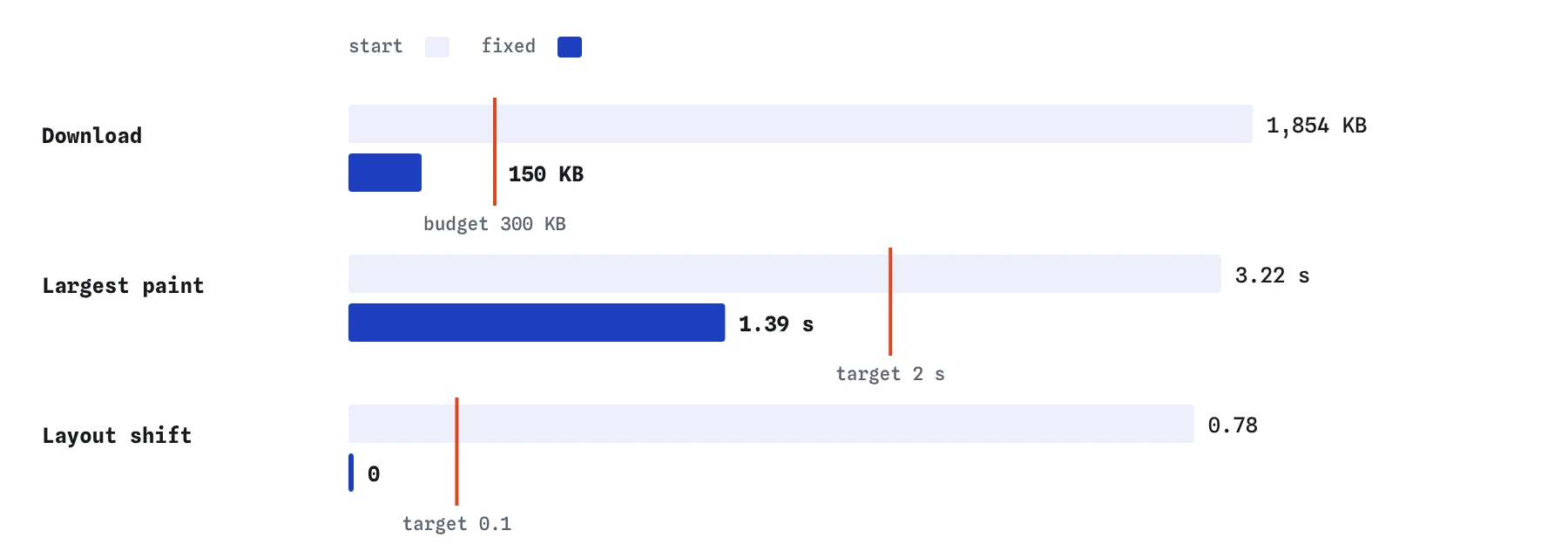
Load it and look at three views in turn. The Vitals view gives the headline: about 1,850 KB downloaded, layout shift about 0.78, and largest paint about 3.2 seconds. The Worth fixing list names four oversized images and four unsized ones.
The Waterfall shows how those numbers come about. The shop front is a 2,800 pixel, 1,500 KB photo straight from a camera, and it is lazy, so it does not even start until the stylesheet has arrived and layout has run at about 0.97 seconds. It then takes until about 10 seconds to finish. The three product photos, which sit below the first screen, load eagerly at 1,200 pixels and about 120 KB each, and they finish first.
The Filmstrip shows the result for a visitor. The heading appears quickly, then the product cards pop in and push each other down, and much later the shop front lands at the top and shoves the whole page down again. That last jump is why CLS is so high.
In what order should you fix things?
Work from the biggest effect to the smallest, measuring after each change. Bytes come first, because a 1,500 KB hero is slow whatever else you do. Then reserved space, because it is free and stops the jumping. Then loading order: which images start at once and which wait.
Changing one thing at a time lets you see what each fix bought. If you change five things and LCP gets worse, you have no idea which change did it. The simulator gives the same numbers every run, so small differences are real and worth reading.
How small should the shop front be?
The image fills the 328 pixel column, which is 656 real pixels on the pretend phone's 2x screen. The 800 pixel copy covers that with a little room, at 96 KB as JPEG and 62 KB as WebP. That is about one twenty-fourth of the original for a picture that looks the same on a phone.
A <picture> element offers the WebP to browsers that support it and keeps the JPEG as a fallback. Every current browser decodes WebP, so in practice the fallback is a safety net. If you were also serving desktop visitors, a srcset with an 800 and a 1,600 pixel copy would let each screen pick, as the responsive images lesson showed.
<picture>
  <source type="image/webp" srcset="/img/shop-front-800.webp">
  <img src="/img/shop-front-800.jpg" alt="The shop front on Mill Lane"
       width="800" height="532" fetchpriority="high">
</picture>
Where do width and height go in a picture element?
On the <img>. The <source> elements only offer alternative files; the <img> is the element that gets laid out, so its attributes decide the reserved box. Both shop front files are 800 by 532, so one pair of numbers covers them.
If a source had a different shape, for example a square crop for small screens, you would add width and height to that <source> as well, and current browsers use them when that source is chosen. Keep it simple when you can: one shape for all the files of one picture.
Which images should be lazy here?
Only the three product photos. The cards start below the first screen on a phone, so nobody sees them until they scroll. With loading="lazy" they wait for layout, which here means about 1 second, and the shop front gets the connection mostly to itself in the meantime.
The shop front must load eagerly. A lazy hero has to wait for the stylesheet and a layout pass before its request starts, which is time added straight onto LCP. In the simulator a lazy image loads once it is within one screen of the viewport; Chrome uses a wider margin on fast connections, so on a real phone the cards may start a little sooner.
Give the lazy images width and height too. A lazy image is fetched as the visitor approaches it, so it is the image most likely to land while someone is reading the text around it.
<img src="/img/sourdough-600.webp" alt="A round sourdough loaf"
     width="600" height="400" loading="lazy">
Why add fetchpriority if the hero is already small?
Even small, the shop front shares the link with the stylesheet early on and with the product photos once they start. High priority gives it four times the share of a low-priority image in the simulator, and in a real browser it moves it ahead of other images in the queue. With all the fixes in, the shop front finishes at about 1.4 seconds.
Try the solution without fetchpriority and compare. Largest paint slips from about 1.4 to about 1.7 seconds, because the lazy cards sit close to the first screen and still start at about 0.97 seconds, sharing the link with the shop front. On a page with more eager images, such as a carousel, the attribute makes more difference.
What are the final numbers?
After the fixes, the page downloads about 150 KB, largest paint is about 1.4 seconds, layout shift is 0 and first paint stays at about 0.97 seconds. The Worth fixing list has no image findings left.
First paint did not move at all, because it was never about the images: the HTML and the small stylesheet decide it. That is a useful check on your understanding. Image work improves LCP, CLS and bytes; first paint needs work on the HTML, CSS and scripts, which the next group of lessons covers.
What does AI-generated code tend to miss on a page like this?
Ask an assistant to optimise this page and it will likely add loading="lazy" to every image, including the shop front, which makes LCP worse. It may suggest WebP and then write the <picture> with width and height on the <source> and none on the <img>. It often keeps the original 2,800 pixel file and adds srcset entries that point to files that do not exist on the server.
Each of those mistakes is easy to spot with the method you have used here: read the Waterfall for priority, lazy tags and 404s, read the Filmstrip for jumps, and check the Vitals findings. Treat generated code as a draft and measure it like your own.
How would you check this on the real site?
Run Lighthouse in Chrome DevTools with mobile settings, then look at its LCP element and its image findings, which recent versions group under Improve image delivery: oversized files, older formats and poor compression. In the Network panel, filter by Img, turn on the Priority column, and confirm the hero is High and the cards start later.
Once the site has enough visitors, PageSpeed Insights shows field data from the Chrome UX Report. That tells you how the fix holds up on real phones over the following weeks, at the 75th percentile of visits, which is what Core Web Vitals actually grade.
Field notes
- Fix the biggest effect first and measure after every change.
- Size the hero for the real pixels it fills, then offer WebP.
- In a
<picture>, putwidthandheighton the<img>. - Lazy-load only images below the first screen; keep the hero eager and high priority.
Easy to get wrong
Lazy loading delays the request until layout. That saves bytes far down the page and costs time on the one image that decides LCP.
The <img> is the element that is laid out. Without sizes on it, the browser reserves nothing.
When the numbers move the wrong way, you need to know which change did it.
They load as the visitor scrolls to them, which is exactly when a jump is most annoying.
Questions people ask
Do I need both the WebP and the JPEG?
Every current browser decodes WebP, so a single WebP <img> would work for nearly all visitors. Keeping a JPEG fallback in a <picture> costs nothing for browsers that use the WebP, and protects the odd older device.
Why does the page still take about 1 second to show anything?
That is the HTML and stylesheet arriving over a 150 ms round trip connection. Images do not affect first paint here. The render-blocking CSS lesson looks at what does.
Could I use AVIF instead?
Yes, if the server has AVIF copies. List an AVIF <source> first, then WebP, then the JPEG <img>. The browser takes the first type it supports.
Why 300 KB as a target?
It is a sensible weight for a simple small-business home page on a phone. A later lesson on performance budgets shows how to pick your own number and keep to it.