Why does one image decide LCP?
Largest Contentful Paint records when the biggest text block or image in the first screen finished painting. On most home pages that is a hero photo, and on the bike hire page it is the 328 by 287 pixel picture of three hire bikes. Every other image could arrive instantly and the score would not move until that one lands.
That makes the hero the one file worth special treatment. Making the bike photos further down smaller saves bytes, which helps everyone, and it barely changes LCP. Getting the hero to start sooner and download faster changes LCP directly.
What is slowing the hero down on this page?
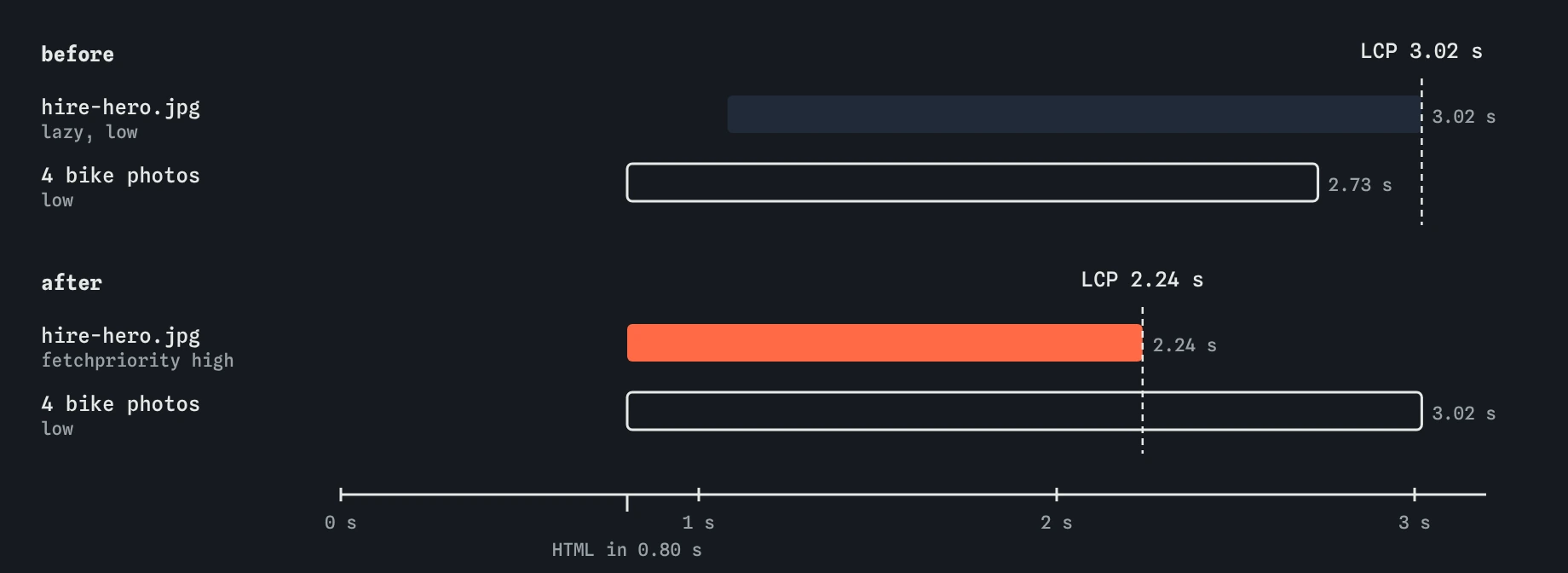
Open the Waterfall. The HTML arrives at about 0.8 seconds, and the preload scanner immediately asks for the stylesheet and the four bike photos. The hero is missing from that first burst. It has loading="lazy", so the browser waits until layout shows the image near the screen, which needs the stylesheet first. The hero request starts at about 1.08 seconds.
Then it competes. All five images are low priority, so the connection is split five ways. The bike photos finish between 2.6 and 2.7 seconds and the hero finishes at about 3.0 seconds, last of all, even though it is the only one in view. LCP is about 3.0 seconds, in the needs work band.
Two separate problems are stacked here: a late start and an equal share. Each has its own fix.
Why should the hero never be lazy?
Lazy loading tells the browser to hold an image back until layout says it is close to the screen. That is a good deal for photos far down the page. For an image that is in the first screen, it only adds a wait: the request cannot start until the CSS has arrived and the page has been laid out, which can be hundreds of milliseconds after the tag was read.
Removing loading="lazy" from the hero lets the preload scanner request it as soon as its tag arrives with the HTML. The Vitals view flags this case as a lazy largest image, and so does Lighthouse in Chrome.
AI-written pages and plugins often put loading="lazy" on every image, because it sounds like a free speed win. Check the first one or two images on each template by hand.
What does fetchpriority="high" change?
Browsers give images a low priority by default, because most images are not urgent. Chrome raises images it finds in the viewport once layout runs, but that comes late. The fetchpriority="high" attribute tells the browser, from the moment it reads the tag, that this image is more important than the others.
In the simulator, priority decides each request's share of the one link: a high request gets four times the share of a low one. With the fix, the hero starts at about 0.8 seconds and finishes at about 2.24 seconds, and LCP drops by about 780 ms. The four bike photos finish about 300 ms later than before, which nobody notices because they are further down.
Use it on one image, maybe two. Marking everything high puts you back where you started, with every file sharing equally.
<img src="/img/hire-hero.jpg" alt="Three hire bikes by the river"
     width="800" height="700" fetchpriority="high">
How do you speed up a hero set as a CSS background?
A background-image in a stylesheet is hidden from the preload scanner. The browser only finds it after the CSS has downloaded, the rule has been matched to an element, and that element has been laid out. On the repairs page in Break It, that means the header photo starts at about 1.1 seconds, after the stylesheet.
A preload link in the head fixes the discovery. It names the file and says it is an image, and the browser can start it with the HTML. Chrome gives a preloaded image the same low priority as other images until layout shows it in view, so add fetchpriority="high" to make it urgent from the start.
The URL has to match the one in the CSS exactly, including the folder and file name. A preload for a different URL downloads a file nobody uses, and the browser warns in the DevTools console a few seconds after load. If you can, the simpler fix is to make the hero a real <img> with object-fit:cover, which the scanner sees on its own.
<link rel="preload" as="image" href="/img/repairs.jpg" fetchpriority="high">Should you preload an img that is already in the HTML?
Usually not. An <img> near the top of the body is found by the preload scanner within milliseconds of its tag arriving, so a preload adds almost nothing, and fetchpriority="high" on the tag itself handles priority. A preload earns its place when the image is found late: CSS backgrounds, images inserted by JavaScript, or an <img> buried deep in a large HTML file.
If the hero uses srcset, a preload must use imagesrcset and imagesizes with the same values, or the browser may preload one size and then download another for the page.
How do you check the hero in real tools?
In Chrome DevTools, the Network panel has a Priority column you can turn on by right-clicking the column headers. Load the page with throttling and look for your hero: it should start in the first group of requests and show High. The Performance panel marks the LCP moment and names the element.
Lighthouse lists the LCP element and breaks its time into parts: time to first byte, load delay, load time and render delay. A long load delay means the image was found late, which points at lazy loading or a CSS background. A long load time means too many bytes or too much competition, which points at file size or priority. PageSpeed Insights shows the same breakdown with field data from the Chrome UX Report when a site has enough visitors.
What does the simulator leave out here?
The simulator shares bandwidth by fixed weights. Real browsers and servers are messier: HTTP/2 and HTTP/3 servers decide what order to send bytes in, some ignore priority hints, and Chrome may hold back low-priority images while the head is still loading. The direction is the same, and the size of the win on a real site can be larger or smaller than here.
Real browsers also raise an in-view image's priority once layout runs, which the simulator does not model. That softens the lazy-hero problem a little in Chrome, though the late start remains.
Field notes
- The largest image on the first screen usually decides LCP.
- A lazy hero waits for CSS and layout before it can even start.
fetchpriority="high"tells the browser the image is a priority from the moment it reads the tag.- A hero set as a CSS background is hidden from the scanner, so preload it.
Easy to get wrong
A lazy hero waits for CSS and layout before it even starts. The image in the first screen should load eagerly, and usually at high priority.
Priority is relative. If every image is high, they share the connection equally again and the hero gains nothing.
A preload only helps if the page uses that exact URL. A stale file name wastes bandwidth and slows the real image down.
Without as, the browser cannot match the preload to the later request, may download it twice, and gives it the wrong priority.
Questions people ask
Does fetchpriority work in every browser?
Chrome, Edge and Safari support it, and Firefox added support more recently. Browsers that ignore it load the image at normal priority, so there is no harm in using it.
Can I use fetchpriority="low" on other images?
Yes. It suits images that are eager but not urgent, such as a carousel's second and third slides. Lazy loading is usually the better choice for images below the first screen.
How do I know which element is my LCP?
The Vitals view here names it. In Chrome, the Performance panel and Lighthouse both name the LCP element. It can differ between phone and desktop layouts, so check both.
Should the hero be a CSS background or an img?
An <img> is easier for the browser to find early, can use srcset, and carries alt text. Use a CSS background when the picture is purely decorative, and add a preload if it is the LCP element.