Why does text jump when a photo arrives?
A browser lays out the page as soon as it can, long before every image has downloaded. When it reaches an <img> with no size information, it has no idea how tall the picture will be, so it gives it zero height and carries on. The heading, paragraphs and links below are placed straight under that empty spot.
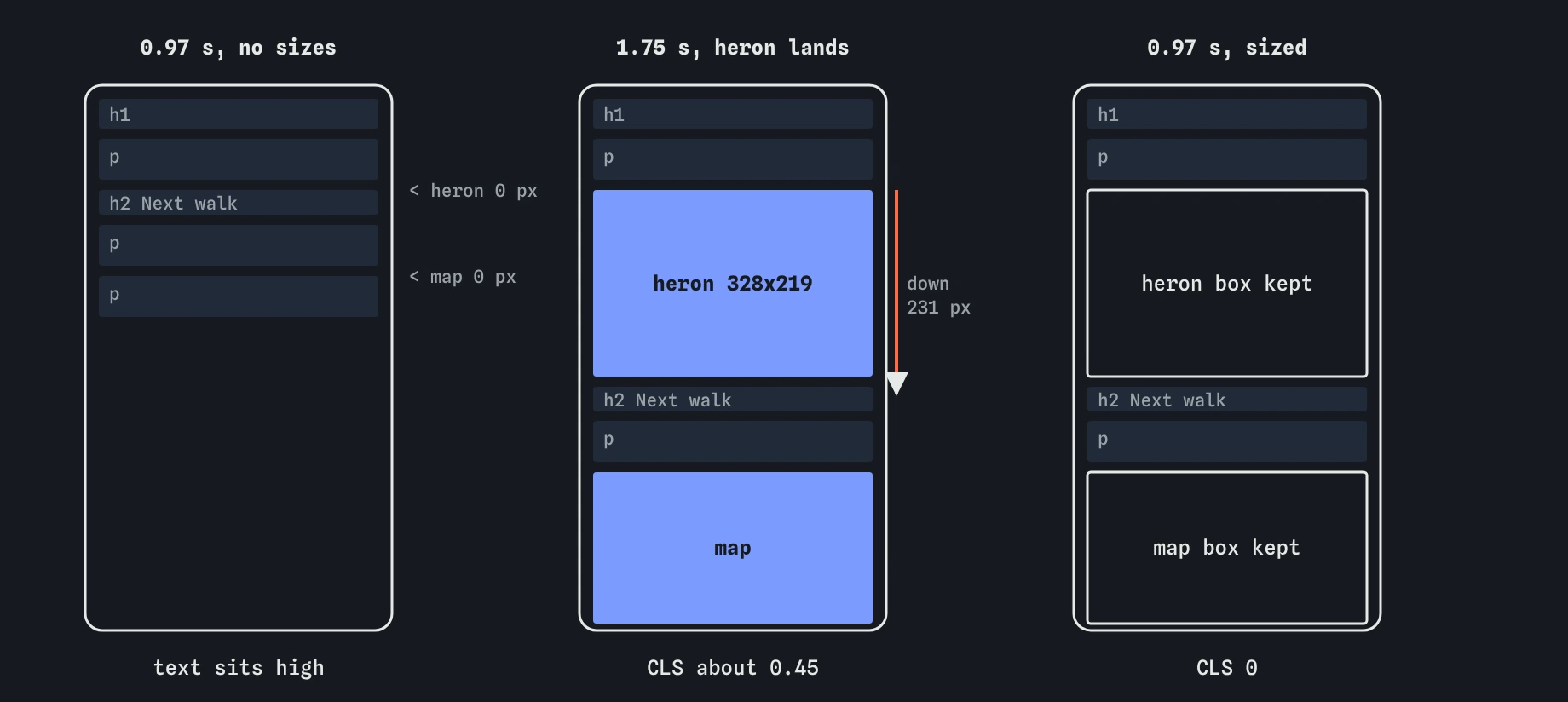
When the image's first bytes arrive, the browser reads the real dimensions from the file header and has to make room. Everything below moves down by the image's height in one go. On the bird club page that happens twice: the map arrives at about 1.6 seconds and pushes the closing paragraph down, then the heron lands at about 1.75 seconds and pushes everything below it, map included, down by about 230 pixels.
That movement is what Cumulative Layout Shift (CLS) measures. The start page scores about 0.45, well into the poor band above 0.25. A visitor reading the walk details loses their place, and someone about to tap a link can hit the wrong one.
What do width and height on an img actually do?
The two attributes give the browser the image's shape before any pixels arrive. Modern browsers turn them into an aspect ratio for layout: 800 by 533 means the picture is 1.5 times as wide as it is tall. Combined with the width the image will actually be drawn at, that gives a height.
On the pretend phone the column is 328 CSS pixels wide, so the heron gets a box 328 by about 218 from the very first paint. The text below starts in its final place and stays there when the photo fills the box.
Write the image file's real pixel size, the numbers you would see in an image editor or in the Network panel's preview. They do not have to match the display size. The usual CSS rule img{max-width:100%;height:auto} lets the picture shrink to the column, and the browser keeps the ratio from the attributes.
<img src="/img/heron.jpg" alt="A grey heron standing in shallow water"
     width="800" height="533">
Why does height: auto matter alongside the attributes?
Without a CSS height rule, the height attribute would be used as a fixed height of 533 CSS pixels while max-width:100% squeezed the width to 328. The photo would come out tall and squashed. Setting height:auto in CSS tells the browser to work the height out from the width and the ratio instead.
Most CSS resets already include img{max-width:100%;height:auto}, which is why adding the attributes rarely changes how a page looks. If you add them and an image suddenly looks stretched, a missing height:auto is the first thing to check.
When should you use CSS aspect-ratio instead?
Use aspect-ratio when CSS decides the size, or when you want a shape that differs from the file. The walk map is sized by .route{width:100%} in the stylesheet, and the same rule can carry its shape. The map file is 720 by 480, so aspect-ratio:3/2 (or 720/480, which the browser reduces for you) reserves the right box.
It is also the tool for cropping. A row of product cards that must all be square can use aspect-ratio:1 with object-fit:cover, whatever shape each photo is. The space is reserved, and every card lines up.
Attributes and CSS work together. If both are present, the CSS aspect-ratio wins for layout. A reasonable habit is to put real width and height on every <img> in the HTML, and add aspect-ratio in CSS only where you want a different shape.
.route {
  width: 100%;
  aspect-ratio: 3 / 2;
  border-radius: 8px;
}
How do you read the shift in the Filmstrip?
Open the Filmstrip and step through the frames. On the start page, the first frame at about 0.97 seconds shows the heading, the heron's space collapsed to nothing, and the walk text sitting high. The frame where an image lands is outlined, with a note naming the image that caused the move and how far things went.
After the fix, every frame has the same layout. Empty boxes sit where the photos will go, and they fill in place. The Vitals view shows CLS of 0, and the Worth fixing list no longer mentions unsized images.
In Chrome, the Performance panel marks layout shifts in its timeline, and the Lighthouse report lists the elements that moved most. Turning on Layout Shift Regions in the Rendering tab flashes a highlight over each shifted area while the page loads, which makes a jump easy to spot on a real phone or a throttled laptop.
Why did LCP change slightly after the fix?
Before the fix, the heron had zero height until it loaded, so the map was the largest thing on the first screen and LCP was the map at about 1.61 seconds. Once the heron reserves its 218 pixel box, it counts as the largest image, and LCP becomes the heron at about 1.75 seconds.
Nothing got slower. The same files download at the same times. The measurement now tracks a different, more honest element. Real browsers behave the same way: LCP follows whatever is largest in the first screen, and fixing layout can change which element that is. If you want the heron itself to arrive sooner, that is the job of the next lesson.
Do images below the first screen need sizes too?
Yes. CLS only counts movement of things the visitor can see, so a jump far down the page may not change the score on first load. People scroll early, though, and a picture that lands while someone is reading further down still pushes their text away.
Lazy images need sizes most of all. A lazy image starts downloading when it nears the screen, which is often exactly when the visitor is about to read the content around it. With no reserved box, it pops in and shoves that content down at the worst moment.
What do AI-written pages get wrong here?
Generated HTML often leaves width and height off entirely, or writes made-up values such as width="100%" that are not valid numbers for the attribute. Others copy the display size, writing width="328" height="200" for a file that is really 800 by 533, which reserves the wrong shape and leaves a smaller jump when the image arrives.
Another common pattern is a CSS rule like img{width:100%;height:auto} with no attributes and no aspect-ratio, presented as responsive. It is responsive, and it still jumps. When reviewing generated code, open each image file, read its real size, and check that every <img> carries those numbers or sits in a box with a matching aspect-ratio.
Field notes
- Without size information, an image starts at zero height and pushes text down when it arrives.
widthandheighton an<img>give the browser its shape before any pixels arrive.- Pair the attributes with
height:autoin CSS so the image is not squashed. - Use CSS
aspect-ratiowhen the stylesheet decides an element's size.
Easy to get wrong
A width alone gives no shape. The browser needs both numbers to work out the ratio and reserve the height.
The attributes take whole pixel numbers. Percentages and auto belong in CSS. Put the file's real size in the attributes and let CSS handle the display width.
A width with no height:auto lets the height attribute act as a fixed height, which squashes the picture. With height:auto the browser keeps the ratio from the attributes.
Images below the first screen often land while someone is scrolling to them, which is when a jump hurts most.
Questions people ask
Do width and height make my image fixed-size on big screens?
No, as long as your CSS sets max-width:100% and height:auto. The attributes give the browser a ratio, and CSS decides the actual drawn size.
What if I serve different files with srcset?
Use the size of the main src file. All the files in a srcset should share the same shape, so one ratio covers them. If a <picture> source has a different shape, put width and height on that <source> element too, which current browsers support.
Is aspect-ratio supported everywhere?
Yes. Every current browser supports the CSS aspect-ratio property, and the mapping from width and height attributes to a ratio has been in all major browsers for years.
Does reserving space make the image load faster?
No. It changes where things sit while the image loads, which fixes CLS. Download time depends on file size and priority, which other lessons cover.