How do heading levels work?
HTML has six heading elements, h1 through h6. The number is a rank in an outline, and it says nothing about font size. The h1 names the whole page, each h2 opens a major section, an h3 opens a subsection inside the nearest h2 above it, and so on down.
Browsers build the accessibility tree from these ranks. A screen reader exposes each heading with its level, so a user hears "heading level 2, Watering". Search engines read the same structure to work out which topics the page covers and which text belongs to which topic.
A garden club page about tomatoes might have one h1, three h2 sections for planting, watering and harvesting, and a couple of h3 subsections under planting. That outline is the skeleton every other part of the page hangs from.
<h1>Growing tomatoes</h1>
  <h2>Planting</h2>
    <h3>Soil</h3>
    <h3>Spacing</h3>
  <h2>Watering</h2>
  <h2>Harvesting</h2>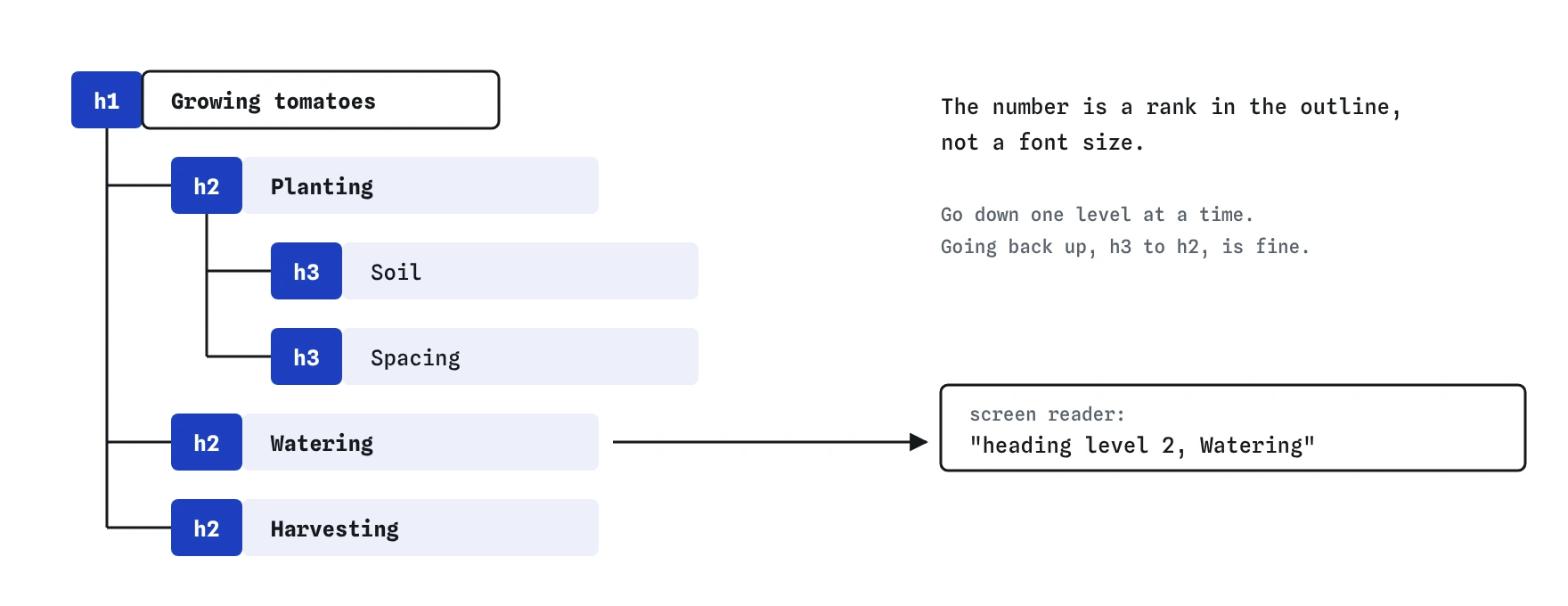
h3 because they sit inside Planting, not because they should look smaller.What makes a heading outline good?
Write the outline before you write the prose. If the headings alone read like a sensible table of contents, the structure is right. If they read like a list of slogans, the page will be hard to scan for everyone.
- Use one
h1per page that names what the page is about, usually matching or closely echoing the<title>. - Go down one level at a time. After an
h2comes anh3, never anh4. Jumping back up, fromh4toh2, is fine and expected. - Choose the level from the structure, never from the size you want. Size belongs in CSS.
- Keep headings short and specific so they make sense when read out of context in a headings list.
- Reserve headings for section titles. Taglines, bold callouts and card labels that do not start a section should be paragraphs or other elements.
Why did the old "h1 in every section" advice disappear?
HTML5 drafts described an outline algorithm where each section or article restarted the heading count, so you could use h1 everywhere and the browser would work out the real depth. No browser or screen reader ever implemented that algorithm for headings. Assistive technology kept reading h1 as level 1, every time.
The WHATWG removed the algorithm from the HTML Living Standard in 2022. Today the rule is plain: nest levels explicitly. Browsers have also been dropping the default style that shrank h1 inside section and article, so a nested h1 may now render at full size and look as wrong as it sounds to a screen reader user.
If you inherit a page full of h1 elements inside sections, renumber them to match their real depth. It is a quick find and replace that fixes navigation for every assistive technology user.
What counts as a paragraph?
The p element marks a paragraph: a run of related sentences, or sometimes a single sentence that stands alone. Browsers give it a top and bottom margin of 1em by default, which is why consecutive paragraphs have a gap between them.
A paragraph can only contain phrasing content: text, links, em, strong, code, images, inline form controls. It cannot contain a list, a table, a heading, a div or another p. The parser enforces this. If you write <p> and then open a <ul> inside it, the browser closes the paragraph before the list, and your closing </p> creates a new empty paragraph after it.
That auto-closing explains a lot of mysterious extra spacing. Open DevTools, inspect the element, and you will often see an empty <p></p> that never existed in your source.
<!-- What you wrote -->
<p>Bring these:
  <ul><li>Gloves</li></ul>
</p>

<!-- What the browser builds -->
<p>Bring these:</p>
<ul><li>Gloves</li></ul>
<p></p>
How do I add space without empty paragraphs?
Empty <p></p> elements and runs of <br> tags are a common way to push content down. They break in ways that are hard to see. Screen readers may announce "blank" for each one, the spacing changes whenever the font size changes, and anyone editing the page later has no idea which gaps are deliberate.
Use CSS margins instead. Set margin-block on the elements that need room, or use gap on a flex or grid container. A single rule such as .recipe > * + * { margin-top: 1.5rem; } gives consistent spacing between every child without touching the markup.
.bakery-menu h2 { margin-block: 2rem 0.5rem; }
.bakery-menu p { margin-block: 0 1rem; }
When should I use br or hr?
The <br> element is a line break that belongs to the content. Use it where the break carries meaning: lines of a poem, lines of a postal address, the lines of a song lyric. It is a void element, so write it as <br> with no closing tag. The trailing slash in <br /> is allowed and ignored.
Avoid <br> for layout. Two <br> tags in a row to fake a paragraph gap leave you with one paragraph that screen readers read as a single block. Split the text into two p elements instead.
The <hr> element marks a thematic break between paragraph-level content: a scene change in a short story, a shift from one topic to another on a long page. It renders as a horizontal rule by default and is exposed to assistive technology as a separator. If you only want a decorative line, use a CSS border so nothing gets announced.
<p>Bird Club HQ<br>12 Mill Lane<br>Leeds<br>LS1 4AB</p>
<hr>
<p>Membership renews every April.</p>
What does wbr do?
The <wbr> element marks a spot where the browser may break a line if it runs out of room. Nothing visible appears when the line does not break, and no hyphen appears when it does. It suits long unbroken strings: URLs, file paths, product codes or long compound words in German.
Place it after separators such as /, . or _ so the break lands somewhere readable. If you want a hyphen at the break, use the soft hyphen entity ­ instead. For whole blocks of user-generated text, the CSS property overflow-wrap: anywhere is often the better fix, because you cannot add <wbr> by hand to text you did not write.
<p>Download from example.com/<wbr>files/<wbr>2026/<wbr>annual-report.pdf</p>How do I check the outline in DevTools and with a screen reader?
In Chrome or Edge, open DevTools, go to the Elements panel and switch on the Accessibility pane. Turn on the full accessibility tree view and you can see each heading with its level. Firefox has an Accessibility panel that lists the same tree. Lighthouse flags heading levels that skip.
For a quick visual check, paste a one-line script in the console: document.querySelectorAll('h1,h2,h3,h4,h5,h6').forEach(h => console.log(h.tagName, h.textContent.trim())). Read the output top to bottom and see whether it works as a contents list.
For a real test, turn on VoiceOver on a Mac with Cmd+F5, open the rotor with VO+U and choose Headings. On Windows, NVDA lists headings with NVDA+F7, and pressing H jumps from heading to heading. If the list makes sense with nothing else on screen, the outline is doing its job.
What should I look for when an AI wrote the markup?
Generated pages often pick heading levels for looks. Watch for an h4 used on a card title because the model wanted small bold text, or a hero tagline marked as h2 that does not start any section. Both put noise into the headings list.
Look for missing or duplicated h1 elements, especially in component-based code where every component template got its own h1. Check for div elements with a class like heading or title that should be real headings, and for paragraphs that hold block content and get split by the parser. Run the console script above on every generated page; it takes ten seconds and catches most of these.
Field notes
- Heading numbers from
h1toh6describe rank, not font size. - The
h1names the page, andh2marks its main sections. - Use
<p>for paragraphs and CSS for spacing, never empty paragraphs. - Good headings read like a sensible table of contents on their own.
Easy to get wrong
Choose headings by structure. Style small text with CSS rather than borrowing a deep heading level.
Repeated br tags are not spacing tools. Use CSS margins.
Skipping from h1 to h3 leaves a gap in the outline that confuses screen reader users.
Lists cannot sit inside a paragraph. The parser closes the p early.
Questions people ask
Can a page have more than one h1?
It is valid HTML, but one h1 that names the page gives the clearest structure for users and search engines.
How do I make a heading smaller without changing its level?
Use CSS, for example a class with a smaller font-size. Keep the level that fits the outline.
Is <br> or <br/> correct?
Both are valid in HTML. The slash is optional and ignored.
Should I use hr just for a line?
Only if it marks a change of topic. For a purely decorative line, use a CSS border.