What does a screen reader actually get from my HTML?
Browsers turn your markup into two trees. The DOM is what scripts see. The accessibility tree is a trimmed copy that assistive technology reads through the operating system's accessibility API. Each node in it has a role (button, link, heading level 2), an accessible name ("Add to basket"), and states (pressed, expanded, checked, disabled).
A screen reader such as NVDA, JAWS or VoiceOver reads those three things aloud and offers shortcuts based on them. Press H in NVDA and it jumps to the next heading. Press D and it jumps between landmarks. Press Tab and it moves to the next focusable control. Voice control software uses the same tree, so a user saying "click Subscribe" only works if a control is actually named Subscribe.
Almost all of that tree comes from the elements you chose. A <button> gets the button role, keyboard activation and a name from its text for free. A <div> with a click handler gets none of it. Accessibility work on a plain content site is mostly the work of picking the right element and writing good text for it.
<button type="button">Add to basket</button>
<!-- role: button, name: "Add to basket", focusable, Enter and Space work -->

<div class="btn" onclick="add()">Add to basket</div>
<!-- role: generic, not focusable, keyboard does nothing -->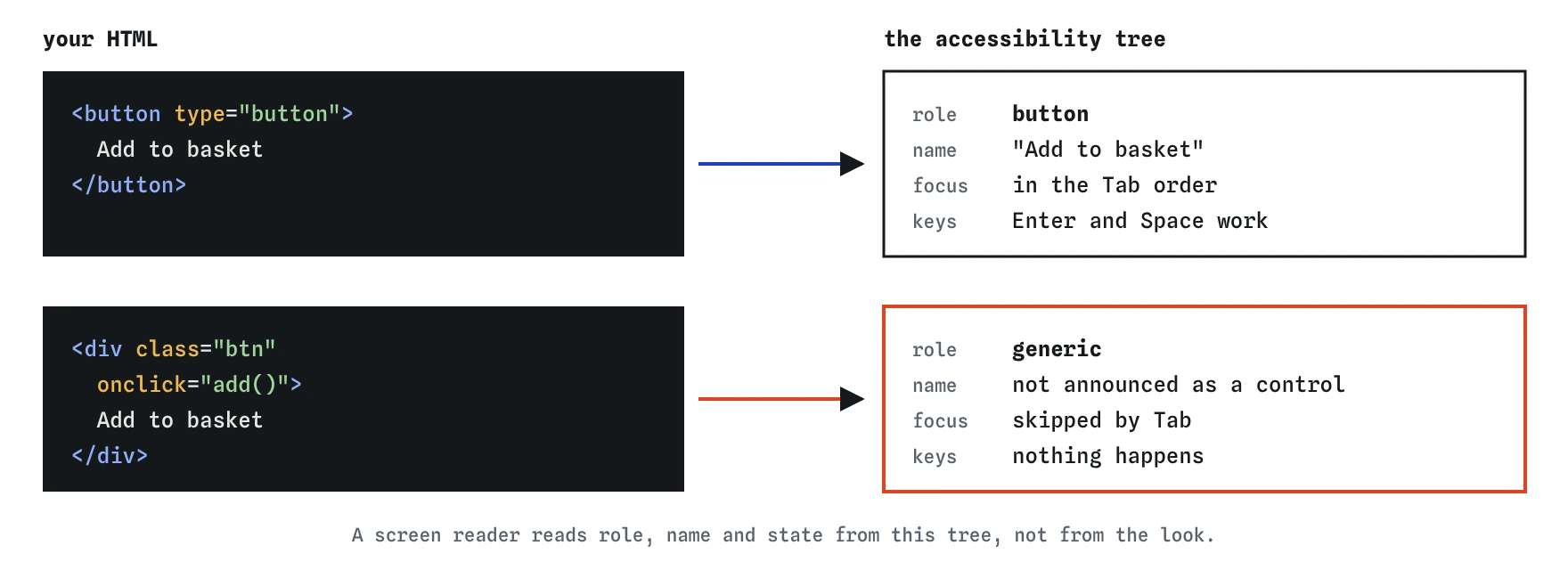
<button> gets a role, a name and keyboard support for free, while the clickable div reaches a screen reader as plain text.Which HTML habits fix most audit failures?
Large automated surveys of home pages keep finding the same six problems year after year: low contrast text, missing alt text, empty links, missing form labels, empty buttons and a missing lang attribute. Five of those six are pure HTML. Get these habits into your fingers and you clear most of what an auditor will flag.
- Use real elements:
<button>for actions,<a href>for navigation,<ul>and<ol>for lists,<table>for tabular data. - Write alt text that carries the image's purpose, and use
alt=""for images that are pure decoration. - Give every icon-only link and button a name, through visible text, hidden text or
aria-label. - Give every form control a
<label>. A placeholder disappears as soon as someone types and is a weak name. - Set
<html lang="en">(or the right language) so the screen reader picks the correct voice and pronunciation rules. - Use headings in order, with one clear
<h1>, so heading navigation gives a sensible outline. - Wrap regions in landmarks:
<header>,<nav>,<main>,<aside>,<footer>,<search>. - Write link text that makes sense out of context. Screen reader users often pull up a list of every link on the page.
When should I reach for ARIA, and when should I leave it out?
ARIA (Accessible Rich Internet Applications) is a set of attributes that rewrite what the accessibility tree reports. The first rule of ARIA use is that if a native element or attribute already does the job, you use that instead. A <button> beats role="button". The required attribute beats aria-required="true". A <nav> beats role="navigation".
ARIA changes announcements only. It adds no keyboard handling, no focus and no behaviour. Put role="button" on a <span> and a screen reader says "button", yet Tab skips it and Enter does nothing. You have made a promise the page does not keep, which is worse than saying nothing. Surveys of real pages consistently find more errors on pages with ARIA than without it.
Use ARIA when HTML has no equivalent: aria-expanded on a disclosure button, aria-current="page" on the active nav link, aria-live for status updates, aria-describedby to attach help text. Those fill real gaps. Custom widgets like tabs or comboboxes need a full ARIA pattern plus scripted keyboard support, and that is a bigger job than most content pages need.
<!-- Fills a real gap -->
<a href="/menu" aria-current="page">Menu</a>
<button type="button" aria-expanded="false" aria-controls="hours">Opening hours</button>

<!-- Redundant: the element already says this -->
<nav role="navigation">…</nav>
How do aria-label, aria-labelledby and aria-describedby differ?
The aria-label attribute sets the accessible name to a string you write. Use it when there is no visible text, such as a search button that shows only a magnifying glass. It replaces the element's own text, so <button aria-label="Close">Cancel order</button> is announced as "Close", which confuses everyone who can see the word Cancel.
The aria-labelledby attribute takes one or more ids and builds the name from the text of those elements. It wins over every other naming source. It is handy when a heading already names a region, or when a name should combine two visible pieces of text, like a "Read more" link plus the article title.
The aria-describedby attribute adds a description that screen readers read after the name and role, often after a short pause. Use it for supporting detail like a password rule or an error message.
Prefer visible text every time you can. Voice control users say what they see, and a hidden label that does not match the visible text breaks that. WCAG calls this "label in name": the accessible name should contain the visible label, ideally at the start.
<button type="button" aria-label="Search">
  <svg aria-hidden="true" focusable="false">…</svg>
</button>

<section aria-labelledby="events-h">
  <h2 id="events-h">Upcoming walks</h2>
</section>

<label for="pw">Password</label>
<input id="pw" type="password" aria-describedby="pw-rule">
<p id="pw-rule">At least 12 characters.</p>
How do I hide something from sight but keep it for screen readers?
You often need text that a sighted user does not see: a heading for a section that is visually obvious, or "(opens in new tab)" after a link. Use a visually-hidden utility class. It clips the element to one pixel while keeping it in the accessibility tree.
Avoid display: none and the hidden attribute for this. Both remove the element from the accessibility tree as well as from view. Use them when you want something gone for everyone, like a closed panel.
The reverse case is aria-hidden="true", which keeps something visible but removes it from the tree. Put it on decorative icons that sit next to text, so a screen reader does not read "star star star" before "Rated 3 out of 5". Never put aria-hidden on anything focusable, or on a parent of focusable things. Keyboard users will land on a control that a screen reader claims does not exist.
.visually-hidden {
  position: absolute; width: 1px; height: 1px;
  overflow: hidden; clip-path: inset(50%);
  white-space: nowrap;
}

<a href="/rota.pdf">Volunteer rota <span class="visually-hidden">(PDF, 120 KB)</span></a>
What do colour, contrast and zoom have to do with HTML?
Contrast is set in CSS, but it lands on your HTML. WCAG 2.2 at level AA asks for a contrast ratio of 4.5:1 for normal text and 3:1 for large text (about 24px, or 19px bold) and for the edges of controls and focus indicators. Pale grey placeholder text on white usually fails.
Do not carry meaning by colour alone. A form that marks invalid fields with a red border tells nothing to someone with red-green colour blindness. Add an icon and a text message as well.
Users zoom to 200 or 400 percent, and many set a larger default font size. Keep the viewport meta tag free of maximum-scale=1 and user-scalable=no, since these stop pinch zoom on some browsers. Size text in rem so it follows the user's setting. At 400 percent zoom on a 1280px wide window the layout acts like a 320px phone, so a page that reflows well on mobile usually passes the reflow check too.
<!-- Lets people zoom -->
<meta name="viewport" content="width=device-width, initial-scale=1">

<!-- Blocks zoom: avoid -->
<meta name="viewport" content="width=device-width, maximum-scale=1, user-scalable=no">
How do I announce changes that happen without a page load?
When a script updates part of the page, a screen reader does not notice by default. A sighted user sees "Added to basket" appear. A blind user hears nothing. A live region fixes this. Content that changes inside an element with role="status" (or aria-live="polite") is read out when the screen reader is idle.
The region must exist in the page before the text changes. If you insert the container and its text in one go, many screen readers miss it. Render an empty <p role="status"> on load, then fill it later.
Use role="alert" (which is assertive) only for urgent messages such as a failed payment, because it interrupts whatever is being read. For form validation, the <output> element also works as a polite status region. Keep messages short. A live region that re-announces a whole paragraph every few seconds drives people away.
<p role="status" id="basket-msg"></p>
<script>
  document.querySelector('#basket-msg').textContent = 'Sourdough loaf added. 3 items in basket.';
</script>
How can I test accessibility in ten minutes?
Automated tools catch around a third of issues. They are good at missing alt, missing labels and contrast. They cannot tell whether alt text is accurate or whether the reading order makes sense, so pair them with a short manual pass.
- Run Lighthouse or axe DevTools in the browser and fix every error it reports.
- Unplug the mouse. Tab through the page. Can you see where focus is at every step, reach every control, and operate it with Enter, Space and arrow keys?
- Open the DevTools Accessibility pane (Chrome and Edge) or the Accessibility Inspector (Firefox). Click a control and read its computed role and name.
- Zoom to 200 percent and then 400 percent. Look for overlapping text and sideways scrolling.
- Turn on a screen reader: VoiceOver with Cmd+F5 on a Mac, Narrator with Ctrl+Win+Enter on Windows, or install NVDA for free. Pull up the headings list and the links list and see if they make sense on their own.
- Run the W3C Nu HTML Checker. Duplicate ids and broken label
forvalues are accessibility bugs in disguise.
What do AI tools get wrong about accessibility?
Generated markup tends to look right and announce badly. When you review code from an assistant, look for these patterns before anything else.
- Clickable
<div>and<span>elements withonclickand no keyboard support. - ARIA added out of habit:
role="button"on a<button>,role="main"on<main>,aria-labelon a<div>that has no role, where it is ignored. - An
aria-labelthat contradicts the visible text, breaking voice control. - Alt text that starts "Image of" or repeats the file name, or
altmissing entirely on a logo link, which leaves the link with no name. - Headings picked for size: an
<h4>straight after an<h1>because it looked right. - Icons from an icon font or inline SVG with no
aria-hiddenand no text, read as gibberish or skipped. - Inputs with only a placeholder and no
<label>.
Field notes
- Screen readers read a simpler copy of your page built from your HTML.
- Labels, alt text and clear headings fix many of the most common problems.
- Use a native HTML element first and add ARIA only when nothing else fits.
Easy to get wrong
Placeholder text vanishes once typing starts and is not a dependable accessible name.
The role changes only the announcement. The div still cannot be focused or triggered from the keyboard.
Hiding a focusable link from assistive technology leaves keyboard users on an element that announces nothing.
Questions people ask
What is the first rule of ARIA?
Do not use ARIA when a native HTML element or attribute can do the job. Native elements bring behavior that ARIA cannot add.
What is the difference between aria-label and aria-labelledby?
aria-label holds the name as a string. aria-labelledby points to the id of existing text on the page and uses that text as the name.
Do decorative images need alt text?
They need an empty alt attribute, alt="", so screen readers skip them. Leaving alt out entirely makes some readers announce the file name.
Does every page need a lang attribute?
Yes. <html lang="en"> or the right language code tells screen readers how to pronounce the text and helps translation tools.