What happens when someone presses Submit?
The browser walks every control inside the <form>, collects each one that has a name, and builds a list of name and value pairs. It then sends that list to the URL in action using the method in method. The page is replaced by whatever the server sends back, unless JavaScript cancels the default and handles the request itself.
Picture a bakery that takes cake orders. The customer fills in a name, an email and a pickup date, then presses Order. The browser sends name=Priya&email=priya%40example.com&pickup=2026-10-12 to the server. Spaces become + or %20, and the @ is percent-encoded. The server reads those pairs, saves the order, and returns a confirmation page.
Before any of that, the browser runs built-in validation. If a required field is empty or an email is malformed, submission stops, focus moves to the first bad field, and a message bubble appears. Nothing reaches the server until every constraint passes or the form opts out with novalidate.
<form action="/orders" method="post">
  <label for="cust">Your name</label>
  <input id="cust" name="name" autocomplete="name" required>
  <button>Place order</button>
</form>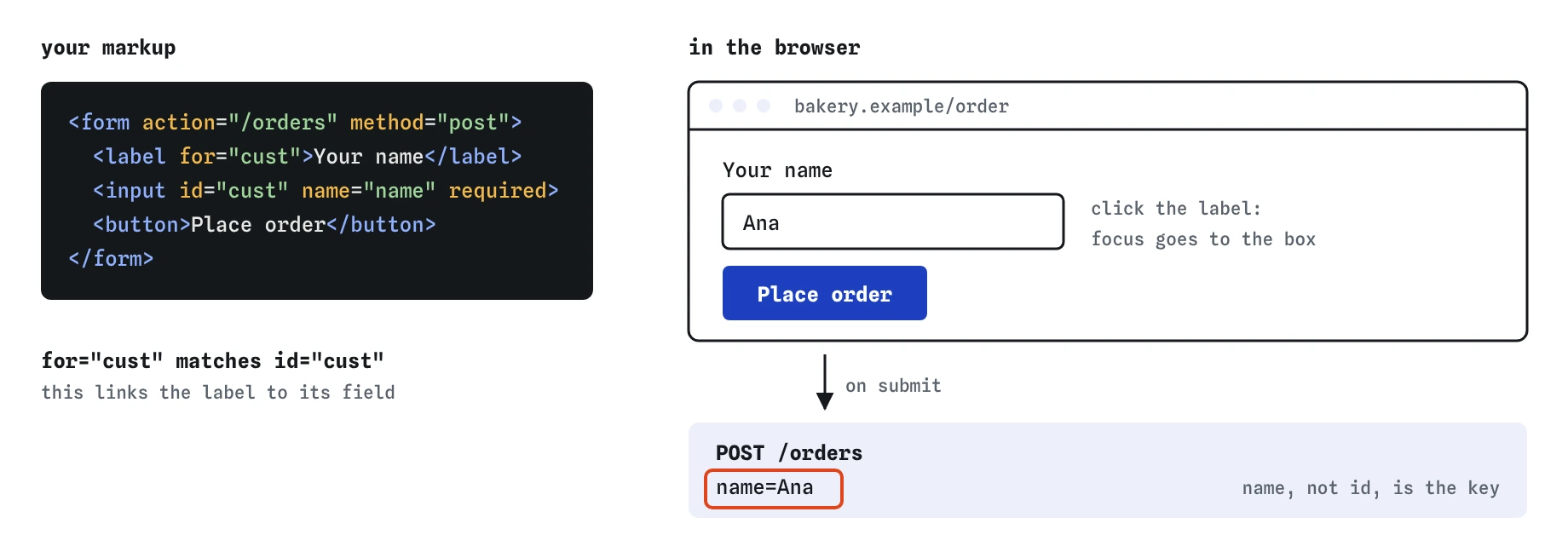
for and id connect the label to the box, and name becomes the key in what gets sent, so the server receives name=Ana.Should the form use GET or POST?
Use method="get" when the form asks a question and the answer can be shared: a site search, a filter on a product list, a date picker for a timetable. The values land in the URL as a query string, so people can bookmark the result, press Back safely and paste the link to a friend.
Use method="post" when the form changes something or carries private data: placing an order, signing up, logging in, sending a message. The values travel in the request body, out of the address bar, history and most server logs. Browsers also warn before resubmitting a POST on reload, which protects against double orders.
If you leave method off, the browser uses GET. If you leave action off, the form submits to the current page URL. Both defaults surprise people. A login form with no method puts the password in the URL. Write both attributes on every form so the intent is obvious to the next reader.
POST is still readable by anyone who can see the network traffic. HTTPS is what keeps it private in transit.
<!-- Shareable search -->
<form action="/search" method="get" role="search">
  <label for="q">Search recipes</label>
  <input id="q" name="q" type="search">
</form>
Why does a field need a name?
The name attribute is the key the server receives. A control without it is skipped completely, even if the user typed into it. This is the most common reason a field "does not save". The id attribute does nothing for submission; it exists for labels, CSS and scripts.
Names should be stable, lowercase and predictable, because back-end code depends on them. Changing email to emailAddress in the HTML silently breaks a server that still reads email. Several controls can share a name. Radio buttons must, and checkboxes often do, which produces repeated keys such as topping=nuts&topping=sprinkles.
Three other things keep a value out of the submission: the control is disabled, it sits outside the form with no form attribute pointing back, or it is an unchecked checkbox or radio. If you want a value shown but not editable and still submitted, use readonly instead of disabled.
To check, open DevTools, go to the Network panel, submit the form and inspect the request payload. Every key the server will see is listed there. A missing key points straight at a missing name.
<input id="pickup" name="pickup" type="date">
<input name="order_ref" value="B-2041" readonly>
How do labels help, and what goes wrong without them?
A <label> gives a control its accessible name. Screen readers read it when the field gets focus, voice control users say it to move there, and clicking the label focuses or toggles the control. On a phone that turns a tiny checkbox into a large tap target.
There are two ways to connect them. Explicit: for on the label matches id on the input. Implicit: wrap the input inside the label. Both are valid. Explicit labels survive layout changes better, and some older assistive tech handled them more reliably, so use for and id when the label and input sit in different grid cells.
Placeholders are a poor replacement. They disappear as soon as typing starts, their default grey text often fails contrast, and people with memory or attention difficulties lose track of what the field wanted. Put the label above the field and use the placeholder, if at all, for an example format.
Quick test: click each label. If the cursor does not land in the matching field, the connection is broken. In the Chrome Accessibility pane, the field's computed Name should show the label text.
<label for="email">Email for your receipt</label>
<input id="email" name="email" type="email" autocomplete="email">
Which button type does a form need?
A <button> inside a form defaults to type="submit". That is right for the main action and wrong for everything else. A Preview, Show password or Add another item button needs type="button", or every click will submit the form.
The third type, type="reset", puts every field back to its initial value. Users hit it by accident and lose their work, and almost nobody wants it on purpose. Leave it out unless you have a clear case, such as a long filter panel with a Clear filters action, and even then a link back to the unfiltered URL is often kinder.
Pressing Enter in a single-line text field triggers implicit submission. The browser activates the first submit button in tree order. If that first button is Delete, Enter deletes. Put the main action first in the source, and use CSS to change its visual position if needed.
A submit button can also carry name and value. Only the button that was pressed is sent, which lets one form offer Save draft and Publish.
<button type="submit" name="intent" value="publish">Publish</button>
<button type="submit" name="intent" value="draft">Save draft</button>
<button type="button" id="preview">Preview</button>
What does autocomplete do for your users?
The autocomplete attribute tells the browser and password manager exactly what a field is, using a fixed vocabulary of tokens. With autocomplete="email", "given-name", "postal-code" or "tel", a returning customer fills a whole address in one tap. It also satisfies WCAG 1.3.5, Identify Input Purpose.
Passwords need two different tokens. Use current-password on login forms and new-password on sign-up and change-password forms. The second tells password managers to suggest a strong generated password and save it, instead of offering the old one.
Use one-time-code on SMS verification fields so phones can offer the code from the incoming message. Use autocomplete="off" sparingly. Browsers often ignore it for login fields because blocking password managers makes accounts less safe.
Tokens can be prefixed with a section and an address type, such as shipping street-address or billing postal-code, so a checkout with two addresses fills each one correctly.
<input name="postcode" autocomplete="shipping postal-code">
<input name="password" type="password" autocomplete="new-password">
<input name="code" inputmode="numeric" autocomplete="one-time-code">
How do you group fields and connect controls outside the form?
Wrap related controls in <fieldset> with a <legend>. Screen readers announce the legend when focus enters the group, which helps with radio buttons and with repeated fields like a delivery address and a billing address that both contain Street and Town.
Forms cannot be nested. A <form> inside another <form> is dropped by the parser, so its fields join the outer form. When a layout forces a control outside its form, such as a Save button in a sticky footer, give the control form="order-form" with the form's id. It then submits and validates with that form as if it sat inside.
Setting disabled on a fieldset disables every control inside it at once, which is handy while a request is in flight. Remember that disabled controls are skipped on submission.
<form id="order-form" action="/orders" method="post">...</form>
<footer>
  <button form="order-form">Save order</button>
</footer>
What should you check in AI-generated form code?
AI tools write plausible forms that often fail in small ways. Read the output with this list before you ship it:
- Every input, select and textarea has a
name, and the names match what the server expects. - Every control has a visible
<label>connected byforandid, and placeholders are not standing in for labels. - The form has explicit
actionandmethod, and logins or payments use POST. - Non-submitting buttons have
type="button". Watch for icon buttons inside forms that submit by accident. - Fields that collect personal data use
autocompletetokens, withnew-passwordversuscurrent-passwordset correctly. - No
divorspanwith a click handler pretends to be a button. - Enter in a text field does what a user expects. Tab through the whole form once with the keyboard to confirm order and focus.
Field notes
- On submit, the browser sends each named field as a name and value pair.
- A field without a
nameis left out of the data entirely. - A
<label>linked withforandidnames the field and makes the text clickable.
Easy to get wrong
Only named controls are submitted. Without name, the value never reaches the server.
A placeholder vanishes when typing starts and is not a reliable accessible name. Use a real label.
GET puts values in the URL, where they land in history and server logs. Send passwords with POST.
Buttons in a form default to submit, so this one would send the form as well.
Nested forms are not allowed. The parser drops the inner form tag and its fields submit with the outer one. Use separate forms, or the form attribute to link a control elsewhere.
Questions people ask
What is the difference between GET and POST?
GET puts form data in the URL and suits searches. POST sends it in the request body and suits anything that changes data or is private.
Why is my form field not being submitted?
Check that it has a name attribute, that it is not disabled, and that it sits inside the form or uses the form attribute.
Do I need both id and name on an input?
Use id to connect the label and name to submit the value. Most text fields need both.
Should I use input type=submit or button?
Either submits the form. button is more flexible because it can contain other elements like icons.
Why does pressing Enter submit my form?
Implicit submission: Enter in a single-line field activates the first submit button. Make sure that button is the main action, or handle the submit event if you need different behaviour.
What is the difference between disabled and readonly?
A readonly field can be focused and is submitted. A disabled field cannot be focused, is skipped by Tab and is left out of the submission.