What are the parts of the lab screen?
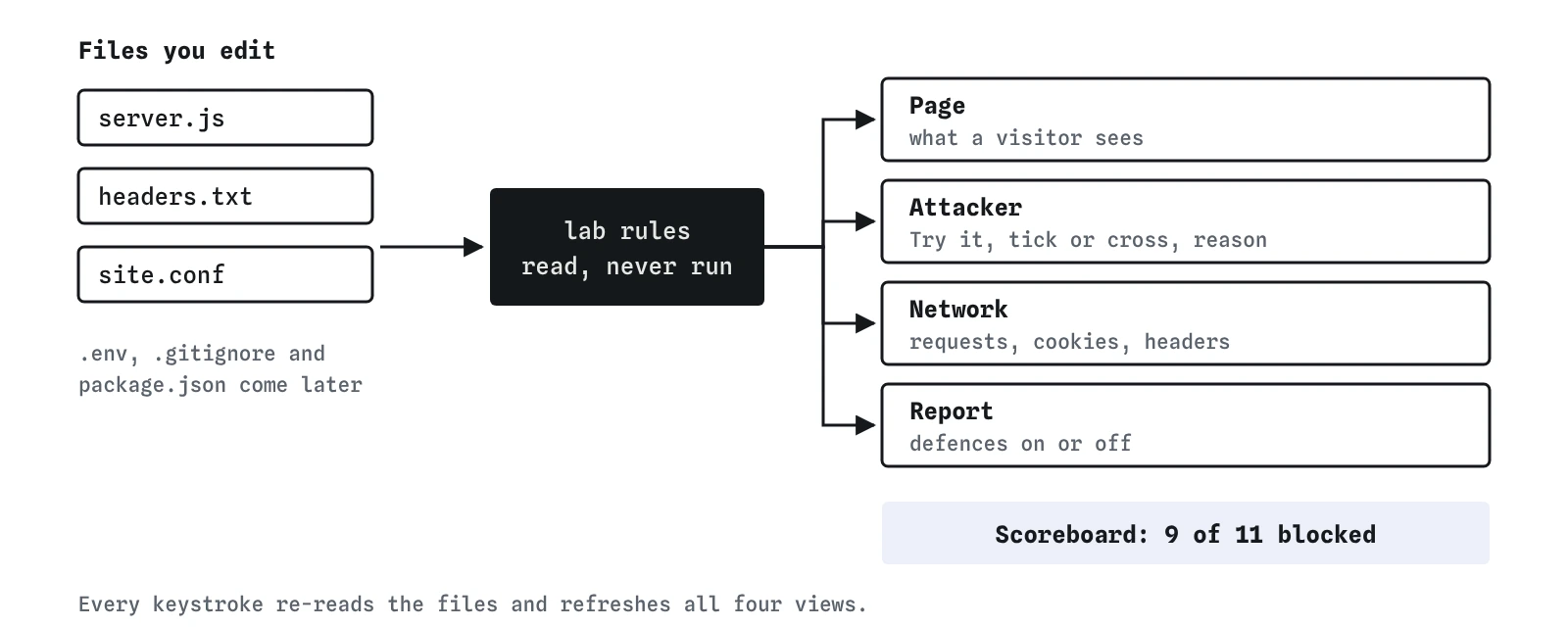
The left side holds the pretend site's files as tabs. The right side shows four views of the same files. Every time you type, the lab reads the files again and updates all four views, so the effect of a change shows up straight away. Underneath sits a scoreboard such as 9 of 11 blocked, which counts the attacks that failed against your files.
Nothing on this screen runs a real server, and nothing leaves the page. The lab reads the files with a set of simple rules and judges a fixed list of pretend attacks against them. The same files always give the same result, which is useful for learning: you can change one line and know that line made the difference.
- Files:
server.js,headers.txt,site.confand, in later lessons,.env,.gitignore,package.jsonand pages. - Page: what a visitor sees.
- Attacker: every pretend attack, with a Try it button.
- Network: the requests and responses between browser and server.
- Report: every defence on or off, and every attack's result.

What does each file do?
server.js is the program behind the site. It is written in the style of Express, a popular framework for Node. Each app.get('/menu', ...) or app.post('/comments', ...) is a route: the code that answers one address. Inside a route, db.all(...) reads from the database and res.send(...) sends HTML back to the browser. Most attacks in this course come down to a few lines in this file.
headers.txt lists headers, which are short Name: value lines the server sends ahead of every page. The visitor never sees them, but the browser reads them and follows their instructions: use HTTPS from now on, never show this page in a frame, do not guess file types. On a real server these come from code, from the host's settings or from a file such as .htaccess; the lab collects them in one place so you can read them.
site.conf holds plain settings that would live elsewhere on a real host, such as whether HTTPS is switched on, whether plain HTTP redirects to it, and how many sign-in attempts are allowed. Each line is key = value.
# headers.txt
X-Content-Type-Options: nosniff
X-Frame-Options: DENY
Strict-Transport-Security: max-age=31536000
How do you read the Attacker view?
Each row is one pretend attack with a short name, such as Script in a comment or Listening on cafe wifi, and a Try it button. Pressing it runs the attack against the files as they are now and records the result. A tick means blocked, a cross means it worked for the attacker, and a dash means there was nothing to attack, for example password guessing on a site with no sign-in.
Under every result is a reason. Read it every time. It names the file and often the line responsible, so a failed defence points you straight at the fix. In the task, the wifi attack said that there is no Strict-Transport-Security header, so the very first request can still go out as plain HTTP.
The most recent attack stays expanded with its steps, one line each: what the attacker does, what your site does in response, and where the attack stopped or succeeded. Comparing the steps before and after a fix is a quick way to see which wall did the work.
What does the Network view show?
The Network view lists the requests that travel between the visitor's browser, your server and, for some attacks, evil.example. It is modelled on the Network tab in your browser's developer tools, which you can open with F12 on most computers or with Cmd+Option+I on a Mac.
For the wifi attack it shows the visitor typing crumbandcrust.example with no https://. Without HSTS the first line is a plain http:// request, marked as readable by anyone on the network, followed by a redirect to the HTTPS address. That one plain request is enough for someone on the same cafe wifi to send back a fake page in place of the redirect. With HSTS in place the browser upgrades the address itself, and the first request is already encrypted.
Later lessons use the same view for cookies, which appear on Set-Cookie lines with their flags, for forged form posts from another site, for cross-origin fetches, and for pages loaded inside frames. When something in a lesson feels abstract, this is the view that makes it visible.
How do you read the Report view?
The Report view is the summary. The top half lists defences such as HTTPS, the redirect, HSTS, escaping, frames and nosniff, each marked on or off with a short note. The bottom half lists every attack with its last result and reason. If you only look at one view after a change, look at this one.
A defence can be on while an attack still succeeds, because most attacks need several walls in place. A defence can also be off while its attack is blocked by something else. In the bakery, HSTS was off but the comment attack was still blocked, because escaping and HSTS protect against different things. The Report helps you see which defence covers which attack, which is the skill this course builds.
What do the warnings mean?
Some defences can break your own site when set wrongly. A Content Security Policy can block your own scripts. A cookie marked Secure will not be sent over plain HTTP. A package.json with a missing comma stops the install. When the lab spots a change like that, the Page view shows a warning explaining what broke.
Treat a warning as seriously as a failed attack. A defence that breaks the site gets switched off by the next person who touches it, often in a hurry and without understanding why it was there. The task check includes a case for this: the page must still work after your fix.
Where does the lab differ from a real site?
The lab reads your code with pattern rules and never runs it. Code written in an unusual way can fool it in either direction: a safe line it does not recognise may be marked unsafe, and an unsafe line written oddly may slip past. A real attacker tries many payloads and many variations. When the lab says blocked, treat it as good evidence for that one trick.
HTTPS here is a switch in site.conf. On a real site it needs a certificate, which most hosts provide for free through Let's Encrypt, and the redirect is usually a host setting. The lab also does not model the HSTS preload list, a list built into browsers that makes even the first visit use HTTPS. There is one visitor, one attacker site at evil.example and one login cookie. Real sites have many visitors in many browsers, and you will meet the differences in the lessons where they apply.
What do AI tools get wrong about security headers?
Assistants often suggest header lists copied from older advice. X-Frame-Options: ALLOW-FROM appears regularly, although browsers dropped support for it years ago and treat it as if no header were there. X-XSS-Protection: 1; mode=block is another regular: modern browsers ignore it, and the old filter it switched on caused problems of its own.
They also mix up which header does what, for example claiming HSTS will turn HTTPS on for you. It only tells the browser to keep using HTTPS once it has been used. Paste any suggested header into the lab's headers.txt, run the matching attack, and read the reason. If the lab cannot find the header doing what the assistant claimed, ask the assistant which browser behaviour it relies on.
Field notes
- The lab has a file editor plus the Attacker, Network and Report views.
- The Network view shows each request and the headers the server sent back.
- The Report view counts how many attacks were blocked, such as 9 of 11.
- Warnings flag settings that look safe but no longer work, like
X-XSS-Protection.
Easy to get wrong
Current browsers ignore ALLOW-FROM, which leaves the page frameable. Use DENY, or frame-ancestors in a Content-Security-Policy when you need a list.
A browser only learns the HSTS rule from an HTTPS response. The redirect is how a first-time visitor gets there.
The number tells you something is wrong; the reason names the file and the line. Fixing without reading leads to guesses.
Questions people ask
Can I break something by experimenting in the lab?
No. The files exist only in this page. A reset button puts them back the way the lesson started.
Why does an attack say there is nothing to attack?
The site lacks the thing the attack needs, such as a sign-in form or a database query. That is a real kind of safety: features you do not have cannot be misused.
How long should max-age be in HSTS?
A year, 31536000 seconds, is common. Start with a few minutes while testing on a real site, since browsers remember the rule and will refuse plain HTTP for the whole period.
Where do I see headers on a real site?
Open developer tools, choose the Network tab, reload the page, click the first request and look under Response Headers.