How does HTML affect how fast a page feels?
The browser reads your HTML from the top and discovers every image, stylesheet, script and font as it goes. Each one is a request, and some of them block the browser from drawing anything until they arrive. The order you write things in, and a few attributes, decide which files start early, which wait, and whether the page jumps around while it loads.
Google measures this with three Core Web Vitals. Largest Contentful Paint (LCP) is how long the biggest piece of content in view, usually a hero image or a heading, takes to appear; under 2.5 seconds counts as good. Cumulative Layout Shift (CLS) adds up how much visible content moves unexpectedly; under 0.1 is good. Interaction to Next Paint (INP) is how quickly the page responds to taps and clicks; under 200 milliseconds is good.
These scores feed a small part of search ranking, but the bigger reason to care is people. A page that shifts under a thumb causes mis-taps, and a slow hero image on a phone makes people leave before they read anything.
Why do images need width and height?
An image file arrives after the HTML around it. If the browser does not know the image size, it lays out the text with zero space for it, then pushes everything down when the picture lands. That jump is layout shift, and it is the main cause of poor CLS scores.
Writing width and height on the <img> fixes it. Modern browsers use the two numbers to work out the aspect ratio and reserve the right amount of space, even when CSS makes the image responsive with max-width: 100% and height: auto. The numbers are pixels without units and should match the real file, or at least its shape. A 1200 by 800 photo can say width="600" height="400" and still get the right ratio.
The same rule applies to <video>, <iframe> embeds and ad slots. Anything that arrives late needs a box of the right size waiting for it.
<img src="/img/heron.jpg" width="1200" height="800"
     alt="A grey heron standing in shallow water">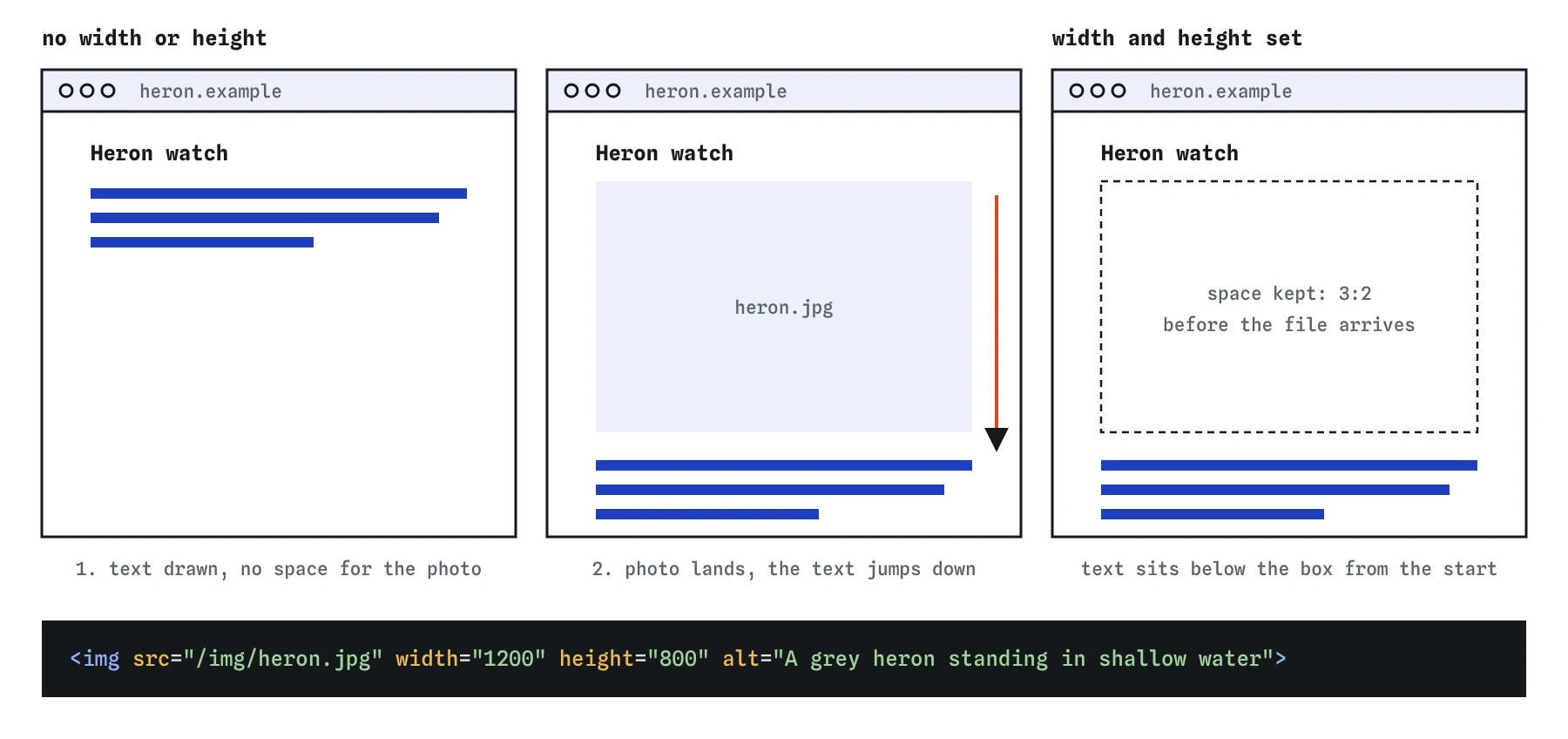
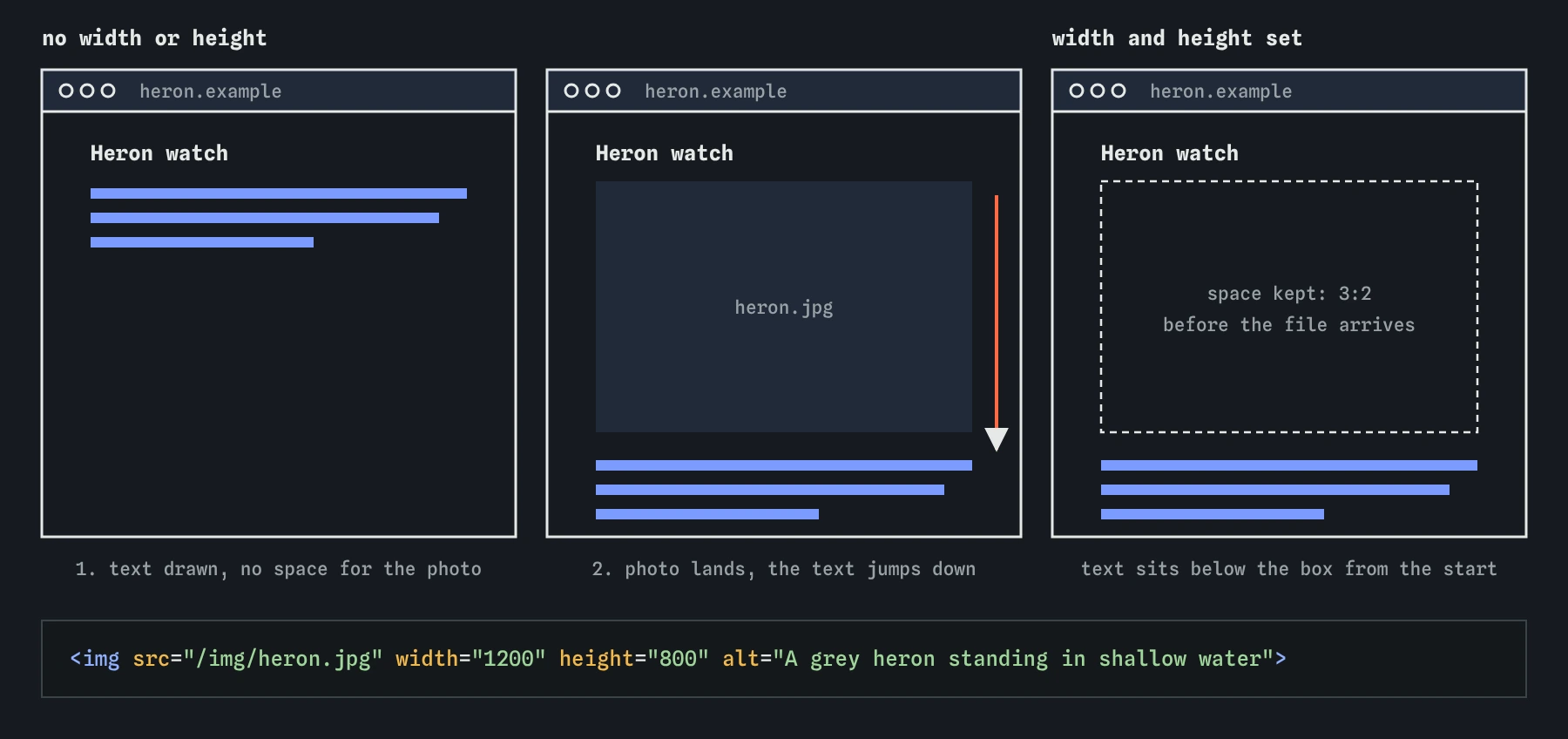
width and height the browser cannot know the photo is coming, so the text jumps when it lands. The two numbers give it the 3:2 shape and the space stays reserved.When should you use loading="lazy", and when not?
The loading="lazy" attribute tells the browser to wait until an image or iframe is close to the visible area before fetching it. On a long page with twenty photos, people who read only the top never download the other eighteen. That saves data and frees the network for the things that matter first.
Never lazy-load the image that is in view when the page opens, especially the hero image that is likely to be the LCP element. The browser has to finish layout before it knows a lazy image is visible, so the request starts late and LCP gets worse. Leave the first screen of images as normal, which is the same as loading="eager", and lazy-load everything further down.
Lazy loading also needs width and height. A lazy image without a size is a zero-height box, so the browser may think many of them are in view at once, or the page jumps as each one arrives during scrolling.
<!-- hero: load straight away -->
<img src="/img/reservoir.jpg" width="1600" height="900" alt="The reservoir at sunrise">

<!-- gallery further down -->
<img src="/img/wren.jpg" width="600" height="400" loading="lazy" alt="A wren on a fence post">
What does fetchpriority change?
Browsers guess at the importance of each request. Images start at low priority and get bumped up once the browser sees they are in view, which happens after layout. The fetchpriority attribute lets you give a hint sooner. Set fetchpriority="high" on the hero image and it starts downloading with the stylesheets, which often cuts LCP by several hundred milliseconds.
Use high on one or two resources at most. Marking everything high is the same as marking nothing. The value low is useful for images that are in the markup early but not important, such as the second and third slides of a carousel, and for scripts that can wait. auto is the default. The attribute works on <img>, <link>, <script> and <iframe>, and the browser treats it as a hint it may adjust.
<img src="/img/reservoir.jpg" width="1600" height="900"
     fetchpriority="high" alt="The reservoir at sunrise">
When do preload and preconnect help?
A <link rel="preload"> in the head starts fetching a file the browser would otherwise find late. Typical cases are a web font named only inside a CSS file, or a hero image set as a CSS background. You must give as (such as font, image, style or script) so the browser applies the right priority and caching, and fonts also need crossorigin even when they come from your own site, or they get downloaded twice.
A <link rel="preconnect"> opens the connection to another origin early, doing the DNS lookup and TLS handshake before the first request to it. It helps when you know the page will use a font host or image CDN soon. Each connection costs work, so keep it to the two or three origins that matter. rel="dns-prefetch" is a lighter version that only does the lookup.
Preload is easy to overuse. Every preloaded file competes with the HTML, CSS and hero image for bandwidth, and Chrome warns in the console when a preloaded file goes unused for a few seconds. Preload only what is needed on the first screen and would otherwise be discovered late.
<head>
  <link rel="preconnect" href="https://fonts.example-cdn.com" crossorigin>
  <link rel="preload" href="/fonts/atkinson.woff2" as="font"
        type="font/woff2" crossorigin>
  <link rel="stylesheet" href="/css/site.css">
</head>
How should scripts be loaded?
A plain <script src> in the head stops the HTML parser until the file is downloaded and run. Nothing below it is built, and the screen stays blank. That is the classic render-blocking script.
Add defer to most scripts. A deferred script downloads in parallel while parsing continues and runs after the document is parsed, in the order the scripts appear. Use async for independent scripts such as analytics, which run as soon as they arrive and in any order. Scripts with type="module" are deferred by default. Placing scripts at the end of the body is an older way to get a similar result.
Fewer scripts help INP as well. Every script that runs on load keeps the main thread busy, and a tap during that time waits. Remove plugins nobody uses, and question each third-party widget, chat bubble and tracking tag. Each one costs every visitor time.
How do fonts and request count affect speed?
Web fonts can hide text. While a font downloads, some browsers draw invisible text for up to three seconds. The CSS descriptor font-display: swap in your @font-face rule tells the browser to show the fallback font at once and swap when the web font arrives. Font services usually accept &display=swap in the stylesheet URL. Using one or two font files in WOFF2 format, rather than six weights, saves far more time.
Each request has overhead, and a page with eighty small files is slower than one with ten, even over HTTP/2. Combine small icons into one inline SVG sprite, drop stylesheets that a page does not use, inline the tiny CSS that the first screen needs, and serve images in AVIF or WebP at the size they display. Compression and caching are set on the server, but the number and weight of files you link from the HTML is your choice.
@font-face {
  font-family: "Atkinson";
  src: url("/fonts/atkinson.woff2") format("woff2");
  font-display: swap;
}
How do you measure it, and what do AI-built pages get wrong?
Open Chrome DevTools and run Lighthouse in the Lighthouse panel for a lab score with specific advice, such as which image is the LCP element and which scripts block rendering. The Performance panel shows layout shifts as purple marks and lets you click each one to see the element that moved. PageSpeed Insights adds field data from real Chrome users, which is what search actually uses. Test on a throttled mobile profile, because a fast laptop on office wifi hides most problems.
AI-generated pages repeat a few mistakes. They put loading="lazy" on every image including the hero, leave out width and height, load several full font families, add script tags in the head without defer, and preload files that are never used. Check the first image, the head and the script tags first; fixing those three areas solves most speed problems in generated code.
Field notes
- Give images
widthandheightso the browser saves space before they arrive. - Use
loading="lazy"for images far down the page, never for the main top image. - A plain script in the head blocks the page, so prefer
defer.
Easy to get wrong
The hero image is usually the LCP element. Lazy-loading it delays the request, and the missing size causes layout shift.
A plain script in the head blocks parsing until it downloads and runs. defer lets the page build first.
Without as, the preload is ignored or fetched at the wrong priority, and fonts without crossorigin are downloaded twice.
A lazy image without a size reserves no space, so the page jumps as each one loads during scrolling.
Questions people ask
Should I put width and height on responsive images?
Yes. Browsers use them to compute the aspect ratio and reserve space, while CSS such as max-width: 100%; height: auto still makes the image scale.
Is loading="lazy" bad for SEO?
No. Search engines see lazy images. It only hurts when used on the main image in the first screen, because that slows LCP.
What is the difference between defer and async?
defer scripts run in order after parsing finishes. async scripts run as soon as they download, in any order, which suits independent scripts like analytics.
What is a good Core Web Vitals score?
LCP under 2.5 seconds, CLS under 0.1 and INP under 200 milliseconds, measured for at least three quarters of real visits.
When should I use preconnect?
Use it for the one to three other origins the page will definitely request early, such as a font host or image CDN.