When should you use a select, radios or checkboxes?
Count the options and ask whether the user may pick one or several. For one choice from two to about six options, use radio buttons. All options stay visible, so users compare them without opening anything, and one tap picks the answer. For one choice from a long list, such as country or month, use a <select>. For any number of choices, use checkboxes.
A single checkbox suits yes or no questions where unchecked has a clear meaning, like Subscribe to the newsletter. For a choice where neither answer is the default, such as Do you have allergies, two radio buttons labelled Yes and No are clearer, because a single box forces the user to guess what unchecked means.
Avoid a select for two or three options. It hides the choices behind an extra tap and makes people read a closed box to learn what is on offer.
How do select and option submit values?
Each <option> has a value, which is what the server receives, and text content, which is what the user sees. If you leave out value, the text is submitted instead. Write both so you can change the wording later without breaking the server.
The first option is selected by default unless another has selected. That means a required select needs a placeholder option with an empty value. With required on the select and value="" on the first option, the browser blocks submission until a real choice is made.
Keyboard users can type the first letters of an option to jump to it when the select has focus. On phones the browser shows its own wheel or sheet. Both behaviours come free with the native element and are lost when a library replaces it with a styled div. Recent Chromium versions support appearance: base-select for customising a real select in CSS, so check support before reaching for a library.
<label for="tin">Cake tin size</label>
<select id="tin" name="tin" required>
  <option value="">Choose a size</option>
  <option value="6">6 inch, serves 8</option>
  <option value="8">8 inch, serves 14</option>
</select>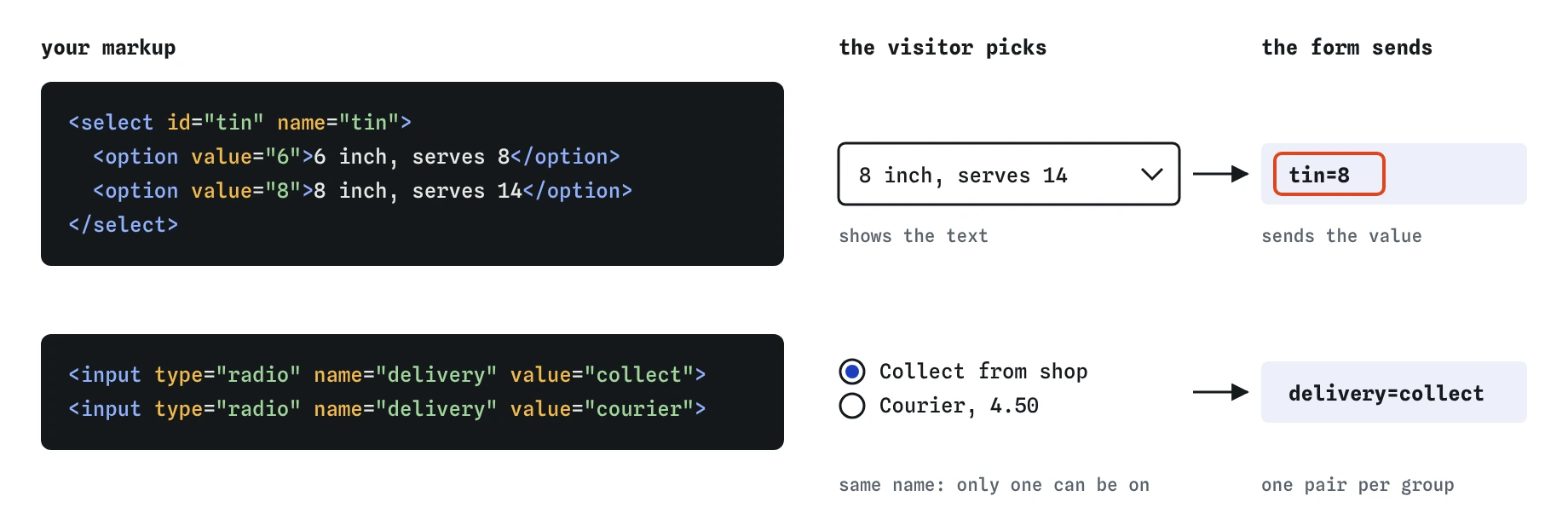
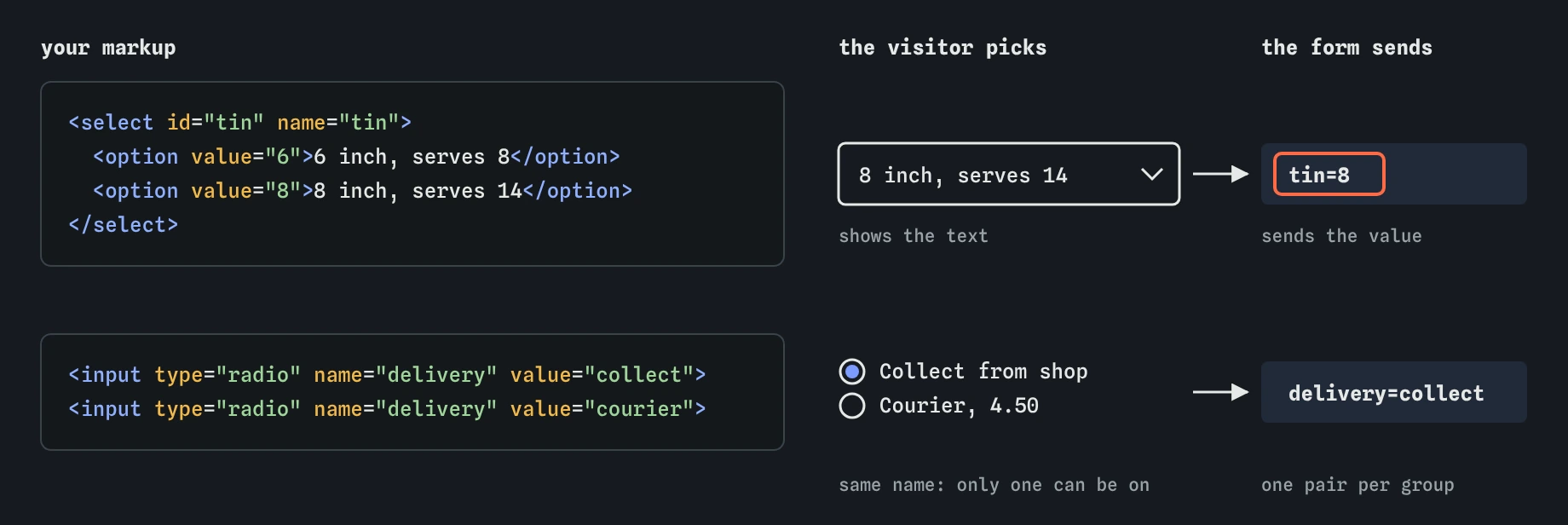
value. Radios that share a name form one group, so only the chosen one is sent as a single name=value pair.When do optgroup and multiple help?
Use <optgroup label="..."> to divide a long list into named sections, such as cake flavours under Classic and Seasonal. The group labels are shown in bold and cannot be selected. Groups cannot be nested.
The multiple attribute turns a select into a list box where several options can be chosen. The value is sent once per selected option under the same name. Most users do not know that Ctrl or Cmd click is needed to pick more than one, and on desktop a misclick clears the whole selection. A group of checkboxes is nearly always easier. Reserve multiple for internal admin tools whose users know the convention.
Set size to show several rows at once without a drop-down. A select with size="5" renders as an open list box.
<select name="flavour">
  <optgroup label="Classic">
    <option>Vanilla</option>
    <option>Chocolate</option>
  </optgroup>
  <optgroup label="Seasonal">
    <option>Pumpkin spice</option>
  </optgroup>
</select>
How is a datalist different from a select?
A <datalist> attaches suggestions to a normal text input through the list attribute. The user can pick a suggestion or type anything else. The input submits whatever text is in it, and the datalist itself sends nothing.
Use it when most answers come from a known set but new ones are allowed: a bird club sighting form that suggests common species while accepting rare ones, or a city field that suggests the shop's delivery towns.
Browser behaviour varies. Chrome filters suggestions by any matching substring, Firefox by prefix in older versions, and Safari shows the list with less styling. Suggestions cannot be styled with CSS, and screen reader support for announcing them is uneven. If the answer must come from the list, use a select or validate on the server.
<label for="species">Species seen</label>
<input id="species" name="species" list="birds">
<datalist id="birds">
  <option value="Blackbird">
  <option value="Robin">
  <option value="Wren">
</datalist>
How do radio and checkbox groups work?
Radio buttons form a group by sharing a name. Only one in the group can be checked, and the arrow keys move the choice within the group while Tab moves past it as one stop. If the names differ, each radio becomes its own group and the user can check several with no way to uncheck them.
Give each option a value that the server understands and wrap it in a <label> so the text is clickable. Mark the default with checked. If no radio is checked and the group is required, the browser blocks submission. Setting required on one radio in the group is enough.
Checkboxes can share a name to send a list, such as extras=candles&extras=card. There is no built-in rule for at least one box checked. Enforce it with a small script using setCustomValidity() or check on the server.
The indeterminate state, the dash shown on a Select all box when only some children are ticked, can only be set from JavaScript. It is visual only and the box still submits as checked or unchecked.
<label><input type="radio" name="delivery" value="collect" checked> Collect from shop</label>
<label><input type="radio" name="delivery" value="courier"> Courier, 4.50</label>
Why wrap choice groups in fieldset and legend?
Each radio button has its own label, such as Yes or No. Without a group label, a screen reader user hears Yes, radio button, 1 of 2, with no idea what the question was. A <fieldset> with a <legend> fixes that. Screen readers announce the legend when focus enters the group.
Keep the legend short, because some screen readers repeat it for every option. Put the full question in the legend and any extra help in a paragraph connected with aria-describedby on the fieldset.
Fieldsets have a default border and padding. Remove them with CSS if they clash with the design; the semantics stay. The legend must be the first child of the fieldset to be treated as its caption.
<fieldset>
  <legend>Any nut allergies?</legend>
  <label><input type="radio" name="nuts" value="yes" required> Yes</label>
  <label><input type="radio" name="nuts" value="no"> No</label>
</fieldset>
How do you handle longer answers with textarea?
Use <textarea> for free text that may run over one line: a message, delivery notes, a description of a lost dog. Its starting text goes between the tags, and every space and line break there counts. A stray newline after the opening tag becomes part of the value, so keep the closing tag on the same line when the field starts empty.
Set rows for the starting height and maxlength to cap the length. Browsers count maxlength in UTF-16 code units, so some emoji use two of the limit. Line breaks are submitted as CRLF pairs, which servers sometimes count as two characters, so leave a little headroom if the database column has a hard limit.
The wrap="hard" attribute inserts real line breaks at the visible width on submission. You rarely need it. CSS field-sizing: content makes the box grow with its text in Chromium browsers; in others it stays fixed and scrolls.
<label for="notes">Message to pipe on the cake</label>
<textarea id="notes" name="notes" rows="3" maxlength="60"></textarea>
What should you check in generated choice controls?
Choice controls generated by AI tools often look fine and fail for keyboard and screen reader users. Check these points:
- Radio buttons in one group share exactly one
name. - Each group has a
<fieldset>and<legend>, not a bold paragraph. - Each option has a
valuethe server expects, not the defaulton. - Required selects start with an empty-value placeholder option.
- Custom drop-downs built from
divelements are replaced by a native select unless there is a strong reason to keep them. - Textareas use content between tags, never a
valueattribute. - Tab into each group and use the arrow keys. The choice should move and the label should be announced.
Field notes
- Use radio buttons for one choice from a few options and checkboxes for several.
- Radio buttons belong to one group when they share the same
name. - A
fieldsetwith alegendgives a group of choices its question.
Easy to get wrong
Radios only form a group when they share a name. With different names, all of them can be selected.
textarea has no value attribute. Its default text goes between the tags.
A paragraph above the group is not connected to it. A legend is announced with each option.
The first option is selected by default, so required is always met. An empty placeholder option forces a real choice.
Questions people ask
When should I use select instead of radio buttons?
Radio buttons are better for a handful of options because all are visible at once. A select suits longer lists where space is tight.
How do I set a default option in a select?
Add the selected attribute to that option. Otherwise the first option is chosen.
What is the difference between datalist and select?
select restricts the answer to its options. datalist only suggests values and lets the user type anything.
How do I stop a textarea being resized?
Use CSS: resize: none, or resize: vertical to allow height changes only.
How do I require at least one checkbox?
HTML has no rule for that. Use setCustomValidity() on the group in a change handler, and check again on the server.
Can users uncheck a radio button?
Clicking a checked radio does nothing. Offer a None option in the group if no answer must be possible.