What is the console for?
The console is a text window where your code can print messages. Nothing you log appears on the page itself, so you can print as much as you like while you work without changing what visitors see.
Beginners often treat the console as a place to look only when something breaks. It is more useful than that. Logging a value is the quickest way to answer a question about your code: what is in this variable right now, did this line run at all, what did this function return. Experienced developers log constantly while they build, then remove the logs when they are done.
In the PlainFinch editor the Console panel sits under the page and shows every log from your script, along with any errors explained in plain words. In a normal browser it lives in DevTools.
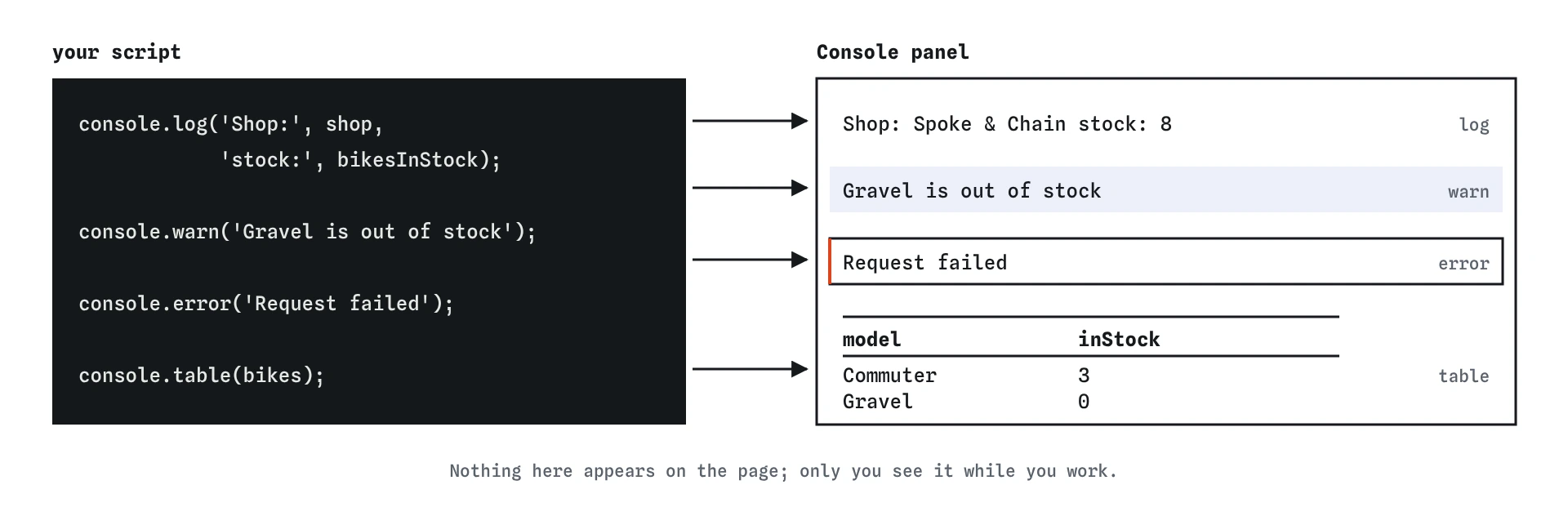
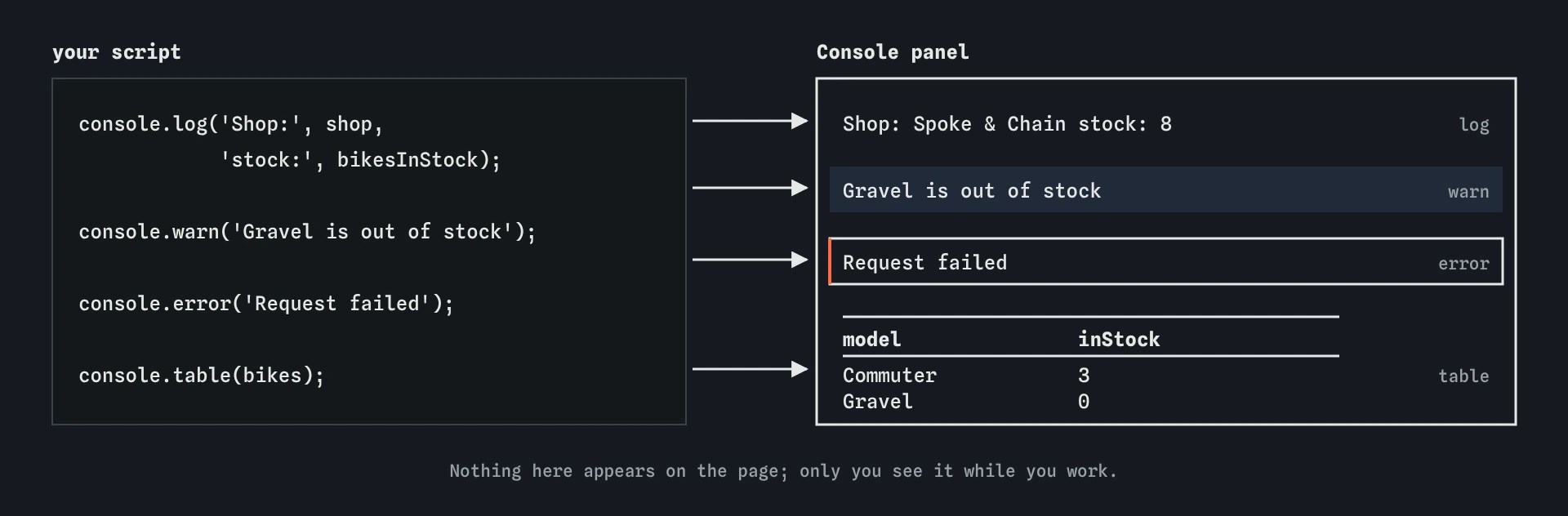
log gives a plain line, warn and error stand out so you can find them, and table turns the bikes array into rows and columns.How do you log several values at once?
console.log accepts any number of values separated by commas. It prints them on one line with a space between each. Put a short text label first so you can tell lines apart when there are many.
Each value keeps its type when you pass it this way. In the browser's DevTools a logged object can be expanded and an array shows its length. If you glue everything into one string with + or a template literal, you get plain text instead. Both are fine; commas are better when you want to inspect an object.
Log the variable itself rather than something you think it equals. console.log('total', total) tells you the truth. console.log('total is 8') only tells you what you hoped.
const shop = 'Spoke & Chain';
const bikesInStock = 8;
console.log('Shop:', shop, 'stock:', bikesInStock);
console.log(`${shop} has ${bikesInStock} bikes`);
When should you use warn, error and table?
console.warn and console.error work like console.log but print with a yellow or red style. DevTools lets you filter the console by level, so a well chosen level makes one important line easy to find among fifty ordinary ones. Neither method stops your code or throws an error; they only change how the message looks.
Use console.warn for situations that are allowed but suspicious: a product with a price of zero, a missing optional setting. Use console.error for something that has gone wrong and that you want to see even with other levels hidden, such as a failed request.
console.table shows an array of objects as rows and columns, one column per property. It turns three long lines of curly braces into a grid you can read at a glance. In DevTools you can also click a column heading to sort. The PlainFinch Console shows the same data in a compact form.
const bikes = [
  { model: 'Commuter', inStock: 3 },
  { model: 'Gravel', inStock: 0 }
];
console.table(bikes);
console.warn('Gravel is out of stock');
How does logging help you understand code you did not write?
When an AI tool or a tutorial gives you a block of code, logging is the fastest way to learn what it does. Add a log after each important line and run it. You will see the value at each stage, in the order the lines ran.
A useful habit: before you run the code, predict what each log will print. When the output surprises you, you have found the exact line where your mental model and the real behaviour disagree. That is where the learning is.
The Step lens does a similar job without editing the code. It runs one line at a time and shows every variable after each step. Logging is better for code that runs many times, such as a loop or a click handler, because you get a record of every run in order.
const price = 640;
const discount = price * 0.1;
console.log('discount', discount);
const final = price - discount;
console.log('final', final);
How do you read an error message?
When a script fails, the console shows an error with three parts. The name says what kind of problem it is. The message describes it. The line number, and in DevTools a clickable file name, says where.
The common names are worth learning early. A SyntaxError means the code could not even be read, usually because of a missing bracket, quote or comma, and none of the file runs. A ReferenceError means you used a name that does not exist, often a typo. A TypeError means you used a value the wrong way, such as calling something that is not a function or reading a property of null.
Read the message literally. "Cannot read properties of null (reading 'textContent')" says that the thing before .textContent is null. Go to that line and ask why that variable is null. The line number points at where the problem showed up, which is sometimes a line or two after the real mistake.
// TypeError: Cannot read properties of null (reading 'textContent')
const note = document.querySelector('.missing');
console.log(note.textContent);
How do you open the console in a real browser?
In Chrome, Edge and Firefox press F12, or Ctrl+Shift+J on Windows and Linux, or Cmd+Option+J on a Mac. In Safari, first turn on the Develop menu in Settings under Advanced, then press Cmd+Option+C.
The DevTools console shows logs from every script on the page, including ones you did not write, such as analytics. Use the filter box or the level buttons to narrow it down. Each line shows the file and line number on the right; clicking it opens the source at that point.
You can also type JavaScript straight into the console and press Enter to run it. That is handy for trying a selector on a live page with document.querySelector('.price') before you put it in your script.
Why remove logs before you ship?
Logs left in finished code clutter every visitor's console, slow down busy loops a little, and sometimes print private data such as a user's email or an API response. They also hide real warnings among old debug messages.
Before you publish, search your files for console.log and delete each one you added for exploring. Keep deliberate console.error calls for real failures if your team wants them. Many projects use a linter rule that flags stray logs automatically, and build tools can strip them from production files.
AI-generated code is often full of logs like console.log('here') or console.log('data', data). They helped whoever wrote the code; they rarely help the people using the site. Remove them once you understand the code.
Field notes
- The console shows messages from your code, and visitors never see them on the page.
- Put a short text label first in
console.logso you know which value is which. - Use
console.tableto show an array of objects as rows and columns. - An error tells you its name, a message and the line where it happened.
Easy to get wrong
Values must be separated by commas. A missing comma is a SyntaxError, so the whole file fails before any line runs and the Console shows only the error.
A log without a value proves only that the line ran. Log the actual variable with a label so you can see what it holds.
A long array of objects is hard to scan on one line. A table lines up the properties so you can compare rows.
Questions people ask
Does `console.error` stop my script?
No. It only prints in red. A thrown error stops the script; a logged error message does not.
Why does my log show an old value in DevTools?
DevTools shows an object's current contents when you expand it, which may be later than when it was logged. Log a specific property, or JSON.stringify(obj), to capture the value at that moment.
Can visitors see my logs?
Yes, anyone who opens DevTools on your site sees them. Never log passwords, tokens or personal data.
Is logging slower than the Step lens?
They suit different jobs. Step is great for a few lines run once. Logs give a record of code that runs many times, like loops and click handlers.