What happens when a form is submitted?
When a visitor presses the submit button, or presses Enter inside a text field, the browser first runs its built-in validation. If every field passes, it fires a submit event on the <form> element. If nothing cancels that event, the browser then collects the fields, sends them to the address in the form's action attribute, and loads whatever page comes back. With no action, it reloads the current page.
That reload wipes out anything your script showed and resets every variable. To handle the form in JavaScript, listen for submit on the form and call event.preventDefault() as the first line of the listener. The browser's sending step is cancelled and your code decides what happens next. The editor stops reloads for you and prints a warning in the Console when you forget; a real browser just reloads.
Listen on the form, not the button. A click listener on the button misses Enter-key submissions, and it runs even when validation fails.
const form = document.querySelector("#signup");

form.addEventListener("submit", (event) => {
  event.preventDefault();
  console.log("Handled in JavaScript, no reload");
});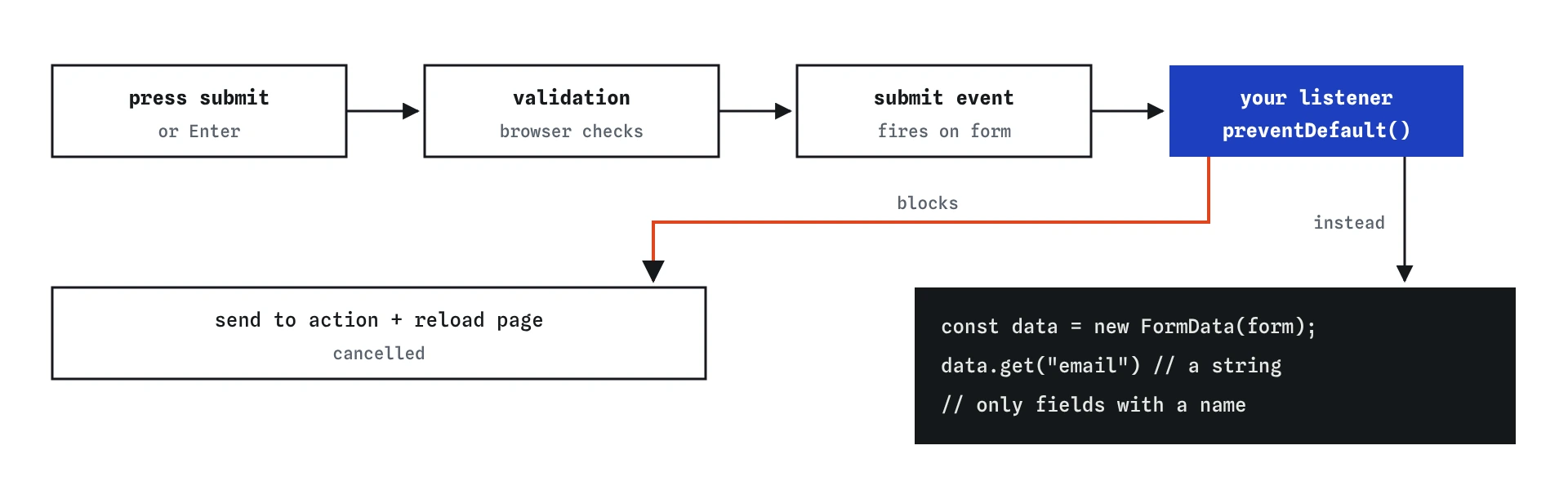
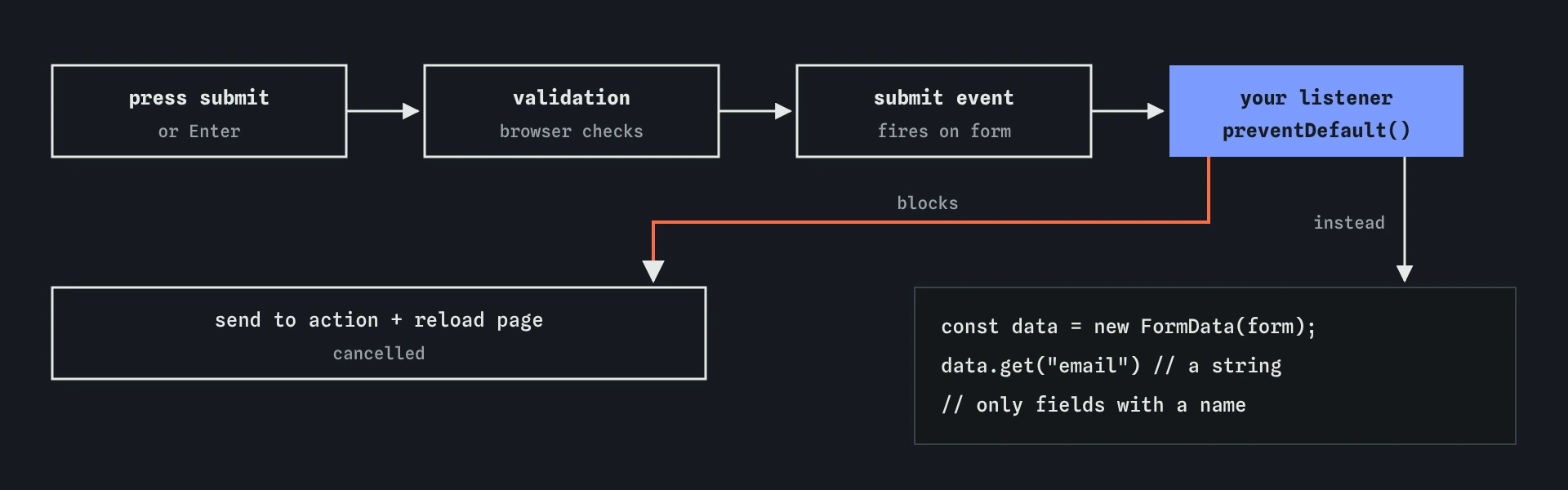
submit event, and preventDefault() stops the browser from sending and reloading. Your listener then reads every named field with FormData, always as strings.How do you read every field at once?
new FormData(form) collects the current values of every field in the form that has a name attribute. Fields without a name are skipped, which is the most common reason a value goes missing. The id is for labels and scripts; the name is what the form sends.
Read a single value with data.get("email"). It returns the value as a string, or null if no field has that name. data.has("name") tells you whether a value is present, and data.getAll("topping") returns an array when several fields share a name, such as a group of checkboxes.
To turn the whole form into a plain object, use Object.fromEntries(new FormData(form)). That is handy for logging, saving to localStorage or sending to a server as JSON, though repeated names keep only the last value.
form.addEventListener("submit", (event) => {
  event.preventDefault();
  const data = new FormData(form);
  console.log(data.get("name"));
  console.log(Object.fromEntries(data));
  // { name: "Ada", email: "[email protected]" }
});
Why are numbers from a form actually strings?
Every value from a text box is a string, including <input type="number">. The number type changes the keyboard on phones and blocks letters, but input.value and data.get still give you "3", not 3.
This bites with addition. "3" + 1 is "31", because + joins strings. Multiplication happens to convert, so "3" * 4 is 12, which hides the problem until someone adds. Convert once, as soon as you read the value: Number(data.get("loaves")). For number inputs you can also read input.valueAsNumber, which returns a real number or NaN when the box is empty.
An empty box gives "", and Number("") is 0, which may not be what you want. If an empty field should be an error, use required on the input and let validation catch it before your code runs.
const loaves = document.querySelector("#loaves");
console.log(typeof loaves.value);        // string
console.log(loaves.value + 1);           // "31" when the box holds 3
console.log(Number(loaves.value) + 1);   // 4
console.log(loaves.valueAsNumber + 1);   // 4
How do checkboxes and radio buttons report their values?
A ticked checkbox sends its value attribute. Without one, the value is the string "on". An unticked checkbox sends nothing at all, so data.get("sliced") is null. Ask data.has("sliced") for a yes or no answer, or read the element's checked property, which is a real boolean.
Radio buttons that share a name form a group, and only the selected one is sent. data.get("size") gives the value of the chosen radio, or null if none is chosen yet. Give each radio a meaningful value, such as "small" or "large"; otherwise every choice sends "on" and you cannot tell them apart.
For a group of checkboxes that share a name, such as toppings on a cake order, use data.getAll("topping") to get an array of the ticked values.
<!-- index.html -->
<input type="radio" name="size" value="small" id="s"> <label for="s">Small</label>
<input type="radio" name="size" value="large" id="l"> <label for="l">Large</label>
<input type="checkbox" name="topping" value="seeds" id="t1"> <label for="t1">Seeds</label>

// script.js
const data = new FormData(form);
console.log(data.get("size"));        // "large"
console.log(data.getAll("topping"));  // ["seeds"]
What does the browser validate for you?
HTML attributes describe the rules, and the browser enforces them before submit fires. required refuses an empty field. type="email" refuses text without an @ and a name after it. min, max, minlength, maxlength and pattern add more limits. When a field fails, the browser focuses it, shows a message in the visitor's language and does not fire submit at all.
From JavaScript, form.checkValidity() returns true or false without showing anything, and form.reportValidity() does the same check and shows the browser's messages. Each field also has these methods and a validity object with flags such as valueMissing and typeMismatch, which tell you exactly which rule failed.
Built-in validation is a convenience for visitors, never a security check. Anyone can bypass it, so a server must check the data again. In the browser, though, it catches most mistakes for free, and you should start with it before writing your own rules.
const email = document.querySelector("#email");
email.value = "ada";
console.log(email.checkValidity());       // false
console.log(email.validity.typeMismatch); // true
console.log(email.validationMessage);     // the browser's own wording
How do you show your own error message next to a field?
Browser messages appear as small bubbles that disappear quickly and cannot be styled. Many sites prefer a short message right under the field. Put an element for it in the HTML, give it an id, and keep it hidden until needed.
Connect the message to the field with aria-describedby="loaves-error" on the input. Screen readers then read the message when the field gets focus. The value is the plain id with no #. Also set aria-invalid="true" on the field while it is wrong, and remove it when it is fixed.
If you show your own messages, add novalidate to the <form> so the browser's bubbles do not appear on top of yours. The validation rules still work: checkValidity and the validity flags keep reporting, and your submit listener decides what to show. Without novalidate, keep your messages for rules the browser does not know, such as a business limit on order size.
<!-- index.html -->
<input id="loaves" name="loaves" type="number" aria-describedby="loaves-error">
<p id="loaves-error" hidden>Orders over 12 loaves need a phone call.</p>

// script.js
const tooMany = Number(loaves.value) > 12;
error.hidden = !tooMany;
loaves.setAttribute("aria-invalid", String(tooMany));
When should validation run as the visitor types?
Listening to input lets you check a field on every keystroke. Use it to clear an error as soon as the visitor fixes it; that feels helpful. Showing a new error on the first keystroke feels like being told off before finishing a word, so a common pattern is to validate on submit or on change first, and switch to live checks only for fields that already showed an error.
Keep live checks fast and quiet: update the message text and the hidden property, and do not move focus. Moving focus while someone types is disorienting, especially for screen reader users. Use the Events lens in the Break It exercise to see the input listener run on each change to the quantity.
How do you stop double submits while sending?
When a form sends data to a server, the reply can take a second or two. Impatient visitors click again and send two orders. Set button.disabled = true at the start of the listener and set it back to false when the reply arrives or fails. A disabled button cannot be clicked, cannot be focused and shows as greyed out.
Change the button's text too, for example to Sending…, so the visitor knows something is happening. Always re-enable it in both the success and the error path; a button stuck on disabled after a network error leaves the visitor with no way to try again. The fetch and async lessons cover the sending part; the button pattern is the same whatever sends the data.
When reviewing AI-written forms, look for click listeners on buttons instead of submit on the form, missing name attributes, arithmetic on raw string values, checkboxes compared with "true", and aria-describedby values with a # in front.
form.addEventListener("submit", (event) => {
  event.preventDefault();
  const button = form.querySelector("button[type=submit]");
  button.disabled = true;
  button.textContent = "Sending…";
  setTimeout(() => {
    button.disabled = false;
    button.textContent = "Order";
  }, 1000);
});
Field notes
- Call
event.preventDefault()in the submit handler to stop the page from reloading. new FormData(form)reads every field that has anameattribute.- Values from a form always arrive as strings, even from number fields.
- Attributes like
requiredandtype="email"let the browser check fields for you.
Easy to get wrong
A click listener misses Enter-key submits and runs even when validation fails. The submit event covers every way of sending and only fires for valid forms.
Form values are strings, so + joins them. Convert to a number before doing arithmetic.
FormData collects fields by name. Without it, the field is skipped and data.get("email") returns null.
A ticked checkbox sends "on" (or its value), never "true". Check whether the value is present instead.
Questions people ask
Should I read fields with FormData or with input.value?
Both work. FormData is neater for whole forms and matches what a server would receive. input.value is fine for one field or a live check.
Why does my submit listener not run when a field is empty?
A required field blocks the submit event until it is filled in. That is the browser doing its job; the visitor sees a message on the field.
What does form.submit() do?
It sends the form immediately without validation and without firing submit. Prefer form.requestSubmit(), which behaves like pressing the button.
Can I trust built-in validation for security?
No. Anyone can edit the page or send data directly. Validate again on the server; browser checks are only for a better experience.
How do I reset the form after a successful send?
Call form.reset(). It returns every field to its starting value from the HTML.