What are you building?
A one-screen landing page for a bike repair shop: a hero with the shop name, a sentence about what it does and a workshop photo, a short list of three selling points, and a button-style link to book a repair. The HTML is fixed. Your stylesheet has to make it look good on a 320px phone, a tablet and a wide laptop.
This milestone pulls together the Layout and Responsive groups. You will choose between flexbox and grid, decide which parts adapt on their own and which need a breakpoint, size the heading fluidly and stop the image from overflowing. Each requirement has more than one correct answer, and the checks accept any of them as long as the result in the browser is right.
Treat the page as a real job. A shop owner will open it on their phone first, so that view has to work before anything else.
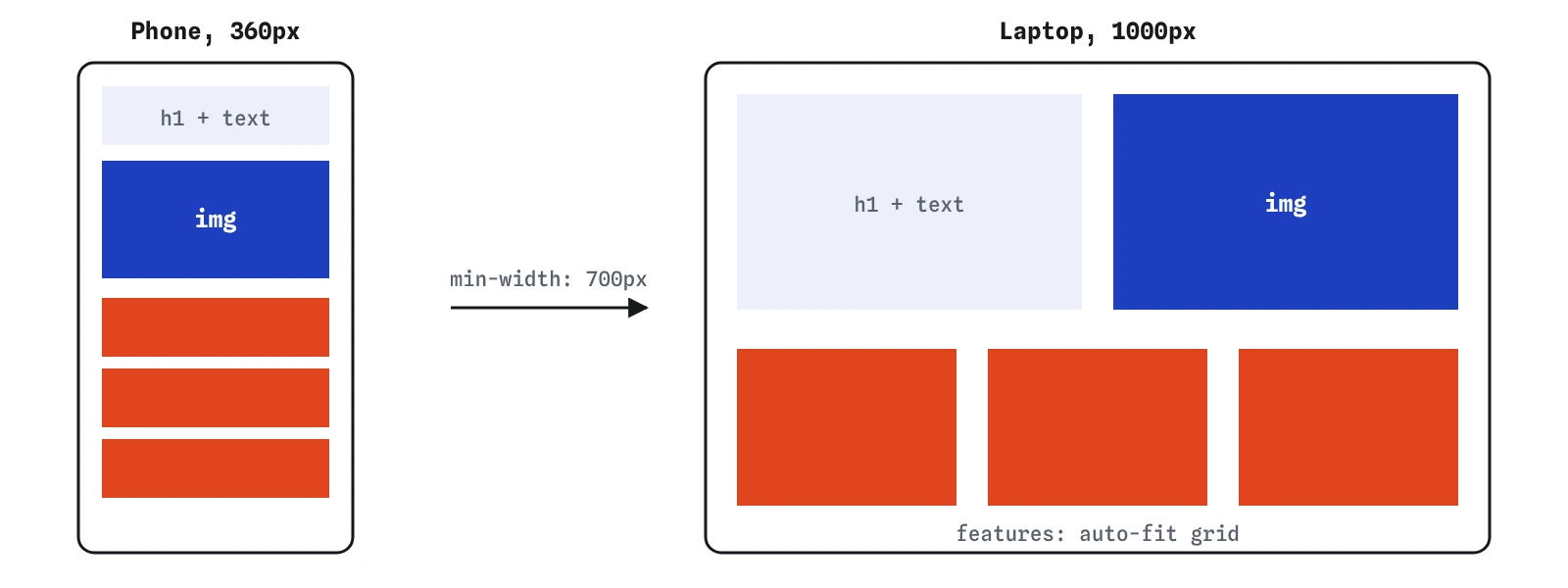
auto-fit; only the hero needs a media query to place the text and image side by side.How should you plan before typing?
Sketch two boxes on paper: a narrow phone and a wide screen. On the phone, everything stacks: heading, sentence, photo, features, button. On the wide screen, the hero splits into text on the left and the photo on the right, and the three features sit in a row. Draw the arrows between the two sketches and you have a list of what must change.
Now sort those changes. Some can adapt without any query: the feature grid with auto-fit, the heading with clamp(), the image with max-width: 100%. Only the hero split needs a breakpoint, because you want the photo beside the text only when both have room. Fewer queries means fewer widths where something can break.
Write the mobile styles first, with no query at all. Then add a single @media (min-width: 700px) block for the wide layout. This mobile-first order means the phone gets the simplest CSS and wider screens add to it.
- Base: font, line height, body margin.
- Image:
max-width: 100%,height: auto. - Heading: fluid size with
clamp(). - Features: grid with
auto-fitandminmax(), gap, no bullets. - Button link: padding, background, contrast.
- One query: hero becomes two columns.
Which earlier lessons does each part use?
Every requirement maps to a lesson you have finished. When a part fights you, reopen that lesson and compare its example with your rule.
- The stacked hero and the side-by-side split: Grid and Grid layouts.
- A row of items that wraps, if you prefer flexbox for the features: Flexbox and Flex alignment.
- The breakpoint: Media queries. If the hero lives in a resizable panel, Container queries is the better tool.
- The heading that grows with the screen: Fluid sizing.
- The photo that never overflows and keeps its shape: Images in CSS.
- Units such as
rem,vwandfr: Units. - The button-style link and removing bullets: Links and lists.
- Spacing between and inside the sections: Spacing and The box model.
Grid or flexbox for the features?
Both work, and the check accepts either. Grid with repeat(auto-fit, minmax(min(200px, 100%), 1fr)) gives equal columns that line up, and the browser picks how many fit. The min(200px, 100%) part stops the minimum from overflowing a container narrower than 200px.
Flexbox with flex-wrap: wrap and flex: 1 1 200px on each item also wraps nicely, but a lone item on the last row stretches to full width. For a set of equal cards, grid usually looks tidier. For a row of tags or buttons of different lengths, flexbox fits better.
.features {
  display: grid;
  grid-template-columns: repeat(auto-fit, minmax(min(200px, 100%), 1fr));
  gap: 16px;
  padding: 0;
  list-style: none;
}
Media query or container query for the hero?
A media query asks about the viewport. A container query asks about the box the component sits in. For a page-level hero that always spans the full width, the two give the same answer, and @media (min-width: 700px) is the simpler choice.
If the same hero might be dropped into a sidebar or a narrow column, use a container query instead: set container-type: inline-size on the wrapper and write @container (min-width: 700px). Container queries are supported in all current browsers since 2023. Either way, keep the change small: switch the hero to two columns and centre the items vertically.
@media (min-width: 700px) {
  .hero {
    grid-template-columns: 1fr 1fr;
    align-items: center;
  }
}
How do you check your own work?
Drag the preview from its narrowest to its widest and watch for three things: anything that scrolls sideways, text that becomes cramped or huge, and a jump at the breakpoint that looks wrong. Then type exact widths into the browser's responsive mode: 320, 375, 768, 1024 and 1440 pixels.
Use the lenses while you do it. The Layout lens draws the grid tracks and flex lines, so you can see how many columns auto-fit produced and where the gap sits. The Box lens shows the image's real size and exposes any fixed width that is wider than its parent. The Why? lens tells you whether your media query rule is winning or whether an earlier rule with a stronger selector is beating it.
Finally, zoom the browser to 200 percent. Zooming narrows the effective viewport, so a well-built page should switch to the phone layout and stay readable.
What are the common ways it goes wrong?
These are the failures that show up most often in first responsive builds.
- A fixed
widthon the image or a section, which forces sideways scrolling on phones. - Writing
repeat(3, 1fr)with no query, so three columns squeeze into a 340px screen. - A typo in a value such as
display: gird, which the browser drops without any error. - Desktop-first CSS undone piece by piece in
max-widthqueries, which doubles the code. - A fluid heading using only
vw, which ignores the visitor's font size setting. Mix inreminsideclamp(). - Forgetting the viewport meta tag on a real page, which makes phones render at desktop width and ignore every query.
What can you add once it works?
Once the checks pass, push the page further with ideas that reuse the same skills.
- Give the image
aspect-ratio: 4 / 3andobject-fit: coverso any photo fills the same frame. - Add a header bar with flexbox: the shop name on the left and two links on the right that wrap below on phones.
- Use
<picture>with a smaller image for phones and check which file the browser downloads. - Turn the features into cards with a border and padding, and make the gap fluid with
clamp(12px, 2vw, 24px). - Convert the hero breakpoint into a container query and place the hero inside a narrow column to watch it adapt.
Field notes
- Plan the phone layout first, then decide what moves on wider screens.
- Grid and flexbox both work for the features list; add a gap and remove the bullets.
- A media query suits a full-width hero, since it depends on the viewport.
- Drag the preview from narrow to wide and watch for sideways scrolling.
Easy to get wrong
A fixed width overflows phones. A maximum lets the image shrink and keep its proportions.
Three fixed columns crush the content on small screens. auto-fit picks the count from the space.
Pure vw text gets tiny on phones, huge on wide screens and ignores the visitor's font size.
Questions people ask
Where should the breakpoint be?
Where your content starts to look wrong, rather than at a device width. Widen the preview until the stacked hero looks too spread out, and use that width.
Can I use several breakpoints?
Yes, but each one adds widths to test. Try to let grid, flexbox and clamp() handle most of the change and keep queries for real layout switches.
Why does the check pass when my query does nothing at the preview width?
The checks look at the base styles, which must be right at every width, and only confirm that a query exists. Widen the preview to see your query take effect.
Do I need the `width` and `height` attributes on the image?
Keep them. They let the browser reserve the right space before the file arrives, which stops the page jumping while it loads.