How do you stop images overflowing their container?
An image with no CSS renders at its natural size or at the size in its width and height attributes. A 1200px photo in a 340px phone layout makes the whole page scroll sideways. The standard fix is two declarations: max-width: 100% caps the image at the width of its container, and height: auto recalculates the height so the proportions stay right.
Most sites put these in a base rule for every img, together with video, svg and canvas. That one rule prevents most image overflow bugs on a site.
Keep the width and height attributes in the HTML anyway. The browser uses them to work out the aspect ratio before the file downloads, so it reserves the right amount of space and the text below does not jump when the image arrives. With height: auto in CSS, the attributes set the shape without forcing a size.
img,
video {
  max-width: 100%;
  height: auto;
}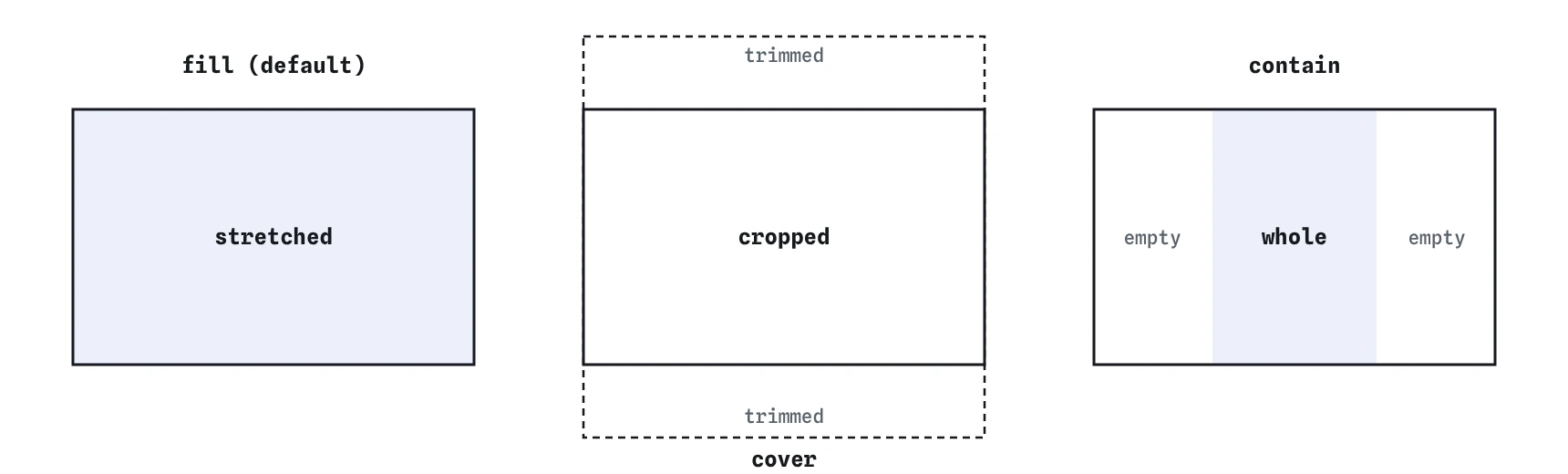
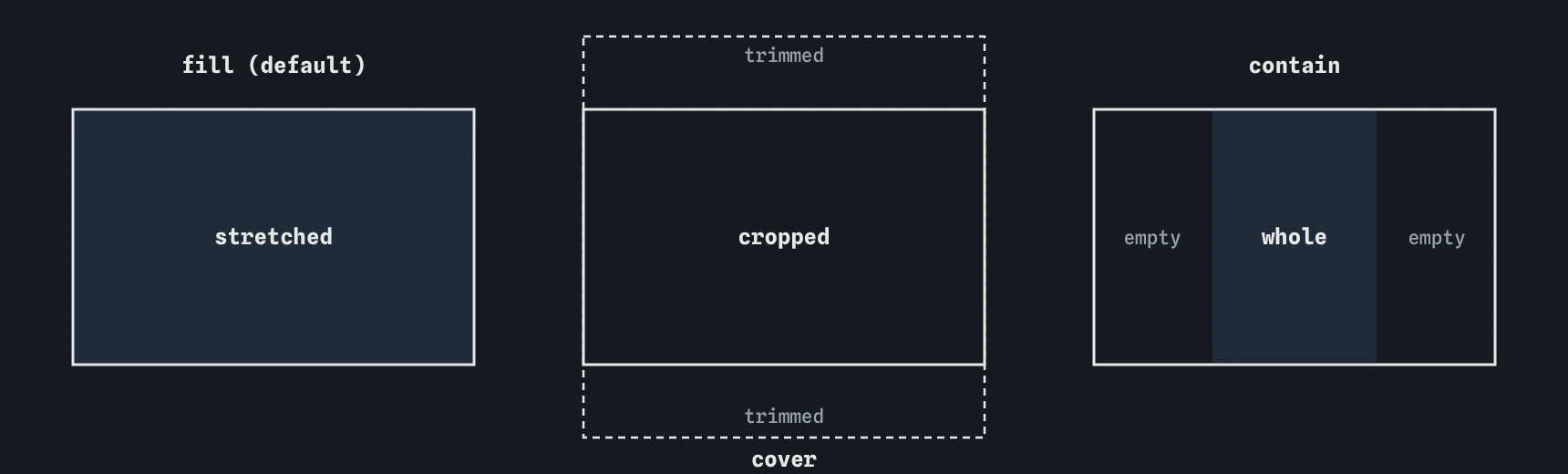
fill distorts it, cover fills the box and crops the overflow, and contain shows the whole photo with empty space around it.Why is there a gap under my image?
Images are inline by default, like a word in a sentence. Inline content sits on the text baseline, and the browser leaves space below the baseline for the tails of letters such as g and y. That leaves a strip of 3 to 5 pixels under every image, which shows up as a gap between a photo and the border of its card.
Setting display: block on images takes them out of the line of text, so the gap goes away. It also means two images no longer sit side by side as words would, which is usually what you want; use flex or grid when you need them in a row. A reset of img { display: block; } is common in modern stylesheets for this reason.
Images that are direct children of a flex or grid container are already blockified, which is why the gap only appears in normal flow.
img {
  display: block;
}
How does object-fit crop an image?
When you give an image a box whose shape differs from the photo, the default object-fit: fill stretches the picture to the box, and faces and bike wheels turn into ovals. object-fit changes how the picture fits inside the image box, much like background-size does for backgrounds.
cover scales the photo until it fills the box and crops whatever sticks out. It suits thumbnails, hero banners and avatars, where a uniform shape is more important than seeing every edge. contain scales the photo until all of it fits, leaving empty bands where the shapes differ. It suits product shots and logos, where nothing may be cut off. none keeps the natural size and scale-down picks the smaller of none and contain.
object-fit only has a visible effect when the box has a defined shape, from a fixed height, an aspect-ratio, or a grid cell that stretches the image.
.avatar {
  width: 64px;
  height: 64px;
  object-fit: cover;
  border-radius: 50%;
}
How do you choose which part of the photo is kept?
With cover, the browser keeps the centre of the photo by default. object-position moves that focus. It takes the same values as background-position: keywords like top or left, percentages, or lengths. A portrait in a short wide banner usually wants object-position: top so the head is not cut off.
Percentages work like a slider. object-position: 50% 20% keeps the horizontal centre and sits the crop a fifth of the way down. Set it per image when photos have different subjects, for example with a class on the hero image.
.hero img {
  width: 100%;
  height: 240px;
  object-fit: cover;
  object-position: 50% 20%;
}
What does aspect-ratio do for images and video?
aspect-ratio sets the shape of a box as width over height, written with a slash: 4 / 3, 16 / 9 or 1 for a square. Give an image a width and an aspect ratio and the height follows, at any screen size. Combined with object-fit: cover, every thumbnail in a gallery gets the same shape no matter what the source photos were.
Video embeds are the other common use. An iframe for a video has a fixed default size; width: 100% plus aspect-ratio: 16 / 9 makes it fill the column and keep the right shape, replacing the old padding-bottom hack. aspect-ratio is supported in all current browsers.
If an element also has a fixed height, that height wins and the ratio is ignored for that axis. Use height: auto when you want the ratio to decide.
.gallery img {
  width: 100%;
  aspect-ratio: 4 / 3;
  object-fit: cover;
}

.video {
  width: 100%;
  aspect-ratio: 16 / 9;
}
When should an image be a background instead of an img?
Ask whether the picture is content or decoration. A photo of the tart on a recipe card is content: it has meaning, it needs alt text, it should print, and search engines should find it. Use an img element.
A paper texture behind a heading or a faint pattern in a footer is decoration. Nobody would miss it if it failed to load, and screen readers should skip it. That belongs in CSS with background-image, where you also get background-size: cover and background-position to control the crop.
AI tools often put meaningful photos into background-image because it is easier to overlay text on them. That hides the image from screen readers and search. Use an img with object-fit: cover and position the text on top with a grid or position: absolute instead.
Can CSS adjust how an image looks?
The filter property applies effects such as grayscale(), blur(), brightness() and contrast() to an image as it renders. A gallery might show photos in greyscale and restore colour on hover, or dim a hero image slightly so white text on top stays readable. Filters do not change the file, only the drawing.
Filters can cost performance on large images and are covered properly in the lesson on filters and effects.
.past-event img {
  filter: grayscale(1);
}
How do you check image CSS in DevTools?
Hover the img element in the Elements panel to see two sizes: the rendered size on the page and the intrinsic size of the file. A big difference means the browser is downloading far more pixels than it shows, which is a job for srcset in the HTML. The Computed tab shows the final object-fit, aspect-ratio and display values.
When an image looks squashed, look for a fixed height without object-fit. When there is a mysterious gap beneath it, check whether it is still inline. When it overflows, check for a missing max-width: 100% or a min-width set elsewhere.
Field notes
max-width: 100%withheight: autolets an image shrink to fit and keep its shape.- The small gap under an image comes from it being inline;
display: blockremoves it. object-fit: coverfills a box by cropping the photo instead of stretching it.- Use
<img>for pictures that carry meaning and backgrounds for decoration.
Easy to get wrong
A fixed height with a fluid width stretches the photo. object-fit: cover crops it instead.
With height attributes in the HTML, the image keeps that height while its width shrinks, so it gets squashed. height: auto keeps the proportions.
CSS ratios use a slash. The colon version is invalid and ignored.
A meaningful photo needs alt text and belongs in the HTML. Backgrounds are for decoration.
Questions people ask
Should I remove the width and height attributes now that CSS sizes images?
No. Keep them. They give the browser the aspect ratio early, which prevents layout shift while the image loads.
Does object-fit work on video?
Yes. It works on video the same way, which is handy for a background video that must fill a banner.
What is the difference between object-fit and background-size?
They behave the same. object-fit is for img and video elements; background-size is for CSS background images.
Why does max-width: 100% not shrink my image?
Check for a min-width, or a flex parent where the item will not shrink. A flex item may need min-width: 0.