What does a transform change?
A transform changes how an element is drawn: where it appears, how big it looks and which way it faces. It does not change the element's place in the layout. The browser first lays out the page as if there were no transform, then moves, rotates or scales the finished box when it paints.
That has a big practical effect. Neighbours never move to make room. Scale a card to 1.1 and it overlaps the cards next to it; rotate a heading and the paragraph below stays where it was. The original space stays reserved. This is why transforms are the right tool for hover effects and animation, and the wrong tool when you want other content to reflow.
Transforms only apply to boxes. A plain inline element, such as a span or a with default display, ignores them. Set display: inline-block or block first.
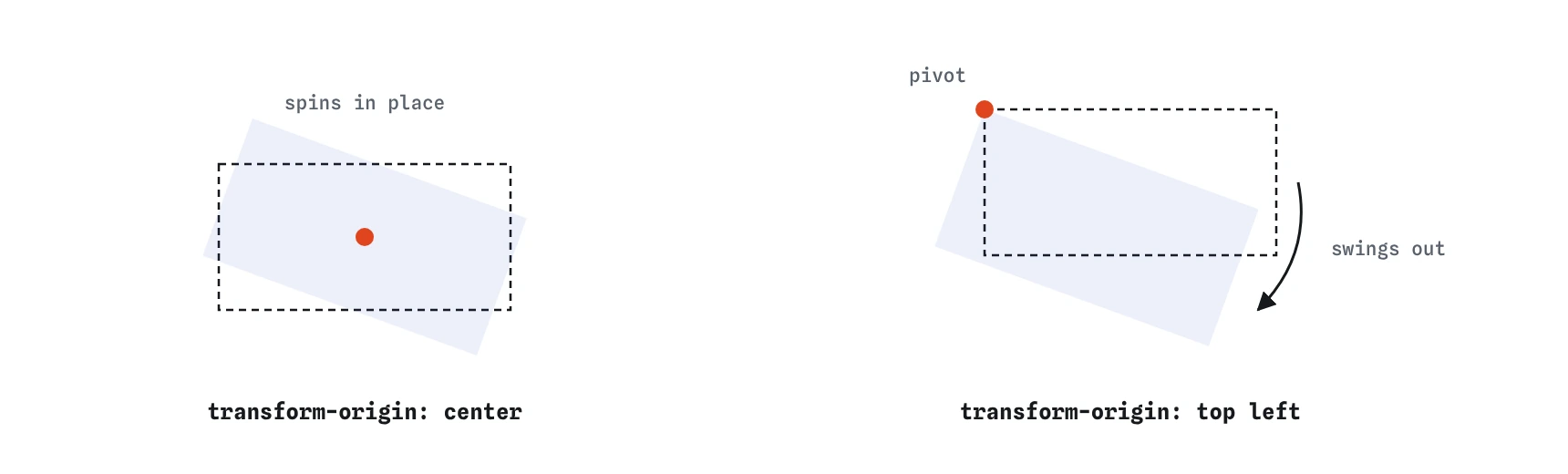
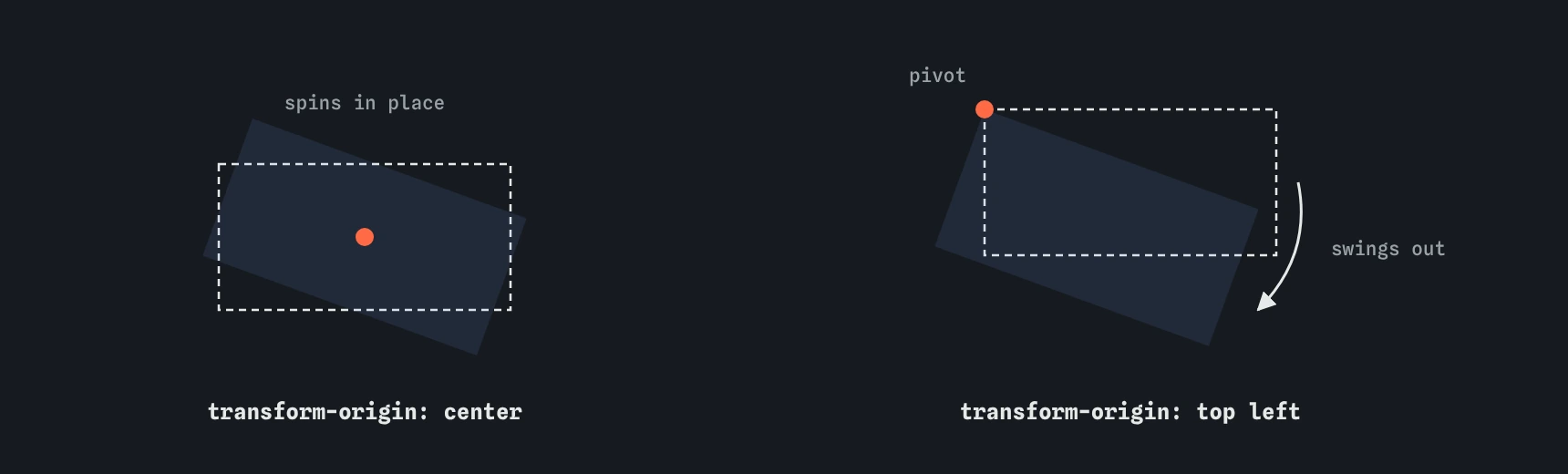
rotate(20deg) with two origins. The dashed outline is the untransformed box, which is also where layout still thinks the element is. The dot marks the pivot.Which transform functions will you use?
Four functions cover nearly every real case. You list them inside the transform property, separated by spaces.
The computed value of transform is always a matrix() or matrix3d(), whatever you wrote. That is why DevTools shows a matrix in the Computed panel; the Styles panel still shows your original functions.
.stamp {
  transform: rotate(-6deg);
}

.tile:hover {
  transform: translateY(-4px) scale(1.03);
}
translate(x, y)moves the element. Percentages refer to the element's own size, sotranslate(-50%, -50%)shifts it back by half its width and height, which is the classic centring trick with absolute positioning.rotate(angle)turns it. Usedegorturn;0.25turnis the same as90deg. Positive angles turn clockwise.scale(x, y)resizes it visually.scale(1.05)grows it by 5% in both directions. Text and borders scale too, which can look blurry at large factors.skew(x, y)slants it. It rarely suits interface work; it appears in decorative banners and ribbon shapes.
Why does the order of transform functions matter?
The browser applies the functions from right to left in terms of the element's coordinate system, which means each function works in the space left by the ones before it in reading order. rotate(45deg) translateX(100px) turns the element first, so the move goes 100px along the rotated, diagonal axis. translateX(100px) rotate(45deg) moves it straight right, then spins it in place.
When an effect looks wrong, swap the order before changing any numbers. A good habit for hover lifts is translate first, then scale: translateY(-4px) scale(1.03). Then the lift is always exactly 4 pixels whatever the scale.
.a {
  transform: rotate(45deg) translateX(100px);
}

.b {
  transform: translateX(100px) rotate(45deg);
}
When should you use the separate translate, rotate and scale properties?
The translate, rotate and scale properties do the same jobs as the functions, as their own properties. They have been supported in all current browsers since 2022. Their big advantage is that they combine instead of overwriting each other. With the transform property, a hover rule that sets transform: scale(1.05) wipes out an earlier rotate(-6deg), so the stamp straightens when it grows. With separate properties, scale: 1.05 leaves rotate: -6deg alone.
They also apply in a fixed order: translate, then rotate, then scale, then anything in transform. That predictability makes them easier to animate independently, for example a slow spin with one animation and a pulse with another.
.stamp {
  rotate: -6deg;
}

.stamp:hover {
  scale: 1.1;
}
How does transform-origin change the result?
Rotation and scaling happen around a point called the origin. The default is the centre, 50% 50%. You can move it with keywords such as top left, with percentages, or with lengths.
Change the origin when the motion should feel anchored. A door that swings open rotates around its left edge. A dropdown that grows from the button above it scales from top. A progress bar that fills from the left uses scaleX() with transform-origin: left.
Translations are not affected by the origin, since moving a box is the same from any point. Origins also matter for 3D: rotateY() around the left edge makes a panel open like a page in a book.
.menu {
  transform-origin: top;
  transform: scaleY(0.9);
}
How do you build a hover effect with transforms and transitions?
Put the transition on the base rule and the transform on the hover state. Pair :hover with :focus-visible so keyboard users get the same feedback. Keep the motion small: a lift of 2 to 6 pixels and a scale of 1.02 to 1.05 feel responsive without being jumpy.
Because transforms skip layout, the browser can usually run this on the graphics card, so it stays smooth even on long product grids. If the lifted card is overlapped by its neighbour, give it position: relative and a z-index on hover, or rely on the stacking context a transform creates, which already paints it above later siblings in many cases. To check the effect, use the DevTools rendering tools to slow animations down, and hover slowly with the keyboard as well as the mouse to confirm both paths give the same result.
.tile {
  transition: transform 0.2s ease-out;
}

.tile:hover,
.tile:focus-visible {
  transform: translateY(-4px) scale(1.03);
}
What about 3D transforms?
Functions such as rotateY(), rotateX() and translateZ() move elements in depth. On their own they look flat, because there is no viewpoint. Add perspective to the parent, such as perspective: 800px, to set how far the viewer is from the screen: smaller values exaggerate the depth.
A card flip is the common use: two faces stacked with backface-visibility: hidden, one turned 180 degrees, and the card rotating on hover. 3D effects are fun but rarely needed for ordinary interfaces, and they cause motion sickness more easily, so pair them with a reduced motion fallback.
.scene {
  perspective: 800px;
}

.flip:hover {
  transform: rotateY(180deg);
}
What side effects do transforms have?
Any transform other than none creates a new stacking context, so the element's z-index children are stacked inside it. It also becomes the containing block for position: fixed descendants, which is why a fixed header inside a transformed wrapper suddenly scrolls with the page. If a fixed element misbehaves, check its ancestors for a transform.
When reviewing AI-written CSS, look for transforms on inline elements, margin or top animated where translate would do, and hover rules that overwrite an existing transform by accident.
Field notes
- A transform changes how an element is drawn, while its place in the layout stays the same.
- Neighbouring elements never move when you transform one element.
- The order of transform functions changes the result, so list them with care.
- Rotation and scaling happen around
transform-origin, which defaults to the centre.
Easy to get wrong
Plain inline boxes ignore transforms. Make the element an inline-block or block first.
A second transform replaces the first one entirely, so the stamp straightens on hover. Separate properties combine.
Margin changes layout and pushes or pulls other content. A translate moves the card alone.
Questions people ask
Why do neighbours not move when I scale an element?
Layout is calculated before transforms are applied, so the original box keeps its space. Change width or padding if you want other content to reflow.
Why does scaled text look blurry?
Scaling an already-painted layer can blur it during the transition. Keep scales small, or change font-size when you need crisp text at a new size.
Is translate better than position for centring?
For centring an absolutely positioned box of unknown size, translate(-50%, -50%) still works well. For most layouts, flexbox or grid centring is simpler.
Do transforms affect click areas?
Yes. Hit testing follows the transformed shape, so a rotated button is clickable where it is drawn, not where its layout box sits.