What is normal flow?
Normal flow is how the browser lays out a page before you add any layout CSS. Block boxes such as headings, paragraphs, lists and <div> elements stack from top to bottom, each starting on a new line and filling the width of its container. Inline boxes such as <a>, <span>, <em> and <strong> flow inside those blocks from left to right, wrapping like words in a sentence.
Flow follows the writing direction. In English, blocks stack downwards and inline content runs left to right. In Arabic, inline content runs right to left; in vertical Japanese, blocks run right to left and lines run top to bottom. That is why newer properties use words like inline and block instead of left and top.
A plain, well-marked-up HTML page in normal flow is already readable on any screen width. Every layout technique, from flexbox to grid to positioning, changes normal flow for some part of the page. Start from flow and change only what you need.
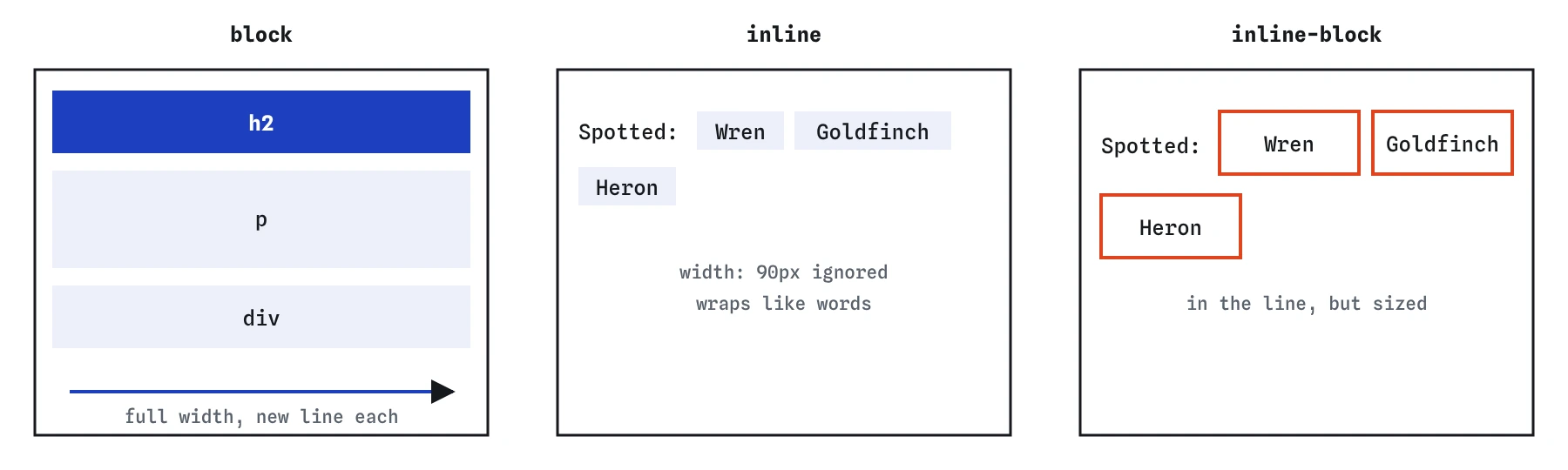
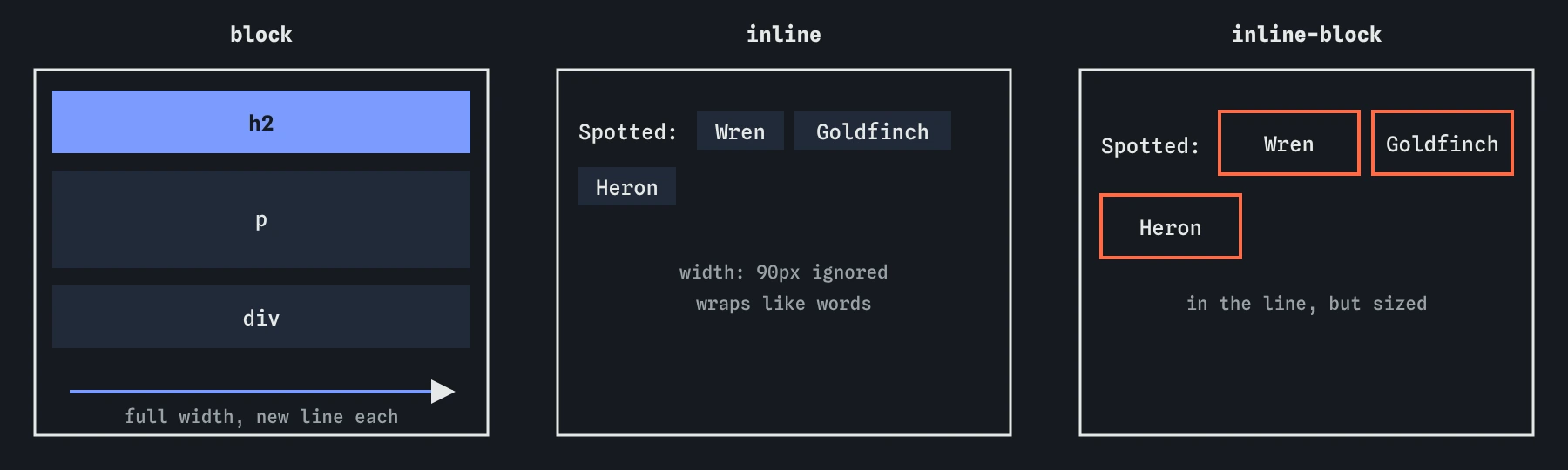
width. Inline-block boxes sit in the line but take the width, height and margins you give them.How do block and inline boxes differ?
A block box starts on a new line, stretches to the full width of its container by default, and respects width, height, margin and padding on all four sides. Vertical margins between neighbouring blocks collapse into one.
An inline box sits in a line of text. The width and height properties do not apply to it; its size comes from its content. Horizontal padding and margin push neighbours apart, but vertical padding and margin do not move other lines. Vertical padding still paints, which is why a padded inline link with a background can overlap the line above.
The display property changes which kind of box an element generates. The HTML element keeps its meaning: a <span> with display: block is still a span to a screen reader, and an <h2> with display: inline is still a heading.
a.more {
  display: block;
}

li.inline-item {
  display: inline;
}
When should you use inline-block?
The inline-block value gives you a box that sits in a line like text but behaves like a block inside: width, height, padding and margin all apply in every direction and push other content away. It is the right choice for small items mixed into text, such as tags, badges, a button-style link in a sentence, or an icon next to a word.
For a whole row of items, such as navigation or a set of cards, flexbox is now the better tool. Inline-block rows pick up the whitespace between tags in the HTML as small gaps, they align on the text baseline, and they cannot easily share space. Flexbox fixes all three.
Images are inline by default, which is why a small gap often appears under an image inside a box. That gap is room for text descenders. Setting display: block on the image removes it.
.badge {
  display: inline-block;
  padding: 2px 8px;
  border-radius: 999px;
}

img {
  display: block;
}
How do display: none, visibility: hidden and opacity: 0 differ?
All three make something look gone, but they do very different things to layout and accessibility. Pick by what you want to keep.
To hide something from sight but keep it for screen readers, such as a label for an icon button, use a visually hidden class with clipping. None of the three properties above does that job.
- The
display: nonevalue removes the element entirely. It takes no space, cannot be focused or clicked, and screen readers ignore it. Use it for content that is truly not available right now, such as a closed menu. - The
visibility: hiddenvalue keeps the element's space but paints nothing. It cannot be focused or clicked, and screen readers skip it. Use it when the layout must not jump, for example a spinner that appears in a reserved spot. - The
opacity: 0value makes the element fully transparent and changes nothing else. It still takes space, can still receive clicks and keyboard focus, and screen readers still read it. Use it only as the start or end of a fade animation, and hide the element properly once the fade finishes.
When is display: contents safe?
The display: contents value makes an element's own box disappear while its children stay. The children act as if they belonged to the grandparent. It is handy when a wrapper element gets in the way of a flex or grid layout: the wrapped items become grid items of the outer grid.
Use it carefully. Older browser versions removed the element from the accessibility tree along with its box, so a <ul> with display: contents stopped being announced as a list, and a <button> stopped being a button. Current browsers have fixed most of those cases, but buttons and other interactive elements are still unreliable. Never use it on anything interactive, and test with a screen reader if you use it on lists or tables.
The element also loses everything that belongs to its box: background, border, padding and margin no longer show.
What are floats for today?
Floats were made for one thing: wrapping text around an image, as in a magazine. A floated element moves to the left or right of its container, and the following inline content flows around it. That is still the right use. For anything else, such as columns, card rows or navigation, use flexbox or grid.
A floated element is taken out of normal flow for its parent's height. If a card contains only a tall floated image and a short paragraph, the card's border stops under the paragraph and the image hangs out of the bottom. The old fix was a clearfix hack with ::after. The modern fix is display: flow-root on the container, which creates a new block formatting context that contains its floats. Supported in all current browsers.
Use clear: both on an element that must start below any floats above it, such as a footer.
.story img {
  float: left;
  margin: 0 16px 8px 0;
}

.story {
  display: flow-root;
}
What are inner and outer display types?
Every box has two display types. The outer type says how the box takes part in its parent's layout: block or inline. The inner type says how it lays out its own children: flow, flex, grid or flow-root. The familiar single keywords are shortcuts. flex means block flex, a block-level box that lays out its children as flex items. inline-flex means inline flex, and inline-block means inline flow-root.
You can write the two-value form directly: display: inline grid or display: block flex. Supported in all current browsers since 2023. The single keywords remain fine and more common; the two-value form helps you understand why inline-flex sits in a line while its children still form a row.
In DevTools, the Computed tab shows the final display value, and Chrome and Firefox add a small flex or grid badge next to elements in the Elements panel. When an AI tool writes display: block on a <span> and then adds display: inline somewhere else, check which one wins in the Computed tab.
.price {
  display: inline flex;
  gap: 4px;
}
Field notes
- Normal flow stacks blocks down the page and runs inline boxes along lines.
- Inline boxes ignore
width,heightand top and bottom margins. inline-blocksits in a line of text but accepts full box sizing.display: none,visibility: hiddenandopacity: 0hide things in different ways.
Easy to get wrong
Width does not apply to inline boxes. Inline-block keeps the tag in the line and lets it take a size.
An invisible menu with opacity 0 still catches clicks and keyboard focus. Display none removes it properly.
hidden is a value of visibility, not display. The invalid declaration is ignored.
Floats for columns need clearing and break easily. Flexbox and grid were built for layout.
Questions people ask
Does changing display change the HTML element's meaning?
No. A heading styled display: inline is still a heading for search engines and screen readers. The exceptions are table elements and display: contents, which some browsers have handled badly in the accessibility tree.
Why is there a gap under my image?
Images are inline and sit on the text baseline, leaving room for descenders. Set display: block on the image, or vertical-align: middle.
Can I animate display: none?
Newer browsers can transition display with transition-behavior: allow-discrete, which keeps the element visible until a fade finishes. Chrome and Safari support it; Firefox added it in 2025. Without it, display switches instantly.
Is the hidden attribute the same as display: none?
By default, yes: browsers style [hidden] with display: none. Any CSS that sets display on that element overrides it, which is a common surprise.