What are the four layers of a box?
Every element the browser draws is a rectangle made of four layers. The content area holds the text, image or child elements. Padding surrounds the content and shares its background. The border wraps the padding and can have its own colour and style. Margin sits outside the border and is always transparent; it pushes neighbouring boxes away.
Think of a framed photo on a wall. The photo is the content, the mount board around it is padding, the frame is the border, and the gap to the next frame on the wall is the margin. Changing the mount makes the framed piece bigger. Changing the gap moves the other frames.
Each side is separate. A box can have padding-top: 24px and padding-left: 8px, or a border only on the bottom. The shorthands padding, border and margin set all four sides at once.
.card {
  padding: 24px;
  border: 4px solid #3b2a1a;
  margin: 32px;
  background-color: #fffaf0;
}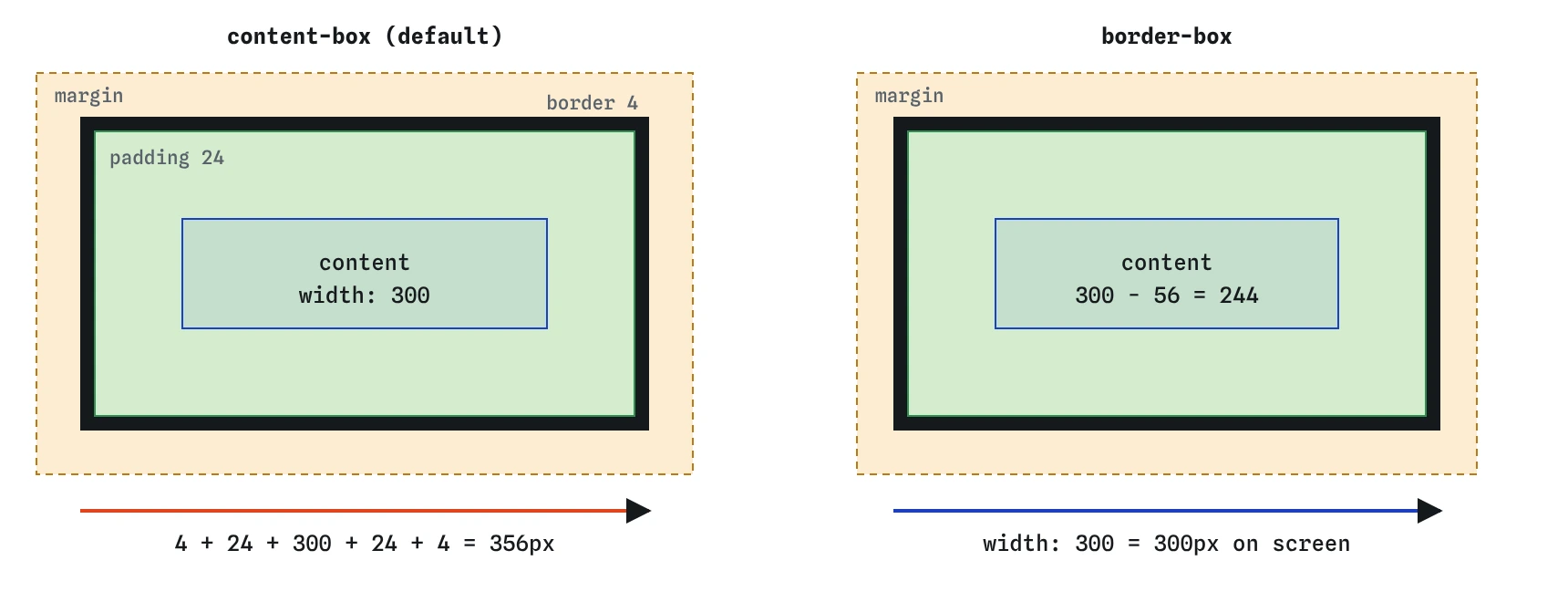

width: 300px, 24px padding and a 4px border. Under content-box the width sets only the content, so the box is 356px wide. Under border-box the 300px includes padding and border, and the content shrinks to 244px.How does the browser work out an element's width?
By default, width and height set the size of the content area only. This is the content-box model. The browser then adds padding and border on the outside. A card with width: 300px, padding: 24px and a 4px border takes up 4 + 24 + 300 + 24 + 4 = 356 pixels across, before any margin.
This is the source of countless layout bugs. Two columns set to width: 50% with some padding no longer fit side by side, because each one is now wider than half. A search box set to width: 100% with padding pokes out of its container on the right.
Elements with no width set behave differently. A block element such as a <div> or <p> with width: auto fills its container, and the browser subtracts padding and border for you so the whole box fits. The arithmetic only goes wrong when you give a fixed or percentage width.
What does box-sizing: border-box change?
With box-sizing: border-box, the width you set is measured from the outside edge of the border. The browser fits the padding and border inside that width and gives what is left to the content. The 300px card stays 300px on screen, and its content area becomes 244px.
This matches how people think about size. When a design says a sidebar is 280px, it means the visible box, not the text column inside it. It also makes percentage layouts predictable: width: 50% plus any padding is still half the container.
If padding and border add up to more than the width, the content area shrinks to zero and the box grows beyond the width you asked for. That only happens with tiny widths, but you will see it on small icon buttons with generous padding.
.sidebar {
  box-sizing: border-box;
  width: 280px;
  padding: 20px;
  border-right: 1px solid #e7dcc8;
}
Why do most stylesheets start with a box-sizing reset?
Because border-box is easier to reason about, nearly every modern stylesheet and CSS framework switches it on for every element in the first few lines. The usual version sets it on everything, including the ::before and ::after pseudo-elements, which are boxes too.
Some teams prefer a variant that sets box-sizing: border-box on html and inherit on everything else. That lets a third-party widget set content-box on its wrapper and have its children follow. For your own site the plain version is fine.
When you read AI-generated CSS, check for this reset. If it is missing and the code uses percentage widths with padding, expect overflow. If it is present, any width arithmetic in comments that adds padding on top is now wrong.
*,
*::before,
*::after {
  box-sizing: border-box;
}
How do you see the box model in DevTools?
Select an element in the Elements panel (Chrome, Edge) or Inspector (Firefox) and open the Computed tab. At the top is a nested diagram showing margin, border, padding and content with the actual pixel values on each side. Hover over a layer and the page highlights that area in a matching colour: content in blue, padding in green, border in yellow and margin in orange.
Hovering any element in the Elements panel also paints these layers over the live page. This is the fastest way to find out where unexplained space comes from. Very often a gap you blamed on padding is a default margin on a heading or paragraph inside the box.
You can click a number in the diagram and type a new value. It writes an inline style, so it is a quick experiment and nothing is saved to your file.
Why do vertical margins sometimes overlap?
When two block elements sit one above the other, the bottom margin of the first and the top margin of the second do not add up. They collapse into a single margin equal to the larger of the two. A paragraph with margin-bottom: 16px followed by a heading with margin-top: 24px has 24px between them, not 40px.
A child's margin can also collapse through its parent when the parent has no border, padding or other content in between. That is why a heading's top margin sometimes appears outside a card, pushing the whole card down. Adding padding to the card, or using display: flow-root on it, stops the collapse.
Collapsing only happens between vertical margins of blocks in normal flow. Flex and grid items never collapse their margins, and horizontal margins never collapse. The debugging lesson goes through every case.
.note p {
  margin-bottom: 16px;
}

.note h3 {
  margin-top: 24px;
}
How is outline different from border?
The outline property draws a line around the border edge, but it takes up no space. Adding or removing an outline never moves anything on the page. It can also overlap neighbouring content, and outline-offset pushes it outward or inward.
Browsers use outlines to show keyboard focus because they do not cause layout shifts. Never remove them with outline: none unless you supply another visible focus style, or keyboard users lose track of where they are. Using :focus-visible lets you style the ring for keyboard users without showing it on mouse clicks.
Outlines are also handy for debugging. A temporary outline: 1px solid red on every element shows each box without changing any sizes, which a temporary border would do.
.btn:focus-visible {
  outline: 3px solid #1f6f5c;
  outline-offset: 2px;
}
Field notes
- Every element is a box of content, padding, border and margin.
- By default,
widthsets only the content area and padding and border are added on. - With
border-box, padding and border fit inside the width you set. - Most stylesheets switch every element to
border-boxnear the top.
Easy to get wrong
Under content-box the padding is added to the 50%, so two columns no longer fit on one line. Border-box keeps each column at half.
The default border-style is none. Without a style keyword the border has no visible line and takes no space.
Removing the outline hides where keyboard focus is. Restyle it instead of deleting it.
Questions people ask
Does margin count toward an element's width?
No. Margin is outside the box under both content-box and border-box. It affects how much space the box takes in the layout, but not the size you read from width.
Does a background colour fill the padding?
Yes. By default the background paints the content, padding and the area under the border. Margin is always transparent and shows the parent behind it.
Do inline elements like span have a box model?
Yes, but width and height do not apply to non-replaced inline elements, and their vertical padding and margin do not push lines apart. Make them inline-block if you need full control.
Is there any reason to keep content-box?
Rarely. It can be easier when you need the content area to be an exact size, such as a canvas or a fixed text column, and padding should grow around it.