What does the autocomplete attribute actually do?
The autocomplete attribute tells the browser what kind of value a field expects, using a fixed list of tokens from the HTML standard. When a field says autocomplete="email", Chrome, Safari, Firefox and password managers know to offer the saved email address. When it says autocomplete="postal-code", they offer the saved postcode. One tap can fill a whole checkout form.
Without tokens, the browser has to guess from the name, the id and the label text. Guesses work on plain English forms with obvious names and fail on fields called f_12 or labels in other languages. A wrong guess is worse than no guess, because people trust autofill and do not always look at what it put in.
The payoff is largest on phones. Typing a street address on a glass keyboard is slow and error prone, and every typo in a postcode or phone number is a failed delivery or a missed text later. Correct tokens turn a minute of typing into a couple of seconds and remove most of those errors.
<label for="email">Email</label>
<input id="email" name="email" type="email" autocomplete="email">
Which tokens do you need for everyday forms?
A small set of tokens covers nearly every contact, sign-up and delivery form. Use the one that matches the meaning of the field, whatever your name attribute happens to be.
namefor a single full-name field. Usegiven-nameandfamily-nameonly if you really split the name, and think hard before you do, because many names do not fit a first-and-last pattern.emailfor an email address, paired withtype="email".telfor a full phone number, paired withtype="tel". Split versions such astel-nationalexist, but one field is easier for everyone.street-addressfor a multi-line address in one<textarea>, oraddress-line1andaddress-line2when you use separate inputs.address-level2for the town or city,address-level1for the state, county or region,postal-codefor the postcode or ZIP andcountry-nameorcountryfor the country.organizationfor a company name andbdayfor a full date of birth.cc-name,cc-number,cc-expandcc-cscfor card fields, which browsers handle with extra care.username,current-password,new-passwordandone-time-codefor sign-in flows, covered below.
How do you tell new-password and current-password apart?
Password managers read these two tokens to decide what to do. On a sign-in form, autocomplete="current-password" asks the manager to fill the saved password for this site. On a sign-up or change-password form, autocomplete="new-password" asks it to offer a strong generated password and save it afterwards.
Getting them backwards causes real support tickets. Mark a sign-up field as current-password and the browser may fill an old password from a different account. Mark a sign-in field as new-password and the manager offers to generate a fresh password the server has never seen, so the login fails.
Pair the password with a username field that has autocomplete="username", even if the username is an email address. Managers save the pair together, so they need to know which field is the account name. On a change-password form, the old password field is current-password and both new fields are new-password.
<form action="/signin" method="post">
  <label for="user">Email</label>
  <input id="user" name="user" type="email" autocomplete="username">
  <label for="pw">Password</label>
  <input id="pw" name="pw" type="password" autocomplete="current-password">
  <button>Sign in</button>
</form>
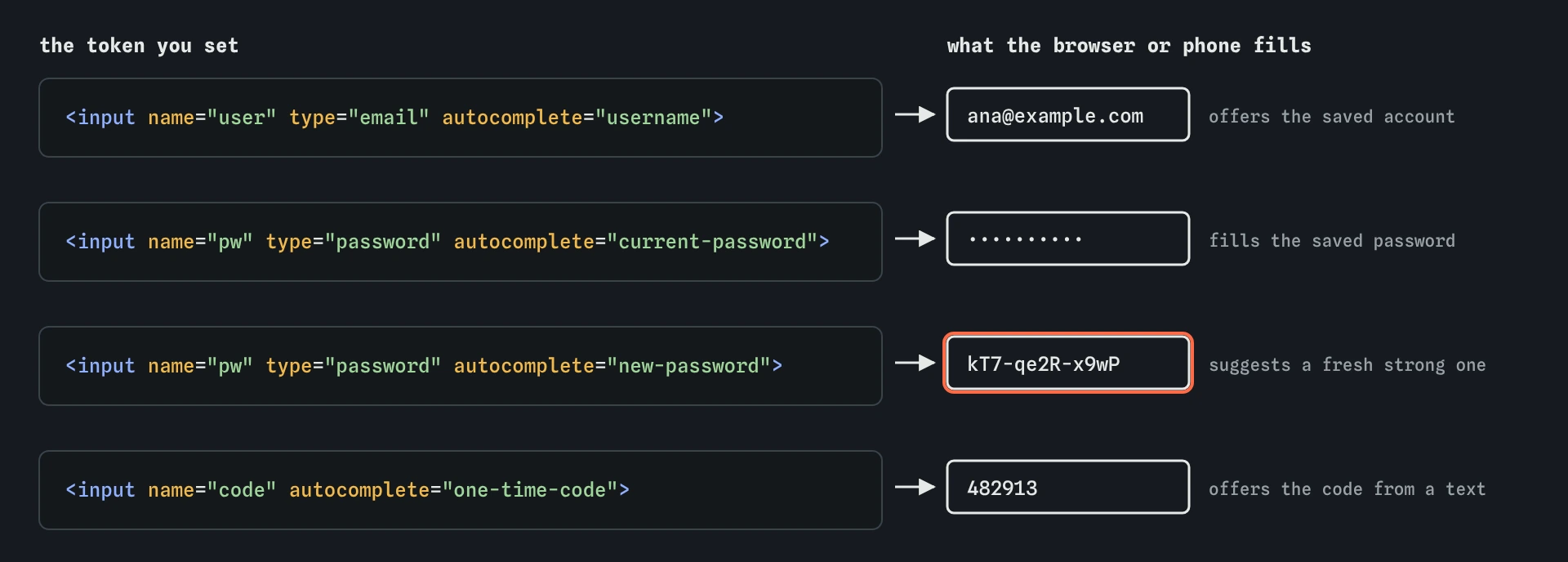
autocomplete token tells the browser what a field is for. current-password fills what is saved, while new-password asks for a fresh one, so a sign-up form with the wrong token offers the old password.What does one-time-code change on a phone?
When your site texts a sign-in code, autocomplete="one-time-code" lets iOS and Android offer that code above the keyboard as soon as the message arrives. The person taps once and the field fills. They never leave the page to read the message, and they never mistype a digit.
Use a single field for the whole code. Six separate one-character boxes look tidy in a design file but break this feature, break pasting, and confuse screen reader users who hear six unlabelled fields. One input with a clear label and inputmode="numeric" is faster for everybody.
Keep type="text" for codes. A type="number" field drops leading zeros on some browsers, adds spinner arrows and accepts values like 1e5. A code is a string of digits, and inputmode gives you the digit keyboard without any of those side effects.
How does inputmode pick the phone keyboard?
The inputmode attribute is a hint about which on-screen keyboard to show. It changes nothing about validation or the value. Desktop browsers with a physical keyboard ignore it. On phones and tablets it decides whether the person sees letters, a number pad or a layout with an @ key.
numericshows digits only. Use it for codes, card numbers, PINs and quantities that never need a decimal point.decimalshows digits plus the local decimal separator, for prices and measurements.telshows a phone dial pad with*,#and+.emailshows a keyboard with@and.close at hand.urlshows/and.comstyle keys.searchshows a keyboard with a search-style action key.textis the default andnonehides the keyboard, which is only right when your page provides its own input control.
When should you use inputmode instead of a different type?
Start with the right type, because the type brings validation and meaning. type="email" already shows the email keyboard and checks for an @. type="tel" already shows the dial pad. Adding a matching inputmode to those is harmless and does nothing new.
Reach for inputmode when the correct type is text but the content is digits. Card numbers, postcodes in countries that use only digits, membership numbers and verification codes all fit this case. They are identifiers, not quantities you would add up, so type="number" is the wrong tool and inputmode="numeric" is the right one.
Watch out for postcodes. A UK or Canadian postcode has letters, so inputmode="numeric" would trap people on a digit pad with no way to type them. Only use numeric for a field that is digits everywhere your users live.
<label for="card">Card number</label>
<input id="card" name="card" type="text"
       inputmode="numeric" autocomplete="cc-number">
What do enterkeyhint, autocapitalize and spellcheck do?
The enterkeyhint attribute sets the label or icon on the Enter key of a phone keyboard. The values are enter, done, go, next, previous, search and send. A chat box with enterkeyhint="send" shows Send, and a search field with search shows a magnifier. It only changes the label. Moving to the next field or submitting is still up to your form and its button.
The autocapitalize attribute controls automatic capitals on virtual keyboards. Values are off or none, sentences, words and characters. Use words for a name field, characters for a field like a car registration, and off for usernames, codes and anything case sensitive. Browsers already switch it off for email, url and password types.
The spellcheck attribute, set to true or false, turns red underlines and autocorrect suggestions on or off. Switch it off for usernames, codes and product numbers, where "correcting" the value breaks it. Leave it on for messages and comments.
<label for="reg">Car registration</label>
<input id="reg" name="reg" autocapitalize="characters"
       spellcheck="false" enterkeyhint="next">
Does autocomplete="off" still work?
Setting autocomplete="off" asks the browser not to store or suggest values for that field. Browsers honour it for ordinary fields, though Chrome in particular may still offer saved addresses when it is confident about the field. Every major browser ignores it for sign-in fields, because blocking password managers makes people pick weaker passwords.
Use off for values that make no sense to reuse, such as a one-off security answer on a shared kiosk or a field that changes meaning every time. Do not use it to stop autofill on checkout or sign-up forms. That only makes your form slower, and people with motor or memory difficulties feel it most.
You can also put autocomplete on the <form> element itself, where on or off sets the default for every field inside. A token on an individual input overrides it.
How do you test autofill and keyboards, and what do AI tools get wrong?
Save an address and a card in your browser settings, then open the form and focus the first field. The browser should offer the saved data and fill every matching field in one go. If one field stays empty or gets the wrong part of the address, look at its token. On a phone, tap each field and confirm the keyboard matches the content. Most mobile browsers also let you connect desktop DevTools to inspect the attributes on the live page.
AI-generated forms tend to fail in a few predictable ways. They invent tokens such as autocomplete="phone" or autocomplete="first-name", which browsers ignore, because the real tokens are tel and given-name. They put autocomplete="off" on everything "for security". They use type="number" for card numbers and codes, and they build six separate boxes for a verification code. Check each token against the list in the HTML standard before you trust the form.
Field notes
- The
autocompleteattribute tells the browser what kind of value a field expects. - With
one-time-code, phones can offer a texted code above the keyboard. - The
inputmodeattribute picks the on-screen keyboard without adding any checks.
Easy to get wrong
Browsers only understand tokens from the standard list. The phone token is tel, and an unknown token is ignored.
On sign-in the password manager should fill the saved password. new-password makes it suggest a fresh one, and the login fails.
A code is a string of digits. Number inputs can drop leading zeros and add spinners, while inputmode gives the digit keyboard safely.
Many postcodes contain letters. A digit-only keyboard makes them impossible to type on a phone.
Questions people ask
What is the autocomplete attribute in HTML?
It names the kind of data a field expects, such as email, tel or postal-code, so the browser and password managers can fill it with saved values.
How do I show a number keyboard on mobile?
Add inputmode="numeric" to a text input. Use decimal if the value needs a decimal point and tel for phone numbers.
Why does the browser ignore autocomplete="off"?
Browsers ignore it on login and password fields so password managers keep working. On other fields it is a request, and some browsers still offer addresses they are sure about.
How do I make SMS codes autofill?
Use one input with autocomplete="one-time-code". Phones then offer the code from the incoming text above the keyboard.
What does enterkeyhint do?
It changes the label on the Enter key of a virtual keyboard to values like Send, Search, Next or Done. It does not change what pressing the key does.