What makes an attribute global?
Most attributes belong to a few elements: href to links, src to images, type to inputs. Global attributes are different. The HTML standard allows them on every element, from <p> to <video>, so you can add an id or a lang wherever you need one.
Some global attributes describe the content (lang, dir, translate). Some give hooks to CSS and JavaScript (id, class, data-*). Some change behaviour (hidden, tabindex, contenteditable, spellcheck). Event handler attributes such as onclick are global too, though keeping script out of your markup is the cleaner habit.
Being allowed everywhere does not make an attribute useful everywhere. A spellcheck on an image does nothing, and a tabindex on a paragraph usually causes harm. The sections below cover what each one is for and where it earns its place.
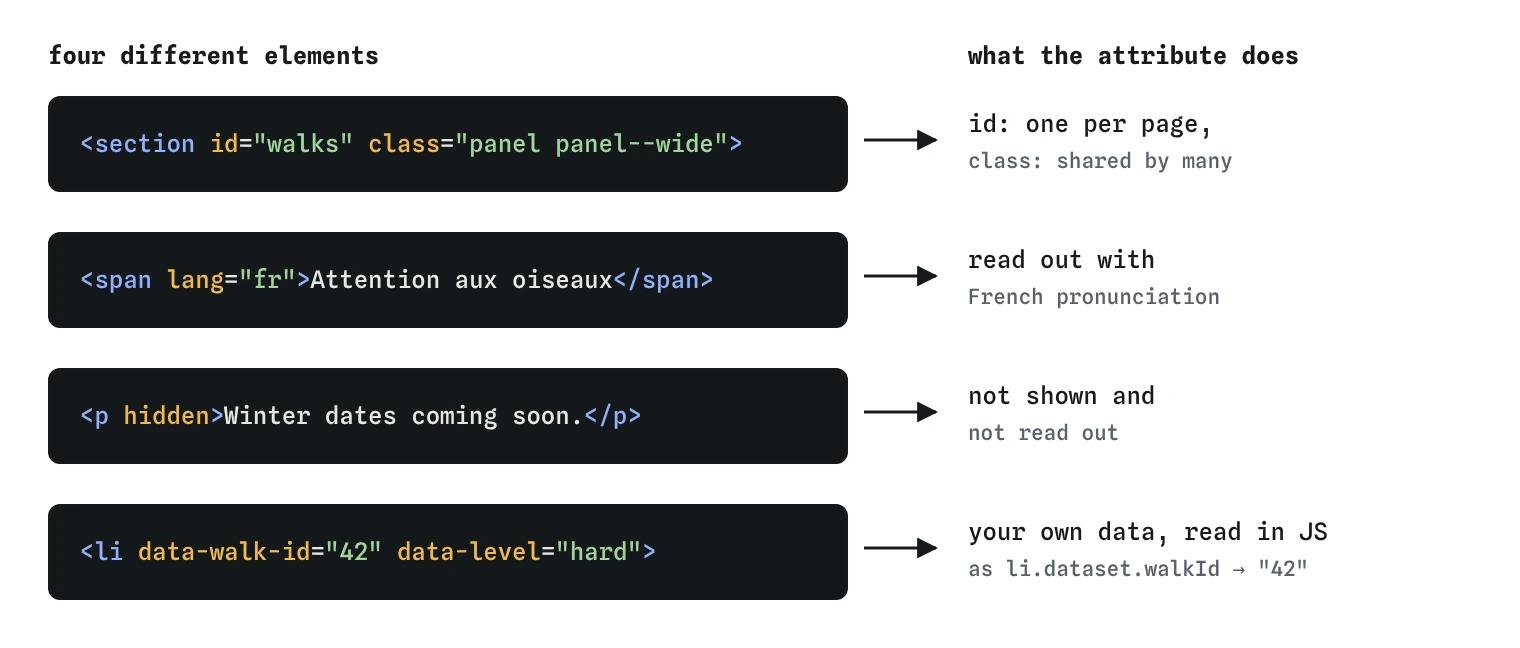
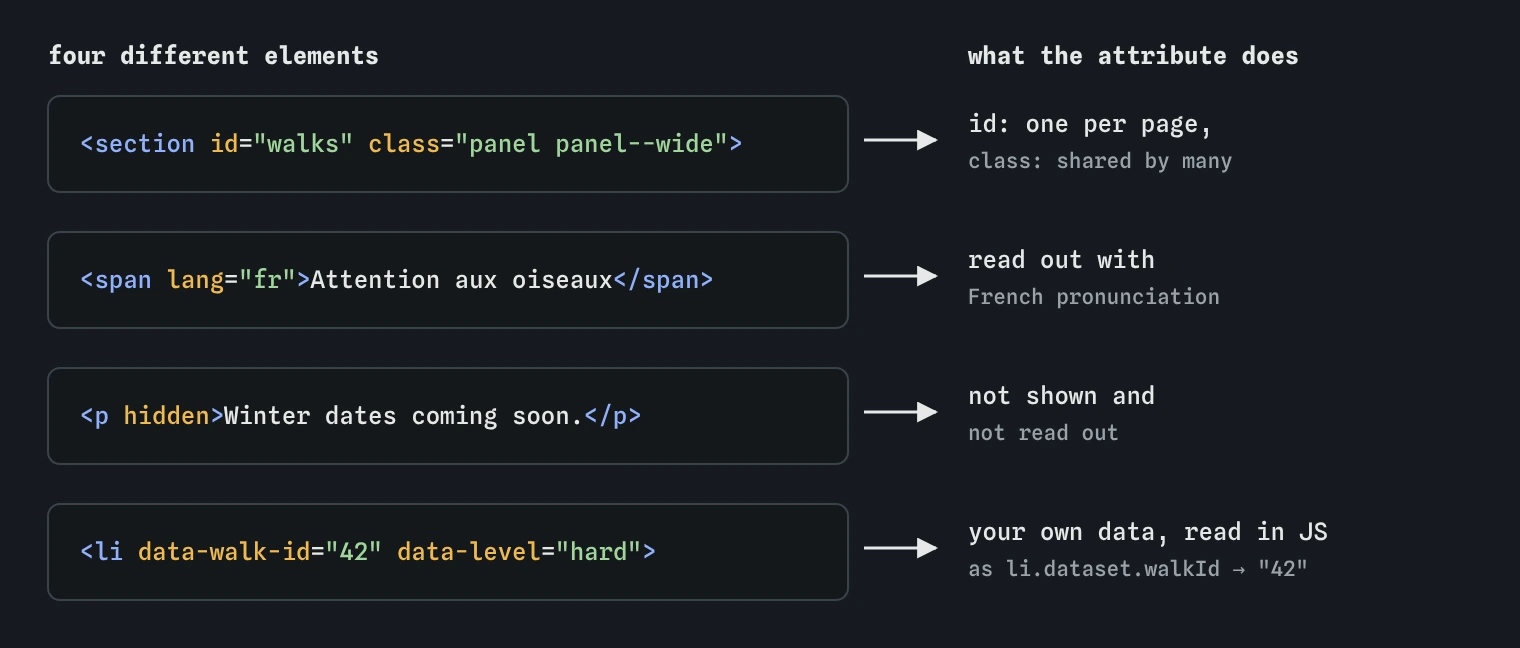
section, a span, a p and an li all take id, class, lang, hidden and data-*, and each attribute means the same thing wherever it appears.How do id and class differ?
An id names one element. It must be unique on the page, contain no spaces and be non-empty. It is the target for fragment links (#walks), the value used by <label for> and aria-labelledby, and a quick handle for getElementById. Duplicate ids break all of these without any error: the browser uses the first match and ignores the rest.
A class groups elements. Any number of elements can share a class, and one element can have several classes separated by spaces. Classes are the main way CSS and scripts find things, such as every .notice on the page.
A good default is classes for styling and ids only where you need a unique target. Pick names that describe the purpose (walk-card, is-cancelled) rather than the look (red-box), because the look will change before the purpose does.
<section id="walks" class="panel panel--wide">
  <h2>Walks</h2>
  <article class="walk-card is-cancelled">...</article>
  <article class="walk-card">...</article>
</section>
When does the title attribute help?
The title attribute shows a small tooltip when a mouse pointer rests on an element. That is its main weakness. Touch screens never show it, keyboard users usually cannot trigger it, and many screen readers ignore it or read it only in some modes.
Treat title as a bonus and never as the only place for information. Put anything people need in visible text. Two uses are still sound: title on an <iframe> names the embedded content for screen readers, and title on <abbr> gives the expanded form of an abbreviation, as long as you also spell it out in the text the first time.
<iframe src="https://maps.example.com/embed?q=north+gate"
        title="Map of the north gate meeting point"></iframe>
<p>Members of the <abbr title="Royal Society for the Protection of Birds">RSPB</abbr> get a discount.</p>
How do lang and dir change the page?
The lang attribute tells the browser and assistive tech which language the text is in. Set it once on <html> for the whole page, then override it on any element that switches language. Screen readers switch voice and pronunciation rules, browsers pick correct hyphenation and quote marks, and translation tools know what to translate from.
Use short language tags such as en, fr, la or pt-BR. The value describes the language of the content itself, so a French quote on an English page gets lang="fr".
The dir attribute sets text direction: ltr, rtl or auto. Arabic and Hebrew pages use dir="rtl" on <html>, which also flips the layout order. Use dir="auto" on content where you do not know the direction in advance, such as user names and comments, so each piece is laid out by its first strong character.
<html lang="en">
...
<p>The sign said <span lang="fr">Attention aux oiseaux</span>.</p>
<p dir="auto">مرحبا</p>
What does hidden really do?
The hidden attribute says the element is not relevant right now. Browsers apply display: none, so it disappears from the page and from the accessibility tree. Screen readers skip it and it cannot receive focus. Removing the attribute brings it back.
Hidden content is still in the source. Never use hidden to keep secrets or to hide unfinished prices from competitors, because anyone can read it in View Source. And if your CSS sets display: flex on the same element, that rule can override hidden and show it anyway. Adding [hidden] { display: none !important; } to your stylesheet prevents that surprise.
A newer value, hidden="until-found", hides content but lets the browser reveal it when a visitor uses find in page or follows a link to text inside it. It suits long FAQ answers and collapsed sections. It is supported in Chromium browsers and recent Firefox and Safari; in older browsers the content stays hidden like a normal hidden.
<p hidden>Winter dates coming soon.</p>
<div hidden="until-found">
  <p>Parking is free after 6pm.</p>
</div>
How do data-* attributes work?
A data-* attribute stores your own information on an element. The name starts with data- and continues with lowercase letters, numbers and hyphens: data-walk-id, data-level. The browser ignores them for display, which makes them safe to add.
JavaScript reads them through element.dataset, with the hyphenated part converted to camelCase, so data-walk-id becomes dataset.walkId. CSS can select on them with attribute selectors like [data-level="hard"].
Use them for values your scripts or styles need that have no proper HTML attribute. Do not use them for information users need, because screen readers do not read them. If there is a real attribute for the job, such as disabled or aria-expanded, use the real one.
<li data-walk-id="42" data-level="hard">Ridge loop, 14 km</li>
<!-- JS: li.dataset.walkId is "42" -->
What are tabindex, translate, spellcheck, contenteditable for?
The tabindex attribute controls keyboard focus. A value of 0 adds an element to the normal Tab order, and -1 makes it focusable by script but skipped by Tab. Positive values force a custom order that almost always ends up confusing, so avoid them. Native links, buttons and form fields are already focusable and need no tabindex.
The translate="no" attribute tells translation tools to leave text alone. Use it on brand names, code samples and product names that a translator might mangle, such as a club called "The Finches".
The spellcheck attribute turns the browser spell checker on or off for editable text. Turn it off on fields where the red underline is noise, such as usernames or code. The contenteditable attribute makes any element editable in the browser. It is the base of rich text editors, but on its own it saves nothing and has accessibility gaps, so use a <textarea> for normal form input.
tabindex="0": make a custom widget focusable.tabindex="-1": allow focus from script, for example on a heading after a skip link.translate="no": protect names and code from machine translation.spellcheck="false": switch off underlines for codes and usernames.contenteditable: build editors, rarely needed on plain pages.
Which global attributes should you avoid?
Inline style attributes work, but they scatter design decisions across hundreds of elements, override your stylesheet with high specificity and make changes slow. Keep them for one-off values set by scripts. Inline event handlers like onclick mix behaviour into markup and are blocked by strict security policies, so attach events in a script file.
Positive tabindex values, title as the only label, and accesskey shortcuts that clash with screen reader keys all cause more problems than they solve. When an AI tool writes your HTML, look for these, along with duplicate ids, data-* used for visible information, and hidden used to hide content from search engines. In DevTools, the Elements panel shows every attribute, and the Issues panel flags duplicate ids.
Field notes
- Global attributes such as
id,classandlangare allowed on every element. - Set
langon<html>and override it on any part written in another language. - The
hiddenattribute removes content from view and from screen readers until it is needed.
Easy to get wrong
An id must be unique. With duplicates, links, labels and scripts all find only the first element.
Tooltips do not show on touch screens and are unreliable for screen readers, so title is a poor only label.
Positive tabindex values override the natural order and confuse keyboard users. Arrange the source order instead.
Hidden content is still in the source code. Anything private must stay on the server.
Data attributes are not read to users. Information people need belongs in the visible text.
Questions people ask
What is the difference between id and class in HTML?
An id is unique and names one element. A class can be shared by many elements, and one element can have several classes.
Is hidden the same as display: none?
By default yes, the browser applies display: none. The difference is meaning: hidden says the content is not relevant, and a CSS display rule can override it.
Can I make up my own attributes?
Only with the data- prefix. Unknown attributes without it are invalid and may clash with future standard attributes.
Where should I put the lang attribute?
On the html element for the main language, and on any element whose content is in a different language.
Is contenteditable safe to use?
It is safe to add, but it is only an editing surface. Saving, cleaning pasted content and accessibility all need extra work, so prefer form fields for normal input.