Step 1: How should the document and head start?
Start with the doctype, an <html> element with lang, and a head that declares UTF-8 and the viewport. Put <meta charset> first so the browser knows the encoding before it reads any text. The example page belongs to Mara Okafor, an illustrator in Leeds.
Write a title that names the person and their work, since it becomes the browser tab and the search result headline. Add a meta description of one or two sentences. Add Open Graph tags, because a profile page gets pasted into chats and emails more than most pages, and the preview is the first impression. Link the stylesheet last.
<!doctype html>
<html lang="en">
<head>
  <meta charset="utf-8">
  <meta name="viewport" content="width=device-width, initial-scale=1">
  <title>Mara Okafor, illustrator in Leeds</title>
  <meta name="description" content="Mara Okafor draws maps, birds and book covers. See recent work and get in touch.">
  <link rel="canonical" href="https://mara.example/">
  <meta property="og:title" content="Mara Okafor, illustrator">
  <meta property="og:image" content="https://mara.example/og.jpg">
  <link rel="icon" href="/favicon.svg" type="image/svg+xml">
  <link rel="stylesheet" href="/css/site.css">
</head>
Step 2: Which landmarks does the page need?
Begin the body with a skip link, then a <header> with the name and a short <nav>, then <main>, then <footer>. These landmarks let screen reader users jump between regions with one key, and they give you natural hooks for layout CSS.
Keep the nav short. A one-page profile needs links to sections on the same page, written as fragment links. Each fragment needs a matching id on the target section. Give the nav an aria-label only if there is more than one nav on the page, so they can be told apart.
<body>
  <a href="#main" class="skip">Skip to content</a>
  <header>
    <p class="site-name"><a href="/">Mara Okafor</a></p>
    <nav>
      <a href="#work">Work</a>
      <a href="#about">About</a>
      <a href="#contact">Contact</a>
    </nav>
  </header>
  <main id="main">…</main>
  <footer>…</footer>
</body>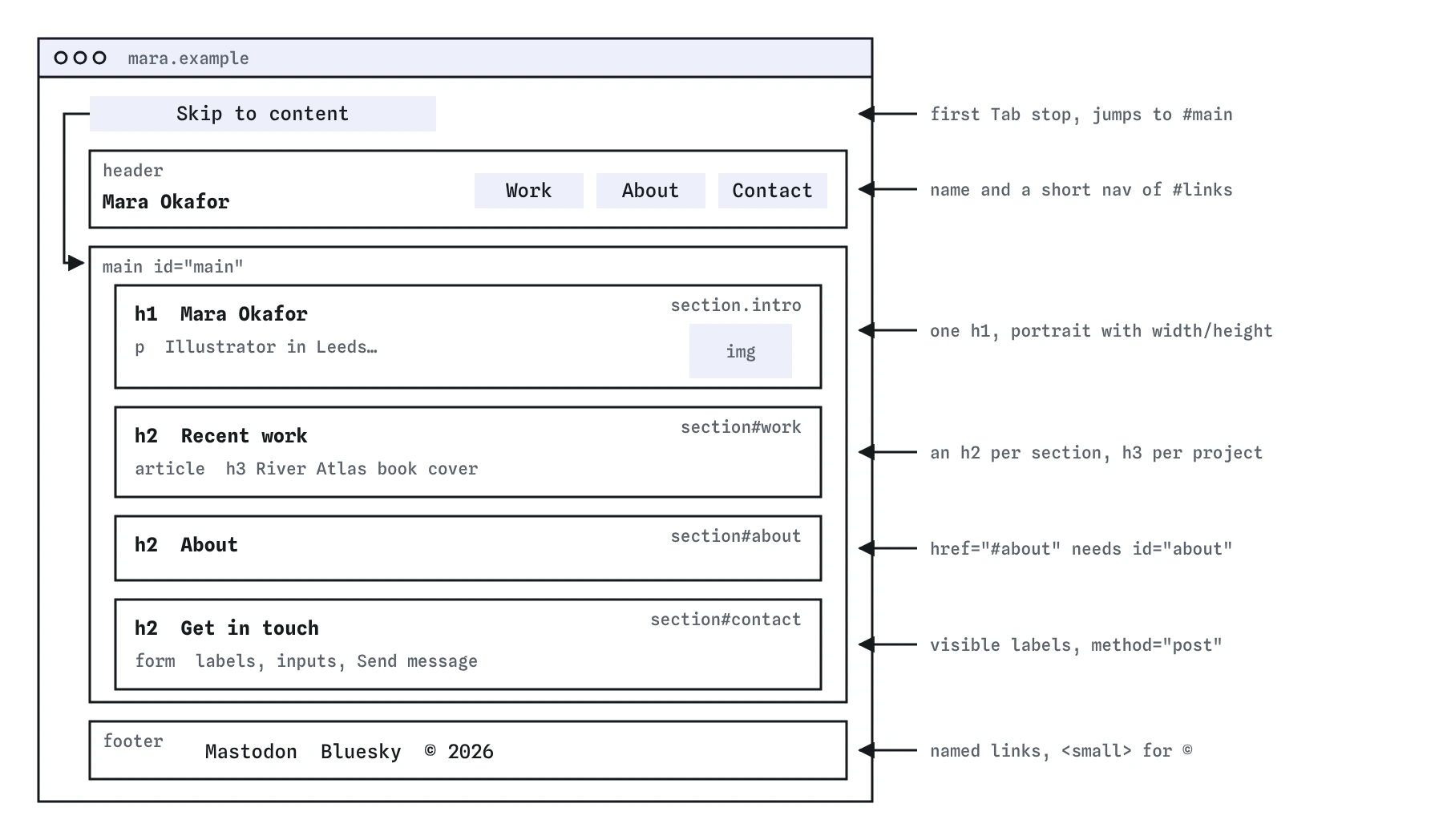
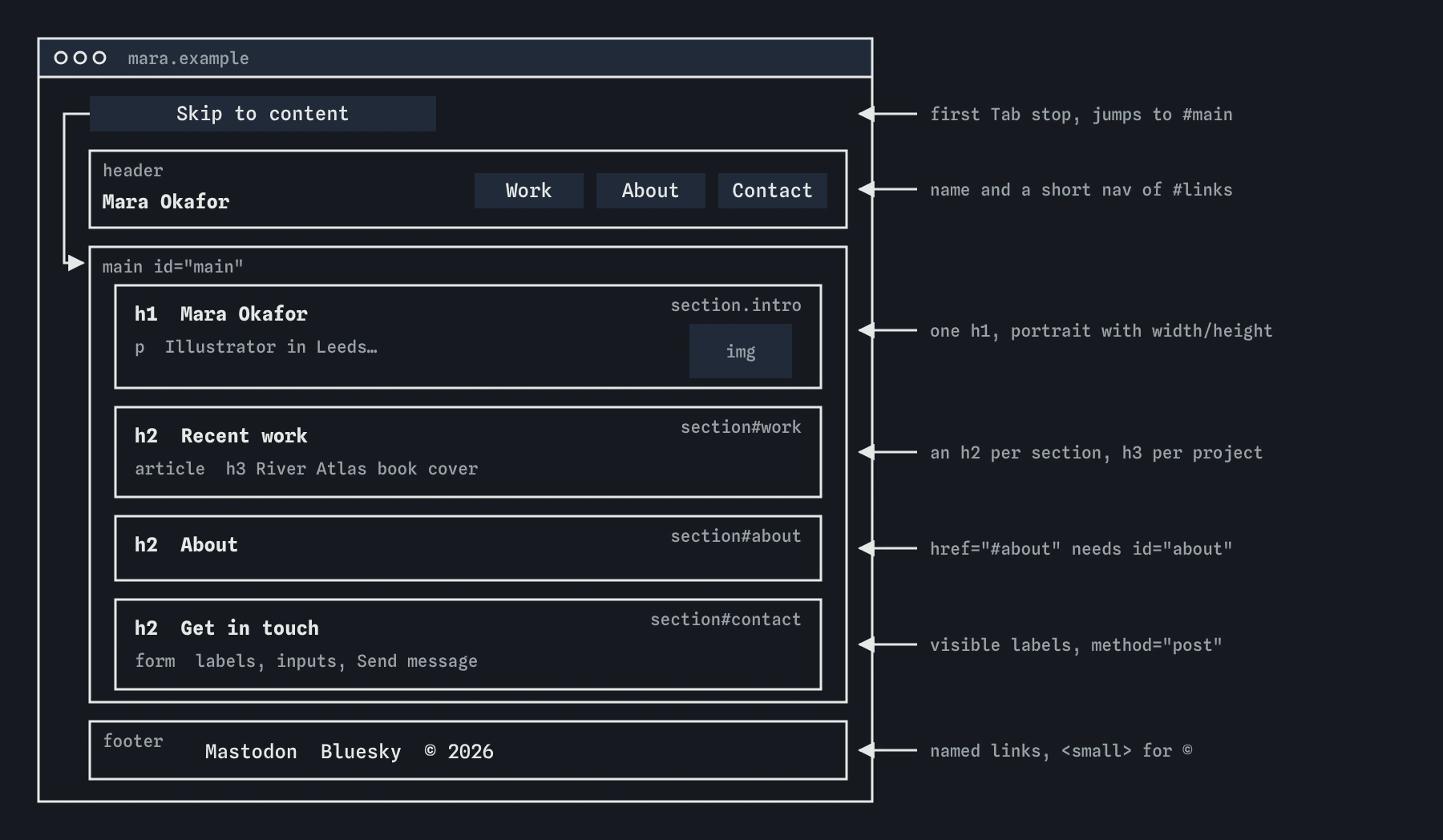
<header> with a short nav, <main> with one section per topic, and <footer>. Each nav link's #fragment must match a section id.Step 3: How do I write the intro and portrait?
Use one <h1> with the person's name. Follow it with a sentence that says what they do and where. That sentence does more work than any tagline, since it tells visitors and search engines who this page is for.
For the portrait, write alt text that says who it is and anything meaningful in the shot, such as "Mara Okafor sketching at her drawing desk". "Profile picture" tells a screen reader user nothing. Set width and height to the image's real pixel size so the browser reserves space and the text does not jump when it loads. Do not lazy-load this image, since it is near the top and should appear right away.
Put the heading first in the source if the image is decorative to the layout, so the reading order starts with the name. Use CSS grid to place the photo beside it visually.
<section class="intro">
  <h1>Mara Okafor</h1>
  <p>Illustrator in Leeds. I draw maps, birds and book covers for publishers and small businesses.</p>
  <img src="/img/mara-800.jpg" alt="Mara Okafor sketching at her drawing desk" width="800" height="600">
</section>
Step 4: How should I mark up work and experience?
Each topic gets a <section> with an <h2>. A list of projects fits a <ul>. If each project has its own image, title and paragraph, wrap each in an <article> with an <h3>. Use <time datetime> for dates, so machines read "2026-03" while people read "March 2026".
Project thumbnails below the fold should carry loading="lazy" so they only download when a visitor scrolls near them. Their alt text should describe the work, because for a portfolio the image is the content. Link text should say what opens: "River Atlas book cover" beats "View project" repeated six times.
<section id="work">
  <h2>Recent work</h2>
  <article>
    <h3><a href="/work/river-atlas">River Atlas book cover</a></h3>
    <img src="/img/river-atlas.jpg" alt="Hand-drawn map of the River Aire winding past mills, in blue and ochre" width="600" height="800" loading="lazy">
    <p>Cover and endpapers for a walking guide. <time datetime="2026-03">March 2026</time>.</p>
  </article>
</section>
Step 5: How do I build the contact form?
Every field gets a visible <label> tied to it by for and id. Use type="email" so phones show the email keyboard and the browser checks the format. Add autocomplete values so returning visitors can fill the form in one tap. Mark fields the person must fill with required.
The form needs somewhere to send data. A static host such as Netlify or a form service gives you an action URL. Use method="post" so the message does not end up in the address bar and server logs. Use a <textarea> for the message, and a <button> with text that says what happens, like "Send message".
Offer a plain email link too. Some people would rather write from their own mail app, and it is a fallback if the form service goes down.
<section id="contact">
  <h2>Get in touch</h2>
  <form action="https://forms.example/mara" method="post">
    <label for="name">Your name</label>
    <input id="name" name="name" autocomplete="name" required>
    <label for="email">Email</label>
    <input id="email" name="email" type="email" autocomplete="email" required>
    <label for="msg">Message</label>
    <textarea id="msg" name="message" rows="5" required></textarea>
    <button>Send message</button>
  </form>
  <p>Or email <a href="mailto:[email protected]">[email protected]</a></p>
</section>
Step 6: What goes in the footer?
Put links to other profiles, a copyright line and anything legal there. Use real text in social links, or icons with an accessible name. Three unlabelled SVG icons announce as "link, link, link". If links open another site, say so in the text instead of forcing a new tab with target="_blank". Visitors can choose that themselves.
Wrap the copyright in <small>, which marks side comments such as legal text. Use <address> only for contact details of the page owner, not for any postal address on the page.
<footer>
  <ul class="social">
    <li><a href="https://mastodon.example/@mara">Mastodon</a></li>
    <li><a href="https://bsky.app/profile/mara.example">Bluesky</a></li>
  </ul>
  <p><small>© 2026 Mara Okafor</small></p>
</footer>
Step 7: How do I test the finished page?
Run through this before you share the link. Each check takes a minute or two, and together they catch the problems visitors are most likely to hit.
- Paste the page into the W3C Nu HTML Checker and fix every error.
- Tab through it from the top. The skip link should appear first, focus should be visible at every stop, and the form should submit with Enter.
- Open the headings list in a screen reader, or use a headings browser extension. You should see one
h1, thenh2for each section, thenh3for each project. - Run Lighthouse in Chrome DevTools for accessibility, SEO and performance scores, and read the specific failures it lists.
- Shrink the window to 320px wide and zoom to 200 percent. Nothing should overflow sideways.
- Paste the URL into a chat app or a link preview checker to see the Open Graph card.
- Turn off CSS (Firefox: View, Page Style, No Style). The page should still read in a sensible order.
What should I watch for if an AI builds the page?
Asking an assistant to "build me a portfolio page" gets you a page that looks finished in seconds. Review it before publishing, since profile pages built this way share predictable flaws.
Look for a heading hierarchy chosen by font size, an <h1> used for the logo and another for the intro, and alt text like "hero image". Look for contact forms with placeholders and no labels, and a form action of # that sends nothing anywhere. Check for icon links with no names, lorem ipsum left in a section, stock-photo URLs that will break, and a <div> grid where a list belongs. Check that every href="#section" has a matching id. Fix those and the generated page becomes a solid one.
Field notes
- Start with the doctype,
lang, a UTF-8 charset and the viewport tag. - Landmarks such as header, nav, main and footer help people jump around.
- A portrait needs alt text that describes the person.
Easy to get wrong
Generic alt text says nothing. Describe who is shown and what the image tells the reader.
Pick heading levels by structure, not size. Style the size with CSS.
Email links need the mailto: scheme, and the link text should show where it goes.
Questions people ask
What should a personal profile page include?
A clear name heading, a photo with alt text, a short intro, sections for work or skills, a way to get in touch, and basic metadata for search and sharing.
Can I build a portfolio page with only HTML?
Yes. HTML alone gives you a complete, accessible, working page. CSS makes it look the way you want, and JavaScript is optional.
How do I check my finished page?
Run it through the W3C validator, tab through it with the keyboard, and test it with a screen reader or the DevTools accessibility pane.